C. a) From a Tender

C. a) From a Tender

Just as for the Tenders, most of the RFQs will be automatically created. They will be generated from the “Generate RFQs” button at the bottom of the Draft Tender. You will have as many RFQs created as suppliers.

Go to: Purchases / Purchase Management / Tenders

  1. Open your Tender.
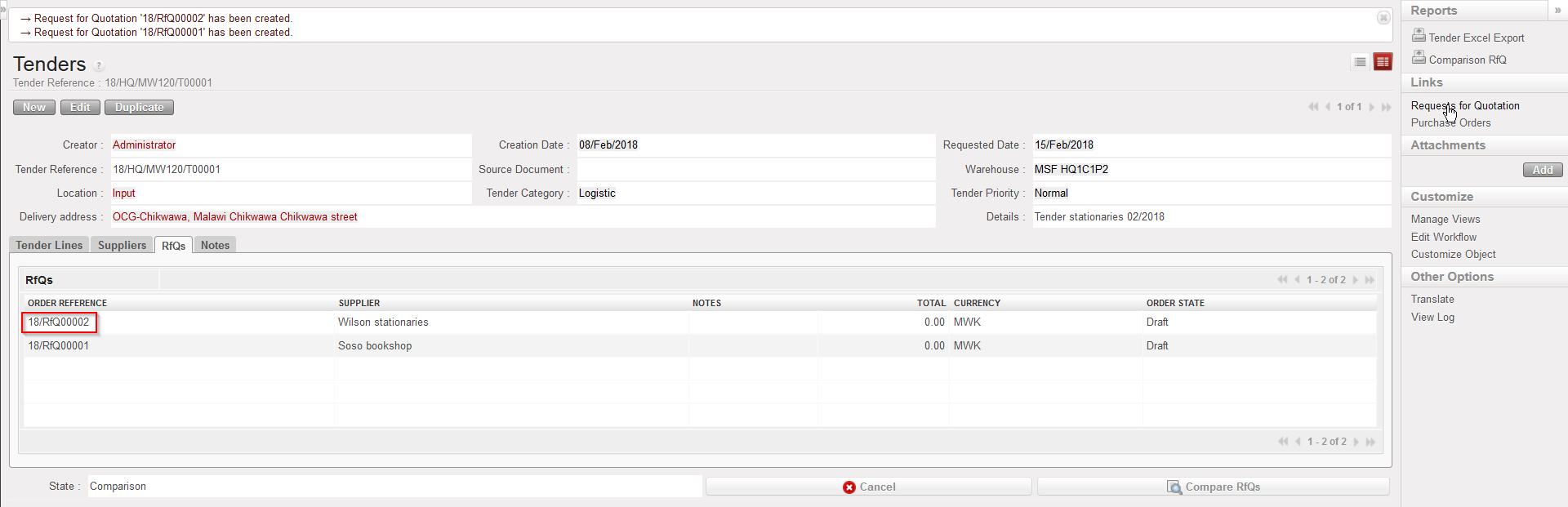
  2. Click on the “Generate RFQs” button. (System generates as many RFQs as suppliers have been selected). A message will appear confirming the creation of RFQs.
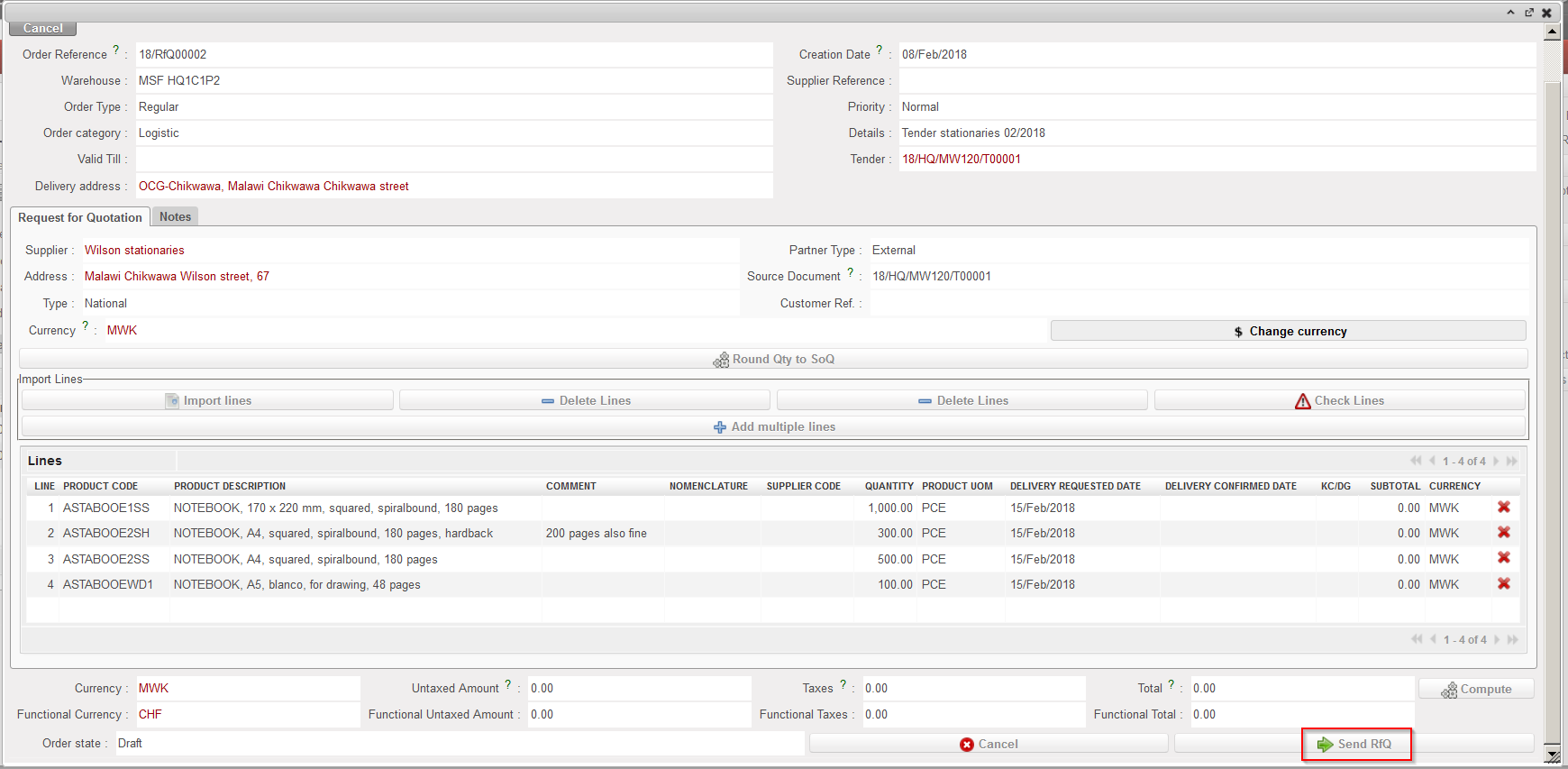
  3. Click on the “RFCs” tab to see the list of RFQs created. Click on the appropriate RFQ line to open the corresponding “Request for Quotation” screen. Click on the “Send RfQ” button at the bottom of this screen to send the RFQ print out to the supplier. A PDF version of the RFQ appears for printing. As a consequence the state of the RFQ switches from “Draft” to “Sent“.
Adding supplier to Tender
Sending RFQ to supplier

B. How to create a Tender from scratch.

Supply User Manual ENG -> 4. Procurement -> 4.8 LU-SU3203: Tenders (CFTs) and Requests for Quotations (RFQs) -> A. LU Introduction (LU-SU3203)

B. How to create a Tender from scratch

In most cases, the creation of a Tender will stem from the Sourcing process. A Draft Tender will be generated by the OST and populated with header information and product lines. Only, the suppliers will need to be added for these auto-generated Tenders.

However, to make a spontaneous market analysis (e.g. a review of stationery providers in order to make supplier contracts/agreements), a Tender can be created manually from scratch. Once the Tender process is completed, a PO can be created.

Go to: Purchases / Purchase Management / Tenders

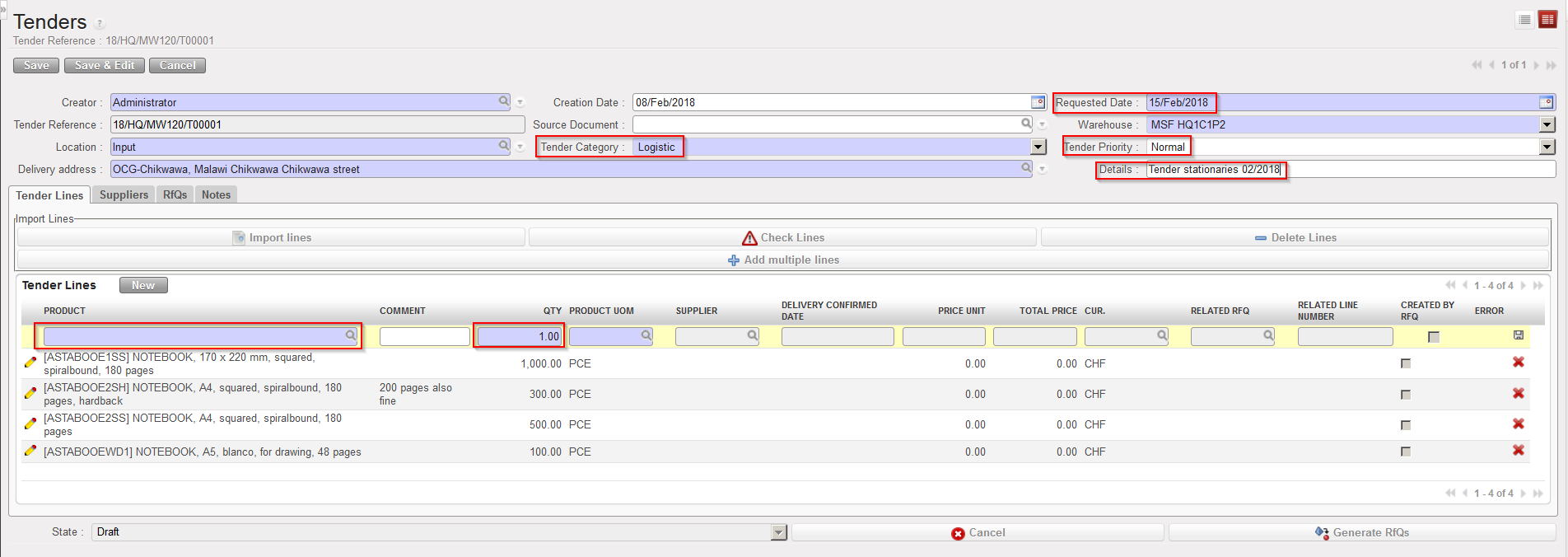
  1. Click on New and fill in the header information (Tender Category, Tender Priority, Requested Date, Details,…).

2. Add Tender lines manually or import them from a file.

3. To add Tender lines manually, click on the “New” button to add product lines to the Tender (or on           the  “Add multiple lines” button to add several products at once).

3.1 Enter the product code in the “Product” field.

3.2 Enter the required quantity in the “Qty” field and the unit of measure in the “Product                               UOM” field.

3.3 Click on the floppy disk icon at the right side of the screen to save the line and to                          create a new one to add additional items if needed.

Tender creation

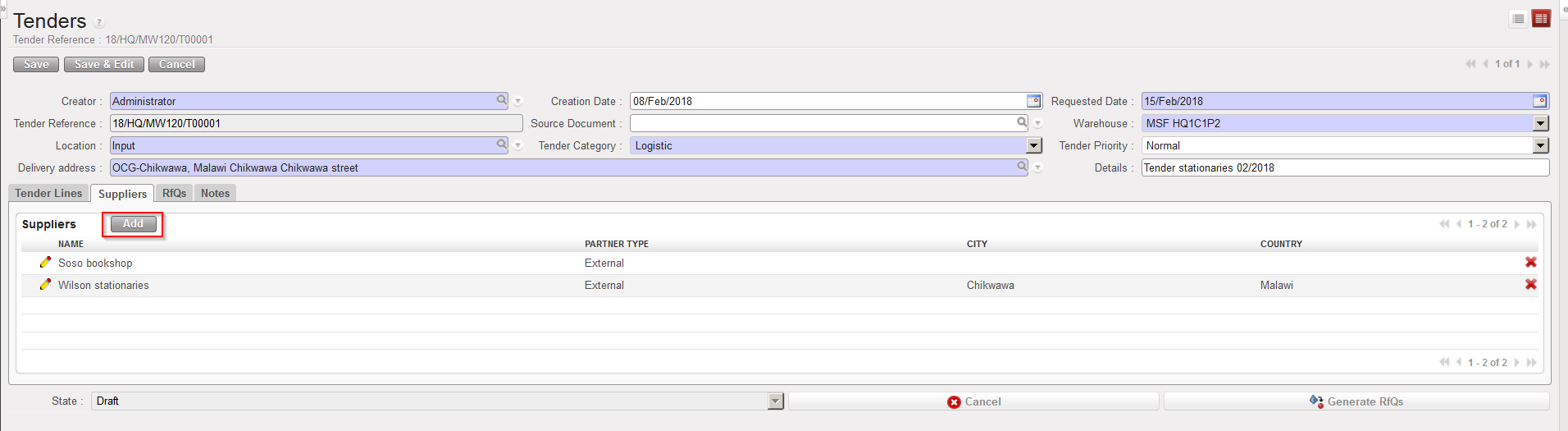
4. On the “Suppliers” tab click on “Add” and select the suppliers you will address the RFQs to (multi selection is possible). Validate your selection in the “Search Partner” screen by clicking on the “Select” button.

Adding supplier to Tender

5. Click on save at the top of the screen to save the Tender.

Please note that new Suppliers can still be added until the last minute as long as the Tender comparison hasn’t been done (i.e.: not beyond status “Comparison).

A. LU Introduction (LU-SU3203)

Supply User Manual ENG -> 4. Procurement -> 4.8 LU-SU3203: Tenders (CFTs) and Requests for Quotations (RFQs) -> A. LU Introduction (LU-SU3203)

A. LU Introduction (LU-SU3203)

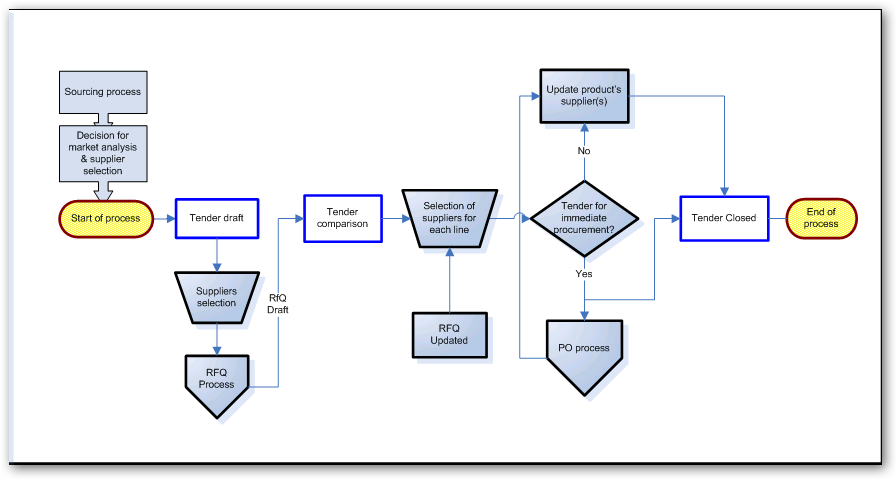
In UniField, a Tender is a document which lists requirements (products and quantities), which will be addressed to different suppliers in order to identify the best source. The process flow of a Tender includes the automatic generation of the Request for Quotations for all suppliers chosen, the comparison of the quotations offered by suppliers (RFQs updated based on the suppliers’ feedback), and the automatic updating of product information (with information from the suppliers which were selected) and can also include the auto creation of associated POs (depending on the context of the Tender).

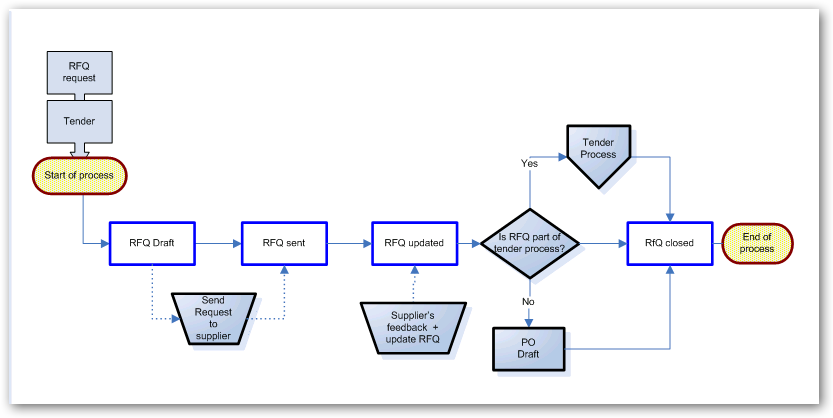
A Request for Quotation is used to ask suppliers for ad-hoc quotations when product prices are unknown or in order to have specific quotations for large purchases according to the supply procedures in place on a mission.

Requests for Quotation should be used when single quotations are needed. If several quotations are needed for the same procurement, a Tender process should be carried out as this tool has an integrated feature to request and compare the quotations and to process the Purchase Orders according to the selected suppliers.

Process Flow for Tenders

Process Flow for RFQs

4.8 PURCHASES: TENDERS (CFTs) AND REQUESTS for QUOTATIONS (RFQs).

Supply User Manual ENG -> 4. Procurement -> 4.8 LU-SU3203: Tenders (CFTs) and Requests for Quotations (RFQs).

LU-SU3203: Tenders (CFTs) and Requests for Quotations (RFQs).

A. LU Introduction

B. How to create a Tender from scratch

C. How to create and send Requests for Quotations

D. How to cancel & resource RFQ lines generated from the Orders Sourcing Tool

E. How to update a Request for Quotation

F. How to update a sent RFQ via an import file

G. How to compare supplier quotations on a Tender

H. How to resource a Tender

I. How to create Purchase Orders from a Tender or RFQ

J. How to update a Product’s Suppliers from a Tender

K. How to import lines into a Tender

L. How to export lines from a Tender

M. How to import lines to a Request for Quotation

N. How to export lines from a Request for Quotation

G. How to create a Purchase Order with a Purchase list

Supply User Manual ENG -> 4. Procurement -> 4.7 PURCHASE ORDERS (POs) - SPECIFICS -> G. How to create a Purchase Order with a Purchase list

G. How to create a Purchase Order with a Purchase list

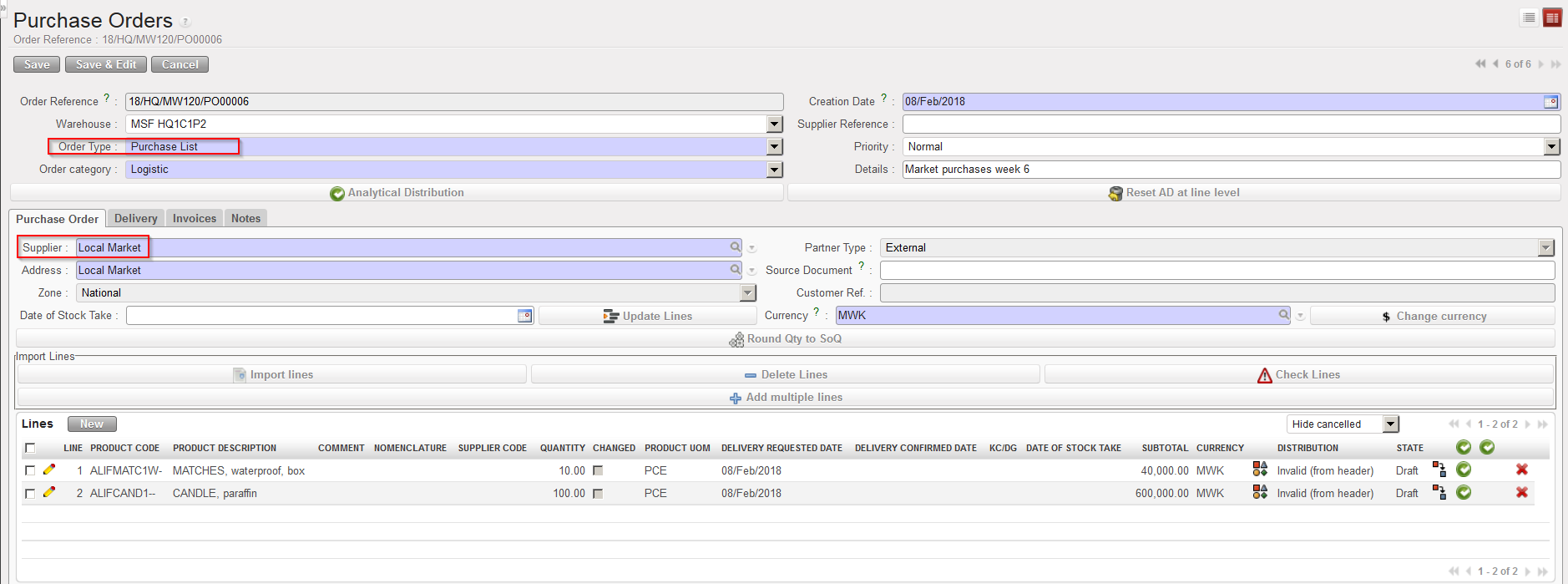
This type of PO is used when a cash advance (float) will be used to purchase goods at the local market. This is why the default supplier is “Local Market” although if you have created the actual supplier in the system, you can edit and enter this instead. Usually the amounts are not significant in relation to the total budget.

Creating a Purchase List is similar to creating a Purchase Order, but the type will be “Purchase List“. Check with your OC for specific validation procedures, as the PO should be validated before the goods are bought, and if appropriate, the goods can be bought, then the PO modified to enter the actual price paid if it is different to the original estimated price, and only after this should the PO be confirmed. Once the PO type PL is confirmed, Finance will be able to link the payment / float justification to the PO (see Finance Module Supply Finance Integration for more details).

Go to: Purchases / Purchase Management / Purchase Orders

  1. Create a new PO via the “New” button.
  2. As “Order Type“, select “Purchase List“.
  3. Fill in the rest of the header information (priority,category, details).
  4. The Supplier field will have been populated with Local Market, but this can be changed if you have created the specific supplier record.
  5. Add product lines manually or via file import.
  6. Enter the Analytical Distribution.
Purchase List PO

Depending on the processes in place on your mission, this PO could be printed in PDF and used as part of the request for operational advance /cash float.

Note that a PO PL (line) should only be confirmed after the final prices have been updated in the system, this may mean (check your OC procedures) that the PO PL (line) should only be confirmed after goods have been bought. This will mean that there is no incoming shipment (IN) created until after the goods arrive; therefore it would be good to notify the warehouse officer beforehand so that s/he is prepared to receive the goods.

E. How to create a Purchase Order for (receiving) an In Kind Donation

Supply User Manual ENG -> 4. Procurement -> 4.7 PURCHASE ORDERS (POs) - SPECIFICS -> E. How to create a Purchase Order for (receiving) an In Kind Donation

E. How to create a Purchase Order for (receiving) an In Kind Donation

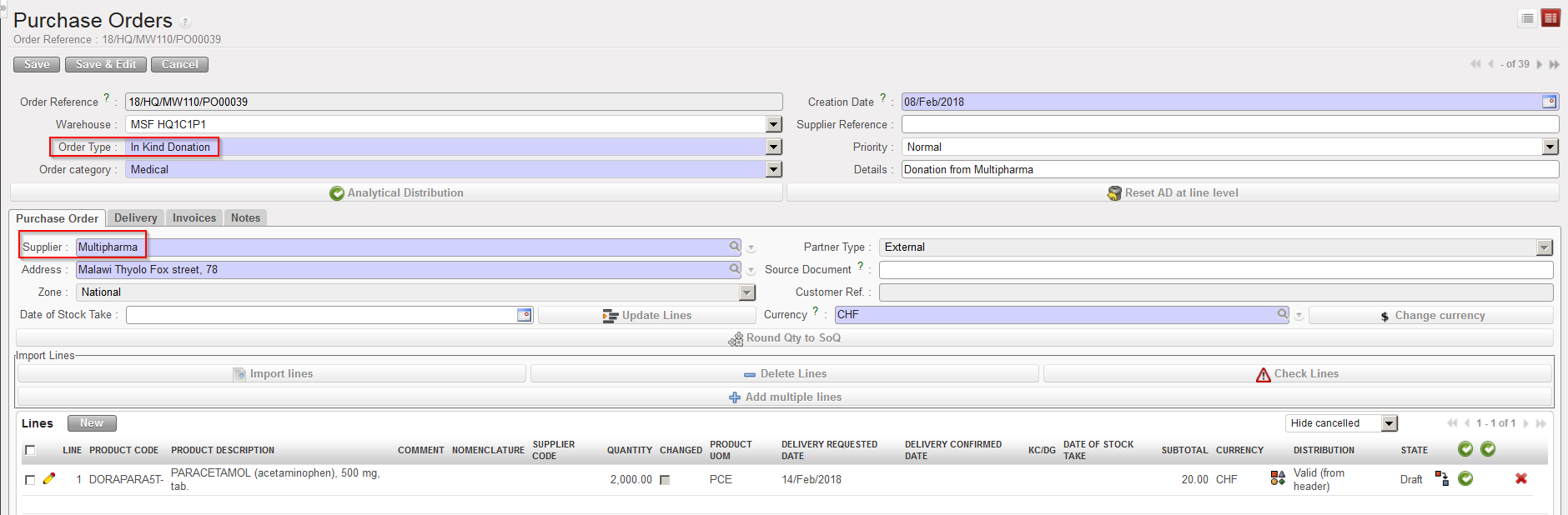
An In Kind donation PO is a PO reflecting free-of-charge goods supplied by donors which are defined in the system as external partners (e.g.mosquito nets donated by Unicef).

Note that the In Kind Donation (unlike the Standard donation and the Donation before expiry) cannot be initiated from an FO, which is logic as external partners are not using UniField.

Go to: Purchases / Purchase Management / Purchase Orders

  1. Create a new PO by clicking on the “New” button.
  2. As “Order Type“, select “In Kind Donation“.
  3. Fill in the rest of the header information (order category, priority, details,…).
  4. As “Supplier“, select the external partner which will donate the goods (the giver).
  5. Insert product lines (manually or via file import).
  6. Add the analytical distribution.
  7. Save the PO.
In Kind Donation PO

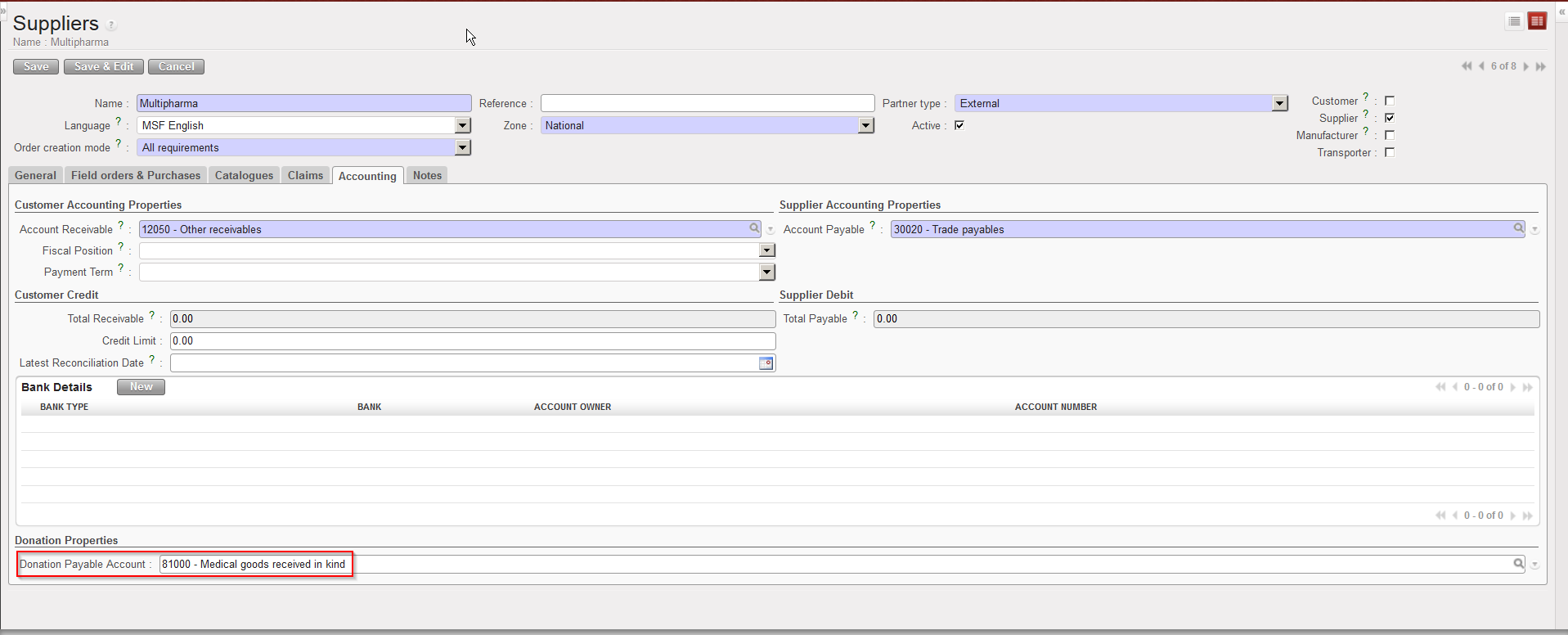
Note that to be able to validate the PO, the partner should have a “Donation Payable Account” on its partner sheet (master data). Check with finance which accounts should be used if you are not sure.

Partners donating goods via an In Kind Donation PO

D. How to create a Purchase Order for (receiving) a donation before expiry.

Supply User Manual ENG -> 4. Procurement -> 4.7 PURCHASE ORDERS (POs) - SPECIFICS -> D. How to create a Purchase Order for (receiving) a donation before expiry.

D. How to create a Purchase Order for (receiving) a donation before expiry.

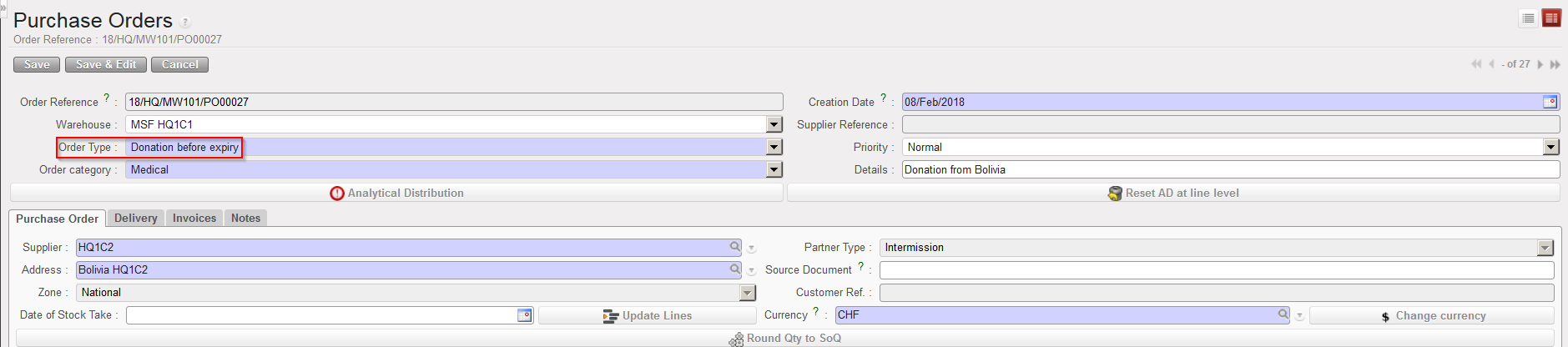
The process is similar to the Purchase Order for standard donation (please refer to this above). The main difference is that the goods are donated because they will soon expire and are unlikely to be used in time at their current location. The steps for this are exactly the same as for the Standard donation PO (see above), except the Order Type which should be “Donation before expiry“.

Donation before expiry PO

C. How to create a Purchase Order for (receiving) a standard donation.

Supply User Manual ENG -> 4. Procurement -> 4.7 PURCHASE ORDERS (POs) - SPECIFICS -> B. How to create a Direct Purchase Order (DPO)

C. How to create a Purchase Order for (receiving) a standard donation.

Normally a donation process will be initiated by the instance donating (i.e. via an FO). However, the receiving instance might also create a PO from scratch to receive the goods.

Standard donation POs will never be created by the OST; they should be created either by synchronization either from scratch.

If the process starts at the donating instance (i.e. with an FO), the customer must be an internal partner, an inter-mission partner, an, inter-section partner or an external partner (customer). If the process starts at the receiving instance (i.e. with a PO), the supplier must be another instance (i.e. an internal partner, an inter-mission partner or an inter-section partner).

Goods can be donated or received via standard donation because they are no longer needed or because a project or a mission is closing.

Go to: Purchases / Purchase Management / Purchase Orders

1.Create a new PO by clicking on the “New” button.

2. As “Order Type“, select “Standard donation”.

3. Fill in the rest of the header information (order category, priority, details,...).

4. As “Supplier“, select the instance which will donate the goods (the giver).
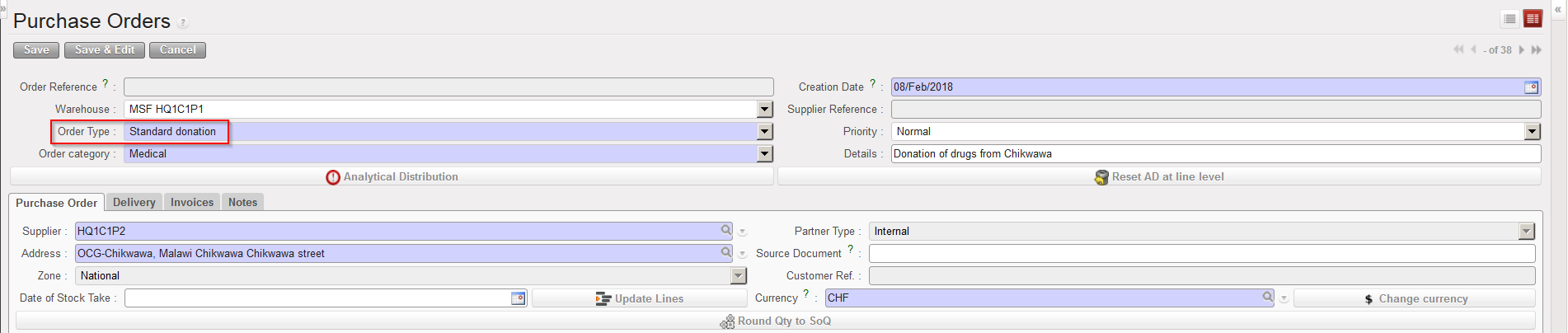
Standard donation PO

5. Add product lines manually or via file import (including quantities, delivery requested dates,…).

6. Enter an analytical distribution.

7. On the “Delivery” tab of the PO, check the “Destination Address” (linked to the receiving instance).

8. Save the PO by clicking on the “Save” button on the top of the screen.

9. The PO should be printed and signed for approval by the appropriate responsible person, then validated.

4.7 Purchase Orders (POs) – Specifics

Supply User Manual ENG -> 4. Procurement -> 4.7 LU-SU3202 Purchase Orders (POs) – Specifics

LU-SU3202 Purchase Orders (POs) – Specifics

A. LU Introduction

B. How to create a Direct Purchase Order (DPO)

C. How to create a Purchase Order for (receiving) a standard donation

D. How to create a Purchase Order for (receiving) a donation before expiry

E. How to create a Purchase Order for (receiving) an In Kind Donation

F. How to create a Purchase Order for (receiving) a loan

G. How to create a Purchase Order with a Purchase list