D. LU-SU1104: How to import stock levels for migration

Supply User Manual ENG -> Supply Configurations-> 2.4 LU-SU1104:Unifield instance data migration -> D. LU-SU1104: How to import stock levels for migration

D. LU-SU1104: How to import stock levels for migration

The next step is to migrate the stock levels from the legacy system to UniField. If you trust the information which is recorded in your legacy system, you may simply extract the data from it and prepare a file which will be imported in UniField.

Unfortunately, this is not often the case. Data from the legacy system are not always trustable. In addition, information such as prices, batch numbers or expiry dates are often missing.

To ensure that the stocks in UniField reflect the current stock levels in the warehouse, movements need to be frozen and an inventory carried out. The inventory result needs to be validated (validation procedure may vary from one OC to another).

After validation, the inventory result needs to be imported in UniField as an Initial Stock Inventory, both at Coordination and at Project levels, for all stocks to be managed in UniField. A file with a specific XML format can be used and filled-in with the current stock levels (including unit price, expiry dates and batch numbers) before to be imported in the instance.

Please note that the stock migration procedure may vary from one OC to another as some OCs may decide not to import all their stock, to only import for certain locations or in some cases not to import any stock at all.

Go to: Warehouse / Inventory management / Initial Stock Inventory

  1. Click on “New” to create a new Initial Stock Inventory.
  2. Enter the “Reference” of the Initial Stock Inventory.
  3. Click on the “Add attachment” button next to “File to import”.
  4. Select the file to import and click on “Import lines”.

Initial Stock Inventory

     5. When the import is complete, click on “Validate Inventory”.

     6. Finally, click on “Confirm Inventory”.

C. LU-SU1104: How to import partners for migration

Supply User Manual ENG -> Supply Configurations -> 2.4 LU-SU1104:Unifield instance data migration -> C. LU-SU1104: How to import partners for migration

C. LU-SU1104: How to import partners for migration

Partners should also be migrated from the legacy system. As partners are also used by Finance, you should collaborate to make sure partners are not created in duplicate. The difference with the products is that partners can be created at coordination and project level. As partner are synchronized (as inactive) within the mission, there is no need to create a same partner on 2 different instances if a partner is used by 2 different instances. The partner can simply be activated on 1 of the 2 instances. If the partner is created twice you might again create duplicates.

Remember that ESC partners are created on the HQ instance and synchronized (as inactive) down to coordination (and project) instances. They should not be created on your instance but simply activated if needed. Internal, Inter-section and Intermission partners are created by the system (synchronized). This means that in the migration, you should only have External partners.

In order to continue ordering and delivering goods to their current partners, the mission needs to import these External partners in UniField (at Coordination or Project level) from a file with a specific CSV format (check with your OC support to get the latest version). The file can be prepared in Excel, filled-in with all necessary partners information and then saved as in CSV format before import.

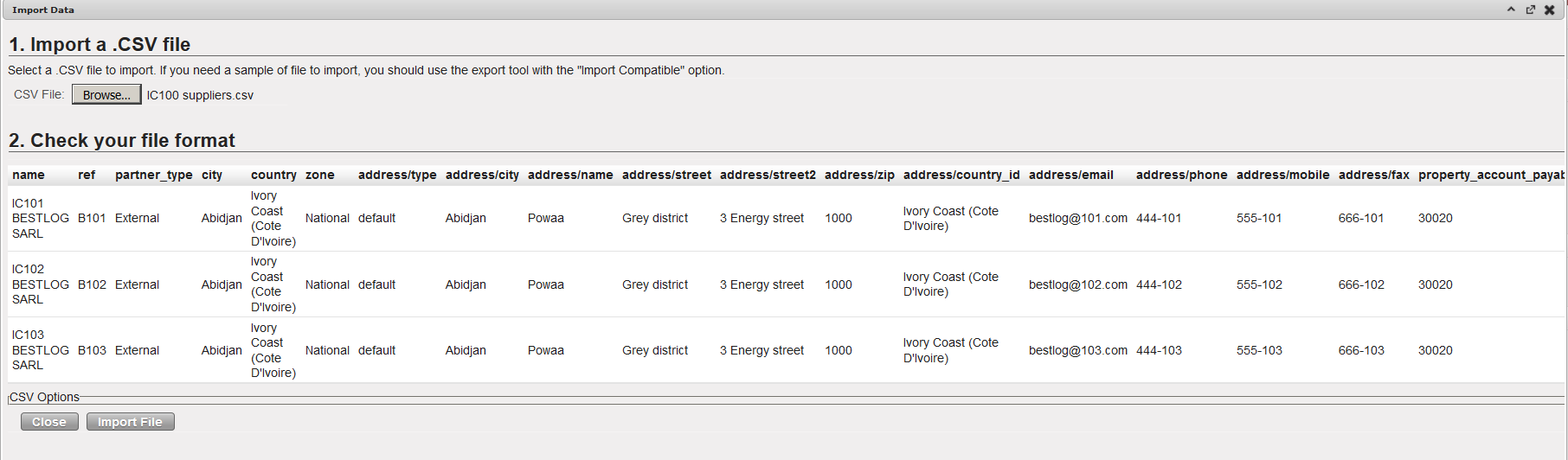
Example of CSV file for partners migration

Go to: to Partners / Suppliers / Suppliers

  1. Click on the small arrow

    on the top right of the screen to display the action menu.
  2. Click on “Import”.
  3. Click on “Browse”, select the file to use for the import (the file needs to be in the same format as the template and have the same column names).
  4. Click on “Import File” to import the partners into UniField.

Import Partners

The partners have been successfully imported in UniField.

B. LU-SU1104: How to import local products for migration

Supply User Manual ENG -> Supply Configurations -> 2.4 LU-SU1104:Unifield instance data migration -> B. LU-SU1104: How to import local products for migration

B. LU-SU1104: How to import local products for migration

Two type of products are used in UniField: international products (UniData products) and local products (products created and maintained on a mission coordination).

International products are created on a new instance thanks to the synchronization mechanism. These products are actually created and maintained in UniData. An interface (linkage) is transferring these products from UniData to the OCs HQ instances following a set of rules. When a new coordination or project instance is created, the international products are synchronized from the HQ instance down to the new instance. After go live, if a product is created or updated in UniData, the linkage will trigger the creation or update of the product on the HQ instance and the synchronization will trigger the creation or update of the product on the related coordination and project instances (children).

Local products are products created and maintained on a coordination and shared with projects. A local product should never be created on a project instance. It must always be created and maintained at coordination level. These products (which are usually already existing on the legacy system) need to be migrated from the legacy system to the UniField coordination instance before going live. If a project is opened on an existing mission already using UniField, the initial synchronizations will create the local products on the new project instance. If a mission starts using UniField, the migration should be done, and local products created on the coordination instance.

Local products to be migrated are usually gathered on a file which is then imported on the coordination instance.

Before migration/import, it is important to make sure that the product data have been correctly configured, checked and validated according to OC procedure. Attributes such as Product Type (stockable/NO-stockable), Batch Managed, Expiry Date Managed, should be checked in details as they will have important impact in the system.

The local products used in the mission need to be imported from a CSV file in a specific format. To build this file, all local codes and attributes should be entered in an Excel tool (check with your OC support to get the latest version or see US-1286 in JIRA) from which the importable file (CSV) can be created by clicking on the “Create csv file” button. The csv file is created in the Directory D:\ in the computer (D:\product.product1.csv).

Tool used to prepare local products data and generate CSV file

Example of CSV file for local products migration

The created importable CSV file can then be imported on the COORDINATION instance.

To import the local products,

Go to: Products / Import Products / Import Products.

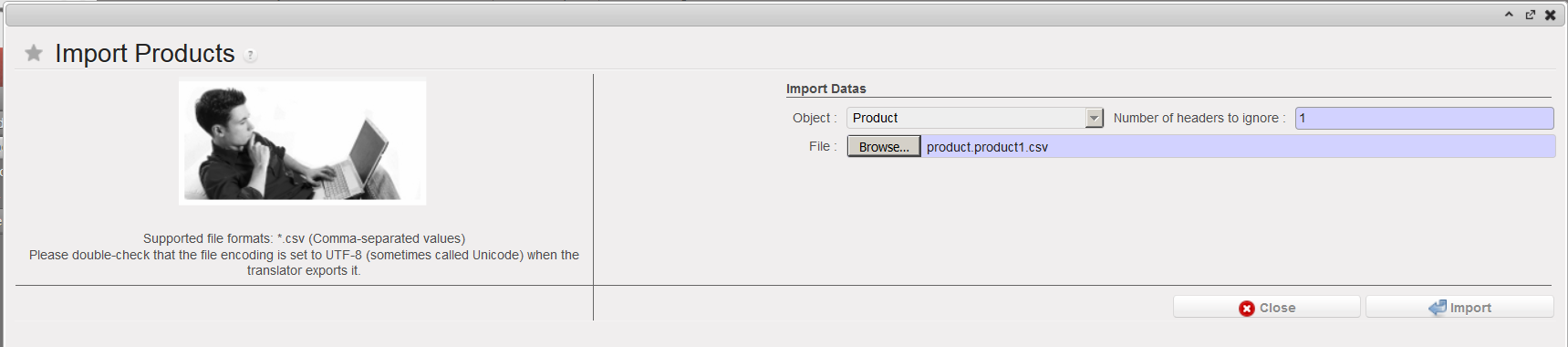
1. Click on the “add attachment” button to browse for the CSV file created earlier and select it.

Import Products

2. Click on the “Import” button to start the importation. You will get the following message.

Import Products

3. Click on “Close window” and go to Products / Import Products / View Logs to monitor the progress of the importation and display the log files after the import is complete.

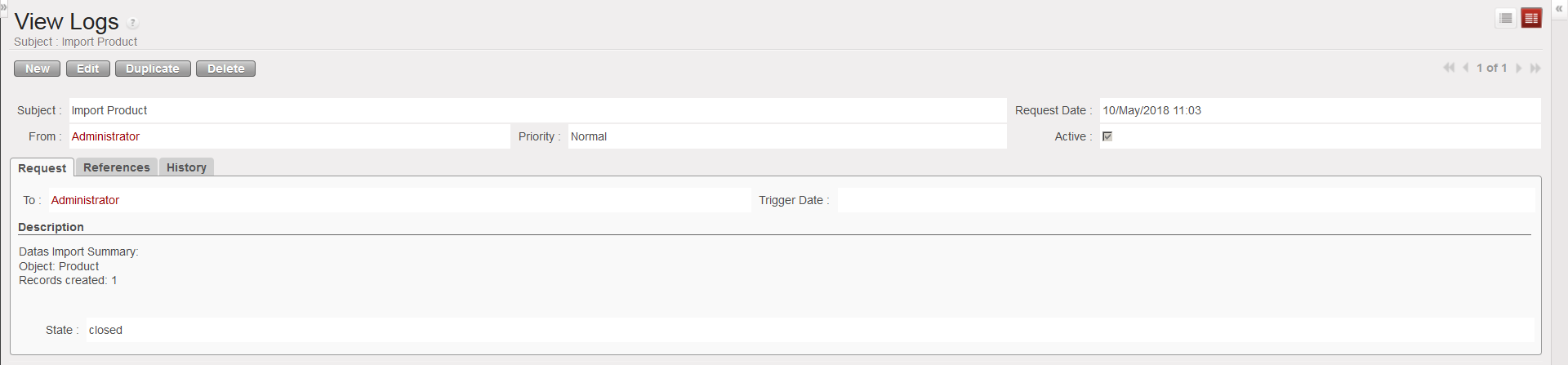
4. Search for the log file related to your importation using the filters. Once you have found it, click on it to open it. You will see in details the result of the products import.

Import Products – View Logs

A. LU-SU1104: INTRODUCING UNIFIELD INSTANCE DATA MIGRATION.

Supply User Manual ENG -> Supply Configurations -> 2.4 LU-SU1104:Unifield instance data migration -> LU Introduction

LU Introduction

This Learning Unit is focusing on the preparation of an instance before to start using it (go-live). In most cases data from a legacy system (LogistiX,..) will be migrated to UniField during the preparation phase.

In order for an MSF mission to continue its daily operations without any cut off or disturbance after the go-live of UniField, some data from the legacy system should be imported or created in UniField. Before starting to use UniField, the following data need to be imported or created:

  • Local mission products
  • Suppliers
  • Stock levels
  • Open orders

F. Re-Synch Introduction

Supply User Manual ENG ->Supply Configurations -> 2.3 LU-SU1103:Synchronization -> F. Re-Synch Introduction

F. Re-Synch Introduction

The “Re-synch” mechanism permits a synched flow between 2 MSF syncing-instances to be continued and sourced to an additional (3rd) UniField synced partner.

Previously the synch mechanism permitted a flow to connect only two Unifield synced partners, for example a Project can order to a Coordo (e.g. P1 > C1). The Re-synch mechanism allows this flow to be extended to a 3rd UniField synced partner, which would allow, for example, a flow where a Project sends order to a Coordo, and this Coordo sends order to another Coordo, the 3rd partner ( P1 > C1 > C2).

E. LU-SU1103: How to configure automatic synchronization

Supply User Manual ENG ->Supply Configurations -> 2.3 LU-SU1103:Synchronization -> E. LU-SU1103: How to configure automatic synchronization

E. LU-SU1103: How to configure automatic synchronization

Go to: Synchronization / Synchronization / Automatic

  1. The synchronization wizard opens.
  2. Select an “Interval Number”, the “Interval Unit” and leave the “Number of Calls” to the default value, which is -1.
  3. Tick the “Active” checkbox to activate automatic Synchronization.
  4. Click on the “Save” button.

Automatic synchronization

D. LU-SU1103: How to view documents created by synchronization

Supply User Manual ENG ->Supply Configurations -> 2.3 LU-SU1103:Synchronization -> D. LU-SU1103: How to view documents created by synchronization

D. LU-SU1103: How to view documents created by synchronization

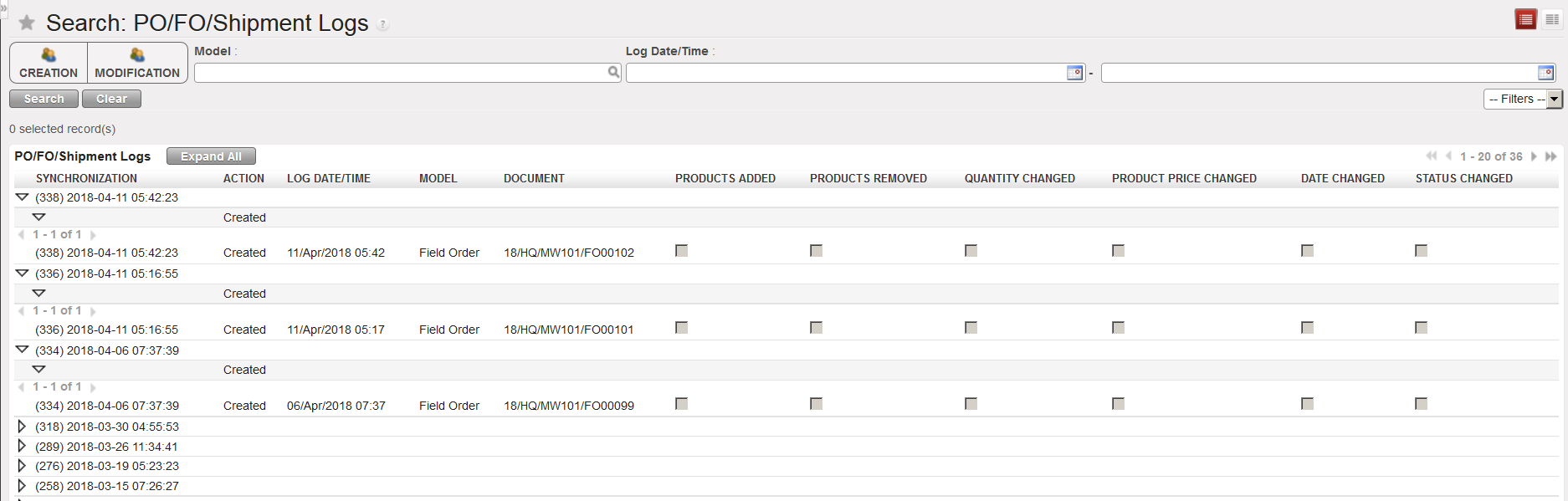
It is also possible to view which exact documents have been created by synchronization and when. It allows a user to know at a glance which documents have been created or modified by the synchronization and what was modified in these documents (change of price, date or quantity, products removed or added, etc.).

Go to: Synchronization / Monitoring / PO/FO/Shipment Logs

PO/FO/Shipment Logs

C. LU-SU1103: How to synchronize manually

Supply User Manual ENG ->Supply Configurations -> 2.3 LU-SU1103:Synchronization -> C. LU-SU1103: How to synchronize manually

C. LU-SU1103: How to synchronize manually

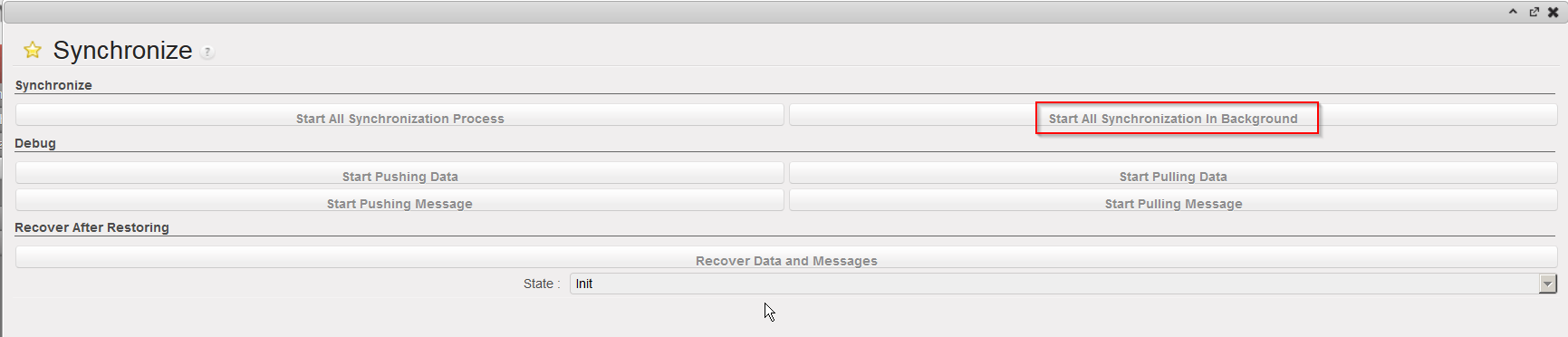
Go to: Synchronization / Synchronization / Manual

  1. The synchronization wizard opens.
  2. Click on “Start All Synchronization In Background”. This launches the synchronization process in background.

Launch a manual synchronization

When the synchronization is running, the message “Syncing…” is displayed at the top of the screen.

Synchronization in process

After the synchronization has finished, the system displays the following message at the top the screen, to indicate when synchronization finished.

Synchronization done

To get more details on the synchronization completed (amount of data pushed and pulled, error and/or warning messages, etc.),

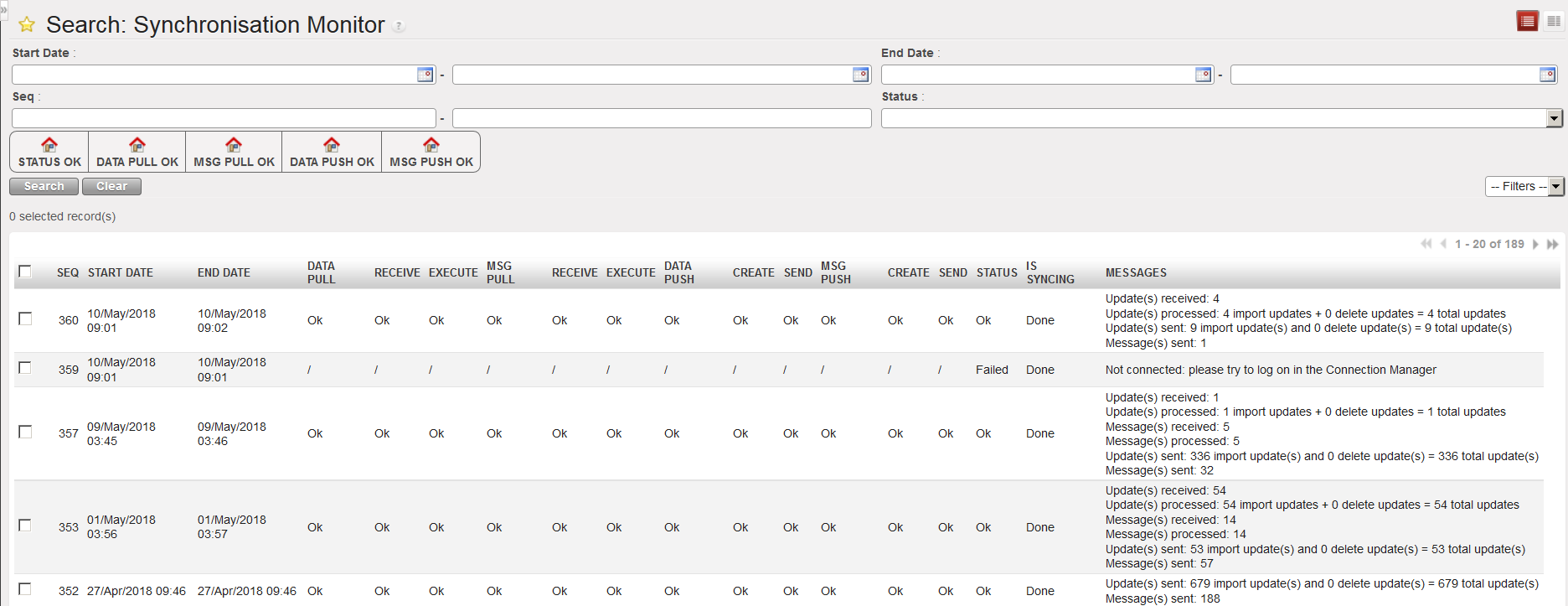
Go to: Synchronization / Monitoring / Synchronization Processes Monitor.

You will see the results of the latest synchronizations carried out, ordered from the latest to the earliest. You can also use filters to search for specific synchronization runs.

Synchronization monitor

B. LU-SU1103: Connection to the synchronization server

Supply User Manual ENG ->Supply Configurations -> 2.3 LU-SU1103:Synchronization -> B. LU-SU1103: Connection to the synchronization server

B. LU-SU1103: Connection to the synchronization server

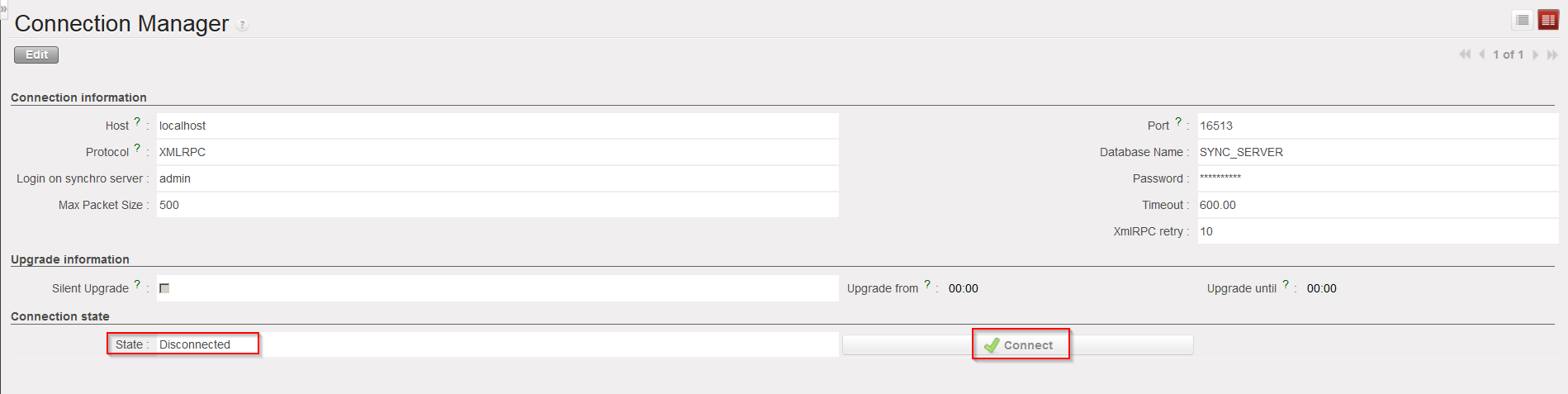
To be able to synchronize, the UniField instance needs to be connected to the synchronization server. The connection to the synchronization server is done through the Connection Manager.

Go to: Synchronization / Registration / Connection Manager

There should be one line appearing which represents the connection to the synchronization server.

Connection to synchronization server

  • Click on the line to open it and check the “Connection state“. If the “State” is “Disconnected“, click on the button “Connect” to connect the instance to the synchronization server.

Connection to synchronization server

A. LU-SU1103: SYNCHRONISATION

Supply User Manual ENG ->Supply Configurations -> 2.3 LU-SU1103:Synchronization -> LU Introduction

LU Introduction

In UniField, it is possible for one instance to send goods or orders to another instance or to receive goods or orders from another instance. This can be done thanks to the synchronization mechanism during which all the instances send data to (push) and receive data from (pull) the synchronization server.

When two UniField instances need to exchange data, the sending instance has to synchronize first to send (push) the data to the synchronization server, after which the receiving instance can synchronize to receive (pull) the data from the synchronization server. It is possible to do the synchronization manually or schedule it to happen on a regular basis (automatic synchronization).