2.9 HQ Instance

2.9 HQ Instance

All steps described in this section are to be performed with the admin user in the HQ instance.

2.9.1 Import cost centers

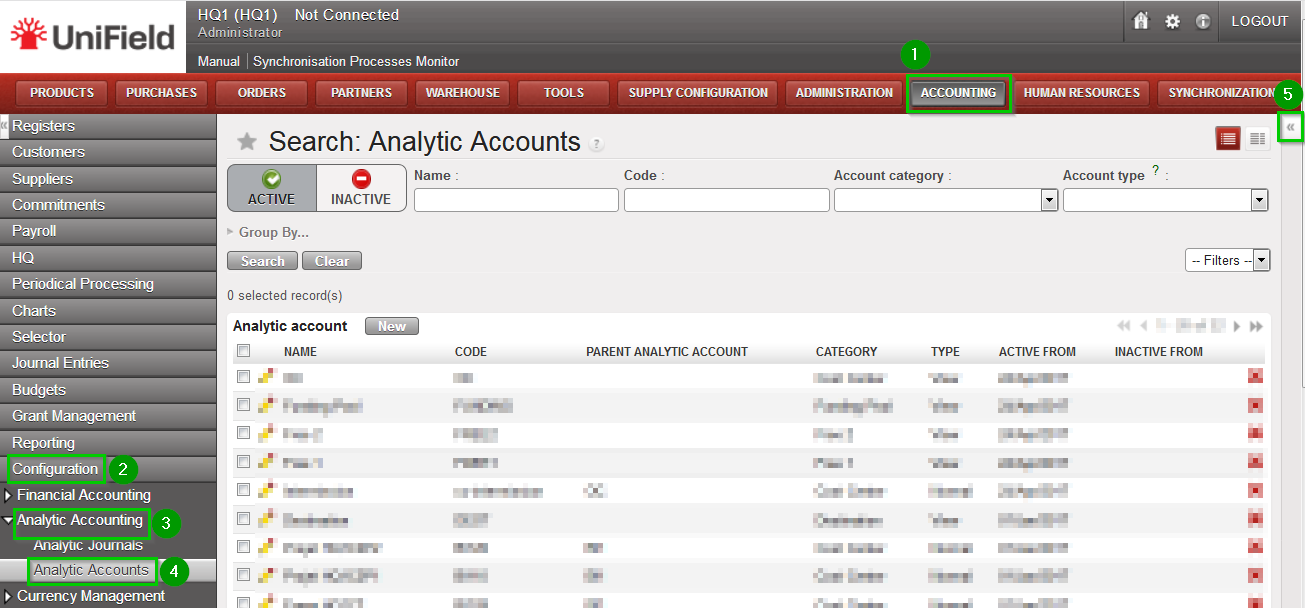
Click on Menu Accounting 1, Configuration 2, Analytic Accounting 3, Analytic Accounts 4
Click on the double arrow icon 5 and import file account.analytic.account_to update.csv

2.9.2 Create Proprietary instances

Use the information contained in the Installation Checklist to create the proprietary instances for all instances: HQ, Coordinations and Projects. This data is then synchronized from HQ to the other instances.

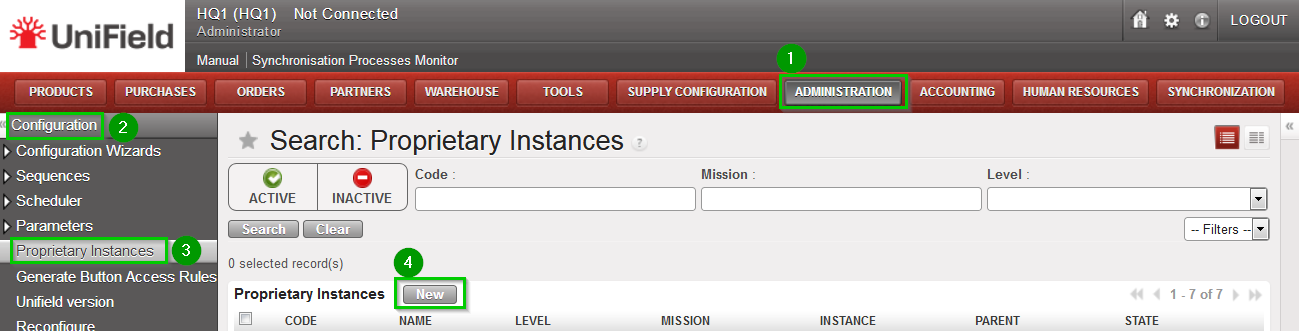
Click on Menu Administration 1, Configuration 2, Proprietary Instances 3.
Click on New 4
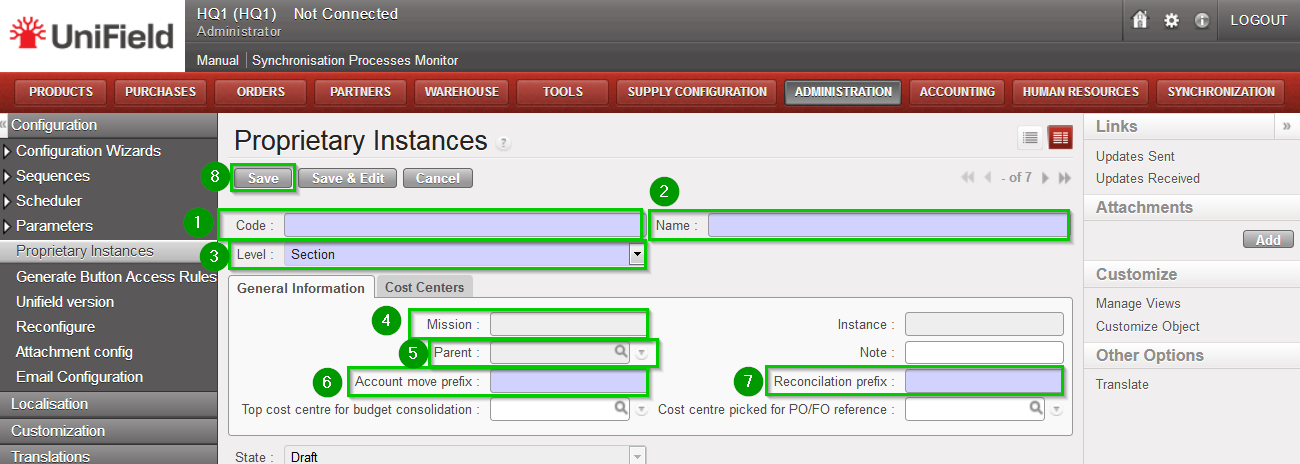
Enter the following information:
  • Code 1 Proprietary Instance Code from Installation Checklist. This code will be used in all PO / FO documents to create the reference. For example: PO reference: 14/CH/HT201/PO00001 where: 14 = current yearCH = prop instance code of the HQ instance to which the field instance relates. Must be populate with the country 2-digits iso code when setting-up HQ DBHT201 = cost centre picked for PO /FO reference PO00001 = incremental nb
  • Name 2 Proprietary Instance Name from Installation Checklist
  • Level 3 For HQ, choose Section, for Coordination choose Coordo, for Project choose project
  • Mission 4 only for Coordo and Project; Mission from Installation Checklist
  • Parent 5 only for Coordo and Project; Choose the appropriate parent (that has already been created)
  • Account Move Prefix 6 Account Move Prefix from Installation Checklist
  • Reconciliation Prefix 7 Reconciliation Prefix from Installation Checklist

Click on Save 8

If you are installing a sandbox you can import Prop instances_to update.csv
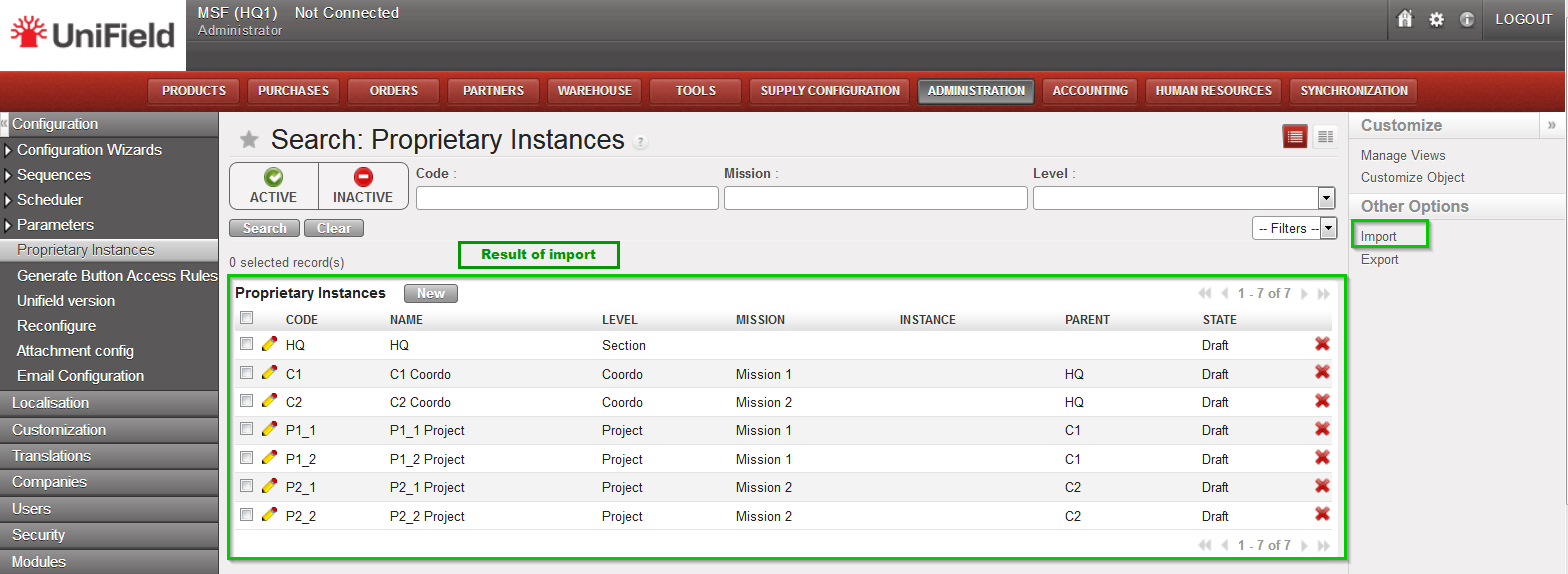
This file contains all the proprietary instances required to install an HQ with two missions and two project instances in each of them.

2.9.3 Perform Reconfigure

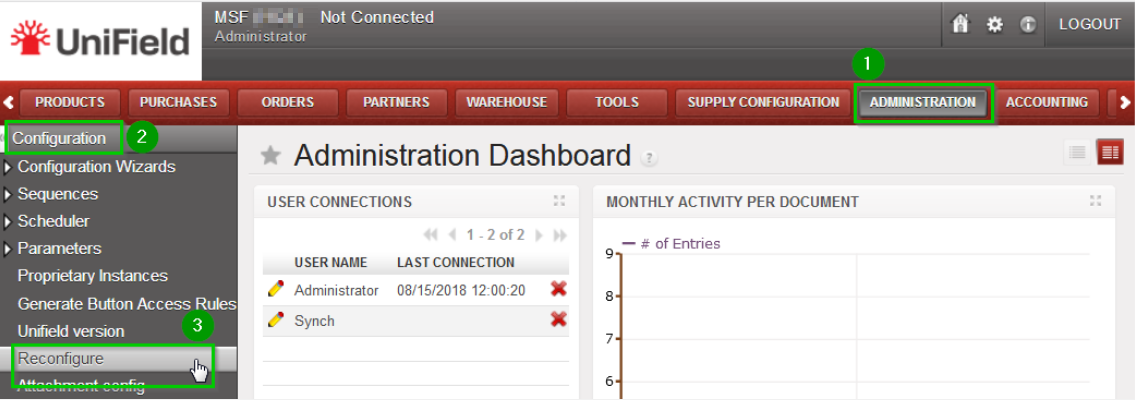
Click on Menu Administration 1, Configuration 2, Reconfigure 3
A new wizard will open and you would then navigate to various screens.
Instance Configuration
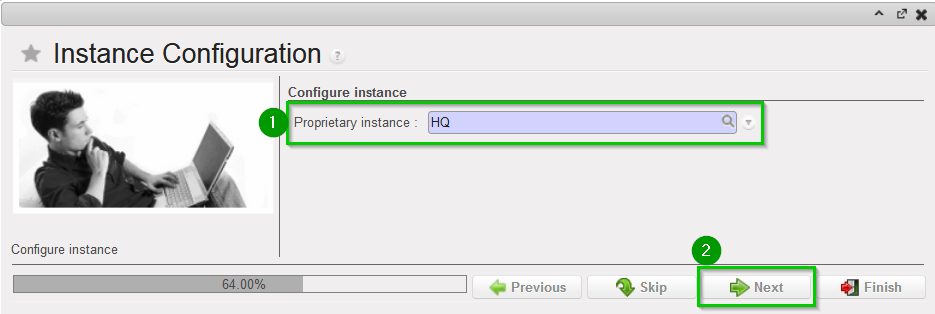
Choose the proprietary instance corresponding to the HQ 1 (as created in step 2.9.2).
This step cannot be re-done; if the wrong proprietary instance is chosen, the database needs to be dropped and re-created. Choosing a proprietary instance already in use in your OC could lead to corruption of other instances.
Click Next 2
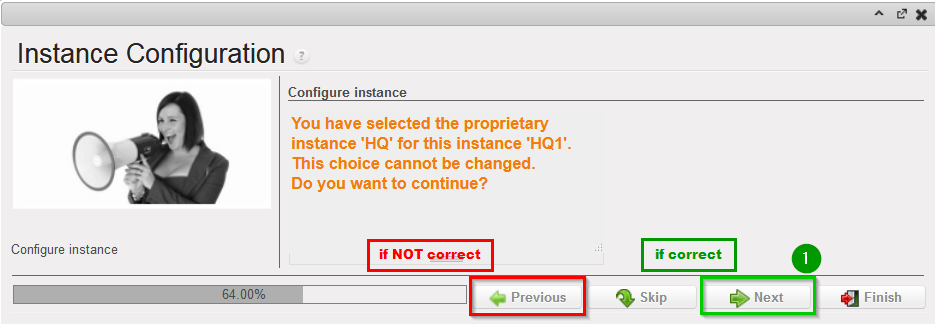
A confirmation message window opens asking you to confirm the choice of the proprietary instance.
If its correct click on Next 1, if not click on Previous
Most of the time the property instance’s name matches the instance’s name. If it’s not the case a warning message is displayed. The only exception applies to instances at HQ level.
Please be extremely cautious before proceeding after this warning message.
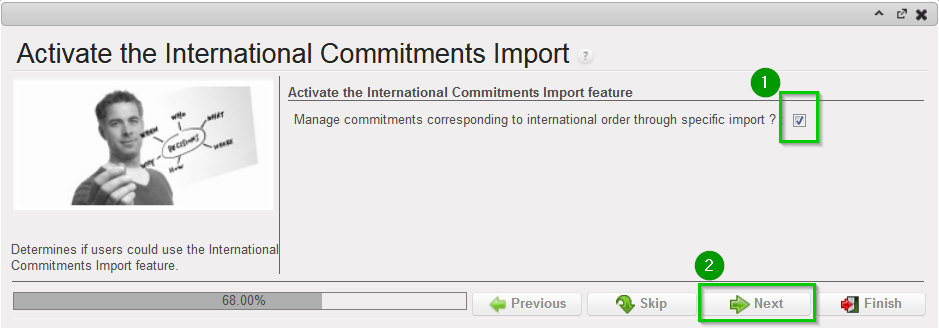
Activate the International Commitments Import
  • If OCA and OCB : leave default options 1
  • If OCG : unchecked the box 1

Click Next 2

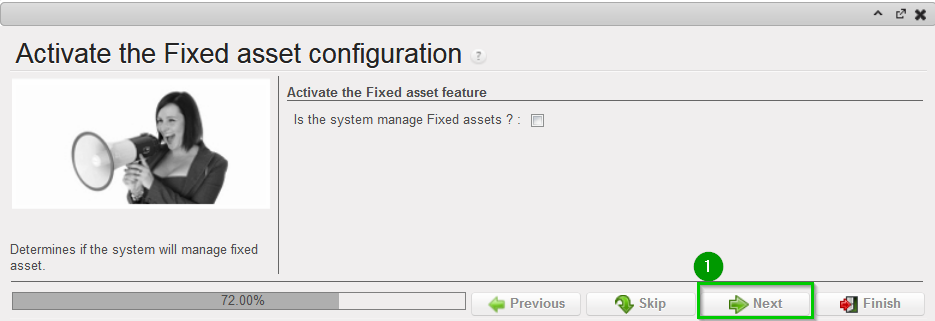
Activate the Fixed asset configuration
Leave default options.
Click Next 1
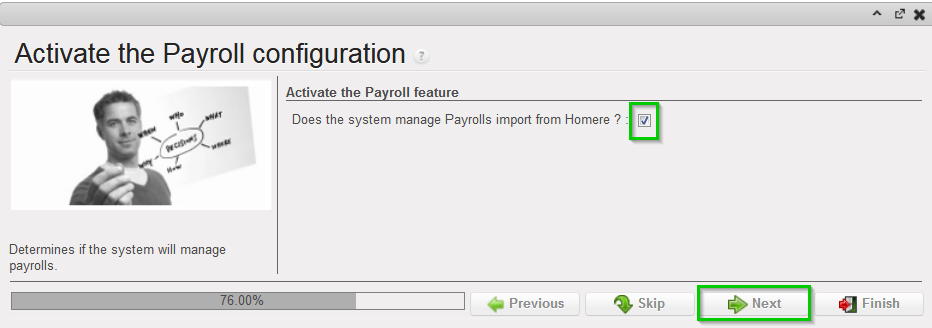
Activate the Payroll configuration
Check the box if you use Homere “Does the system manage Payrolls import from Homere?”
Click Next
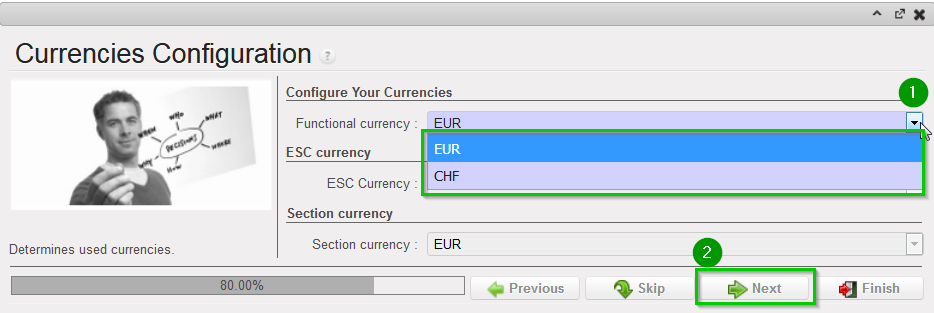
Currencies Configuration
  • If OCG: Choose CHF as functional currency 1
  • If Others: choose EUR as functional currency 1

Click Next 2

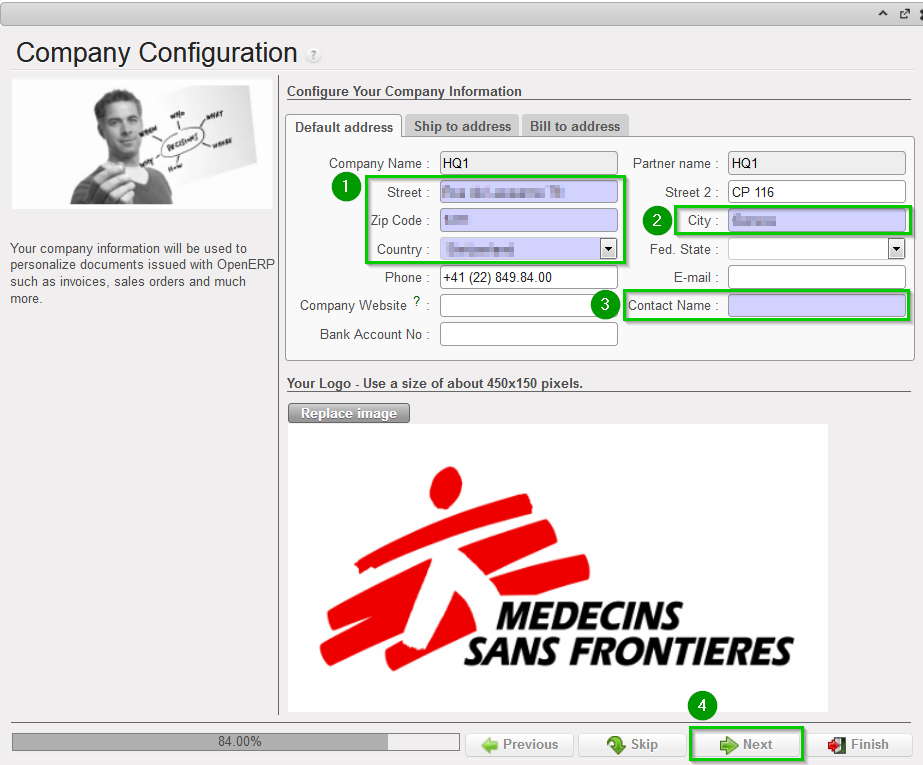
Company Configuration
Fill in the different values 1 2 3
Click Next 4
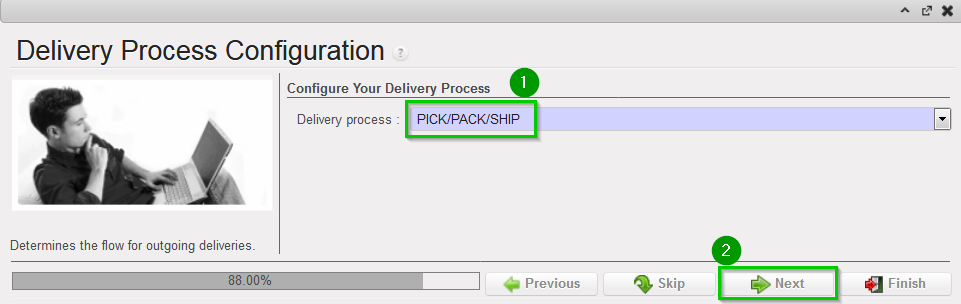
Delivery Process Configuration
Choose the appropriate shipping method 1 (you may leave the default value).
Click Next 2
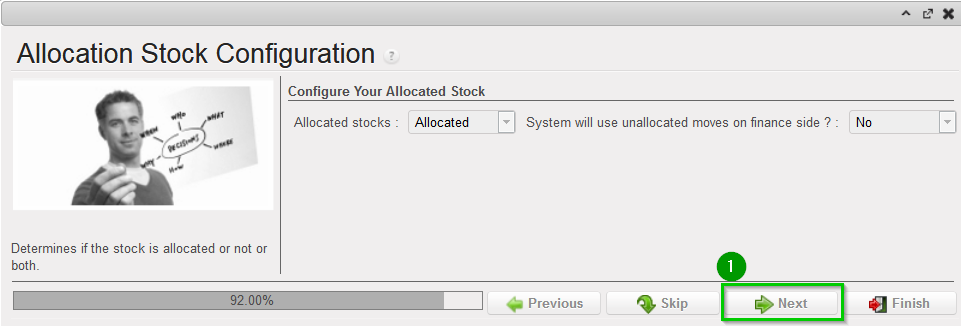
Allocation Stock Configuration
Leave default values.
Click Next 1
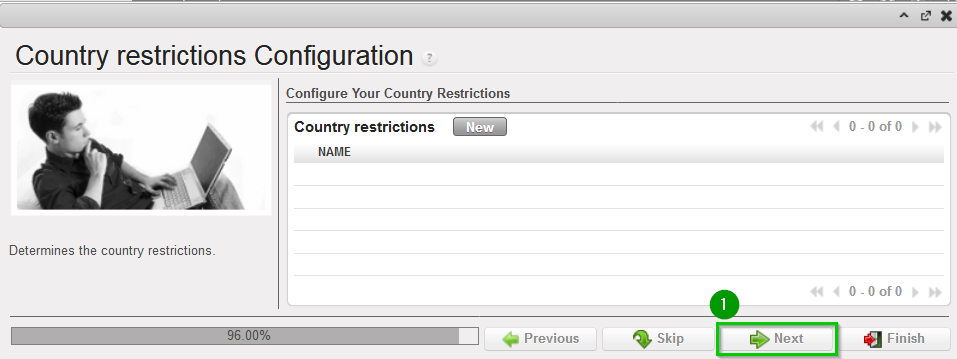
Country restrictions Configuration
Leave default values
Click Next 1
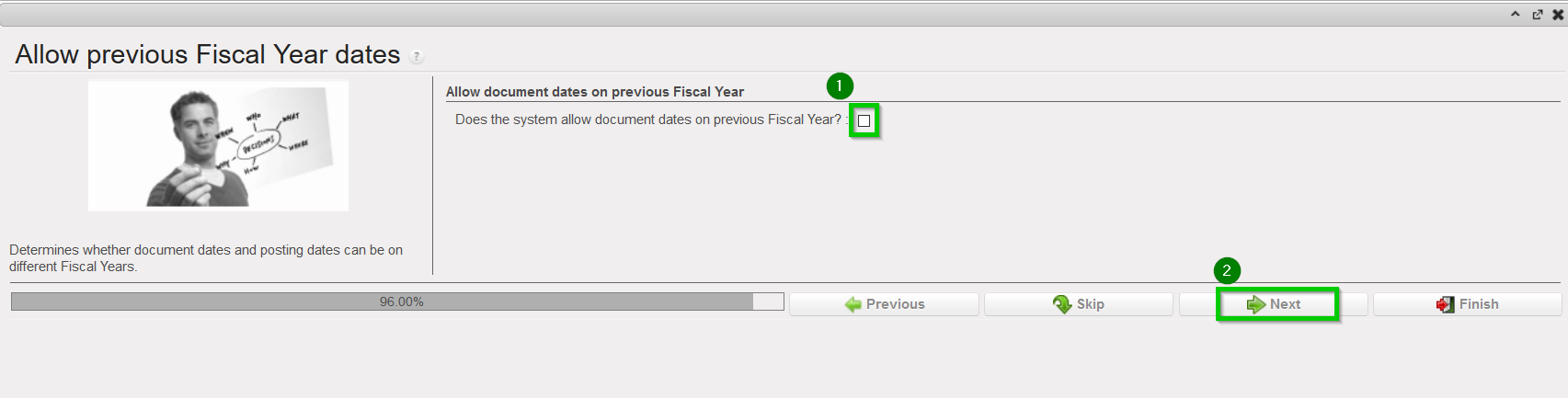
Allow previous Fiscal Year dates
Does the system allow document dates on previous Fiscal Year?: 1
  • If OCA or OCG leave the box unchecked.
  • If OCB or OCP tick the box.

Click Next 2

2.8 Synchronization Server

2.8 Synchronization Server

On Production this section is managed by the Support Team.

2.8.1 Import Group Types

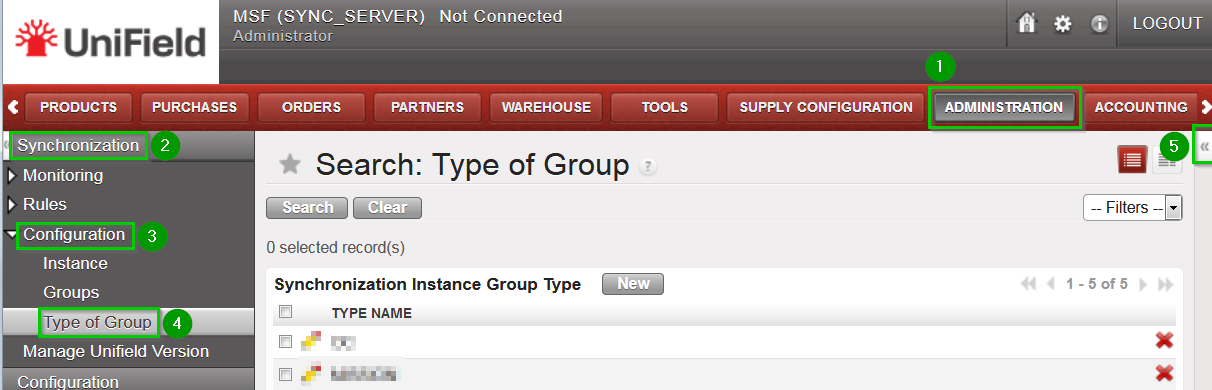
Click on Menu Administration 1, Synchronization 2, Configuration 3, Type of Group 4, click on the double-arrow icon to import the file 5.
Import file grouptype.csv
This file contains all the groups required to install an HQ with two missions.

2.8.2 Create Groups

The number of groups depends on the structure of the network as defined in the Installation Checklist. The groups are used to determine how the data is to be exchanged between instances.
In order to create a group, proceed as follows:

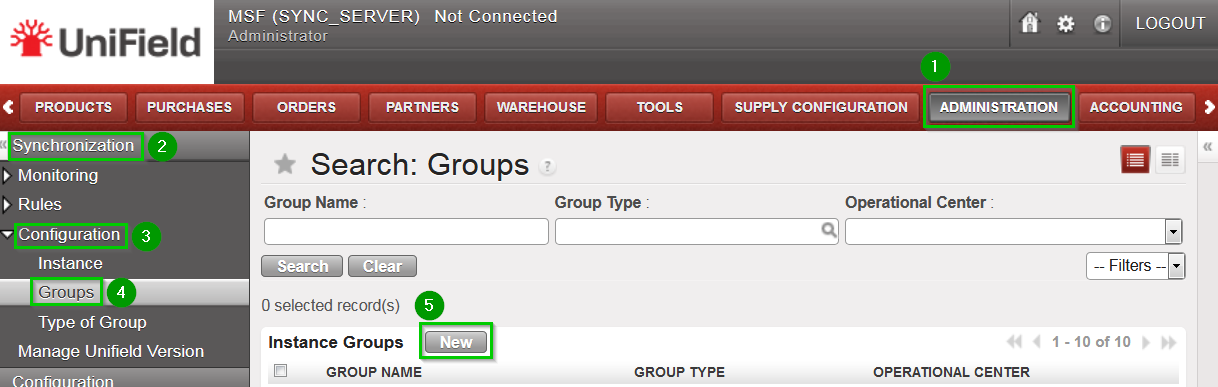
Click on Menu Administration 1, Synchronization 2, Configuration 3, Groups 4
Click on New 5
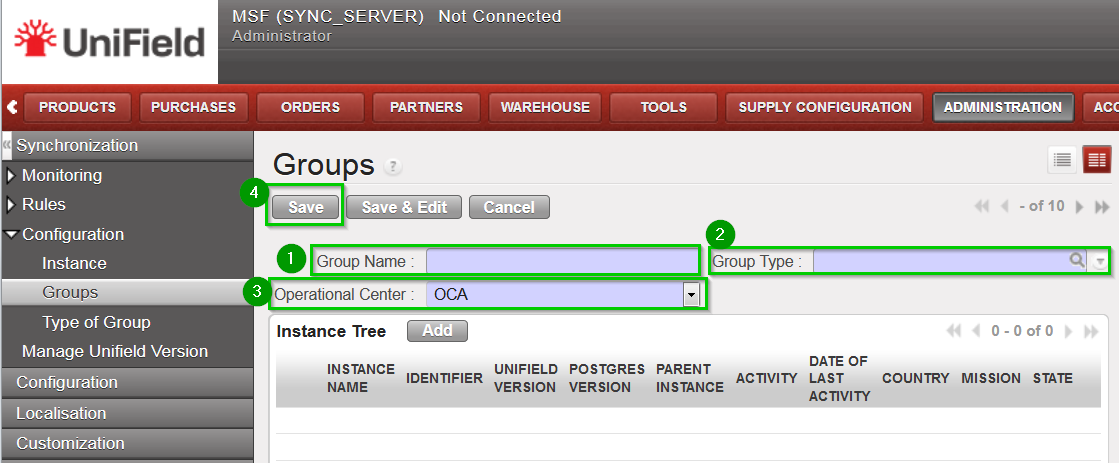
Fill in:


  • Group Name 1
  • Group Type 2 Group Types (as uploaded in step 2.8.1)
  • Select your Operational Center 3

Click on Save 4

The following groups needs to be created:

Group NameGroup Type
OCxOC
OCx_COORDINATIONSCOORDINATIONS
OCx_MISSION_AAAMISSION
OCx_HQ_MISSION_AAAHQ + MISSION
  • Group OCx represents your whole OC and should be named according to your OC (OCA, OCB, OCBA, OCG or OCP). You should have 1 and 1 only group type OC.
  • Group OCx_COORDINATIONS is a standard group to be present in any setup – it is used mainly for intermission accounting processes. You should have 1 and 1 only group type COORDINATIONS.

You will then have as many MISSION and HQ + MISSION groups as you have Missions. We suggest you put the same name as the ones in the Installation Checklist.

2.7 Instances’ Setup

2.7 Instances’ Setup

For setting up each instance (HQ, Coordination, Project and/or SYNC_SERVER ), it is necessary to create or upload some data. The procedure for uploading some data from a .csv file is always the same. This chapter describes how to import a file. It is only for reference.

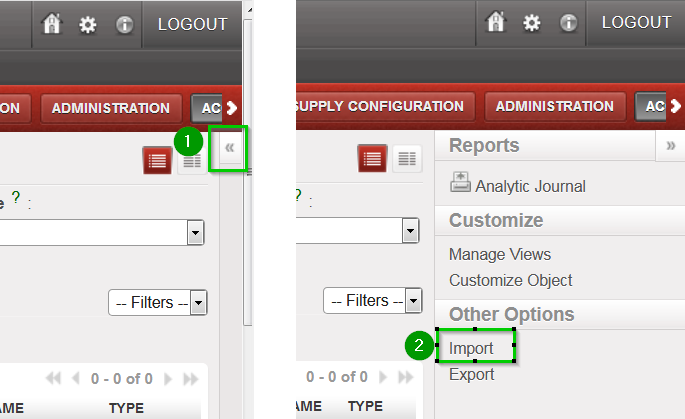
Once you are in the menu where to upload the file, open the right-side panel menu by clicking on the double-arrow icon 1 located at the right of the screen.
In the Other Options section, click on Import 2
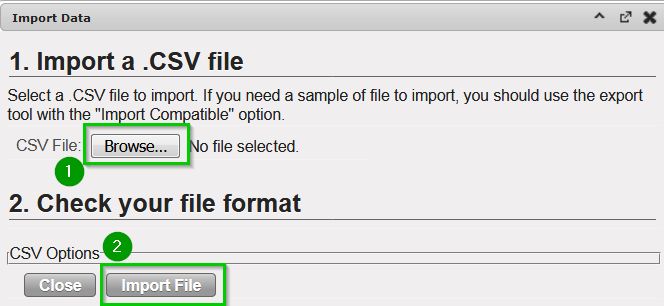
In the following wizard, click on Browse 1, locate the file to be uploaded and click on Import file 2(the wizard will confirm the number of items imported).
Click on OK to exit the wizard

The list and all csv file needed to create a Sandbox are available here

2.6 Modules’ Installation

2.6 Modules’ Installation

This chapter describes how to install a module in a UniField instance. It is only for reference.

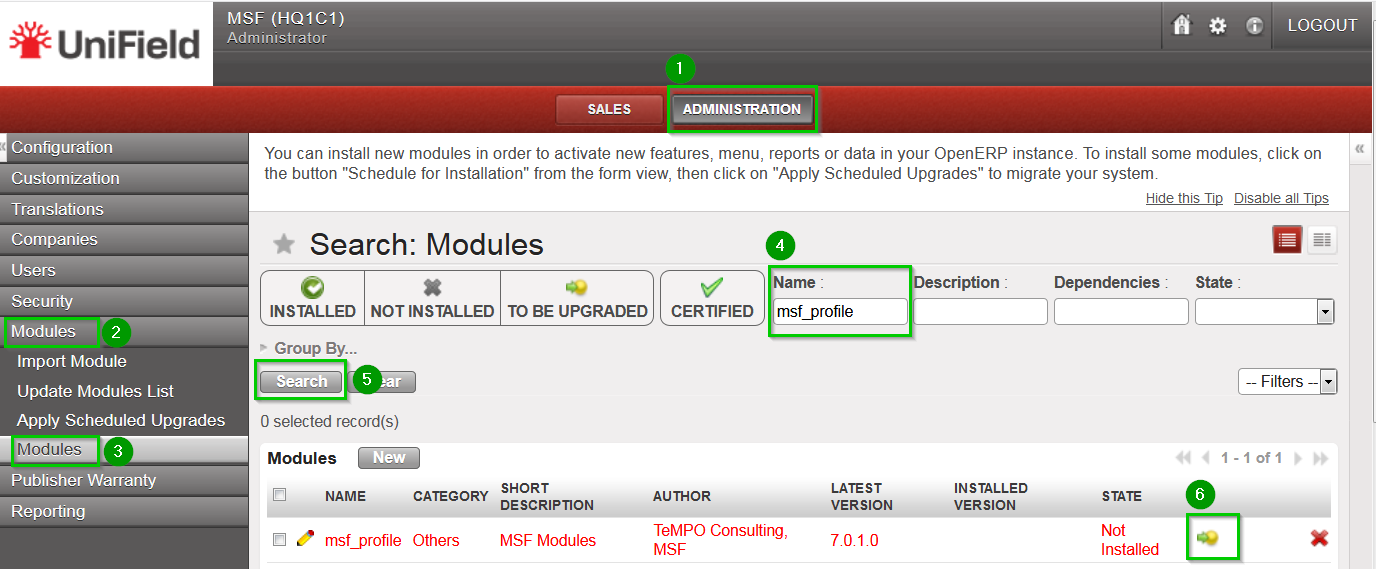
Click on Menu Administration 1, Modules 2, Modules 3
Type the module’s name in the Name 4 field and click on Search 5
The module will appear in the list. Click on the Schedule icon 6
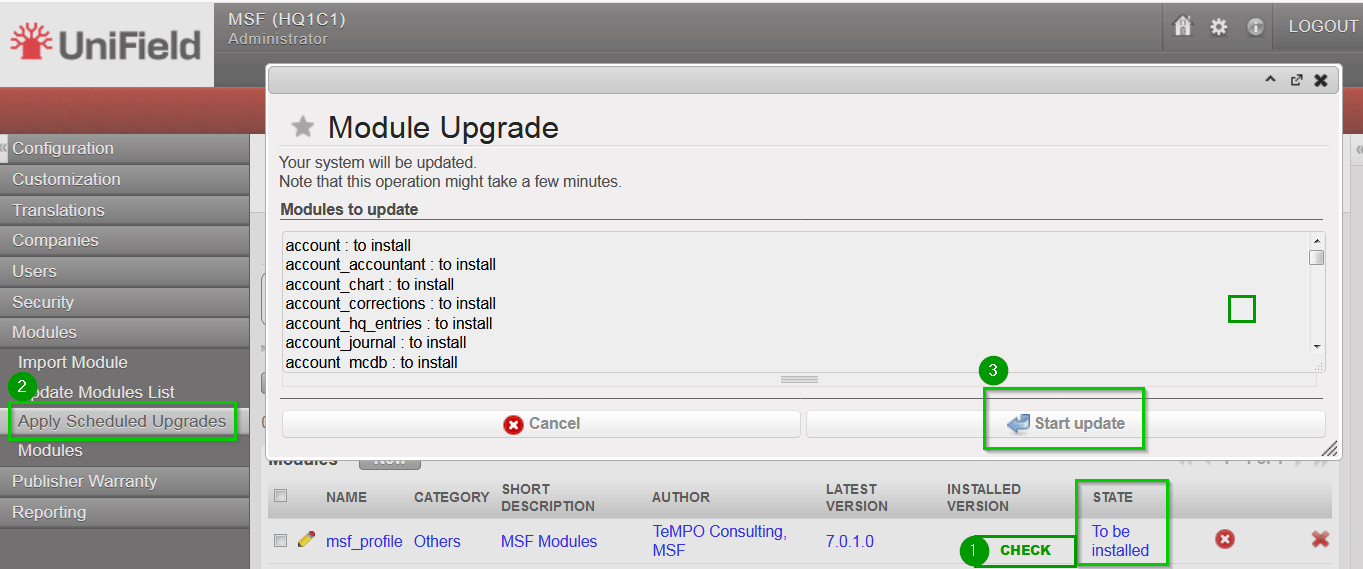
The state changes from
Not Installed to To Be Installed 1
Click on Apply Scheduled Upgrades 2
The wizard Module Upgrade will open. Click on Start Update 3
Once the wizard is completed click on Cancel (do not click on Start Configuration)

2.6.1 Modules to install in the HQ, Coordination and Project instances

Follow the procedure described above and install the following modules. The order is very important and must be respected. Install module:

  • msf_profile

ONLY AFTER the module msf_profile is installed, install modules:

  • sync_so
  • sync_client_web
  • update_client

2.6.2 Modules to install in the Synchronization Server

Follow the procedure described above and install the following modules. The order is very important and must be respected. Install module:

  • msf_profile

ONLY AFTER the module msf_profile is installed, install modules:

  • sync_remote_warehouse_server
  • sync_so
  • update_server
  • msf_sync_data_server

2.5 Database creation

2.5 Database Creation

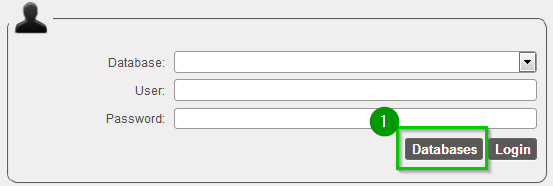
From the homepage of your local UniField installation click on Database 1
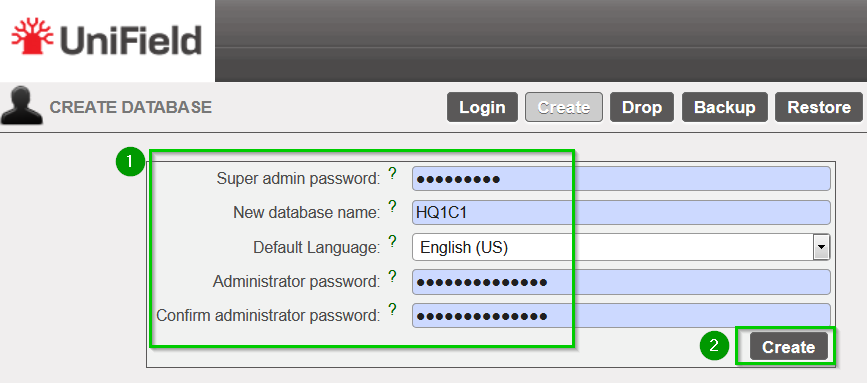
Enter the following: 1


  • Super admin password: password to create DB
  • Database name: Instance Code from the Installation checklist
  • Admin password: would be used to synchronize

Click on Create 2 (wait for wizard to finish)

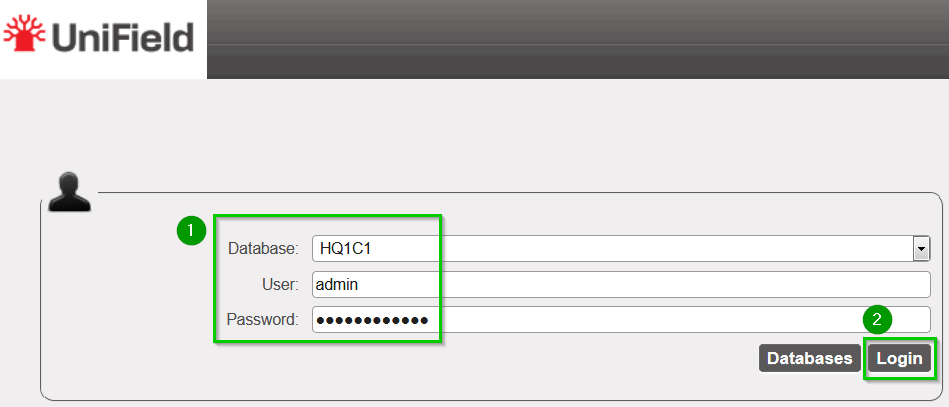
Login to the new database with username admin and the password 1 you set in the last step
Click on Login 2

You can then Logout and repeat the same operation (section 2.5 Database creation) for the all Instance Codes listed in the Installation Checklist. Refer to section 2.3 Installation checklist.

2.3 Installation checklist

2.3 Installation checklist

The Installation Checklist file proposes the following:

  • A template for listing all the pre-requisite Proprietary Instance data
  • A template for listing all the pre-requisite Cost Centres data
  • A checklist of all the files needed for data upload.

We strongly suggest you to use the template Installation_Checklist_OCX_XX1_to update.xls . Your Finance referent should validate this file and have it ready before starting the installation.
Please log a ticket in Jira – Request Step1 checklist validation – for its double check by the Support Team.

2.2 Prerequisites

2.2 Prerequisites

It is key prior starting the setup that the target network is well known and defined. All required files for data upload should be prepared and ready before starting the setup. It is highly recommended to prepare the following data for each instance that would be created:

    • Instance type: to choose among HQ, Coordination, Project or SYNC_SERVER
    • Instance code: the code that would be used for identifying the instance through synchronization
    • Parent instance: code of the parent; for HQ=none / for Coordination=HQ / for Project=Coordination
    • Proprietary Instance Code and Name: The proprietary instance is unique per instance and is used for tagging certain objects that are sent to other instances through synchronization. It is recommended to use for Proprietary instance code the same code as the Instance Code.
      Example: We create a bank register at project level. This bank register is tagged in automatic with the project’s proprietary instance code. Once synchronized to coordination, the project’s bank register keeps its original proprietary instance code.
    • <li

>Mission: (Only for Coordinations and Projects): Name of the mission. This name will also be used as group name in the Synchronization Server.

  • Account Move Prefix: Used for accounting purposes, should be unique per instance. For tests purposes, you may choose any alphanumeric value.
  • Reconciliation Prefix: Used for accounting purposes, should be unique per instance. For tests purposes, you may choose any alphanumeric value.
    For each Coordination instance, it is also necessary to define which cost centres should be linked to the instance. This list is automatically replicated in all the project instances belonging to the same mission.
    For each Coordination and Project instance,


    • One or several Target cost centres that are used for sync purposes; in case of a coordination one must select the top cost centre representing the mission (eg HT1), the coordination cost centre (eg HT101) and any other cost centre managed from coordination like Eprep or Explo (eg HT190). A cost centre can be set as “Target” in one and only one proprietary instance.
    • The Top cost centre that will be used for budget consolidation.
    • The cost centre that will be used in all PO/FO identification (eg HT101). System uses this parameter as a reference in all PO/FO codes. It is a key reference on the supply side that could be used for international orders billing (from Supply Centre to HQ).

    This manual references several .CSV files used in various instances to setup either your instance (Production or Sandbox). Please refer to the Annexes section to find these files represented by this icon throughout this manual.

</li


2.1 Introduction

2.1 Introduction

This chapter will guide you on the set-up of a local installation for a UniField environment.
If you are seeting up Porduction instances please skip the sections/steps with this icon as it only concerns Sandbox environment.
It is assumed that a full UniField AIO installation has already been done on the target PCs (as per chapter 1 – Installation).
A full local installation consists of the following:

  • a HQ instance
  • One or several Coordination instances
  • One or several Project instances
  • a SYNC_SERVER

2. Initial setup

2. Initial setup