LUFI-40101_A. How to Import the National Staff Master Data.

How to Import the National Staff Master Data

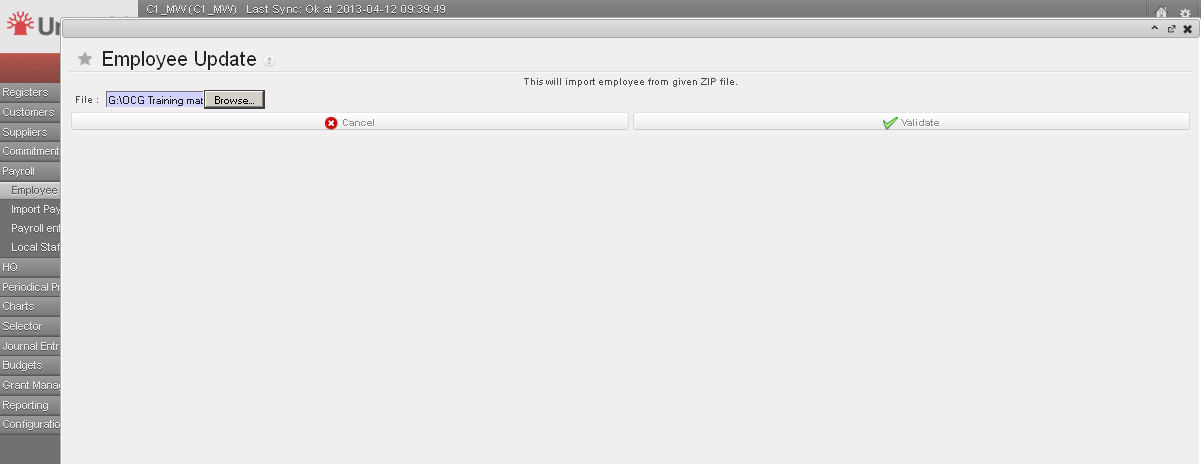
Go to: Accounting/Payroll/Employee Update

  1. Click on {add attachment}.
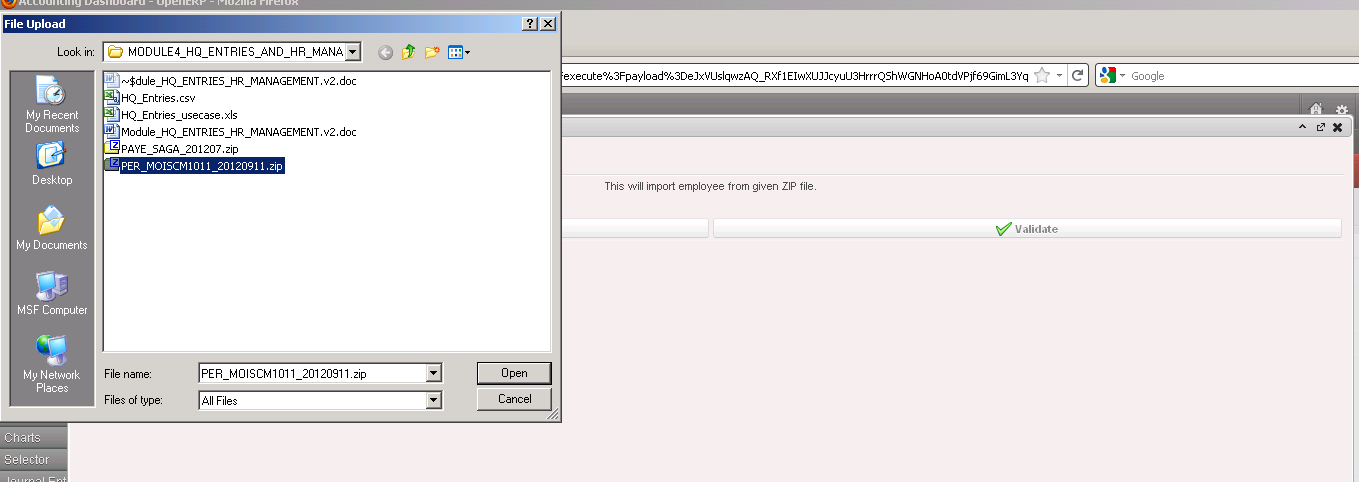
  2. Browse to find the Homere sending file (e.g. PER_MOISXXX).zip
Importing Employees files

3. Click {Validate} to validate the import.

Import files validation

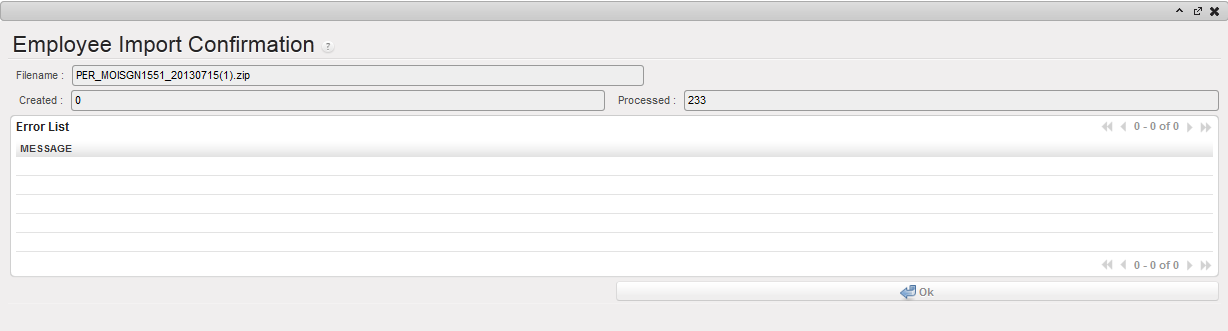
4. The system indicates the employee import was successful as no error message is displayed in the error list section as shown below.

Employee Import confirmation wizard showing an empty Error List view

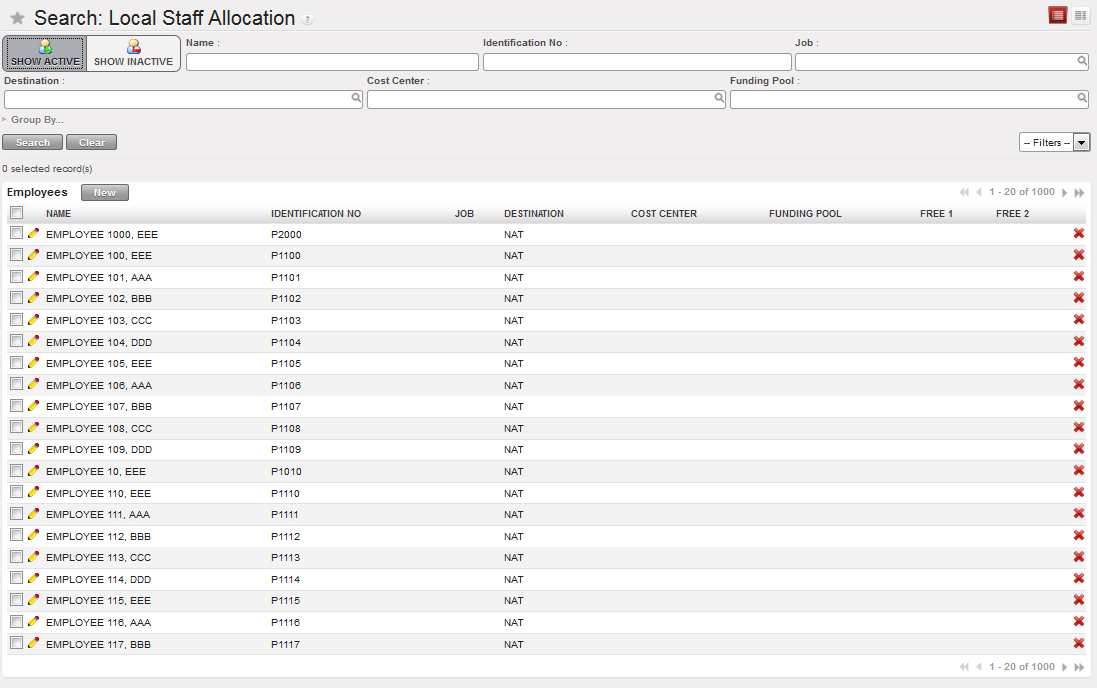
5. Click on {OK} button.   –>The list of active national staff is loaded.

The list of active national staff is loaded

What are typical issues in Homere that could cause the import to fail for an employee record?

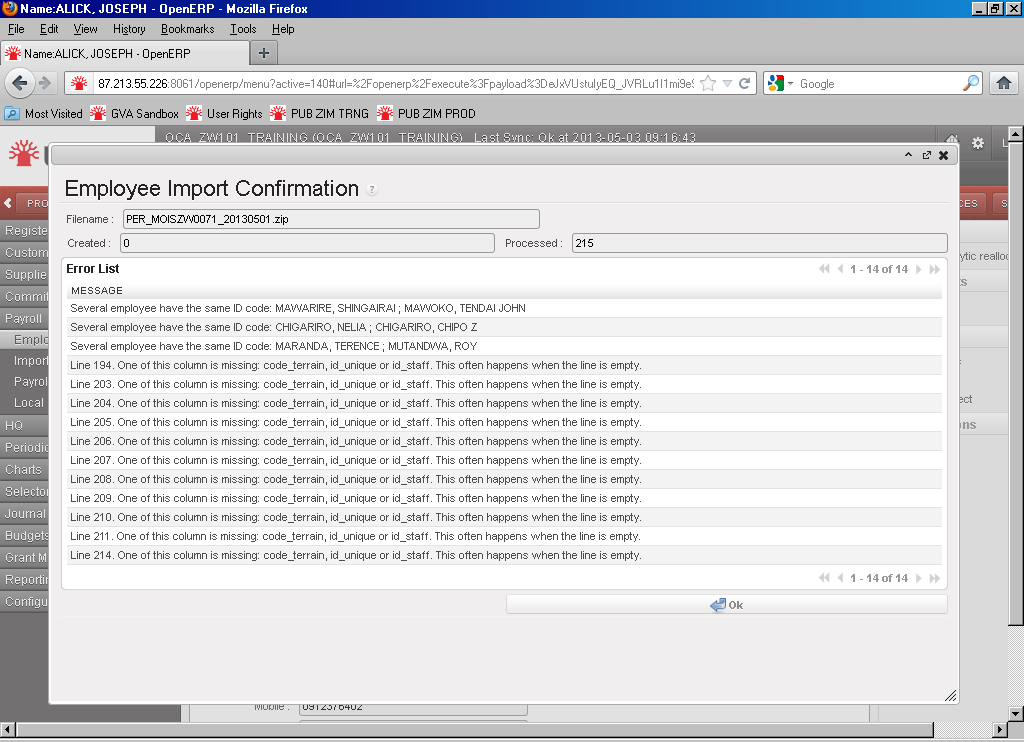
  • Two or more employees have the same employee ID. ID must be unique in UniField. If there already is an existing employee with the same ID, UniField will reject the import. Some cleaning may be necessary in Homere before importing the file again.
  • Incomplete employee lines: sometimes an employee is created with almost no information entered in Homere. If these records are not for valid employees they should be removed from Homere. If they are for valid employees, please update the {code_terrain} and {ID_Staff} then re-run the export from Homere.
Import Confirmation window with error messages

LUFI-30210 INACTIVATION LIQUIDITY JOURNALS AND THEIR CORRESPONDING REGISTERS

How to inactivate liquidity journals and their corresponding registers ?

We can create a liquidity journal with its correspondent register and we can also deactivate the journal and its register. The purpose of the journal deactivation is to avoid opening a register by mistake in a new period and also to permit its reactivation in the future if needed.

The conditions to allow the inactivation of liquidity journals are the following:

For liquidity journals, before allowing inactivation check:

  • all registers have been closed.
  • all manual journal entries have been posted.
  • the balance of the last register is zero.

For non-liquidity journals: all entries have been posted on the journals.

If all above requirements are not applied, you will receive the warning message “Please close the registers linked to the journal XXXXX before inactivating it

To do deactivation you have to proceed as below:

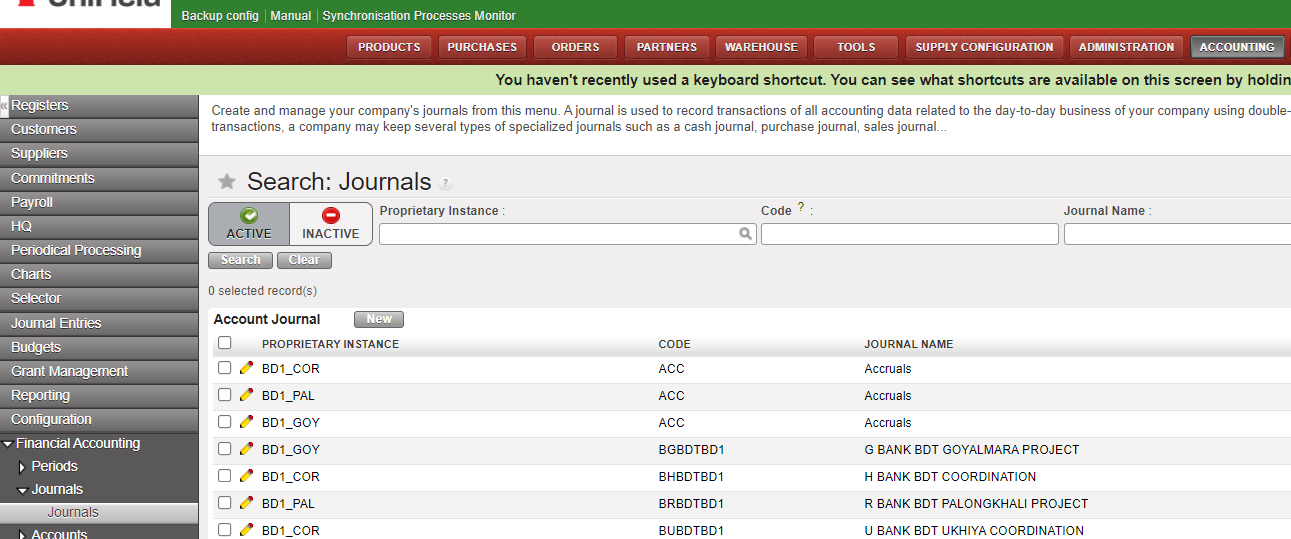
Go to > Accounting > Configuration> Financial Accounting> Journals > Journals

There are 2 filters: “ACTIVE” and “INACTIVE”. You will have the “ACTIVE” filter by default, showing the active journals.

The process of deactivation:

  • Select the register
  • Click on Edit
  • Tick off the box “Active”
  • Click on “Save”

Once the journal changed to [inactive], it can not be used anymore in the interface:

  • as third party of an entry.
  • to book a manual journal entry.
  • we can not import a file to the journal from a manual journal entry.
  • the creation of a journal with the same code as an inactive journal it is not allowed.

It is not allowed :

  • the selection of inactive journals in the invoices.
  • the duplication of JE and invoices on inactive journals (note: we can’t create them with an empty journal as it is a mandatory field).
  • the re-opening of a register on an inactive journal.
  • the selection of inactive journals in the Recurring Models.
  • the inactivation of a journal if a Recurring Plan which isn’t “Done” uses it.
  • the selection of a Recurring Model on an inactive journal, in the Recurring Plans.
  • the duplication of a Recurring Model on an inactive journal / of a Recurring Plan using a Recurring Model on an inactive journal.
  • the selection of inactive journals as Refund Journal in the Refund Wizard.
  • the Refund Type “Modify” for the invoices booked on an inactive journal.

LUFI-30209 Register Entries Actions

LUFI-30209 Register Entries Actions

LU Introduction

Register Entries, depending on their status, can be edited and deleted.

How to Edit and Delete Draft and Temp-Posted Direct Entries

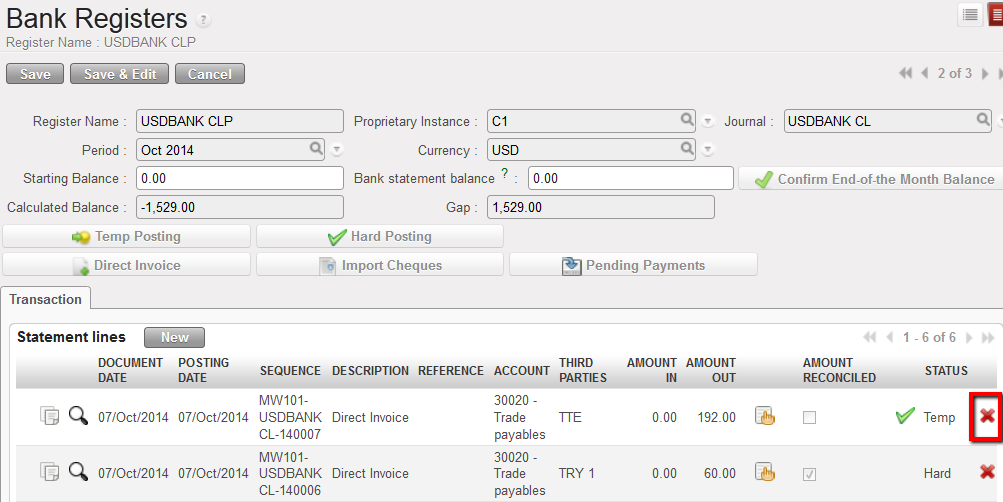
Direct entries in {Draft} or {Temp} status can be edited or deleted. Click on the pencil to edit the relevant fields. To delete a direct entry, click on the Red Cross . Deleting temp posted entries will also delete the associated journal entries and entries synchronized to other instances.

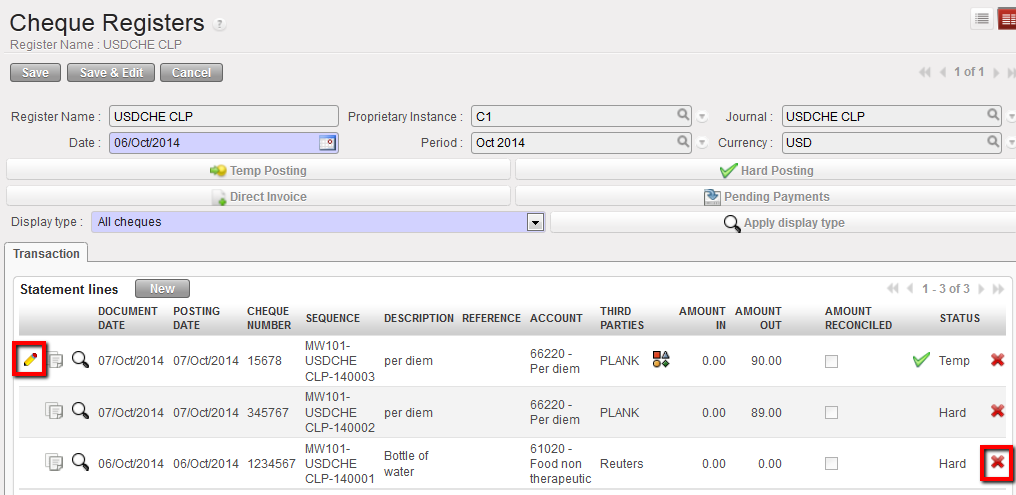
Direct entries in draft or temp status can be edited or deleted.
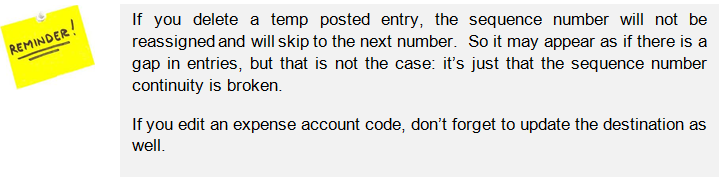
How to Edit and Delete Temp-Posted Direct Invoices

The validation of the direct invoice automatically creates a temp posted payment entry to a payable account in the register. Since the direct invoice is still in Draft status, edition can be made directly to invoice lines (description, product, price, quantity, account, AD).

Go to: Accounting/Registers

  1. Search for the register entry for the imported direct invoice which needs to be corrected. Click on the invoice icon.
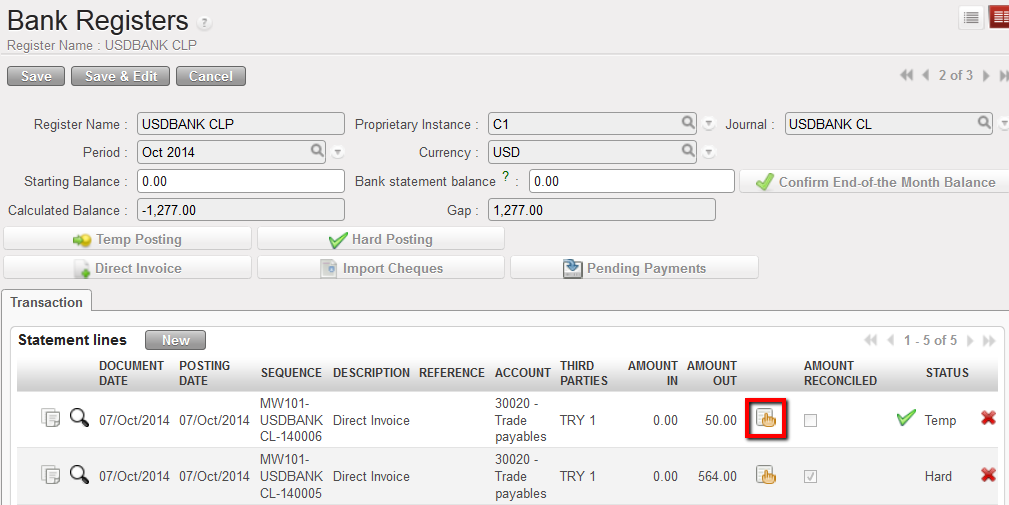

Open the Direct Invoice from Registers

2. A window opens displaying the Direct Invoice in Draft status. Invoice lines can be edited or deleted. Below we want to change the unit price to 6.00. After corrections are made, click on Compute Total and then Validate.
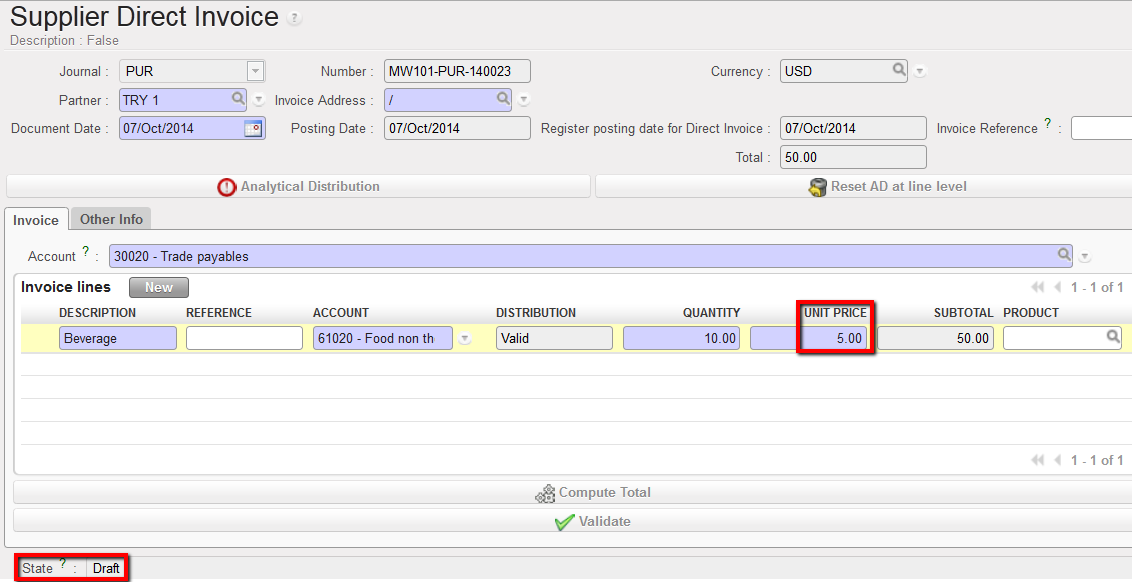

Edition of a draft Direct invoice and changing the unit price

3. The register line is updated.
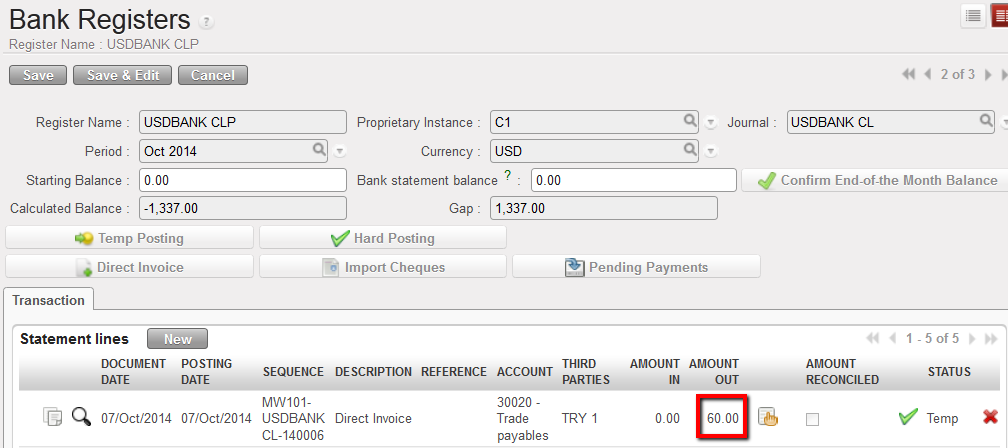

Register amount is updated

If you need to delete the Direct Invoice in {Temp} state, you must select the on the register line.Deletion of a Direct Invoice in Temp state in a register

How to Edit Temp-Posted Imported Cheques into a Bank Register

If an incorrect cheque has been imported into the bank register and in Temp status, then the register entry simply needs to be deleted and the correct cheque imported.

Go to: Accounting/Registers/Bank Registers

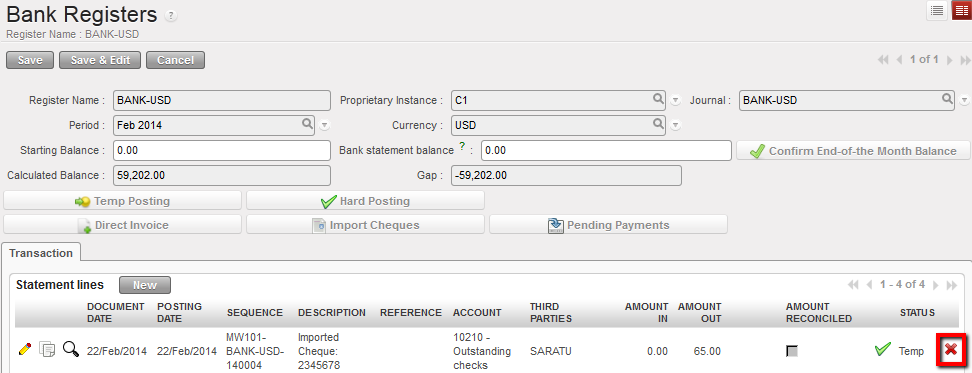
  1. Open the bank register in edit mode. Search for the register entry that was imported incorrectly. Click on the red cross to delete.


Delete the incorrectly imported cheque

2. The incorrect cheque is deleted from the bank register. Click on {Import Cheques}. Notice that the incorrect cheque is available again to import. Select the correct cheque to import.
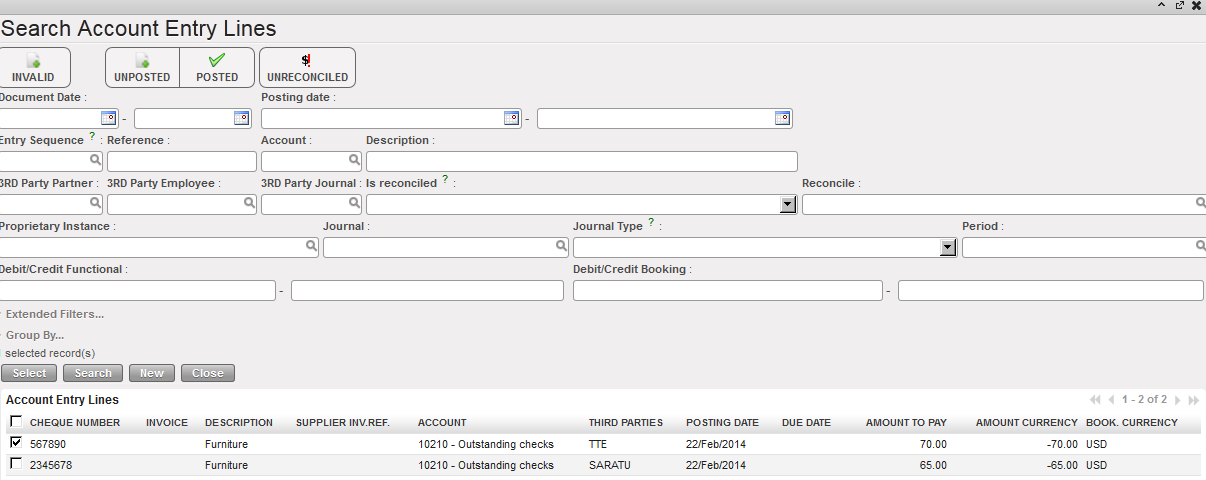

Select the correct cheque to import

How to Duplicate Register Entries

Go to: Accounting/Registers

  1. Select the register where the entry to be duplicated is booked
  2. Click on the icon located on the entry line you want to duplicate.

The register line is duplicated
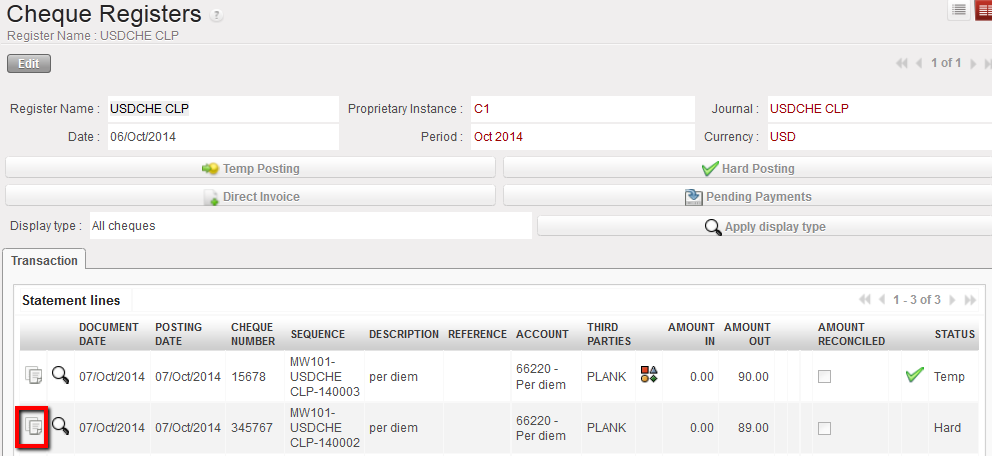
Duplicate an existing line

3. The analytical information is also duplicated. If required, edit the new entry.

How to View the Analytic Distribution of a Register Entry

Go to: Accounting/Registers

  1. Locate the register where you want to see the analytic distribution
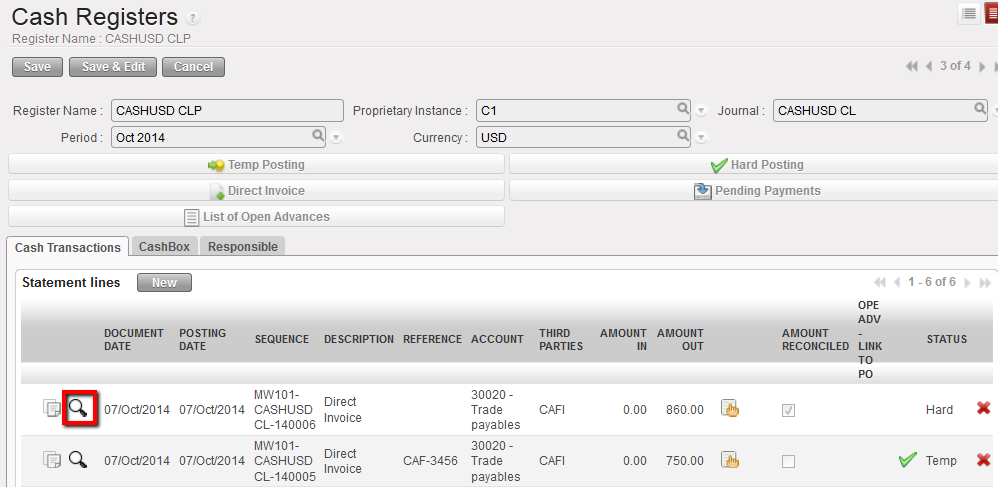
  2. Click on the icon

Magnifying glass to open the analytic journal items view

The analytic journal items window opens
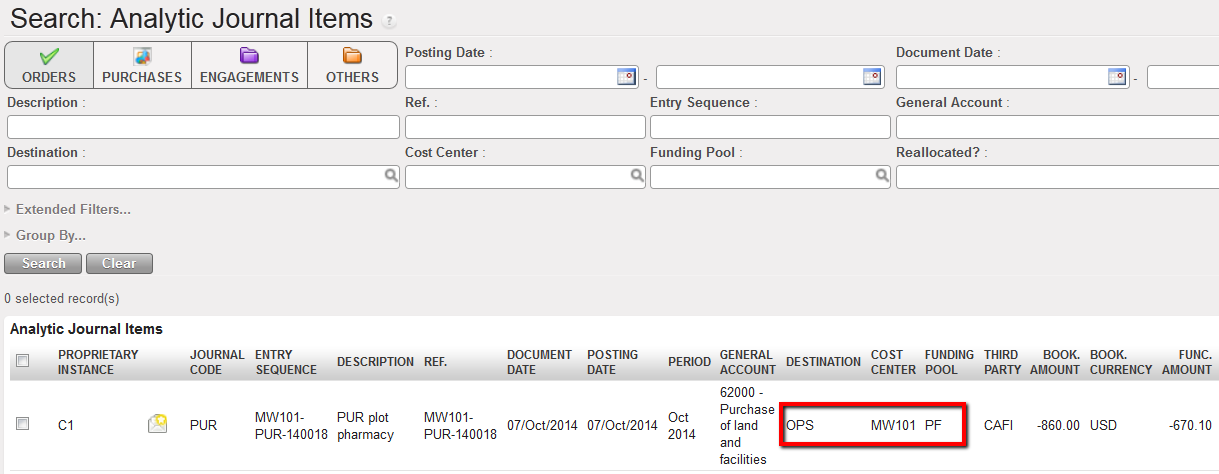
Analytic journal items search view

LUFI-21101 Manual Synchronization

LUFI-21101 Manual Synchronization

LU Introduction

In UniField, it is possible to synchronize data manually or automatically. An automatic daily synchronization can be configured by the IT staff. If your section chooses a manual synchronization, someone in each instance should be responsible to launch it on a regular basis. Only this user will have access to the synchronization business application.

How to Synchronize Manually

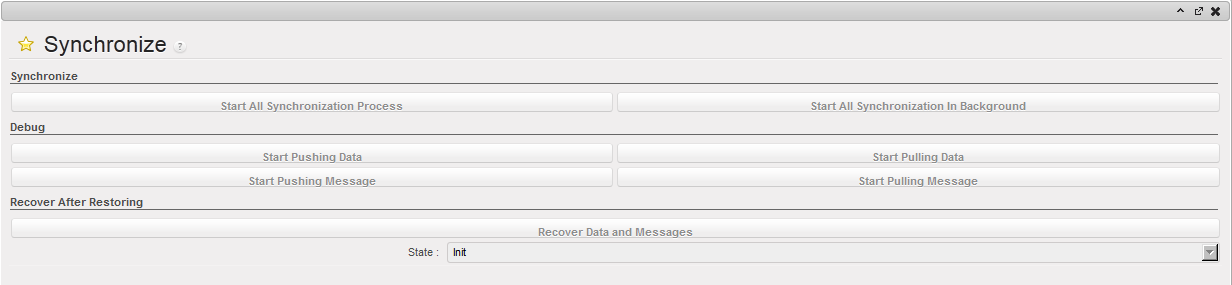
Go to Synchronization/Synchronization/Manual

  1. Select {Start all synchronization in the background}


Synchronization Menu

LUFI-21202 Synchronization Monitoring

Finance User Manual ENG -> 2. Finance Configurations -> 2.12 Finance Configurations’ Synchronization -> LUFI-21202 Synchronization Monitoring

LUFI-21202 Synchronization Monitoring

LU Introduction

The Synchronization Process Monitor shows a list of all rounds of synchronization for the instance, with data and time stamp included.


Synchronization Monitor

There are four tasks performed in this order: DATA PULL, MSG PULL, DATA PUSH, MSG PUSH.

Pulling is when the synchronizing instance receives information from the other instances. Pushing involves the synchronizing instance sending information to other instances. Data is all information entered since the last synchronization. For example, if the project created hard posted register entries, they will be sent to Coordination. Message pushing and pulling is mainly for sending and receiving of supply information.

There are three statuses:

  • In progress: the task is currently running.
  • OK: the tasks have been successfully executed.
  • FAILED: Some problems occurred during the execution. An error message explains the failures.

If for some reason the synchronization FAILED, attempt it again. If it FAILS again please check the messages received as explained below.

How to Monitor Synchronization

Go to Synchronization/Monitoring

  1. Select {Synchronization Process Monitoring}

The Synchronization Monitor is open

Go to Synchronization/Monitoring

2.  Expand the {Update} sub module

3. Select {Update Received Monitor}, {Update Sent Monitor}, {Message Received Monitor}, {Message Sent Monitor}


Monitor Screen

4. Select {Not Run}

The lists of entries exchanged but failed to be executed. The lines not successfully executed are shown in red with detailed error messages in the content portion of the line.


Message Received Monitor

Click on the individual line to show all relevant information to the run status and error message.

2.12 Finance Configurations’ Synchronization.

Finance User Manual ENG -> 2. Finance Configurations -> 2.12 Finance Configurations’ Synchronization.

LUFI-21201 Manual Synchronization
LUFI-21202 Synchronization Monitoring

FINANCE CONFIGURATIONS’ SYNCHRONIZATION

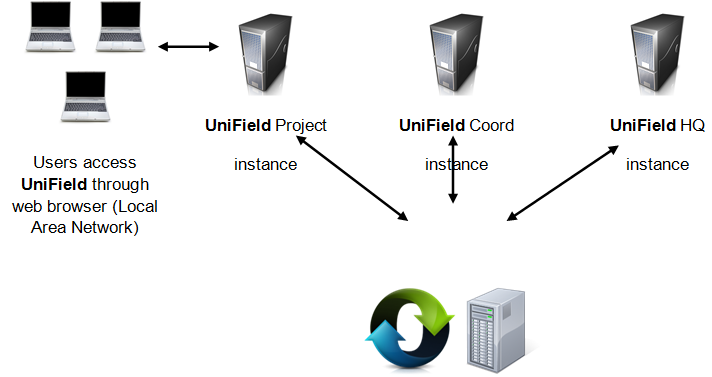
Synchronization is the tool that allows data exchange in UniField. An instance is a UniField installation. It could be a Project, Coordination or an HQ database. In simplified terms, one instance reflects one MSF office and is materialized by a local server that will most often be a dedicated device (laptop or server). The instances exchange data through the synchronization server. Within one instance users can work offline via a local area network, i.e. not connected to the internet or synchronization server. When data is sent from one instance location to another instance location UniField requires the user to log into the synchronization server via an online connection. Synchronization is performed regularly, either on an automatic or manual basis.

User-Instance-Synchronization Server relationship

Some data can synchronize only downwards (e.g.: from HQ to Coordination to Projects), only upwards (e.g. from project to Coordination to HQ) or bi-directionally (from HQ to Coordination to Project or from Project to Coordination to HQ).

Each sub chapter in this manual will provide further information on synchronization rules for specific configuration.

The below table summarises how financial data is synchronized:

Name

Synchronization Group (level)

Direction

Account Move

OC

Bidirectional-Private

Account Move Line

OC

Bidirectional-Private

Account Move Line Correction

OC

Bidirectional-Private

Account Move Line / Register Line

MISSION

Bidirectional-Private

Account Move Reconcile

OC

Bidirectional

Account Move State

OC

Bidirectional

Analytic Accounts (free 1, Free 2, Destination)

OC

Down

Analytic Line

OC

Bidirectional-Private

Analytic Line (Free 1 + Free 2)

MISSION

Up

Analytical Journal

OC

Bidirectional-Private

Analytical Journal (Coordination)

MISSION

Down

Analytical Journal (HQ)

OC

Down

Analytical Journal (Project)

MISSION

Bidirectional

Budget

OC

Up

Cost Center

OC

Bidirectional-Private

Currency

OC

Down

Currency Rate

OC

Down

Currency table rate

OC

Down

Donors

HQ + MISSION

Bidirectional

ESC Partner

COORDINATIONS

Down

Expat Employee

HQ + MISSION

Down

External Partner

HQ + MISSION

Bidirectional

Financing Contract

HQ + MISSION

Bidirectional-Private

Fiscal Year

OC

Down

Funding Pool (linked to a specific coordo)

HQ + MISSION

Bidirectional-Private

GL Accounts

OC

Down

GL Journals – Registers (Coordination)

MISSION

Down

GL Journals – Registers (HQ)

OC

Down

GL Journals – Registers

HQ + MISSION

Bidirectional

GL Journals (Non Register)

OC

Up

HQ Entries

OC

Bidirectional-Private

Intermission Partner

OC

Down

Internal Partner

MISSION

Bidirectional

Intersection Partner

OC

Down

Link Accounts/Destination

OC

Down

Local Employee

HQ + MISSION

Bidirectional

Periods

OC

Down

Product Category

OC

Down

Proprietary Instance

OC

Bidirectional

Register

MISSION

Bidirectional-Private

Tax Code

OC

Down

Synchronization Rules

OC = All instances belonging to one OC

MISSION= Project(s) + Coordination belonging to one mission

COORDINATIONS = all Coordinations + HQ belonging to one OC

HQ+MISSION = HQ + Coordination + Project(s) belonging to one mission

Up = lines synched upwards

Down = lines synched downwards

Bidirectional = Up + Down

Bidirectional-Private = To cost center tied up to the proprietary instance


2.11 Company Set Up.

Finance User Manual ENG -> 2. Finance Configurations -> 2.11 Company Set Up.

COMPANY SET UP

LUFI-21101 Company Set Up

LU Introduction

At the time of creating each instance, the company needs to be set up for each instance level. It is about defining the counterpart accounts for specific functions and transactions. You will need therefore to complete the below boxes:

  • Reserve and Profit/Loss Account: used to book profit, loss and reserve account in a P&L.
  • Intermission counterpart: overrides the accounting configuration of an intermission partner. Choose account 14010- Advances or expenses for other missions. The expense, at the delivery instance will be booked on the credit side and the advance account 14010 on the debit side. The opposite will be booked at the ordering instance. The account 14010 will be reconciled at HQ.
  • Revaluation account: to record revaluation of assets and liabilities. The balance of this account should be later input to profit or loss accounts or transferred to a reserve account.
  • Salaries default account for Payroll entries: 30100 Remuneration (net salary) payable; this account will by-pass the reconciliation rules and can be reconcile regardless the third party. This can be used for payroll entries.
  • Re-billing Inter-section account: use account 12011 Expense re-invoiced to other sections. This will restrict the import into a register of any entries set to this accounting code. The objective is to use the {Debit note} function so all entries will be imported into a Debit note for global rebilling on a periodical basis.
  • Income accounts specific configuration*: to restrict the mandatory allocation to income accounts of type 7.
  • HQ entries Default counterpart: 33010 Expense paid by HQ, payable account type used to balance HQ entries expense accounts booked in the field.
  • Revaluation account: cost account used to book month and year end balance sheet revaluation entries (optional, check own OC procedures)
  • B/S Move to 0 accounts: accounts (5xxxx/69xxx/79xxx) to offset year-end closing entries for accounts that are not reconcilable at mission level (optional, check own OC procedures)
  • P&L result accounts: Income/Expense and Balance sheet accounts for year-end closing entries (optional, check own OC procedures) in order to book the P&L result of the year in the fiscal year to close and to book the Initial Balance of the P&L result in the next fiscal year.
  • A field named “Extra Accounting Behavior” has been added. This field becomes read-only once the instance is created, in order to prevent discrepancies and ensure consistency across instances. 

    The dropdown includes three predefined options, each corresponding to specific booking permissions for periods P13, P14, and P15: 

    • OCB and OCG: No bookings allowed in P13–P15. 
    • OCP and WACA: allow booking of HQ entries MJE for corrections in ODM Accruals + Revaluation + ACW (accounting correction wizard) +FXA + analytic mass reallocation in P13, P14 and P15.
    • OCA: allow booking of +HQ entries + MJE (manual journal entries) + Accruals + Revaluation + IVO+IVI, + ACW (accounting correction wizard) + analytic mass reallocation in P13, P14 and P15 + FXA

    As this field is read-only after instance creation, any future changes (e.g., switching from OCB to OCA behavior) will require a patch script to ensure uniform updates across all relevant instances. 

  • The MRP & Logistics scheduler is defined by Supply. Please check your own OCs procedures.

Depending on your section policy, you will define which accounting code to use.

How to Set Up Companies in UniField

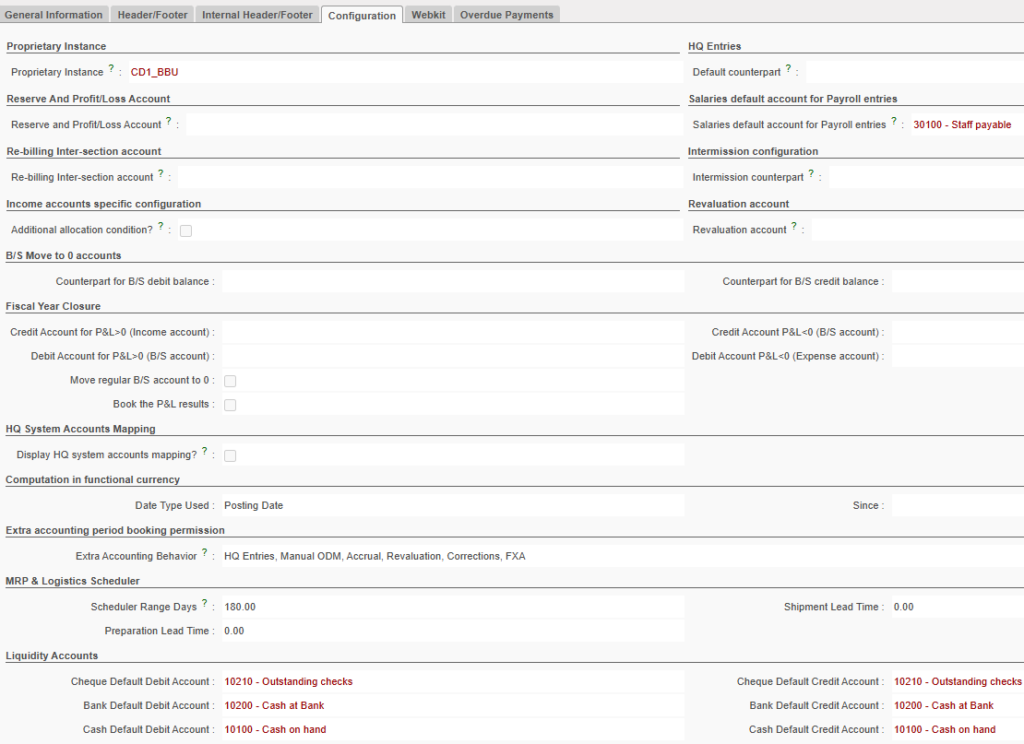
Go to: Administration/Companies/Companies

  1. Select the tab Configuration
  2. Complete the counterpart fields by using the counterpart account codes required by your respective OC’s procedures. The fields to fill in are highlighted in red as showed below.

Setting the default counterpart in Companies


LUFI-21005 How to link a partner to VAT/ Withholding Tax Configuration

Finance User Manual ENG -> 2. Finance Configurations -> 2.10 VAT and Taxes -> LUFI-21005 How to link a partner to VAT/ Withholding Tax Configuration

LUFI-21005 How to link a partner to VAT/ Withholding Tax Configuration

It is possible for the tax attached to a supplier invoice to have another third party (the correct one for which it’s going to be paid).

For that you need to add the required third party (partner) in the tax object.

  1. The Tax partner (mostly a governmental office) should be created first from Partners directly or from Accounting => Suppliers=>Suppliers=> {New}

2. To link the partner to the tax object, go to Accounting=> Configuration => Financial Accounting=> Taxes=> then in the tax object you want to use, add the third party related to this specific tax in the partner field.

3. The tax attached to the supplier invoice will have the partner chosen in the configuration of this tax. When doing the payment of this tax, it will be imported as usual through pending payment and the name of the partner will be the one linked to the tax not the partner of the supplier invoice.

Note: If no third party is added to the tax configuration, tax lines will take the supplier invoice third party.

If you need to check the last modification done in any tax object, you can click on {Track Changes} in the right-side menu.

LUFI-21004 Withholding Tax Configuration

Finance User Manual ENG -> 2. Finance Configurations -> 2.10 VAT and Taxes -> LUFI-21004 Withholding Tax Configuration

LUFI-21004 Withholding Tax Configuration

LU Introduction

Sometimes MSF is requested to pay a tax retained when making payments for goods supplied. This tax is called withholding tax. For instance a 2% withholding tax out of a supplier invoice of 100 CHF is 2.04CHF. You owe to the government 2.04CHF and to your supplier 100CHF. The total cost of your expense is 102.04CHF.

Unlike the VAT recoverable, the withholding tax is booked on a Payable account as it a debt to be paid to the government. It is booked on the credit side as any other Payable accounts. Thus this tax should be excluded from the total price to pay to the supplier. Here below is shown how to proceed.

Withholding tax booked on the credit side as any other payables account

How to Set Up a Withholding Tax

Go to: Accounting/Configurations/Financial Accounting/Taxes/Taxes

  1. In the Search Taxes view, select
  2. Complete the {Tax Name} and {Tax Code} fields.
  3. In the Tax Application field, select the value {Purchase}.
  4. Leave the field {Tax included in Price} empty.
  5. In the {Tax Definition} tab, select the tax type {Percentage}.
  6. Enter an amount as a value between 0 and -1. For instance, for a tax of 2%, enter -0.02. You need to enter a negative value so that this tax (payable) is booked on the credit side as any other payable accounts.
  7. In the Accounting Information section, enter a payable account for both the Invoice Tax Account and Refund Tax Account.

Setting a withholding tax with negative amount

8. Click on {Save} button.

Example: The tax (1.36 USD) is what you owe to the tax office. The Total is your outstanding debt towards your supplier.

Withholding tax applied to a supplier invoice

LUFI-21003 Partner Fiscal Position Configuration

Finance User Manual ENG -> 2. Finance Configurations -> 2.10 VAT and Taxes -> LUFI-21003 Partner Fiscal Position Configuration

LUFI-21003 Partner Fiscal Position Configuration

LU Introduction

Sometimes even though we have an agreement to recover VAT, it does not mean that all local suppliers will have the ability to invoice MSF with VAT. For that reason we would need to attach a specific tax scheme to those suppliers who cannot invoice MSF with VAT. For this exception we use the sub-module Fiscal positions.

How to Configure a Fiscal Position

  1. First you need to configure a tax equal to 0 % in the taxes sub-module for partner not handling VAT.

Go to: Accounting/Configurations/Financial Accounting/Taxes/Taxes

VAT 0% used to set a partner’s fiscal position not handling VAT

2. Second step is to configure the fiscal position.

Go to: Accounting/Configurations/Financial Accounting/Taxes/Fiscal Positions

Select and on the Fiscal Positions form view, enter a fiscal position name.

Fiscal Positions form view

3. In the tax mapping section, select and map a TAX SOURCE with a REPLACEMENT TAX. The REPLACEMENT TAX should be 0%. Save the line . What you are saying to the system here is every time there is a value of 20% tax, it should replace it by 0% tax.

Tax mapping to define a fiscal position

4. Click on {Save} button.

5. Last step is the configure the suppliers – accounting information.

Go to: Accounting/Suppliers/Suppliers

  1. Open the supplier form you want to link to a fiscal position.
  2. Go to {Accounting Tab}, select the created fiscal position.

Fiscal position setting in a supplier form

3. Click on {Save} button.

When an invoice is generated on a partner linked to a fiscal position, the system will override the tax linked to the invoiced products thanks to the tax mapping you recorded before. The invoice will look like this:

Supplier invoice and applied fiscal position