LUFI-21002 VAT and Product Linkage

Finance User Manual ENG -> 2. Finance Configurations -> 2.10 VAT and Taxes -> LUFI-21002 VAT and Product Linkage

LUFI-21002 VAT and Product Linkage

LU Introduction

As the applicable VAT percentage may differ from one product to another, there are 2 ways of proceeding in order for VAT to be applied at invoice level:

  • Assign VAT to each product on the product form itself
  • Assign VAT to the total amount of the invoice

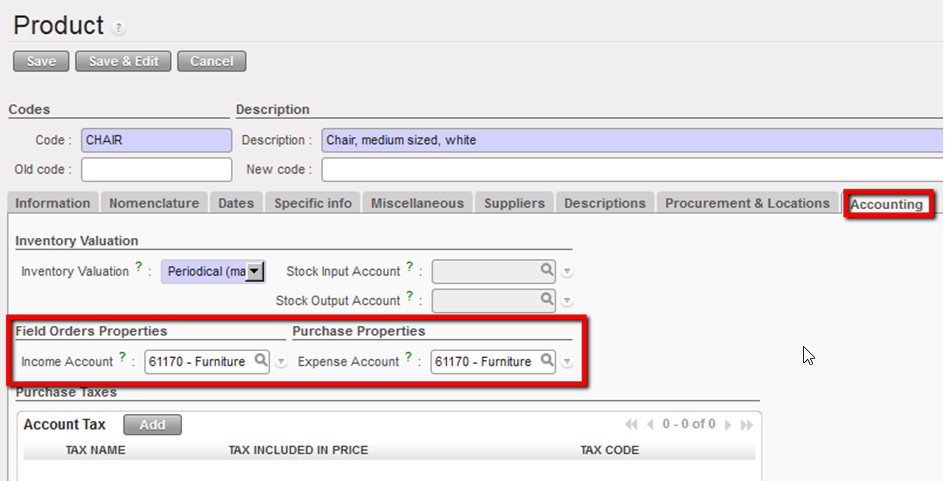
The product is linked to VAT on the product form in the accounting tab.

Purchase Taxes on the product form

How to Apply VAT to a Product

Go to: Products

  1. In the Search Products view, locate in the list the product to link to a VAT and open its form.

Products list in the Search Products list view.

2. On the Product Form view, go to the Accounting tab and select Add in the Purchases Taxes section to Add a tax.

Add button located in the Purchase Taxes section in the Accounting tab of a product form

The Search Taxes window opens

3. Among the tax list, select the one you want to link to the product.

Search Account Tax window and selection of a tax to link to a product

The Search Account Tax window closes. The tax is displayed in the Purchase Taxes section. You can edit or delete it . Please bear in mind that a tax edition from this section will change the tax initial setting of the configuration module.
Tax set in the Purchase Taxes section in the Accounting tab of a product form

LUFI-21001 VAT Configuration

Finance User Manual ENG -> 2. Finance Configurations -> 2.10 VAT and Taxes -> LUFI-21001 VAT Configuration

LUFI-21001 VAT Configuration

LU Introduction

Before setting the taxes in the instance, you must activate the taxes functionality. To activate it, you will follow the below steps.

How to Activate the Taxes Functionality

Go to: Administration/Configuration/Reconfigure

  1. Search for the step “Manage the VAT” by pressing the button

Manage the VAT step

2. On the “Manage the VAT” window, check the box “Manage the VAT locally”

3. Press when the task is completed

If the Step “Manage the VAT” is left blank, the Taxes section is removed from the Configuration sub-module.


The Fiscal Position field in the Accounting tab of a supplier form is hidden


The Account Tax section in the Accounting tab of a product form is taken away


The Taxes section is also removed from any payment documents (supplier invoices, refund invoices, direct invoices)


Now let’s see how Taxes are set in UniField.

Assuming VAT applied on sales is out of UniField scope, 3 cases were identified for purchase:

VAT not recoverable. Purchases are accounted for at price including VAT. No VAT management in this case.

VAT exemption. Purchases are accounted for at price excluding VAT. No VAT management in this case.

VAT recoverable. Purchases are accounted for at price including VAT but VAT is isolated on separate Receivable Accounts for later settlement through a proper VAT declaration. The VAT recoverable is booked on the debit side as any other receivable account as it is expected to be claimed back from the government.

VAT Recoverable booked on the debit side

The different tax percentages applicable in a country are created through the taxes sub-modules.

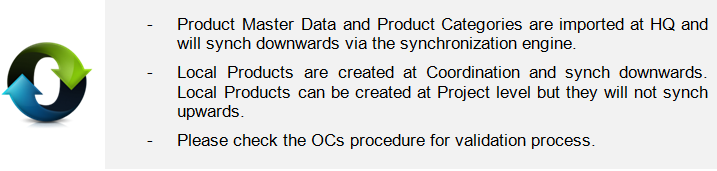
  • If it is done at HQ level, it is synchronized downwards to the mission (coordination and projects). In this case HQ can create a standard form, synchronize it and it is up to the mission to change the percentage according to the local applicable rate.
  • If mission creates VAT, it will not synchronize to HQ.

VAT set at project instance remains in the instance, thus it is not synchronized up to Coordination.

Please check your OC’s procedure.

The lists of taxes are available in the Search taxes view under the configuration sub-module as displayed below:

List of taxes in the taxes sub-module

The tax form view is the object used to define the percentage, calculation, application and accounting code of a tax.

Taxes form view

Once a VAT code is set, you can :

  • Associate a VAT to a product in the product form (See LUFI-20902 VAT and Product Linkage)
  • Associate a VAT directly to a whole invoice before validation (See chapter 03 – Payments)

How to Set Up a VAT

Go to: Accounting/Configurations/Financial Accounting/Taxes/Taxes

  1. In the Search Taxes view, select
  2. Complete the {Tax Name} and {Tax Code} fields.
  3. In the {Tax Application} field, select the value {Purchase}. {Sale} and {All} are not used. The {Active} box is automatically checked.
  4. Leave the box {Tax included in Price} blank if price is to be excluded form price.

Taxes form view header

  1. In the {Tax Definition} tab, select the tax type {Percentage}. The tax type defines the computation method for the tax amount. The values {Fixed amount, None, Python code and Balance} are not used.
  2. Enter an amount as a value between 0 and 1. For instance, for a tax of 20%, enter 0.20. You need to enter a positive value so that this tax (recoverable) is booked on the debit side as any other receivable accounts.
  3. In the Accounting Information section, enter a receivable account for both the Invoice Tax Account and Refund Tax Account.

Tax Definition: computation method and accounting codes setting

4. The remaining sections on the form as well as the Special Computation tab do not have to be completed.

Special Computation and Tax Declaration Invoices are left as such

5. Save the form.

6. In the Taxes Search view list, the tax is displayed. You can always edit or delete it

Search Taxes view

  • You will have these filters in the search view: [active] [inactive] [Tax included in price] [Tax not included in price].
  • For the status [active] or [inactive] filters, the default display will be [active].
  • For the types [Tax included in price] or [Tax not included in price] the display will be both.

2.10 VAT and Taxes.

Finance User Manual ENG -> 2. Finance Configurations -> 2.10 VAT and Taxes.

LUFI-21001 VAT Configuration
LUFI-21002 VAT and Product Linkage
LUFI-21003 Partner Fiscal Position Configuration
LUFI-21004 Withholding Tax Configuration
LUFI-21005 How to link a partner to VAT/ Withholding Tax Configuration

VAT AND TAXES

Depending on the agreements made with local governments, MSF may manage 2 types of taxes: VAT and withholding taxes. Both types can be managed directly in UniField. Please refer to your procedures to check if the recording of VAT and withholding taxes is mandatory in your section.

LUFI-20901 Local Product Configuration

Finance User Manual ENG -> 2. Finance Configurations -> 2.9 Products and Product Categories -> LUFI-20901 Local Product Configuration

LUFI-20901 Local Product Configuration

A.   LU Introduction

While there is a master file of international products that is common across all sections and missions individual missions may also create local products based on their missions’ individual financial and supply procedures. Remember the common Unit of Measure used in MSF is the Unit (PCE).

B.   How to Create a New Local Product

Go to: Products/Products

  • Click .
  • Fill in all blue mandatory fields. Code and Description should follow mission standards.
  • On the Information tab you must fill in:
    • Stockable product, a non-stockable product or a service with reception.
    • Costing Method = Average Price or Standard Price. Select Average Price and UniField will automatically recalculate the average costs based on the costs paid when the good is received in the warehouse module. If Standard Price is chosen the user must write in a standard price. This price will continue to be used regardless of actual costs paid.
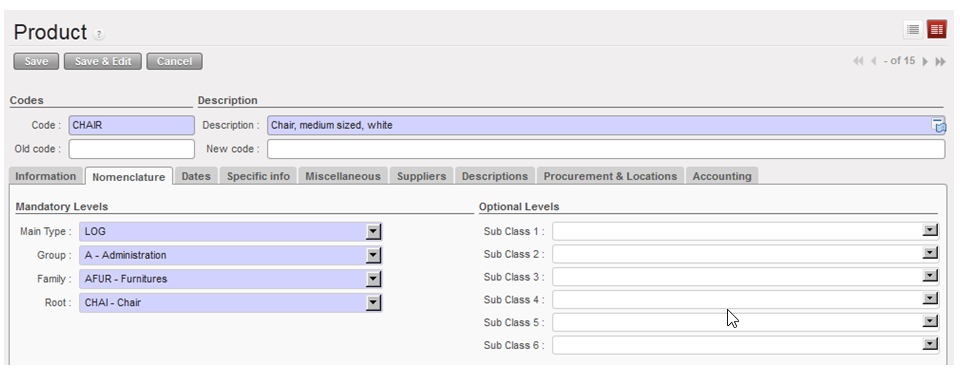
  • On the nomenclature tab you must fill in the four layers which make up the product category.  Please follow mission protocols.

Products Nomenclature tab

  • The product category will set the account code based on a standard list. If the account code has to be changed, please follow the steps in 2.8.2 to modify it.

Products Accounting Tab

  • Click {Save} button.

2.9 Products and Product Categories.

Finance User Manual ENG -> 2. Finance Configurations -> 2.9 Products and Product Categories.

LUFI-20901 Local Product Configuration

PRODUCTS AND PRODUCT CATEGORIES

The ITC Product Master data (Unidata) is loaded as part of the installation and is shared by all OCs. All single products are linked to a product category, which is linked to an Accounting code. It means that each individual product doesn’t necessarily have an individual accounting code, the one by default taken into account being the one of the product category.

If the account code to be associated to a product differs from the account set on the product category, you will then link a specific account code directly to the product itself. In this case UniField will by default use the account defined on the product instead of the one defined on the product category.

In each mission, it is possible to create local product that is not in the master data file, for instance a product of type service like “house rental”.


There are different product types:

  1. Stockable product: for products which are usually in stock and can be stored
  2. Non-stockable: for products which will not be managed in the warehouse storage. For example: Expat food, some stationeries, etc.
  3. Service with reception; services that are formally received in the system to confirm they have been consumed. For example: Electricity bills, construction contracts, or transport contracts.

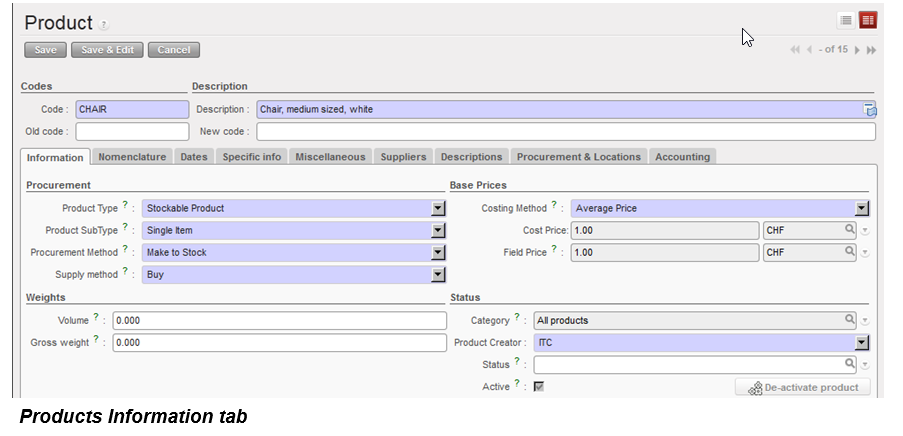
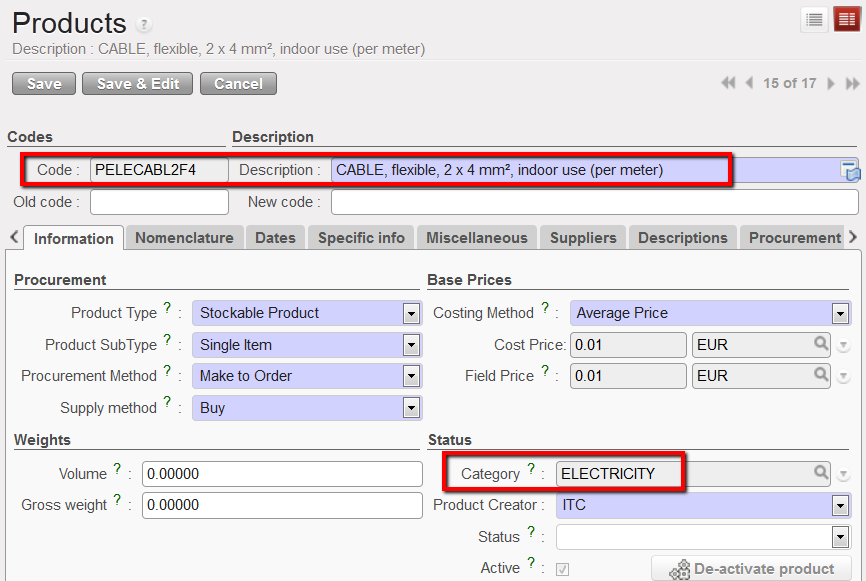
A product, e.g. cable, is assigned to a Category field on the Information tab.

Product category displayed on the information tab of a product form view
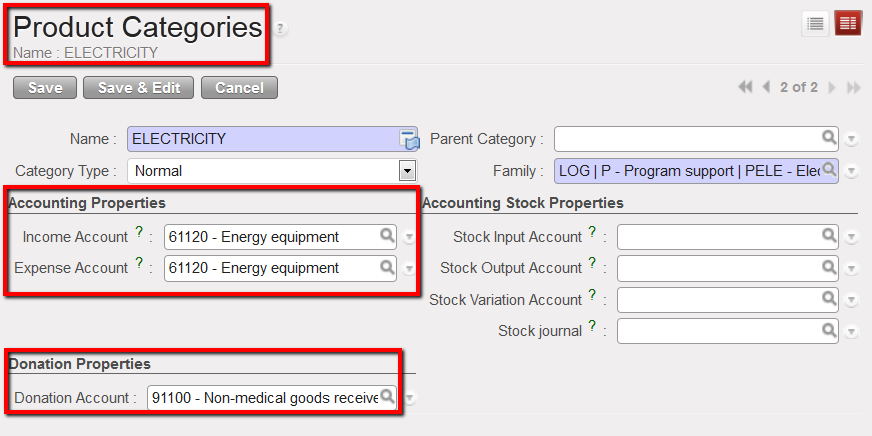

Each product category is linked to an expense and an income account (booked on the purchase journal) and a donation account (booked on the extra-accounting journal). Therefore, every time a product is selected UniField will automatically link this product to an expense account and a donation account.


Product category {ELECTRICITY} and associated accounting properties

The mapping (and updating) of the product category / expense account / income account / donation account link should be done by the person in charge of the data base set up at HQ level (import file) in the sub-module {Products Categories} in Accounting/Configuration/Miscellaneous.

LUFI-20803 Inactivating a Partner

Finance User Manual ENG -> 2. Finance Configurations -> 2.8 Suppliers and Customers -> LUFI-20803 Inactivating a Partner

LUFI-20803 Inactivating a Partner

LU Introduction

Before inactivating a partner/supplier, you must confirm all documents (invoices, purchase orders, field orders, and vouchers of any kind) associated to this partner are closed. If not you will be prevented from disabling the partner and the following error message will appear:

How to Inactivate a Supplier

Go to: Accounting/Suppliers/Suppliers

1. The partners list appears. You can use the filter buttons or fields to narrow your search to a specific supplier or customer.

2. To display partners states with 3 buttons :

  • SHOW ACTIVE : Display only active partners
  • SHOW PHASE OUT : Display deactivated partner but still linked with open documents ,so no more creation of future documents with phased out partner
  • SHOW INACTIVE : Display the inactive partner. All linked documents should be closed with the end process.

  1. When your partner is located, click on the pencil to edit the partner form,then partner form opens:
  • box “Partner Status” with active under combo-box “Partner type
  • buttons “Deactivate partner” & ” Re-activate partner “under box “Partner Status
  • for active tick box always frozen whether ticked or unticked , the active tick box ticked in both status: Active & Phase out
  • In Search: Track changes is possible to see the following:
  1. Field Description >> “Active” with 2 values True & False
  2. Field Description >>”Partner Status” with 2 values active , inactive & phase out as below:

LUFI-20802 Partner Deletion

Finance User Manual ENG -> 2. Finance Configurations -> 2.8 Suppliers and Customers -> LUFI-20802 Partner Deletion

LUFI-20802 Partner Deletion

LU Introduction

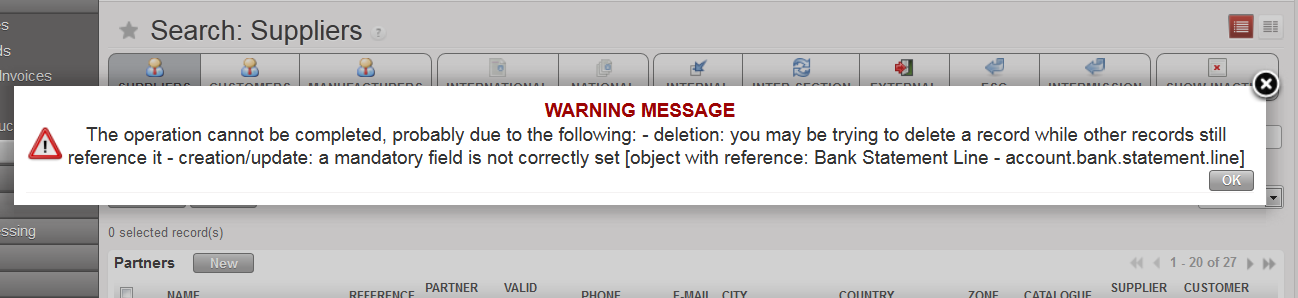
Authorized financial and supply users have the option to delete a partner for example when a partner was created by mistake. However, partners cannot be deleted if they have transactions against them. In such a case, there is a warning message. Also, partners can’t be deleted if they originate from other instances.

In this example, you cannot delete this partner because there is a transaction booked against it in a bank register.

How to Delete a Supplier

Go to: Accounting/Suppliers/Suppliers

  1. The partners list appears. You can use the filter buttons or fields to narrow your search to a specific supplier or customer.
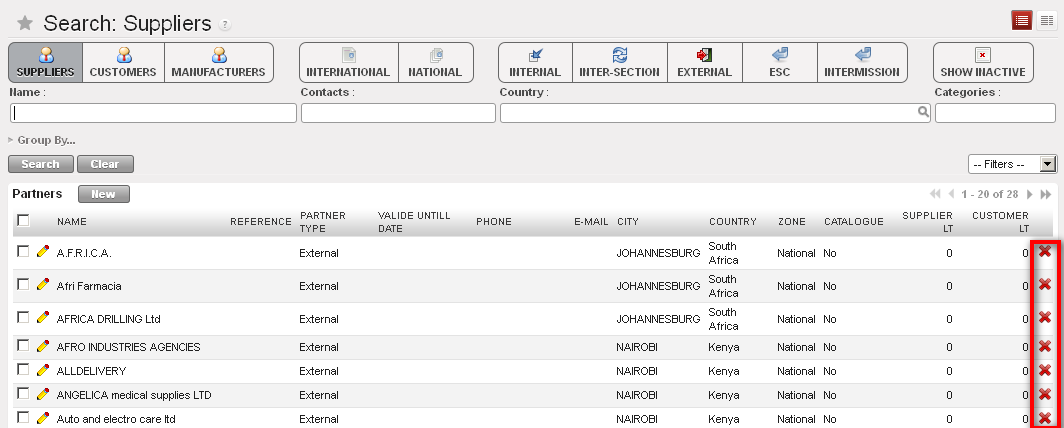
  2. Click on the red cross on the right corresponding to the partner which you want to delete.

  3. A confirmation pop up appears.
  4. Click {Yes}.


Partners form removal buttons


LUFI-20801 Partner Creation

Finance User Manual ENG -> 2. Finance Configurations -> 2.8 Suppliers and Customers -> LUFI-20801 Partner Creation

LUFI-20801 Partner Creation

LU Introduction

In the below example we will create a partner form type external to book the social security liabilities.

How to Create a Supplier

Go to: Accounting/Suppliers/Suppliers

A list of suppliers appears

  1. Click on {New} to create a new supplier form.

A supplier form appears (the supplier’s box is automatically checked)

2. Enter the supplier name in the {Name} field. In this case it will be {Social security}.

    • If it concerns a business company, spell the name exactly as it is on the company’s invoice/letterhead.

3. Enter the reference in the {Reference} field, e.g {SSEC}.

    • It could be the type of services provided if it is a business company.

4. Set {Partner type} field to {External} as we are creating a partner which is not linked to MSF

5. Set the {Language} of communication. All documents related to this partner will be printed in this language. If not, it will default to English

6. Set {Zone} field to {National}.

    • {National} is used for all-in country partners. If {International} check with LogCo.

7. In the field {Order creation mode} {All requirements} is set by default.

8. The {Active} box is checked by default.

9. In the General tab, in the {contact name} section, enter the name of your contact in {Contact Name}.

    • If it is a business company, spell exactly as it is on the company’s invoice/letterhead

10. Choose the right title using the combo box {Title}, enter manually a function.

11. Check the box active if you want to display the contact details in the partners Search view

12. In the {Postal address} section, fill in the different information fields.

    • If it is a business company, spell exactly as it is on the company’s invoice.

13. In the {Communication} section, fill in the different information fields.

    • If it is a business company, spell exactly as it appears on the company’s invoice.

14. In the tab {Field Orders & Purchases}, select the {Default Purchase Currency}. The {Default field order currency} should be identical. The selected currency will be the default currency you use to pay this supplier.

  • The standard in the partner is that both Purchase Default Currency & Field Order Default Currency must be unique with the currency code, so once Purchase Default Currency has a value, the field automatically updates the Field Order Default Currency with the same currency code.
  • It’s not possible to edit Field Order Default Currency otherwise a popup with a warning message will appear as below:


15. In the {Supplier lead time} keep {0} days.

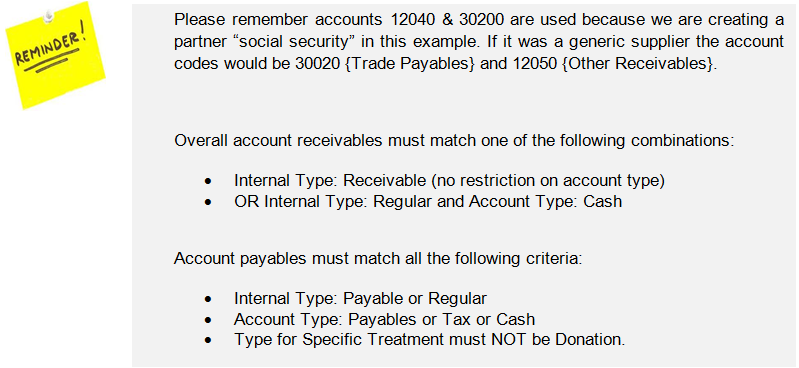
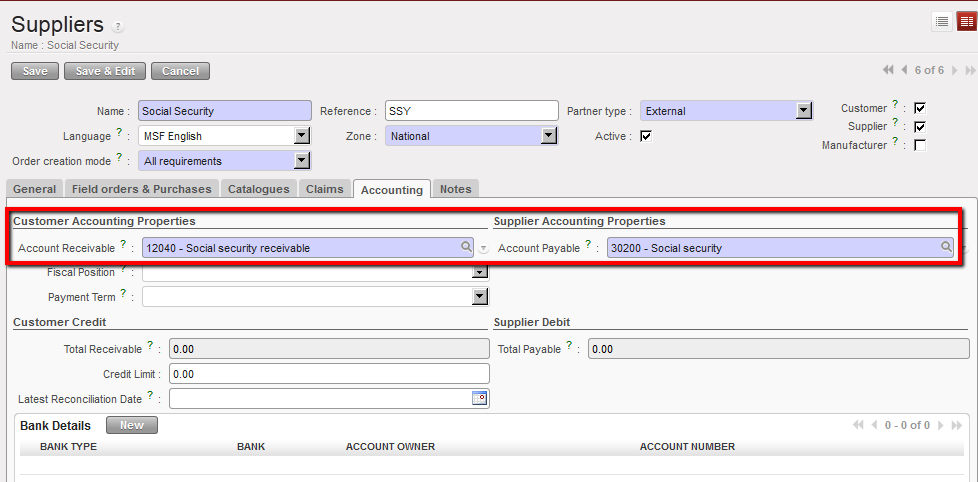
16. In the Accounting tab, enter the Account Receivable 12040 {Social security receivable} and Account Payable 30200 {Social security).


17. You do not need to complete any other tabs/fields. Save the form.

The social security supplier form is created


                                         Social Security form and accounting tab


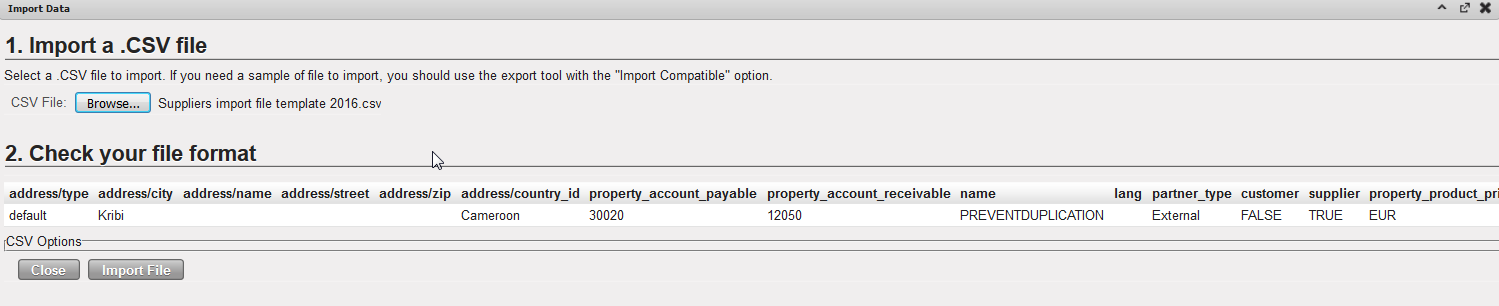
A faster way to create a partner form is to use the “Import” function at the top pane in the “Actions” menu. You will need a template of type csv to process the import. Remember that restrictions on account codes will apply too.

Supplier Import View

LUFI-20704 Register Deletion

Finance User Manual ENG -> 2. Finance Configurations -> 2.7 Liquidity Journals and Their Corresponding Registers -> LUFI-20704 Register Deletion

LUFI-20704 Register Deletion

LU Introduction

If a register has been created by mistake, you need to delete the corresponding journal. It is not possible to delete the register directly. You can only delete the corresponding journal if the register is still in {Draft}.

How to Delete a Register

Go to: Accounting/Configurations/Financial Accounting/Journals

  1. Retrieve the journal you want to delete e.g. by using the filter {Journal type}.
  2. When you have identified the correct journal, click on the pencil of the journal to open the form.
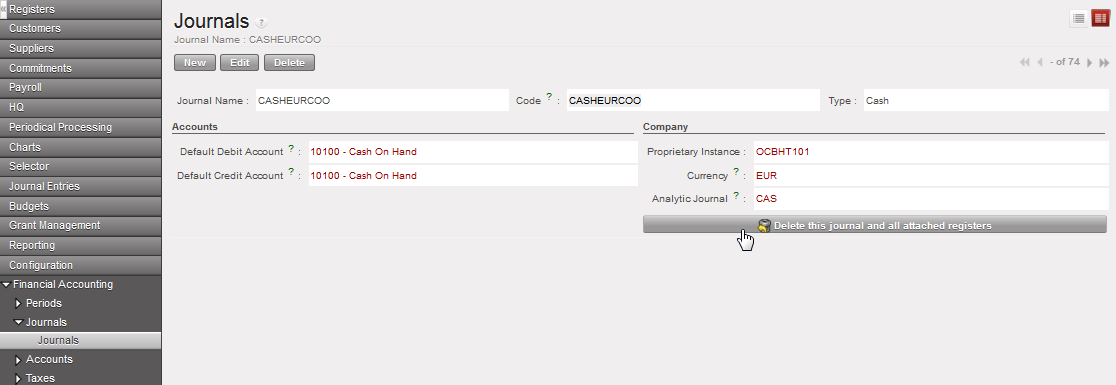
  3. Click on {Delete this Journal and all attached Registers} and confirm

The journal and associated register are deleted

LUFI-20703 Monthly Register Creation

Finance User Manual ENG -> 2. Finance Configurations -> 2.7 Liquidity Journals and Their Corresponding Registers -> LUFI-20703 Monthly Register Creation

LUFI-20703 Monthly Register Creation

LU Introduction

Cash, bank and cheque registers need to be reconciled at the end of each month (period). Therefore, at the end of each month, the user needs to close their register(s) and create new registers for the following month. The user does not need to wait for the closing of the previous months register to open the new register. The opening balance will not be finalized until the previous month’s register is closed.

To create a new register, a function called {Register Creation} is used. It is virtually the same process to create a month’s bank, cheque or cash register.

How to Create a New Months’ Register Using the Register Creation Function

Go to: Accounting/Registers/Register Creation

  1. In the {Period} field, select the period in which you want to create the registers (remember that UniField only displays {open} periods).
  2. Click on {Confirm Period}.

{Register creation} wizard.

3. Delete the registers you do not want to create by clicking on the Red Cross . You want to create all cash, cheque and bank registers that have active cashboxes and bank accounts.

Deleting registers that should not be created

4. Click on {Create Registers}

The registers are created in {Draft}. You will need to open each register. You will find the cash registers in the {Cash registers} sub-module, the bank registers in the {Bank registers} sub-module and the cheque registers in the {Cheque Registers} sub-module.