LUFI-20702 Register Creation

Finance User Manual ENG -> 2. Finance Configurations -> 2.7 Liquidity Journals and Their Corresponding Registers -> LUFI-20702 Register Creation 

LUFI-20702 Register Creation

LU Introduction

A liquidity journal and a register must be created for each physical cashbox, safe, cheque book or bank account. The creation of a liquidity journal (cash, cheque or bank) triggers the automatic creation of the related register in {Draft} state in the same currency. The liquidity journals remain indefinitely open while the associated registers will be monthly closed and re-created again for next period.

As the register is opened in {Draft} state, the user needs to open the register to book entries. When a new register is opened for the first time, the user needs to enter an opening balance by changing the {CashBox} cash count value or bank opening balance in UniField unless the opening balances are recorder as a direct entry in register (please check your OC’s procedures).

Same process applies to creating cash, cheque or bank journals with slight field differences for the cheque registers. For the purpose of this exercise we will create a cash register.

How to Create and Open a Register

In this example we will create a Cash register. You will first need to create a Cash Journal.

Go to: Accounting/Configuration/Financial Accounting/Journals/Journals

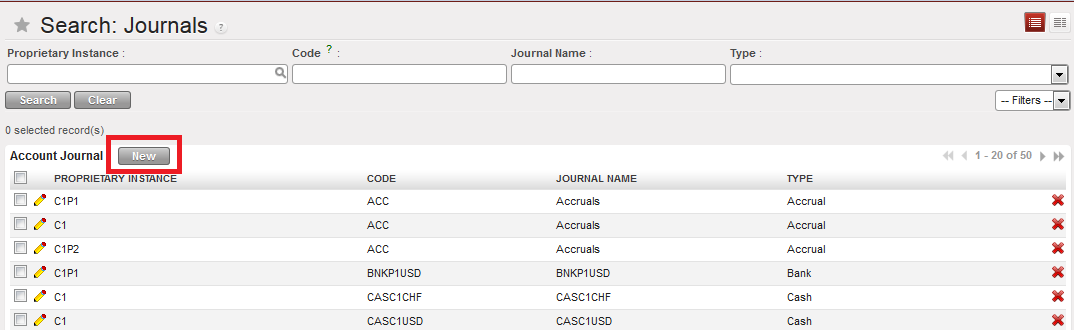
  1. Click on {New} to create a new journal.

{Journals Search} view and {New} button

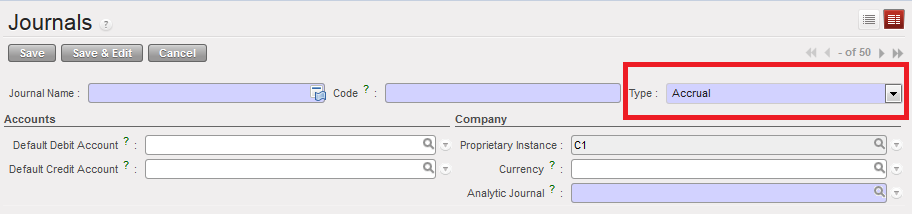
A new journal form appears

{Journal Form} view and journal type defaults to {Accrual}

  1. Complete the {Journal Name} and {Journal Code}. The Journal name and code must indicate the currency and the location to easily spot the corresponding register.
  2. Choose Journal type {Cash}. You would have chosen a {Bank} or {Cheque} types to create a bank or cheque journal.
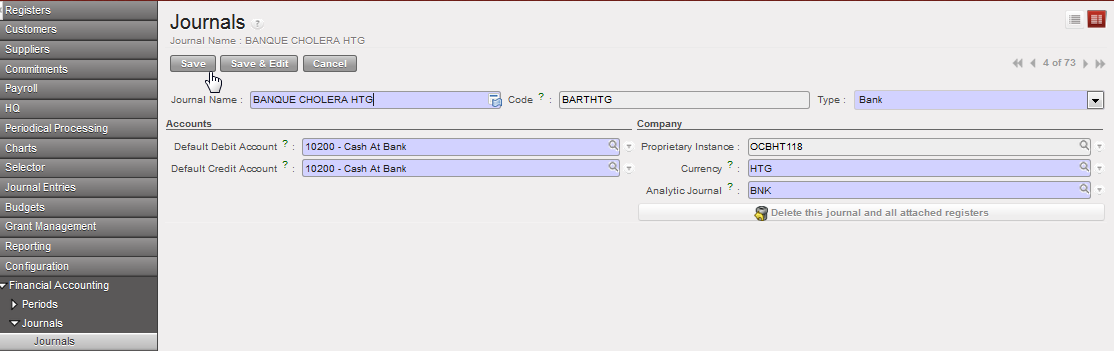
  3. In the {Accounts} section, choose the account {10100 Cash on Hand} to set the default debit and credit accounts. You would have chosen {10200 Cash at Bank} and {10210 Outstanding Cheques} for Bank and Cheque Accounts.
  4. In the {Currency} field, select the currency of your cashbox.
  5. The Analytic Journal defaults to {CAS}
  6. Save the form

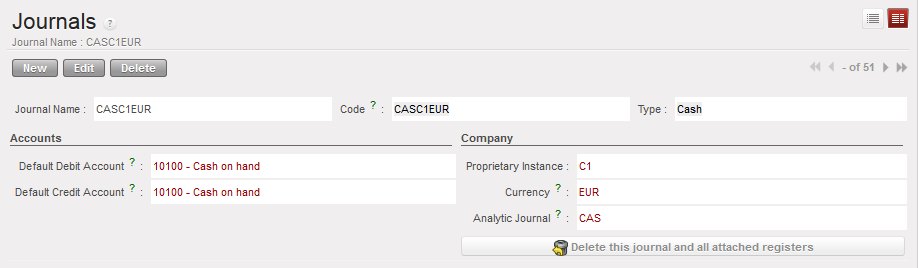
A cash journal is created

AFN cash journal created

Title of fieldEntry protocolSource for Information
Journal Name<CASH/BANK/CHEQUE> <CUR> <TYPE> <PROJ>


<CUR> is the currency code, <TYPE> is MAIN or PETTY, and <PROJ> is COORD or the short name for the project, e.g.

01 CASH PGK MAIN POM 03 CHEQUE PGK LAE

02 CASH PGK PETTY POM 04 BANK PGK LAE

FinCo/HQ
Code## <CAS/BNK/CHE>-<CUR>, e.g. 01 CAS PGKFinCo/HQ
TypeDrop down: Cash, Bank, ChequeFinCo/HQ
Default Debit Account10100 Cash on hand for cash journals


10200 Cash at Bank for bank journals

10210 Outstanding Cheques

FinCo/HQ
Default Credit Account10100 Cash on hand for cash journals


10200 Cash at Bank for bank journals

10210 Outstanding Cheques

FinCo/HQ
Proprietary InstanceSystem Default 
CurrencySelect the currency appropriate for this journalFinCo/HQ
Analytic JournalCash, Bank, ChequeFinCo/HQ
Bank Account Name (only bank journals)Optional field for Name of the bank account from bank statementFinCo/HQ
Bank Account Number (only bank journals)Optional field for Bank Account NumberFinCo/HQ
Swift Code (only bank journals)Optional field for Bank Swift CodeFinCo/HQ
Address (only bank journals)Optional field for Bank addressFinCo/HQ

When the creation of the cash journal is completed you need to open the corresponding cash register.

Go to: Accounting/Registers/Cash Registers

A list of open cash registers displays (if you have created and open cash registers before)

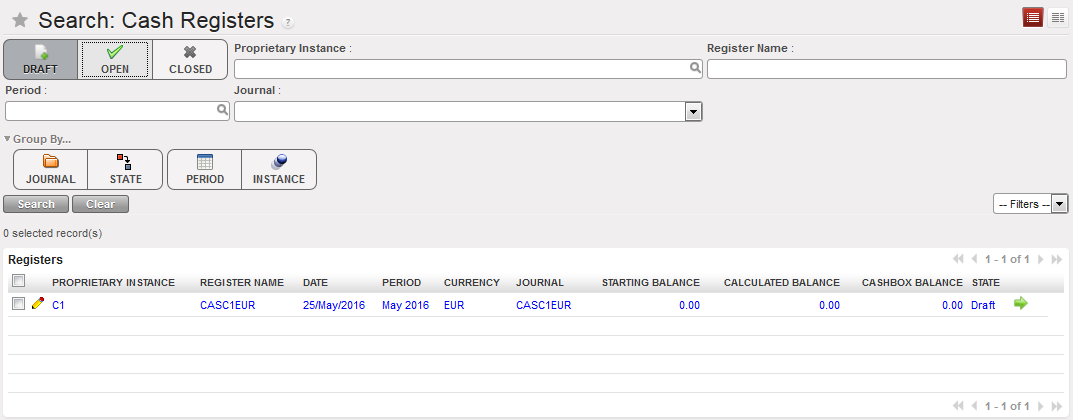
  1. Search for the draft registers. You need to clear the current filter {Open} and select the filter {Draft}

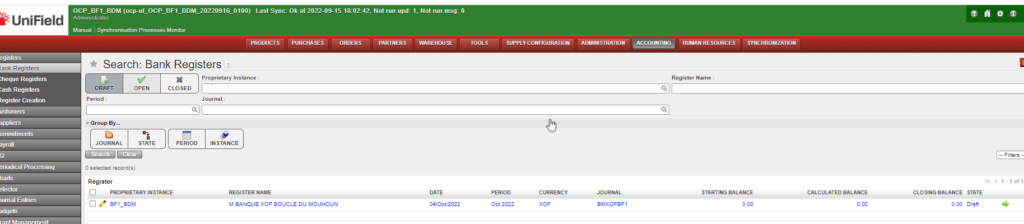
{Cash registers} Search view showing a draft register as the filter Draft was selected

2. Click on the Green Arrow located on the register line to open the register form

A wizard asks you to confirm the period of the register.

{Open Register confirmation} wizard

3. Select {Yes}

The draft cash register disappears from the draft cash registers list and becomes Open. The starting balance is zero.

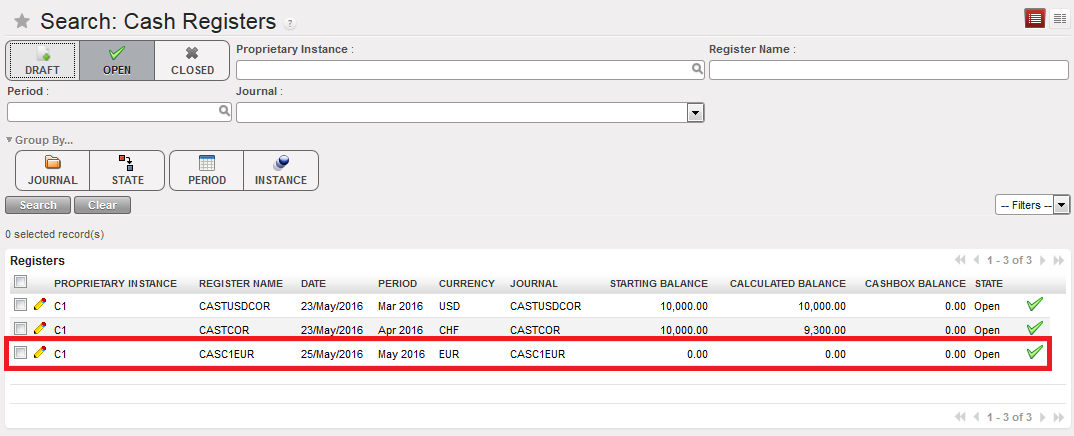
4. Select the filter {Open} to access the register

Open Cash register and starting balance of 0.00

The next step will be to record a cash transfer by creating a register line. This is addressed in Chapter 3 – Payments LUFI-30301.

If you are opening a register with a cash balance for instance in case of data migration*, you will report the closing balance of the previous period in the register cashbox. For instance, you want to report 2,000 USD in the register cashbox:

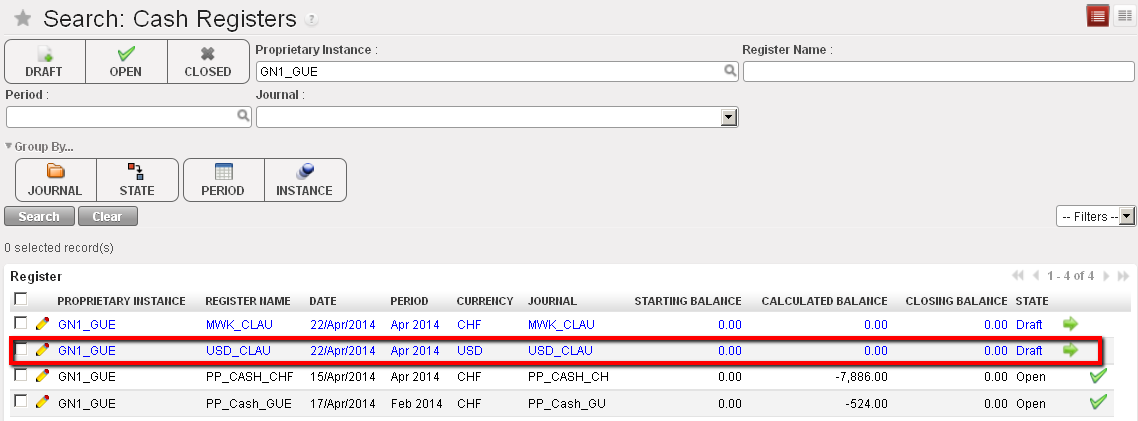
  1. In the Search Cash register view, open the relevant Draft Cash register.

List of Draft cash registers

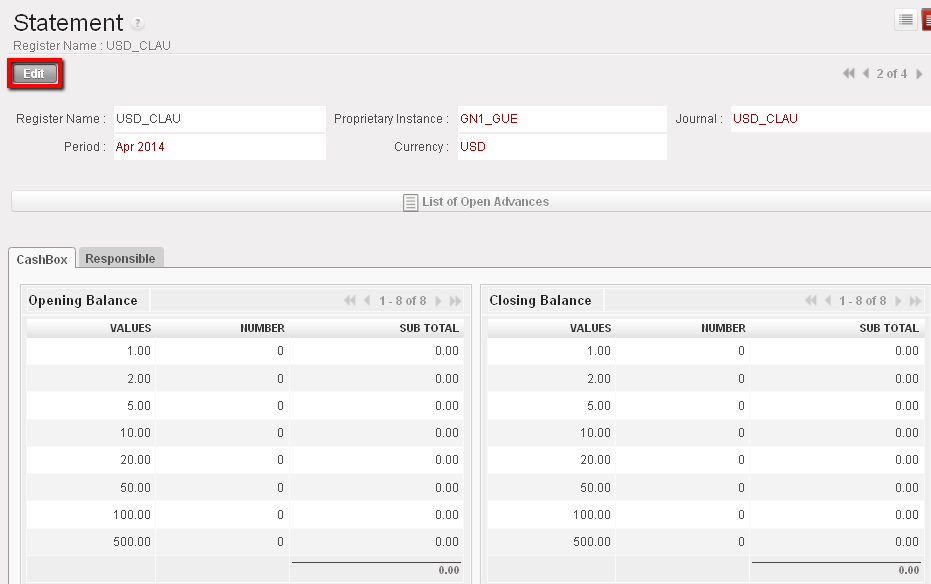
2. On the Cash register form view, select the {Edit} button to be able to input the opening balance in the register cashbox.

Draft cash register and Cashbox to edit

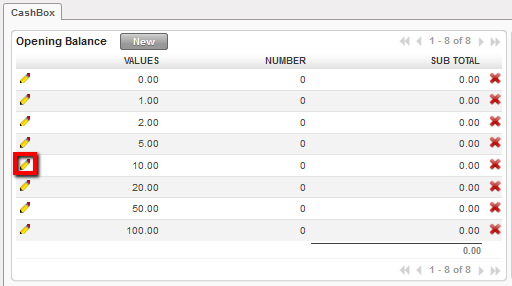
3. Change the value of the cashbox by selecting the

Edit button used to change the the cashbox value

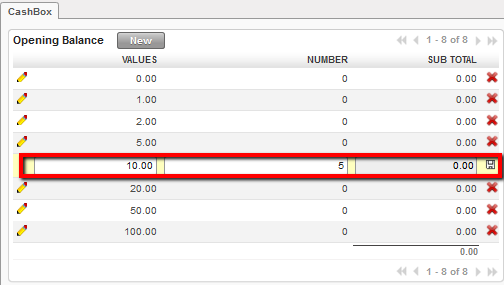
Changing the value of the cashbox

4. Save each line by clicking on .

5. At the bottom of the screen, select to open the register

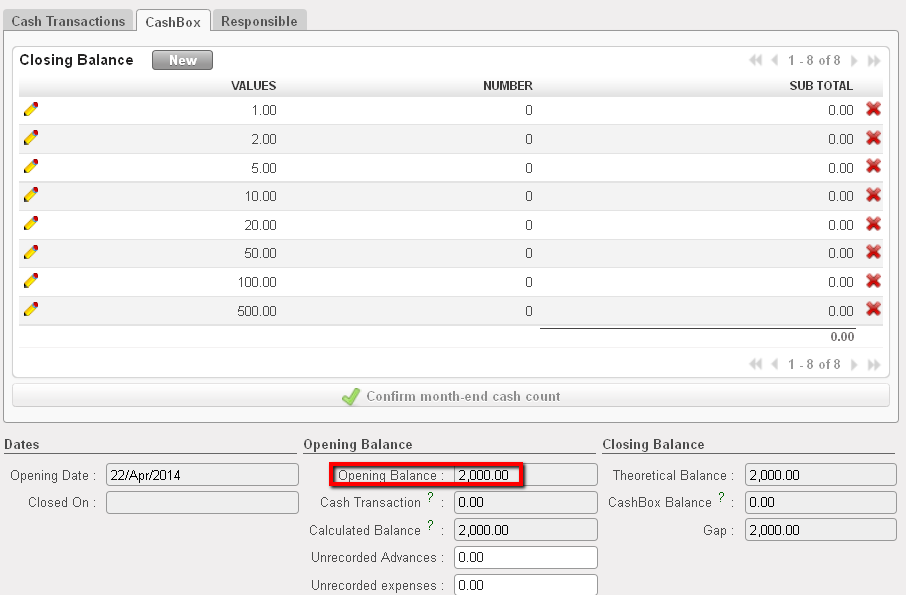
The cash register becomes Open displaying an opening balance of 2,000 USD

Opening balance reported in the register cashbox

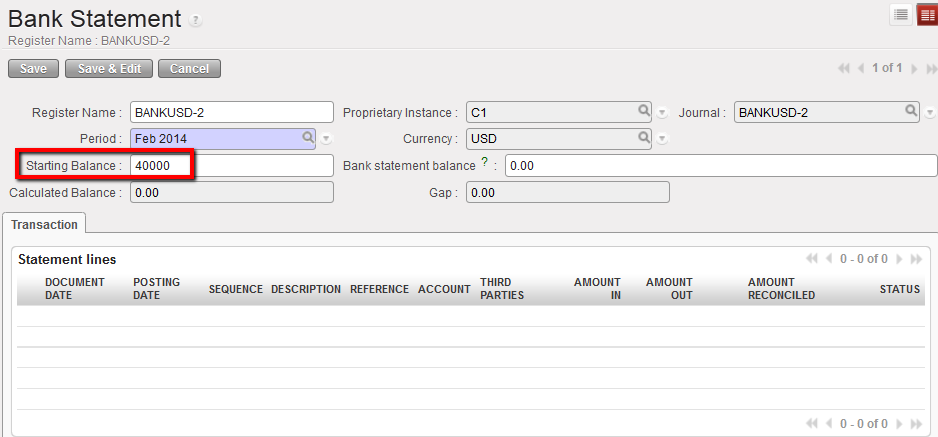
If you are opening a register with a bank balance linked to data migration, you will report the closing balance of the previous period in the bank register form view. For instance, you want to report 40,000 USD in the bank register:

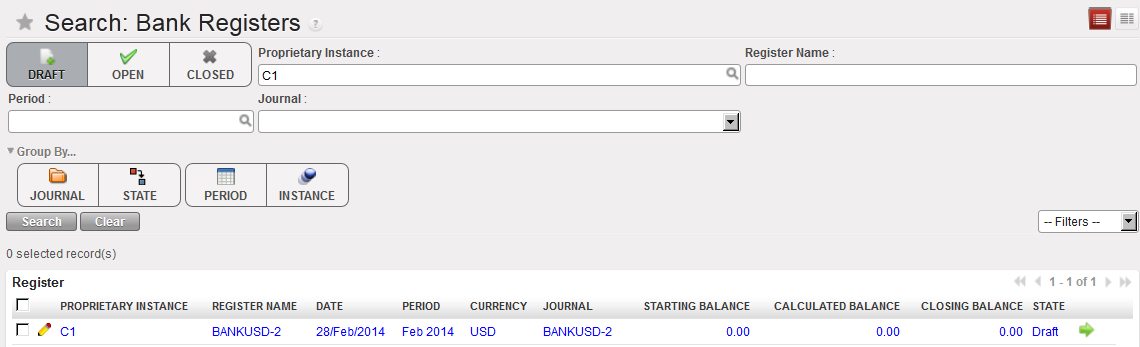
  1. In the Search Cash register view, open the relevant Draft Bank register.

List of Bank cash registers

2. In the Bank statement form view, insert the starting balance 40,000 USD.

Opening balance reported in the bank register

3. Save the form by clicking the {Save} button.

4. At the bottom of the screen, select

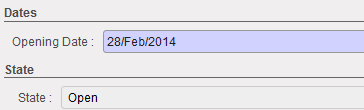
The bank register is in {Open} status displaying an opening balance of 40,000 USD

Bank register state changed to Open

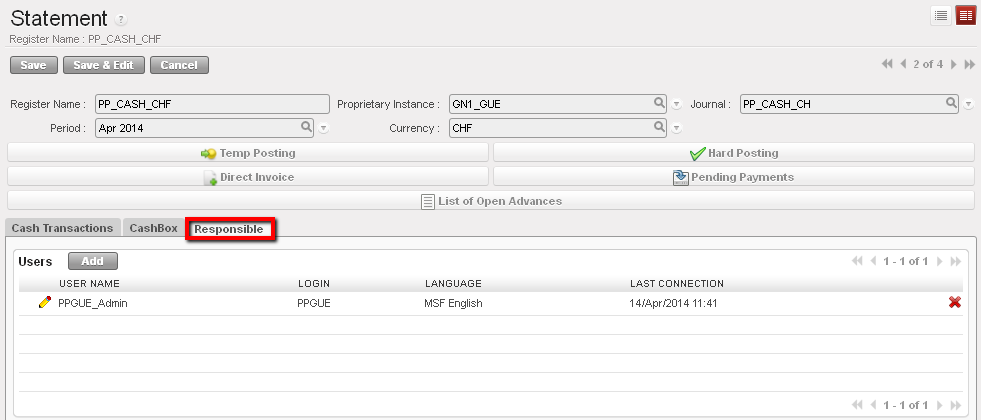
Finally, in the tab {Responsible} you specify the users authorized to access the register.

List of authorised user who can access to this cash register

Case of Cheque registers:

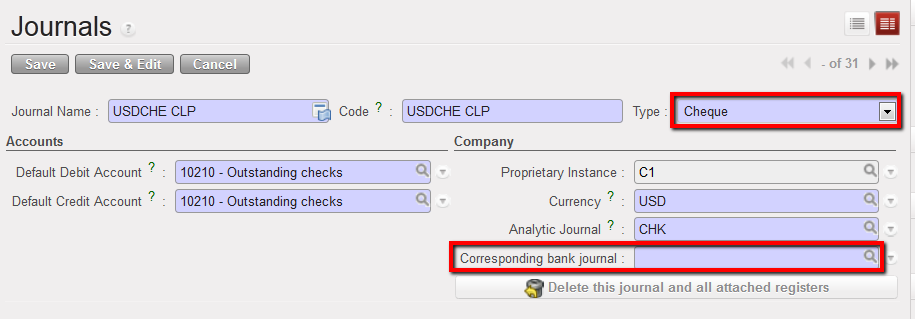
To limit the import of a cheque into the wrong bank register (See Chapter 3 – Payments), it is required to link a cheque register, where cheque payments are recorded, to its corresponding bank register when the cheque register is being created.

It will restrict the cheques selection to the cheques associated to the bank register when using the {Import Cheques} function.

  1. In the Journals Form view, select the type of journal {Cheque}

The field {Corresponding bank journal displays}

Journal form view and creation of a Cheque journal.

The field Corresponding to a bank journal displays as soon as the type: cheque is selected.

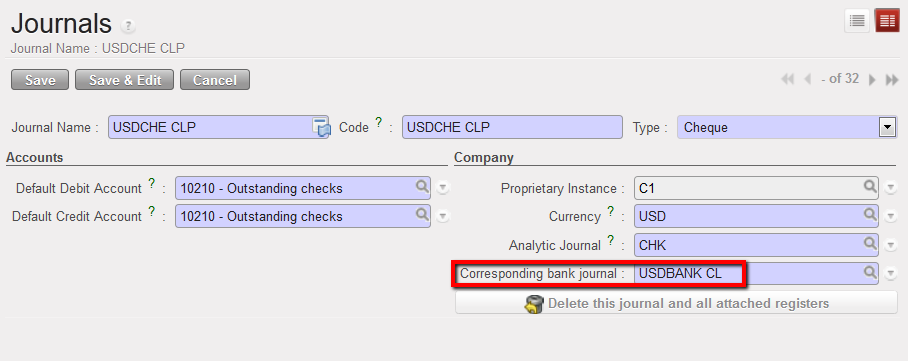
2. Select a bank journal the cheque journal will be tied to using the magnifying glass. Remember, the bank journal must be open.

Bank journal associated to a cheque journal

3. Save the form

For OCA* please refer to OCA Migration Guidelines

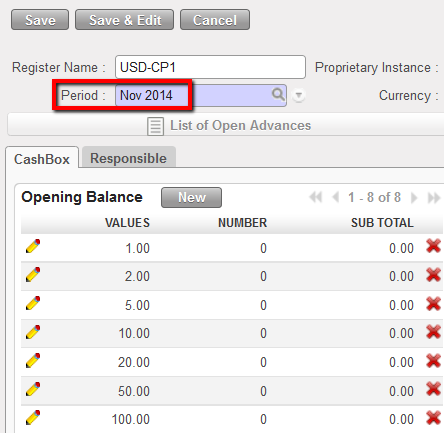
Remember, the period of a register can be changed if the register is in {Draft} and if it is the first register of the chain:

Period field editable on a register form view

How to have default liquidity default accounts when creating a new liquidity Journal

If you want to have a default debit/credit account when any user creates a liquidity journal (Bank, Cash and cheque) in order to avoid any mistake in the chosen accounts for the liquidity journal, you can then add the default accounts to be used for each liquidity journal in the company configuration.

Go to: Administration/Company/Configuration/Liquidity Accounts

  • The Cheque Default Debit/Credit Account should be (15630 – Outstanding Cheques) for OCA and (10210 -Outstanding Cheques) for OCB, OCG and OCP.
  • The Bank Default Debit/Credit Account should be (10200 – Cash In Bank) for all OCs.
  • The Cash Default Debit/Credit Account should be (10100 – Cash On Hand) for all OCs.

OCA:

OCB, OCG and OCP:


LUFI-20601 Editing Financial Journals

Finance User Manual ENG -> 2. Finance Configurations ->  2.6 Financial Journals -> LUFI-20601 Editing Financial Journals

LUFI-20601 Editing Financial Journals

LU Introduction

Most financial journals are created during the instance set-up. Liquidity journals are manually created in a second step but always in the instance where they belong. Once created, they will synch up to Coordo / HQ depending on the level at which they have been created.

How to Edit a Financial Journal

Go to: Accounting/Financial Accounting/Journals/Journals

  1. In the {Journal} Search view locate the journal you want to edit. Once located click on the pencil of the journal line to edit the journal form.
  2. In the journal Form view, you can edit all the fields except the proprietary instance and Code. For instance you can change the journal name or code to correct a typo. This task must be performed by an authorized user and avoided as much as possible.
  3. Save

The financial journal is edited

2.7 Liquidity Journals and Their Corresponding Registers

Finance User Manual ENG -> 2. Finance Configurations -> 2.7 Liquidity Journals and Their Corresponding Registers

LUFI-20701 Liquidity Journals and Their Corresponding Registers.
LUFI-20702 Register Creation.
LUFI-20703 Monthly Register Creation.
LUFI-20704 Register Deletion.
LUFI-20705 Register Deactivation

LIQUIDITY JOURNALS AND THEIR CORRESPONDING REGISTERS

LUFI-20701 Liquidity Journals and Their Corresponding Registers

LU Introduction

For all entries related to liquidity movements, a register is used as an encoding interface to book the entries in their corresponding liquidity journals.

  • Registers are used as an interface to book entries in the liquidity journals. UniField registers functionality is used to manage cash at field level by recording all cash movements for every individual cash box, safe, cheque book or bank account. Every single cash box, safe, cheque book or bank account is linked to one and only one register which is in turn tied to a single liquidity journal. Registers are closed at the end of each period and therefore need to be created at the beginning of every new period (automated creation).
  • Liquidity Journals are the journals linked to their corresponding registers. A journal details the financial transactions resulting from the register entries using the double-entry accounting method. They record both cash movements (on liquidity accounts) and their counterpart entries.

How to Understand Liquidity Journals and Their Corresponding Registers

When you record an entry in a register, only the first leg of the accounting entry is visible in the register. The full accounting entry (first leg and its counterpart) is visible in the journals. It is important to remember that the typical end user creates manual entries in the registers, NOT directly in the journals. The journals are strictly used by advanced users for specific operations (correction, reconciliation, overall accounting checks).

Liquidity journals such as Bank, Cheque and Cash Journals are created in each UniField instance. The creation of a liquidity journal triggers the automatic creation of a corresponding Register in the same currency. This task is done by finance staff when setting up UniField for the first time, or when a new cash box or bank account is set up.


2.6 Financial Journals.

Finance User Manual ENG -> 2. Finance Configurations ->  2.6 Financial Journals.

2.6 FINANCIAL JOURNALS

UniField is an accrual accounting system using journals to record all accounting entries. Financial journals are the placeholders for double entries. Journals are not closed per period but remain open all the time. They are imported or created manually in every UniField instance. Financial journals are linked to the corresponding Analytic Journals: an Analytic Journal determines in which journal the costs and income are allocated.

Financial journals can be found in Accounting/Configuration/Financial Accounting/Journals/Journals

There are different types of financial journals:

  • ACC: Accrual journal, used to record accounting entries corresponding to accruals.
  • FXA: FX adjustment journal, used to record automated accounting entries reflecting currency exchange rate loss or gain.
  • HQ: Headquarter journal, used to record accounting entries initially booked in the HQ application (e.g. international procurement and expatriates’ salaries).
  • HR: Human Resources journal, used to record accounting entries linked to national staff payroll.
  • IKD: In-Kind Donation journal, used to record extra-accounting entries reflecting in-kind donations received in the field.
  • INT: Inter-mission journal, used to record accounting entries linked to transactions between missions belonging to the same section.
  • MIG: Migration journal used to migrate the initial balances to UniField when setting up a new mission.
  • OD: Correction journal, used to record accounting entries linked to financial accounting correction (reversal and correction entries).
  • ODX: Extra Accounting corrections journal, used to record corrections performed on extra accounting accounts (e.g. in-kind donations accounts, 81 and 91).
  • ODHQ: Correction automatic HQ journal.
  • ODM: Manual Correction journal.
  • PUF: Purchase Refund journal, used to record accounting entries linked to supplier refunds (payables and expense accounts).
  • PUR: Purchase journal, used to record accounting entries linked to financial transaction involving purchases operations (payables and expenses accounts).
  • ISI: Intersection supplier invoice, used for intermission flows.
  • REV: Revaluation journal, used to revaluate B/S accounts at the end of the period and/or fiscal year.
  • SAL: Sale journal, used to record accounting entries linked to financial transaction involving sales operations (receivables and expense accounts) like stock transfers between 2 coordinations belonging to different OCs.
  • SAR: Sale Refund journal, used to record accounting entries linked to customer refunds (receivables and expense accounts).
  • STO: Stock journal, used to record accounting entries linked to stock transfers and variation.
  • DEP: Depreciation journal.
  • Liquidity journals: Used to record liquidity transactions (Cash, Cheque and Bank). Unlike other journals, liquidity journals are created locally in each instance.

In addition, two journals are automatically created upon first fiscal year closing (See LUFI-50401 Fiscal Year Closing):

  • EOY: This journal is used only for automatic End of Year entries in Period 16 upon closing the fiscal year if the options of setting regular BS accounts to 0 and/or booking the P&L result have been selected.
  • IB: This journal is used only for automatic Initial Balances entries in Period 0 upon closing the previous fiscal year.

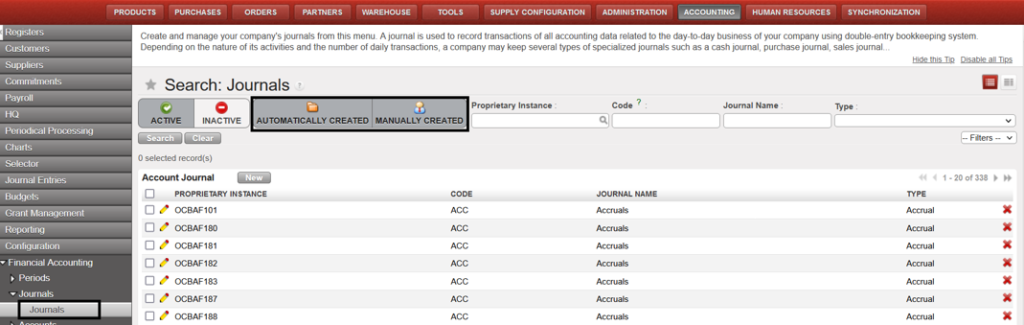
To distinguish between journals that have been imported (automatic) or created manually, there are two buttons toggled on by default in the Journal Search view:

  1. AUTOMATICALLY CREATED: To view journals automatically created by import during instance creation.
  2. MANUALLY CREATED: To view journals manually created by users after an instance has been created.
Journal’s view to differentiate between auto and manually created

LUFI-20405 Country Code Mapping*

Finance User Manual ENG -> 2. Finance Configurations ->  2.4 Financial Accounts -> LUFI-20405 Country Code Mapping

LUFI-20405 Country Code Mapping*

LU Introduction


This functionality is specific to OCA *.

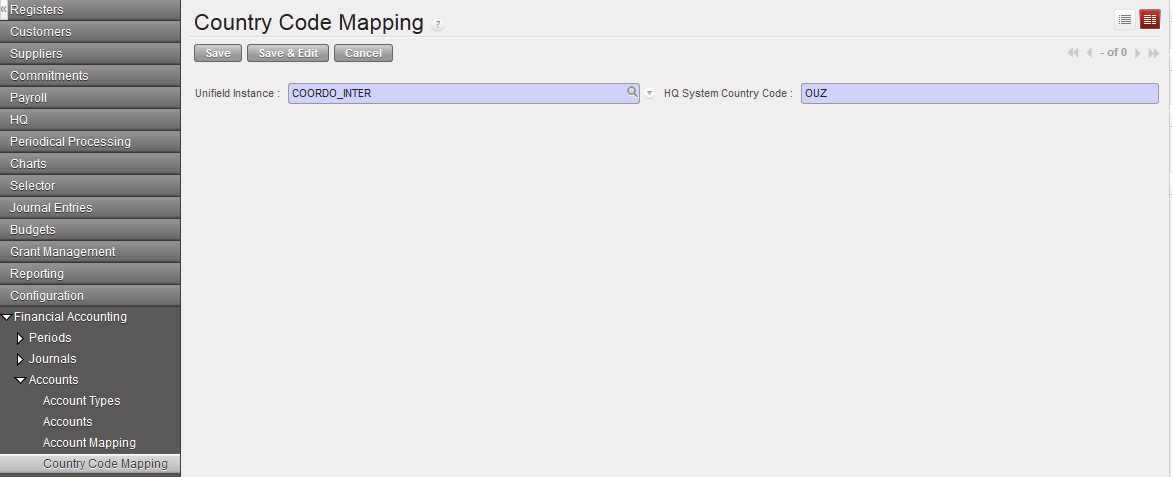
At OCA, the Country Code Mapping is used in the vertical integration framework. OCA needs a country code which does not exist in UniField but is used in Oracle (HQ system). This code must be displayed in each reporting line of the OCA vertical integration report. This is why you need to create a country code mapping which will link the proprietary instance and a country code so that the country code is displayed in the export file and can be then imported in Oracle.

How to Use the Function Country Code Mapping

This mapping is performed manually.

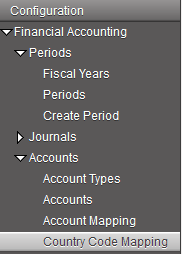
Go to: Accounting/Configuration/Financial Accounting/Accounts/Country Code Mapping

  1. In the Search Country Code Mapping view, select

2. Select the UniField instance and input an HQ System Country Code.

Country code mapping

3. Click on the {Save} button.

LUFI-20404 Account Mapping

Finance User Manual ENG -> 2. Finance Configurations ->  2.4 Financial Accounts -> LUFI-20404 Account Mapping

LUFI-20404 Account Mapping *

LU Introduction

This functionality is specific to OCG *.


At OCG, the function Account Mapping is used in the vertical integration framework.

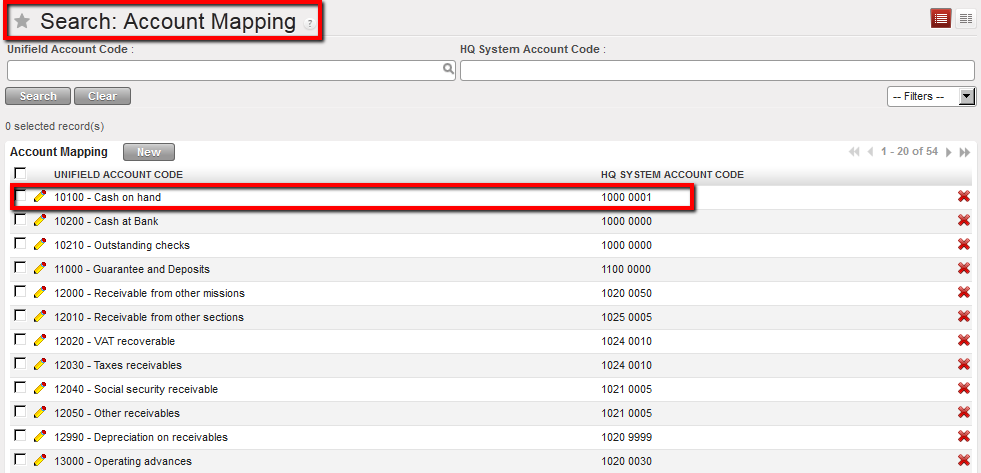
In HQ system, the B/S accounts are different from UniField. A mapping is therefore needed between the field B/S accounts and HQ B/S accounts. You will therefore perform an account mapping using the Account Mapping function.

When this is done, UniField uses the mapping for the generation of the OCG vertical integration report so that the output can be directly integrated in Axapta.

Remember it is possible to link several field accounts to a single HQ account

How to Use the Function Account Mapping

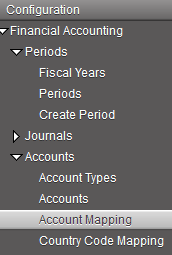
Go to: Accounting/Configuration/Financial Accounting/Accounts/Account Mapping

The Search Account Mapping view displays

Search Account Mapping view

  1. In the Actions menu, select “Import Mappings”.
  2. In the import mapping window, add the table which defines the account mapping. Remember it should be a csv file.
  3. Select Import to close the window.

Import Mappings window

4. Select Import to close the window.

Account Mapping between HQ and Field on B/S accounts is set. For instance, entries booked on the account 10100 in UniField will be automatically recorded on the account 1000 0001 in Axapta.

LUFI-20403 Chart of Financial Accounts

Finance User Manual ENG -> 2. Finance Configurations ->  2.4 Financial Accounts -> LUFI-20402 Account Inactivation

LUFI-20403 Chart of Financial Accounts

LU Introduction

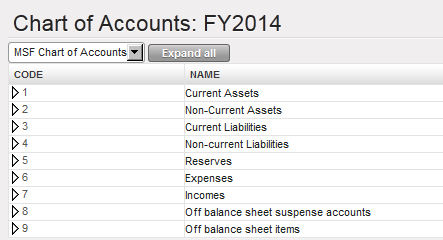
A Chart of Accounts (CoA) is a list of accounts divided into groups reflecting the nature of financial transactions. In UniField you can find a financial and analytical chart of accounts. Below we show how to display the chart of financial accounts.

How to View the Chart of Financial Accounts

Go to: Accounting/Charts/Chart of Accounts

The Chart of Accounts window appears.

  1. Select a Fiscal year and check the box of show inactive accounts if relevant.

Chart of Accounts window

2. Select Open Charts.

The Chart of Accounts for the selected fiscal year displays the view accounts

Chart of financial accounts, View account type

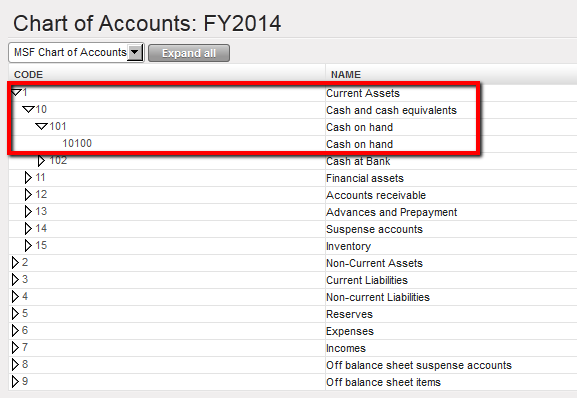
3. You can also have a complete tree view by clicking on the arrow located next to the account code.

Chart of financial accounts, extended on Cash and Cash equivalents account

4. Finally, you can also click on button to open the chart of accounts tree down to the deepest level of detail for all account types.

How to block Inter-Currencies reconciliation on Balance Sheet accounts

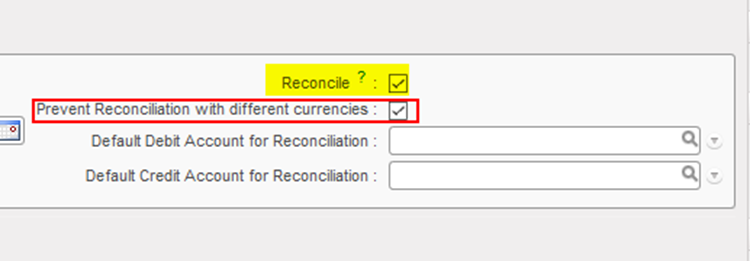
It is possible to block the possibility of reconciliation for account codes in case the related entries contained more than one currency. That can be done through the configuration of the account, as we have now a new field called “Prevent Reconciliation with different currencies” which should be ticked to prevent the reconciliation of this account in case of different currencies. However, it can be ticked only if the tick box “Reconcile” is ticked.

2.4 Financial Accounts.

Finance User Manual ENG -> 2. Finance Configurations ->  2.4 Financial Accounts.

LUFI-20401 Account Properties
LUFI-20402 Account Inactivation
LUFI-20403 Chart of Financial Accounts
LUFI-20404 Account Mapping
LUFI-20405 Country Code Mapping

FINANCIAL ACCOUNTS

LUFI-20401 Account Properties

LU Introduction

Financial accounts classify, measure and record MSF expenses via the Chart of Accounts. In this LU we explain what the account properties are and how they should be set up in the financial account forms. In order to function well, a financial account needs a proper set up of parameters.

The Account Type defines the account category to which the financial account is related. It defines the nature of accounting entries booked under this account.

Go to Accounting/Configuration/Financial Accounting/Accounts/Account Types
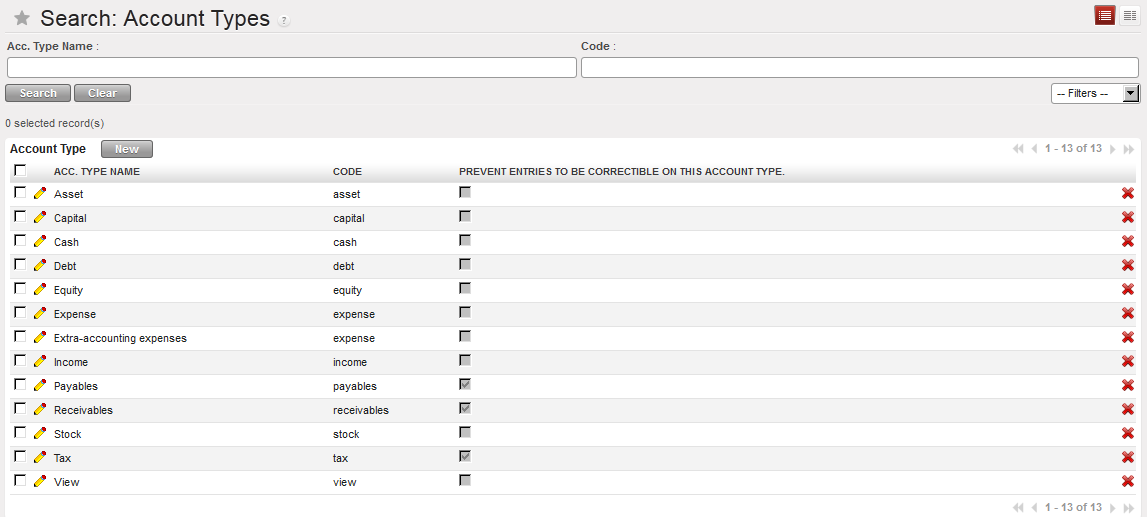

Account Type in UniField displayed in the Search Account Types view

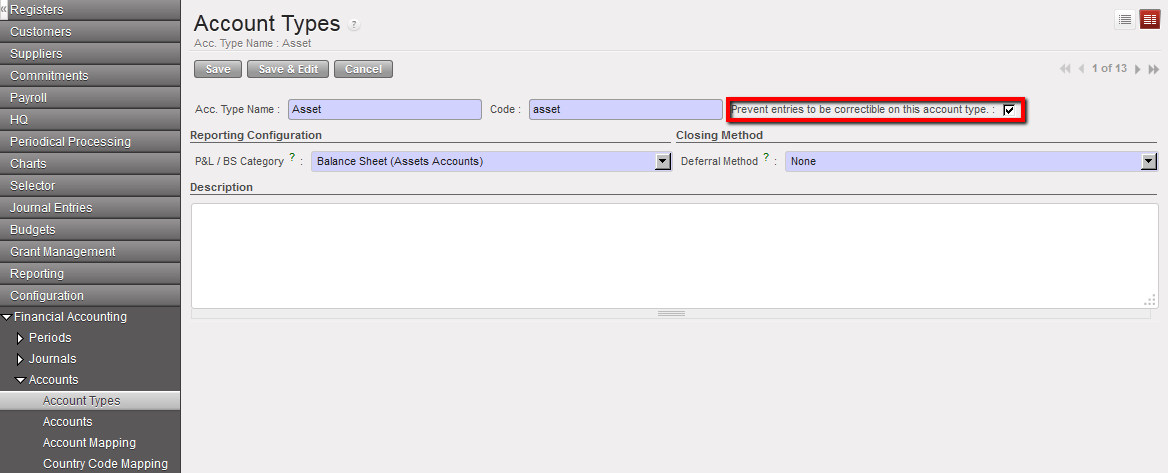
If you want to limit corrections on a specific account type, check the box of the attribute {Prevent Entries To Be Correctible On This Account Type}.

Select the {Edit} button to proceed.Account type Asset not correctible
Each financial account has Attributes or properties. These are:

  • Internal type,
  • Account type,
  • Type for specific treatment,
  • Accrual Account,
  • Prevent correction on account codes
  • Prevent correction on analytic accounts
  • Shrink entries for HQ export
  • Activation/Inactivation date
  • Reconcilable
  • Allowed Partner Types
  • End-year closing
  • Revaluation

Go to Accounting/Configuration/Financial Accounting/Accounts

The account properties can be found on the Account form itself.
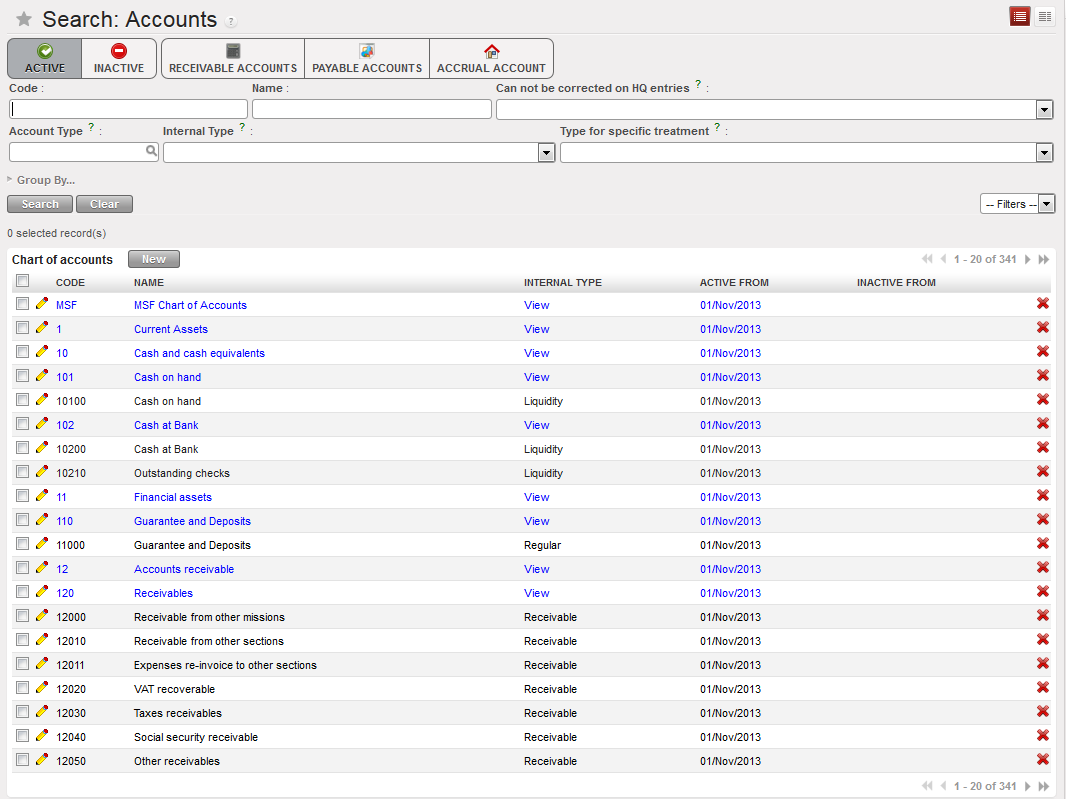
List of Accounts available in the {Search Accounts} view. The view offers a list of buttons to filter the accounts you search. In this view, only the active accounts are displayed as the Active button is checked.
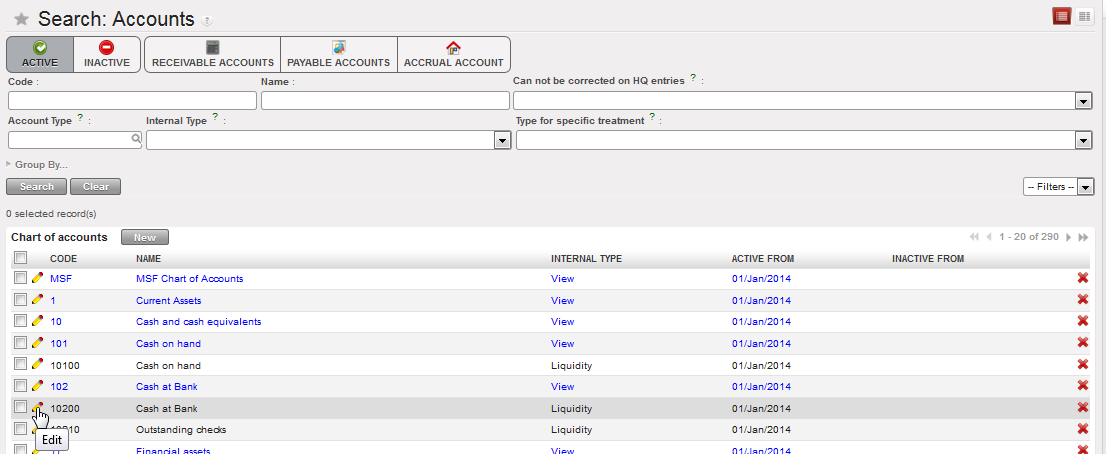
Select the pencil to open the Account form view to see or edit the account’s properties
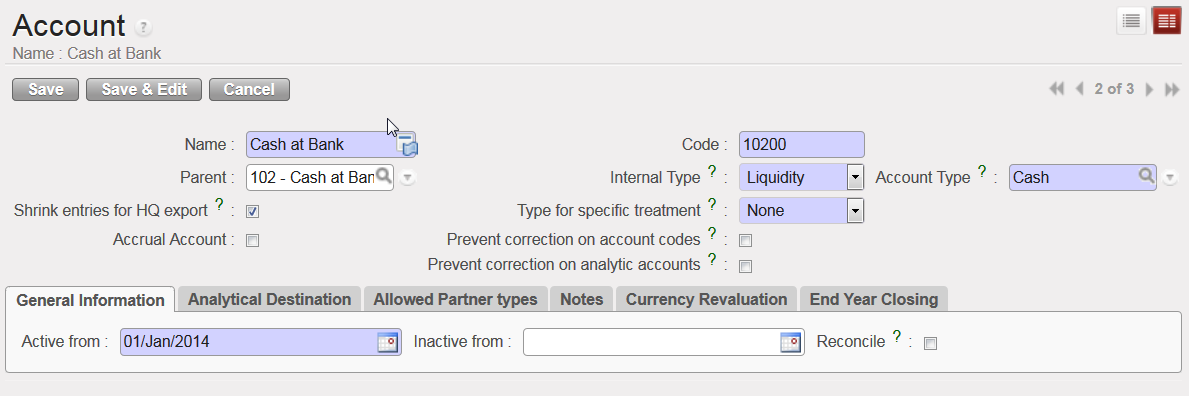
Account form view and corresponding attributes

The Internal Type specifies the account behaviour:

  • A {View} or parent account consolidates the regular (or children) accounts which are linked to it.
  • A {Regular} or child account does not have specific properties and is used to post entries.
  • {Receivable} and {Payable} accounts are used to book transactions with Third Parties. A third party can be a supplier, employer or a journal and the accounts are defined as {reconcilable}.
  • {Liquidity} accounts are used to book transactions every time there is a liquidity movement in the bank, cash or cheque register.
  • {Consolidation} accounts are not currently used in UniField.
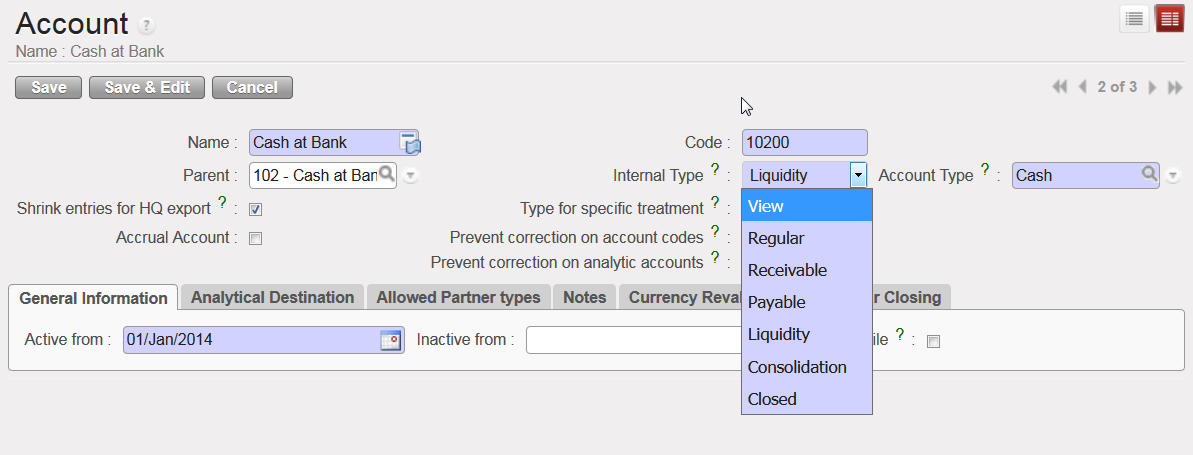
  • {Closed} accounts are not currently used in UniField.

Internal Type options for the accounts

The Type for specific treatment sets attributes triggering specific behaviours for well-defined use cases as detailed below:

  • {Internal Transfer} when booking an internal transfer on an account associated to this type for specific treatment, at time of selecting the third party, UniField will display the liquidity journal(s) that will be used as a counterpart and that are defined in a currency other than the register line being created.
  • {Internal Transfer (same currency)} when booking an internal transfer on an account associated to this type for specific treatment, at time of selecting the third party, UniField will display the liquidity journal(s) that will be used as a counterpart and that are defined in the same currency as the register line being created.
  • {Operational Advance} once the entry is posted in a register, it displays a button called {operational advance} which is a wizard used to close the advance. The third party in this case will be the employee the advance was delivered to.
  • {Third party required – Payroll} is used to record the counterpart elements of payroll entries (e.g social security, income taxes accounts) when validating the staff payroll in UniField.
  • {Down payment} will let user link an advance requested by a supplier with a purchase order. This function allows you to better track outstanding advance payments to external suppliers.
  • {Donation} is used to record donation entries in extra-accounting journals.
  • {Reconciliation – Disregard 3rd party} is used to enable reconciliation of entries booked on the same account code with a different third party.
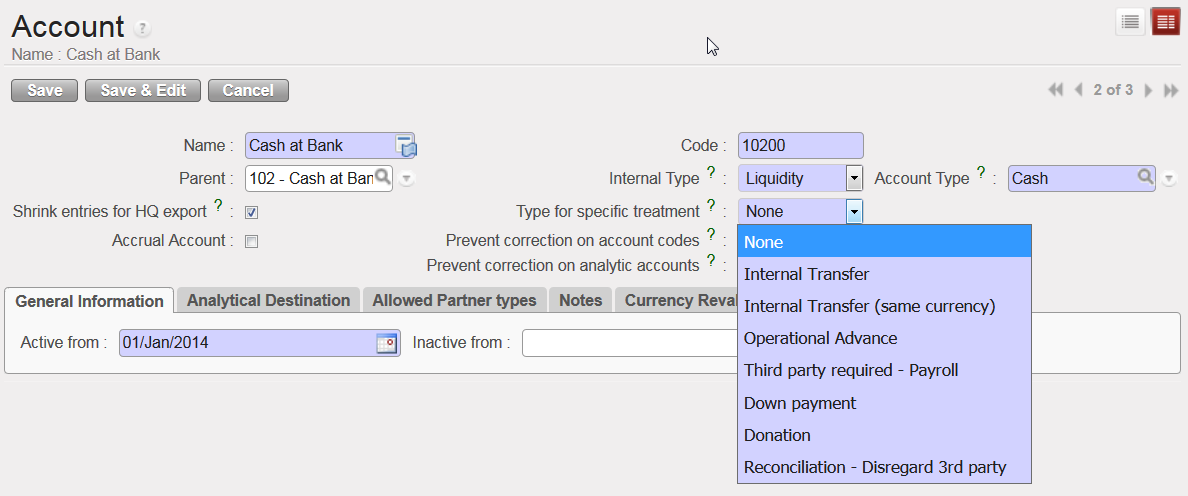
Types for specific treatment

UniField introduces the use of Accrual Accounting. It is a method that recognises economic events (expense or income) regardless of when cash transactions occur and the point of time at which supporting documents are received, with some uncertainty related to the booking (period, exact amount etc.). In UniField the {Accrual Account} attribute will help you semi-automate the creation of accrual entries at month or year-end cut-off. For more information on how to book accrual entries, see Chapter 5 – Searching, Correcting, Closing.

In the Account Form view, the {Accrual Account} box should be checked on balance sheet accounts if the account is used to record accruals. Only accounts with ticked {Accrual account} checkbox are available to be selected for accrual entries.
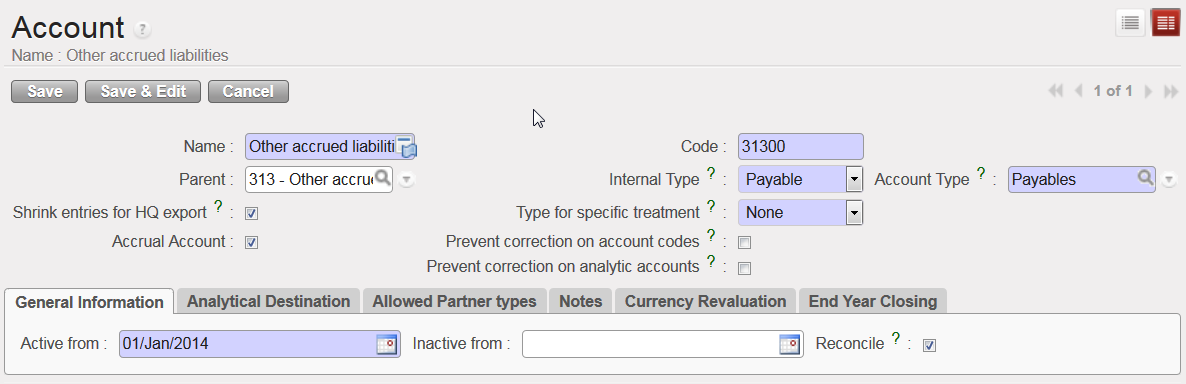

Accrual Account {31300 – Other accrued liabilities} and Accrual Account box checked

In order to easily retrieve accrual accounts when encoding a transaction, an {Accrual Account} filter is available in the G/L accounts list. If you select this button, it will only show a list of accounts that have the {Accrual Account} box ticked.
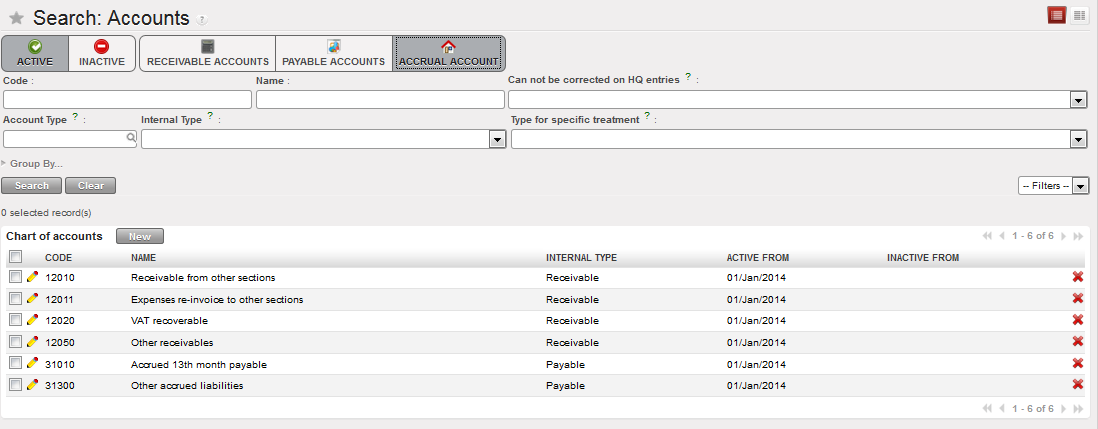
Accrual accounts listed when selecting the filter {Accrual Account}

Another account feature is linked to the accounting correction. In the Account Form view, there is a {Prevent correction on account codes} box that you need to select if the account must not be corrected at mission level when importing entries from HQ system. There is also a box {Prevent correction on analytic accounts} to tick to disable changes on analytical distribution. Please note if you tick box {Prevent correction on analytic accounts}, {Prevent correction on account codes} will be ticked as well. Check your section’s procedures to define which account codes should not be corrected in UniField at field level.
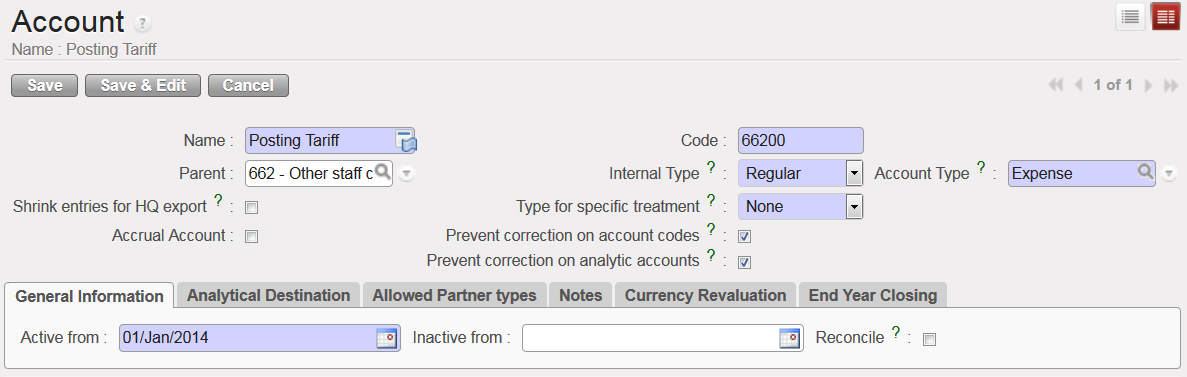

Account {66200} and Analytical Distribution not correctable

If you want to consolidate entries on an account before they are exported to the HQ system, you need to check the {Shrink entries for HQ export} box.
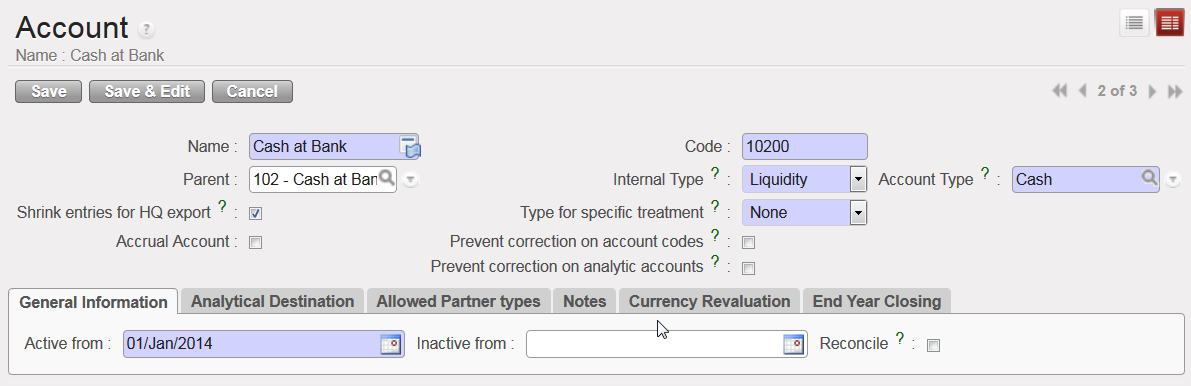
Entries on the account {10200} will be shrinked for HQ export

As soon as an account is created in your instance, it is automatically activated. The {Active from} date is visible in the {General Information} tab. When the account becomes obsolete, it can be inactivated. The {Inactive from} date must be the following day of the last day entries can be booked in this account, e.g. if an account is used until 31st December 2017, the {Inactive from} date is 1st January 2018.

Active date is taking automatically first day of the current month ,eg, if the account created today 20/06/2018 it will take automatically 01/06/2018.
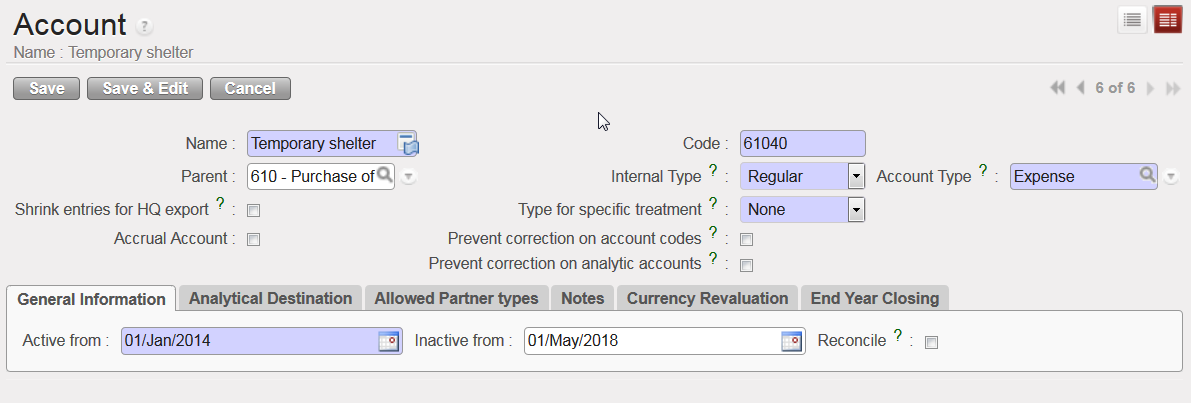
Account 61040 inactive from 1stMay 2018

In the {General Information} tab, the {Reconcile} box should be ticked if entries on the account need to be reconciled. In UniField, accounting reconciliations are automatically done for some accounts but for other accounts the user will have to do a manual reconciliation. Account reconciliation is addressed in Chapter 5: Searching, Correcting, Closing.
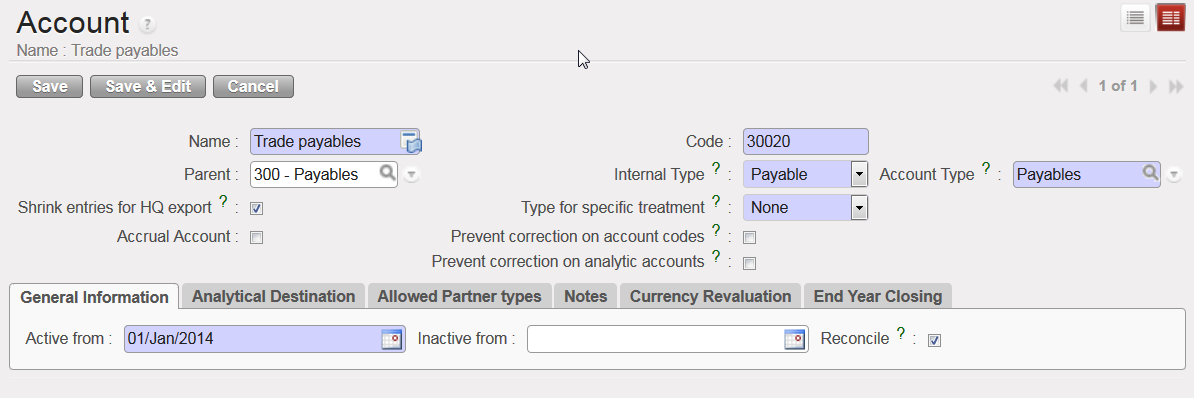

{30020 Trade payables} account, reconcilable

In {Allowed Partner Types} tab, the types of Partners allowed to be used for entries in each account can be edited. By default, all Partner types are selected for all accounts and any restrictions on Partners can be done by unticking the box for the specific Partner Type.

The restriction applies at the time of validating an entry: if a Partner/Account combination is not allowed, the entry cannot be validated. Please check your OCs procedure in regards to any Partner/Account restrictions.
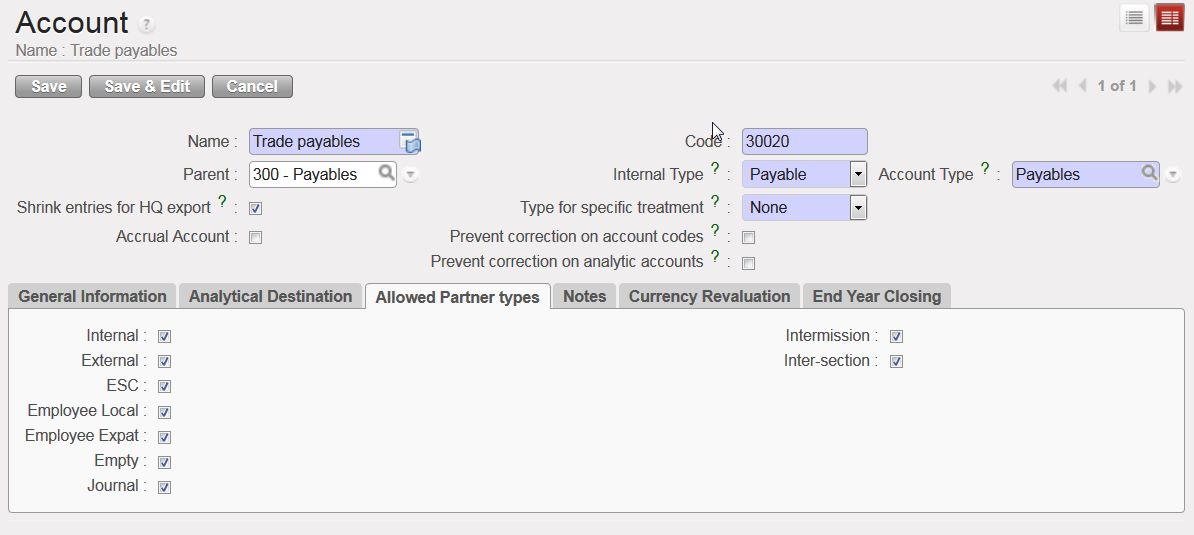
Allowed Partner Types for account 30020

The {End Year Closing} tab relates to a specific Action {Move regular B/S accounts to 0} of the Year-End closing. If the checkbox in this tab is ticked, the Account’s balance is set to 0 with a year-end entry at the time of closing the fiscal year. For further information on Fiscal Year closing, see Chapter 5 – Searching, Correcting, Closing.
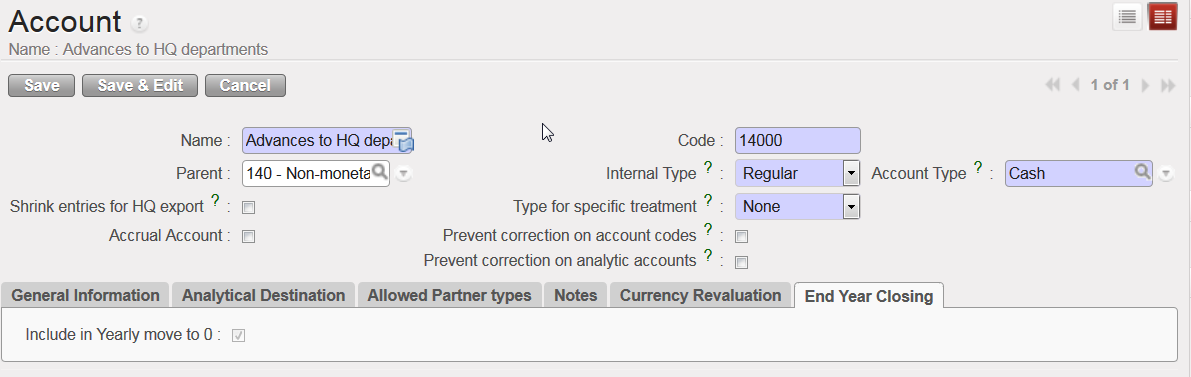
The Account {14000} balance is selected to be set to 0 at Fiscal Year closing

If the checkbox in the {Currency Revaluation} tab is ticked, the selected Account will be included in the month and/or year-end revaluation of the Account balances. Please refer to your OCs policies in regards to currency revaluation practices.
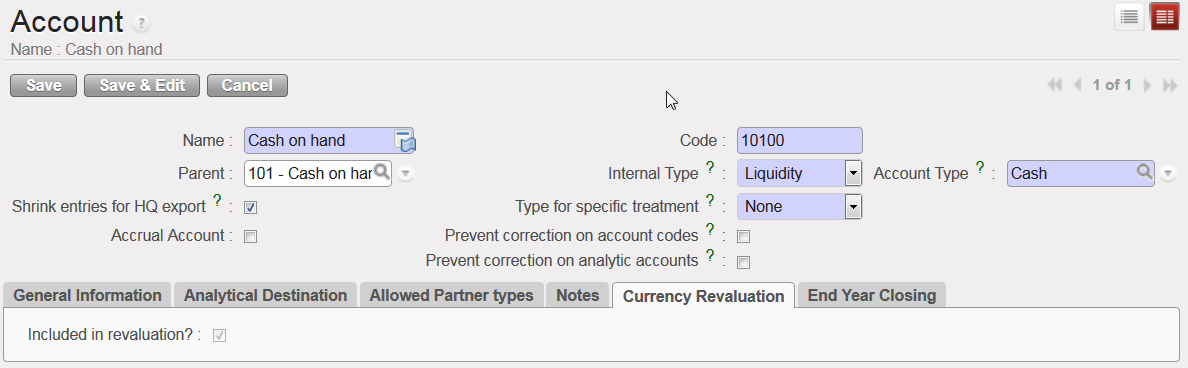
The Account {10100} is selected to be included in month and year-end currency revaluation

How to Manually Create a Financial Account

Manual creation of financial accounts should remain exceptional and based on the section procedures. Once again, it is handled at HQ level as it will synchronize down to all missions.

This example shows the manual creation of an expense account for a boat rental. You must link this new account to the parent account {Transport Freight, Storage} and analytical destination {operations}. Please note that the linkage between the expense accounts and analytical destination is normally done manually once the Chart of Accounts is uploaded and from the Analytic Accounts sub-module (for further detail, please check the UniField IT user manual).

The activation date is input manually in this case.

Go to: Accounting/Financial Accounting/Accounts/Accounts.

  1. Click on {New} to display a new account Form view.
  2. In the {Name} field enter {Boat rental} and in the {Code} field enter {65022}.
  3. In the {Parent} field, click on the magnifying glass and in the wizard Search Chart of Accounts type the code {650} in the {Code} field to link this account to the parent account Rental.
  4. Once you have typed the code, click on {Search} to bring up results.
  5. Select the code {650}.
  6. On the account Form view, select {Regular} in the field {Internal Type}.
  7. Select {Expense} in the field {Account Type}.
  8. Select {None} in the field {Type for Specific treatment}.
  9. Enter an activation date in the {General Information} tab.
  10. In the {Analytical Destination} tab, enter the default destination code {OPS}.
  11. Click Save button.

The financial account {Boat rental} is created and linked by default to the analytical destination {Operations}.
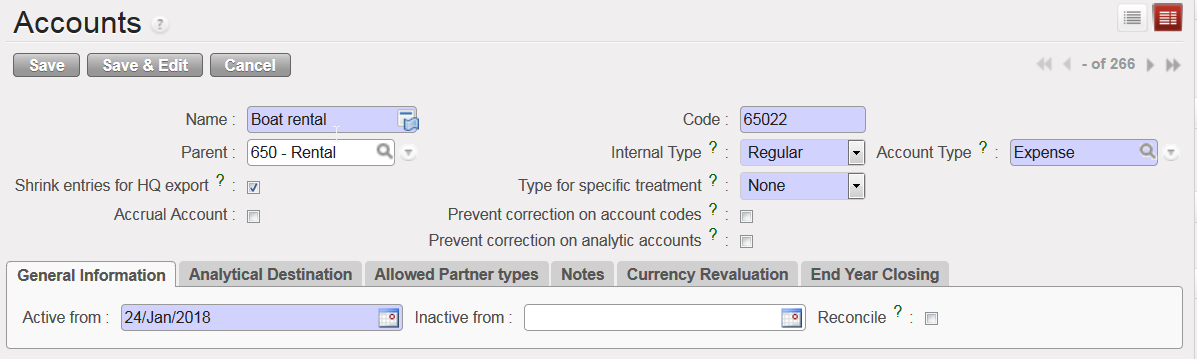
Account 65022 Boat rental Form view

LUFI-20306 Manual Currency Update

Finance User Manual ENG -> 2. Finance Configurations ->  2.3 Multi-Currency Management -> LUFI-20306 Manual Currency Update

LUFI-20306 Manual Currency Update

LU Introduction

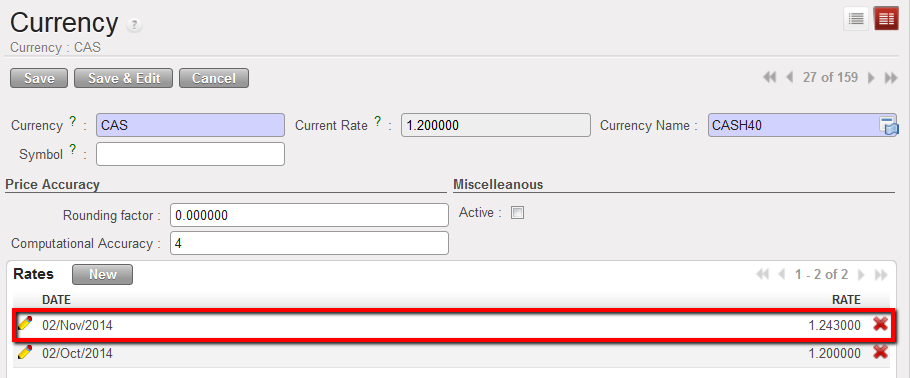
Like creating currencies manually at the HQ instance, you can also change or add an FX rate manually. As MSF expects the same exchange rates to be used across all missions, the currency rate update should only take place in the HQ instance as it then synchronized downwards to all missions.

How to Update a Currency Rate for a Period Manually

Go to Accounting/Configuration /Currency Management/Currencies

A list of active currencies appears

  1. Remove the default current filter {Active} by clicking on the button {Clear}.

A list of standard currencies appears (active and inactive)

In the currency field, type the code of the currency you want to edit.

2. Once the currency is retrieved click on the pencil icon of the currency line to edit the form
The currency form you selected is displayed

3. In the rates field, click on {New} to add a new rate. Remember to save the form .

4. Synchronize


FX rate updated


FX Rates list in the currency form

LUFI-20305 Manual Currency Creation

Finance User Manual ENG -> 2. Finance Configurations ->  2.3 Multi-Currency Management -> LUFI-20305 Manual Currency Creation

LUFI-20305 Manual Currency Creation

LU Introduction

Most currencies used by MSF are based on the accepted ISO standard. However, on occasion it may be necessary to add a non-standard currency. If this is the case in your mission, you must request Headquarter (HQ) to create the currency. It will then synch down to your instance as inactive. You will have to activate it.

How to Create a Non-Standard Currency Manually

Go to: Accounting/Configuration/Currency Management/Currencies

A list of active currencies appears

  1. In the {Currencies} Search view, click on {New} button.


Select {New} in the Search Currencies view to create manually a new currency

2. Complete the currency form as follows.

Field titleentry protocol: currency formSource for Information
Currency3-character code in capital letterHQ
Currency RateManual input.HQ
Currency NameCOUNTRY CURRENCY ALL CAPSHQ
SymbolNot requiredN/A
Rounding factorDefaults to 0.01000System
Computational AccuracyDefaults to 4System

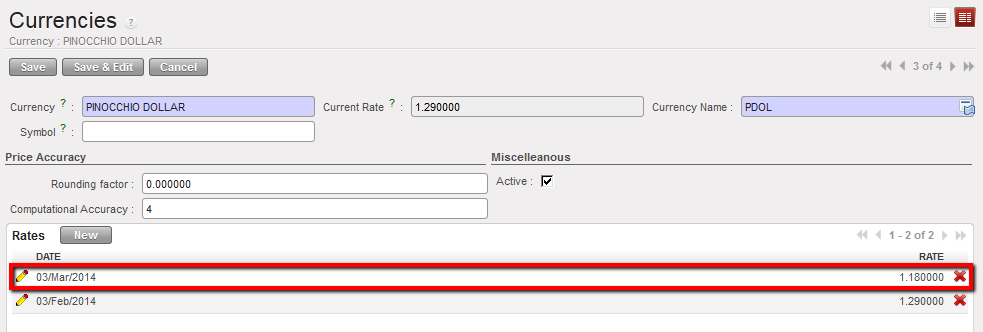
3. In the Rates field, click on {New} to add a new rate.

4. Enter the effective “as of” {Date} and the {Rate}. Click {Save & Close} if finished, or {Save & New} if adding more rates for additional periods.

The rate is saved in the currency form.

Title of fieldentry protocol: currency ratesSource for Information
DateThe effective start date of the rate to be used for converting entries to the functional currency. If no additional rates are added for subsequent dates, then this rate will prevail.Consider the earliest posting date for which you will have entries in this nonstandard currency.
RateThe exchange rate relative to the EUR or CHF, e.g. CUR/EUR.HQ

5. Remember to save the form.

6. Synchronize


Manual creation of a non-standard currency