5.3 Instance Hierarchy Information (only at sync_server instance)
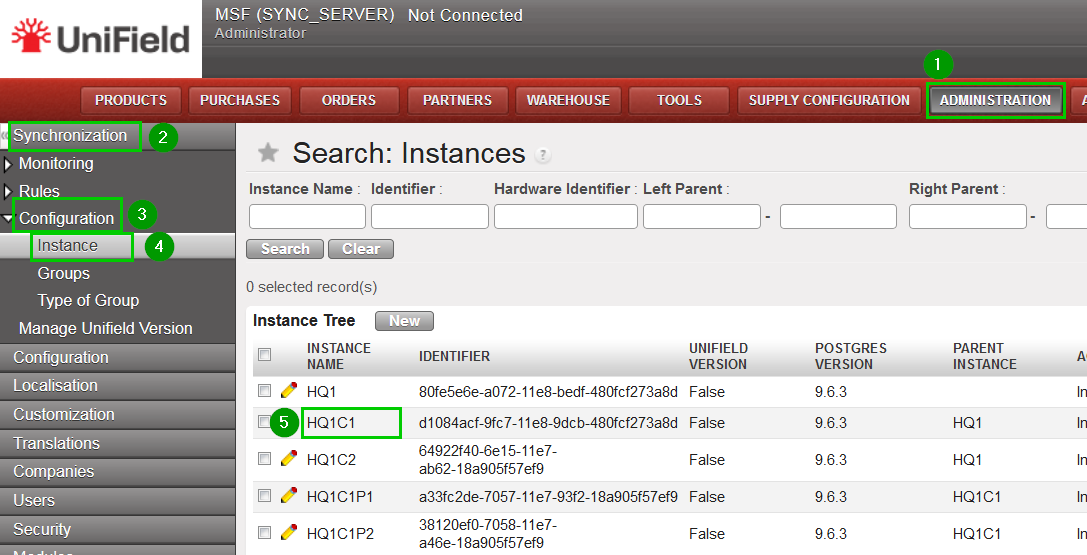
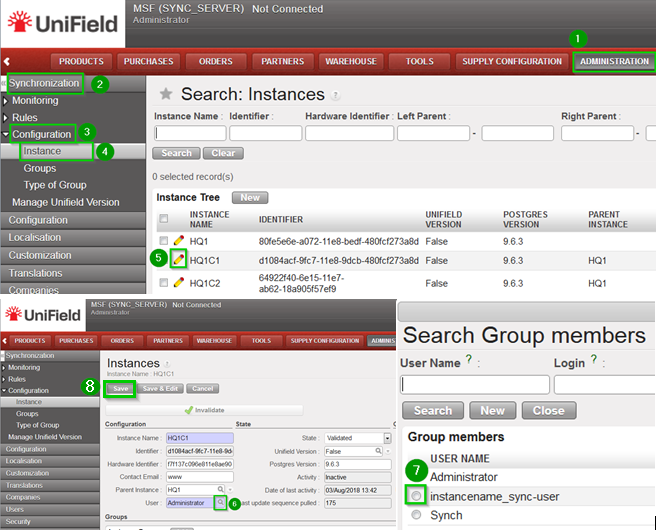
Click on menu Administration 1, Synchronisation 2, Configuration 3, Instance 4. This view shows different information about each instances. To have more detailed information about an instance click on the line of an instance 5
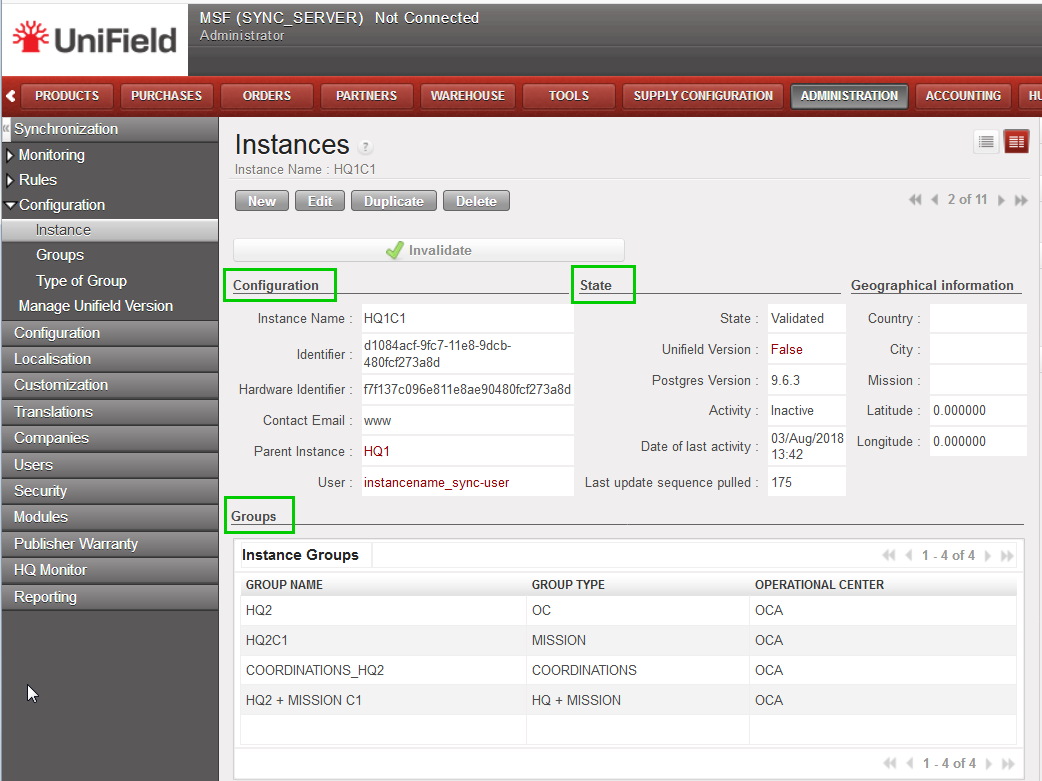
This print screen show you important information about an instance such as its state, parent instance, groups it belongs and children under it.
5.2 Connection Status of an Instance (ready to synchronize)
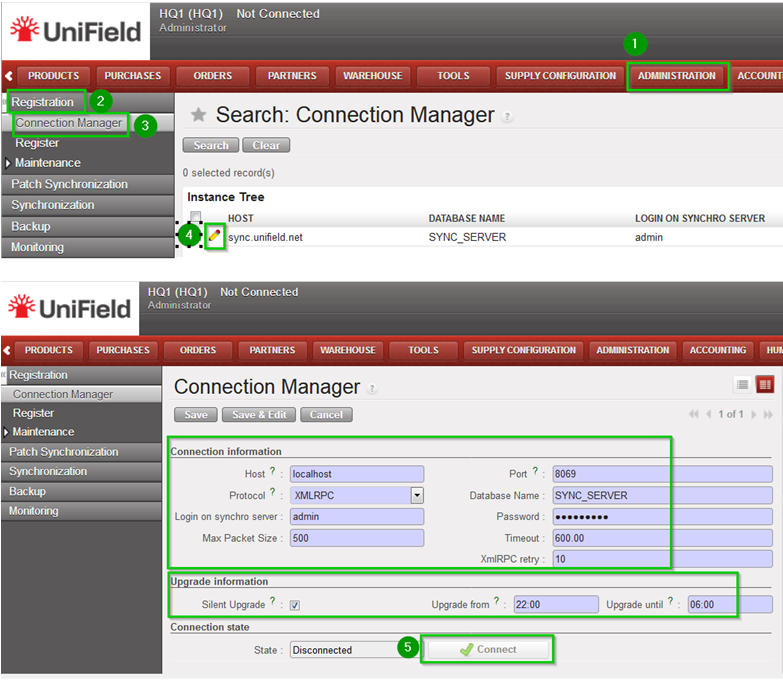
Click on menu Synchronization 1, Registration 2, Connection Manager 3 Click on the edit button 4 to see the details Among others you can see the connection status (connected, disconnected) and a button to allow connecting to or disconnecting from the server. You also have the possibility to enable the Silent Upgrade option to allow patching during a slot time defined.
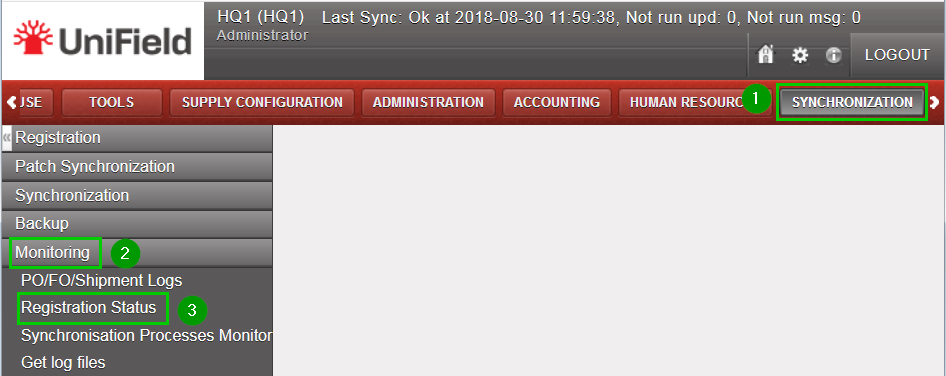
Click on menu Synchronization 1, Monitoring2, Registration Status 3
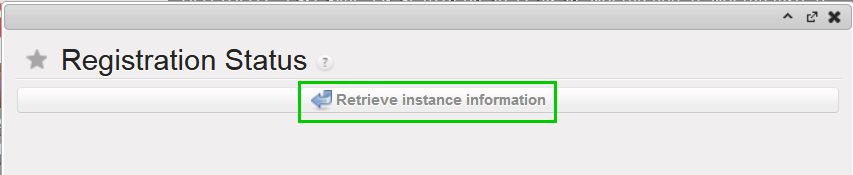
A new popup appears, click on Retrieve instance information button.
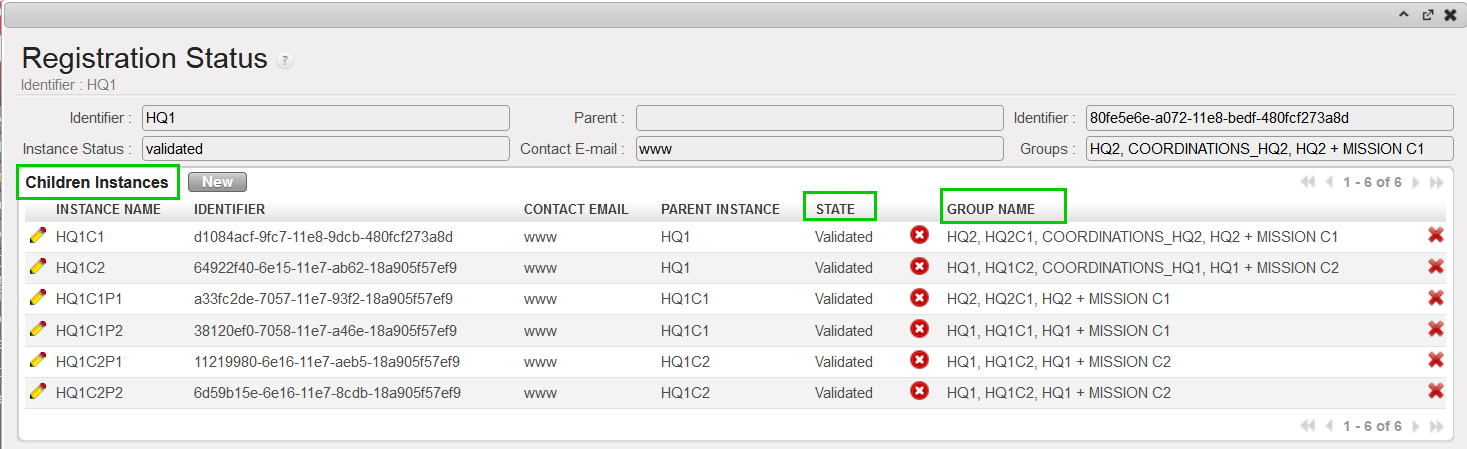
The result shows the registration status of the instance. It includes the validation status, the groups that the instance belongs to, the children instances, etc.
It is possible to configure the connection of your instance connected to the synchronization without the need to reconnect it (refer to the connection manager) every time OpenERP starts (standard set up). This feature is named auto-connect synchronisation and is a specific set-up developed for emergency context to release the workload of the user on the site. For the set-up the Support Team (ST) and the User would have to perform the correspondent steps:
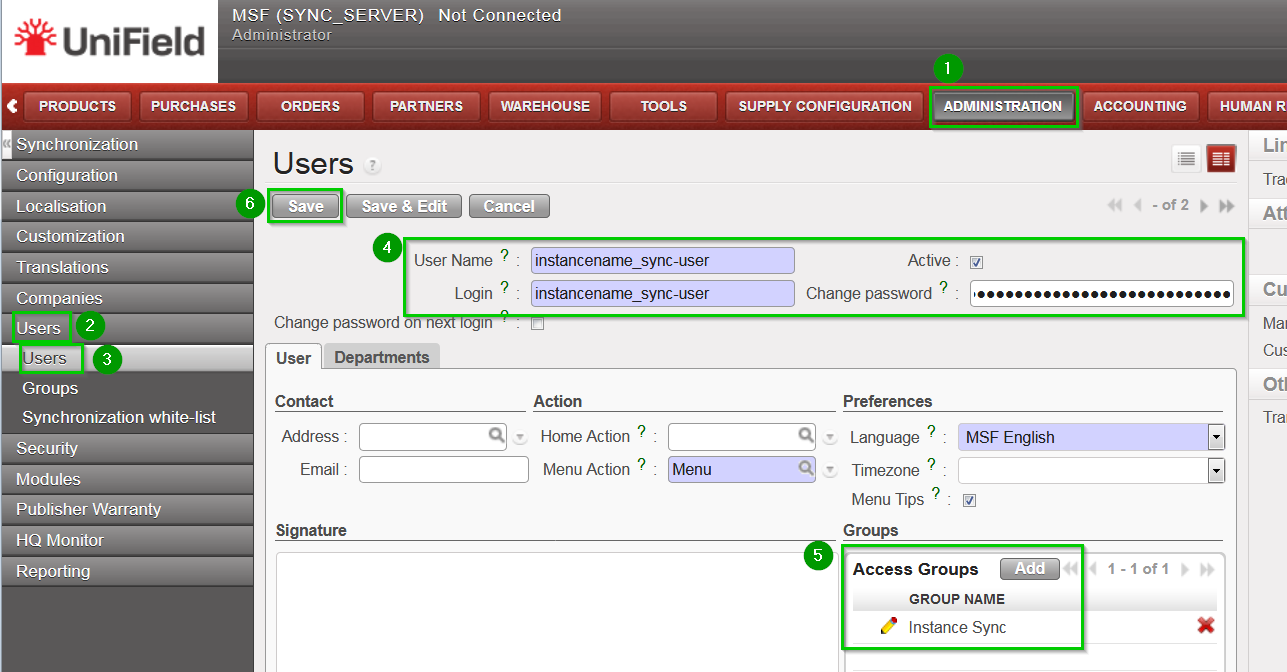
ST:[Done during instance creation step1 by coreteam] Create a new user in the SYNC_SERVER side on Administration1, Users 2, Users3. Fill in the information 4:
User Name: instancename_sync-user
Login: instancename_sync-user
Password: to set a random and complex password (from keePass2)
Add 5 the group Instance Sync Click on Save 6
On menu Administration 1, Synchronisation 2, Configuration 3, Instance 4. Click on the Edit icon 5 of the instance. On the User field click on the look up icon 6 Select the newly created user 7 Click on Save 8
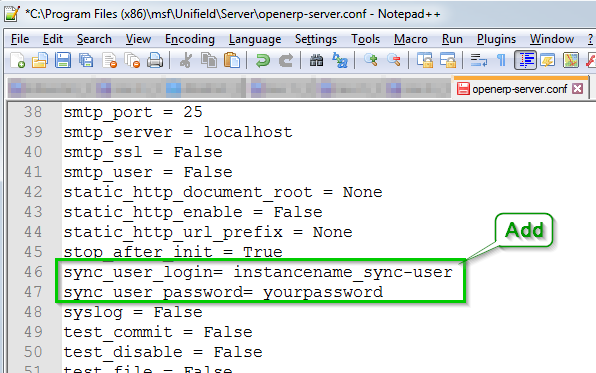
User:[can be done by only UF IT referent or coreteam] Open as Administrator with Notepad the file openerp-server.conf in C:\Program Files (x86)\msf\Unifield\Server Edit the following lines in the file:
sync_user_login= instancename_sync-user
sync_user_password= yourpassword
Save the file. Please note that sync_user_password accepts password on cleat text OR encoded in Base64. Login and password are forwarded by the ST.
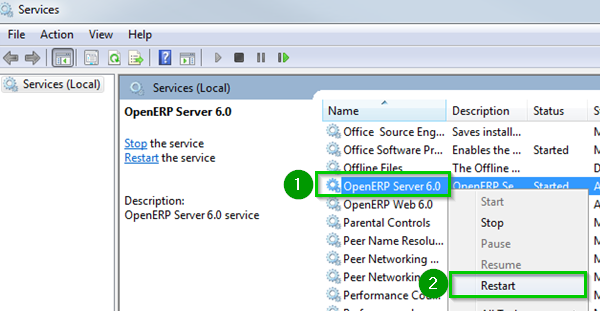
Right click 1 on OpenERP Server service and click on Restart 2
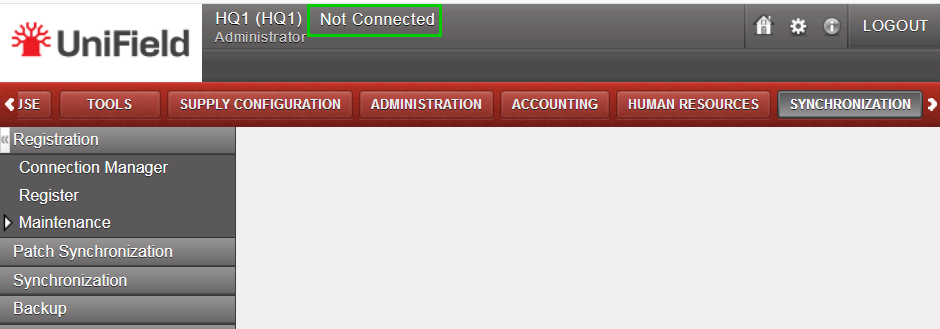
When logged back in your instance you can skip the Connection Manager step in menu SYNCHRONIZATION, Registration, Connection Manager even if the state mentions Not Connected.
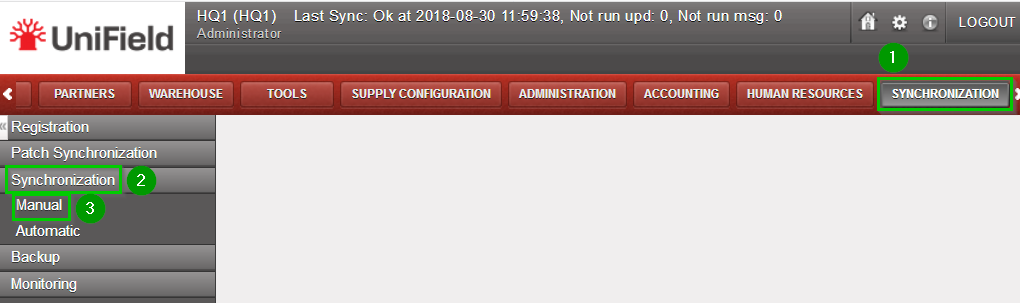
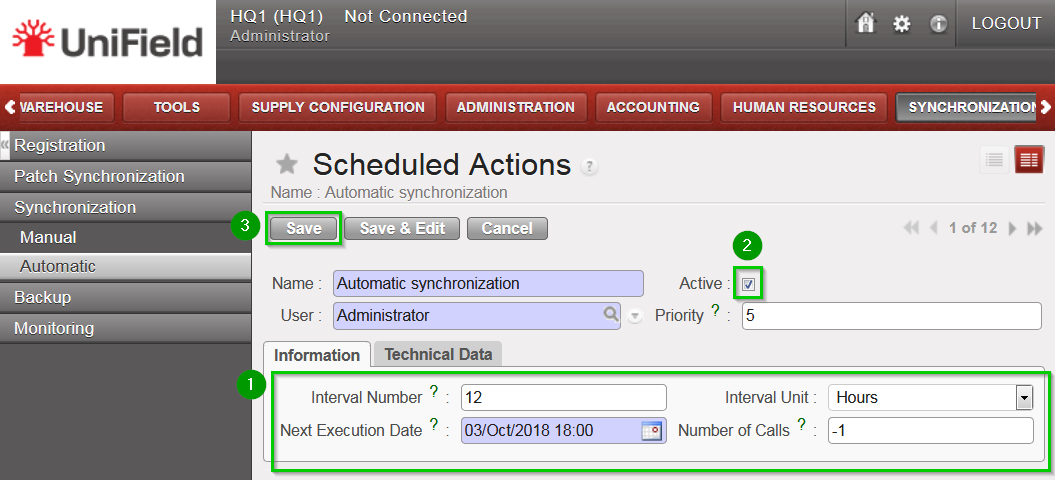
To synchronize: Go to menu Synchronisation, Registration, Synchronization, Manual. Then click on Start All Synchronization in Background. The connection will automatically be made and the synchronization will start.
It is assumed that the instance is well configured, already connected to the synchronization server and registered.
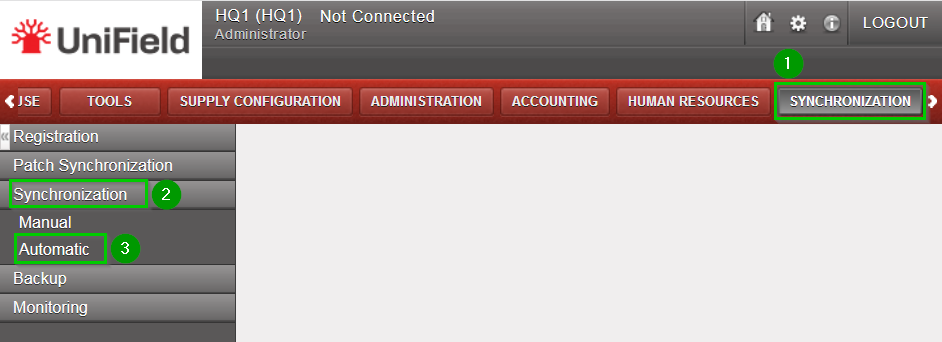
Click on menu Synchronization , Synchronization, Manual The next synchronization wizard will open.
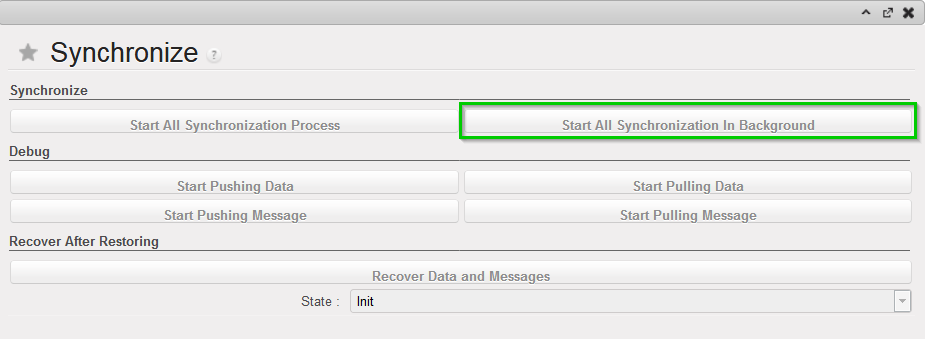
Click on Start All Synchronization In Background. This launches the synchronization process in background. It is recommended to back up the data after a successful synchronization. Please refer to the “Procedure for backing up and restoring local instances”. To know when the synchronization is over, refer to the monitoring documentation. Instead of starting the synchronization, you may be advised that there is an upgrade to apply. Refer to the upgrade chapter.
As a security, the synchronization password is not saved in the database or a file. It means this step must be done every time OpenERP starts. For example when:
the computer was off and is now on
the instance has been upgraded with a patch received from the synchronization server.
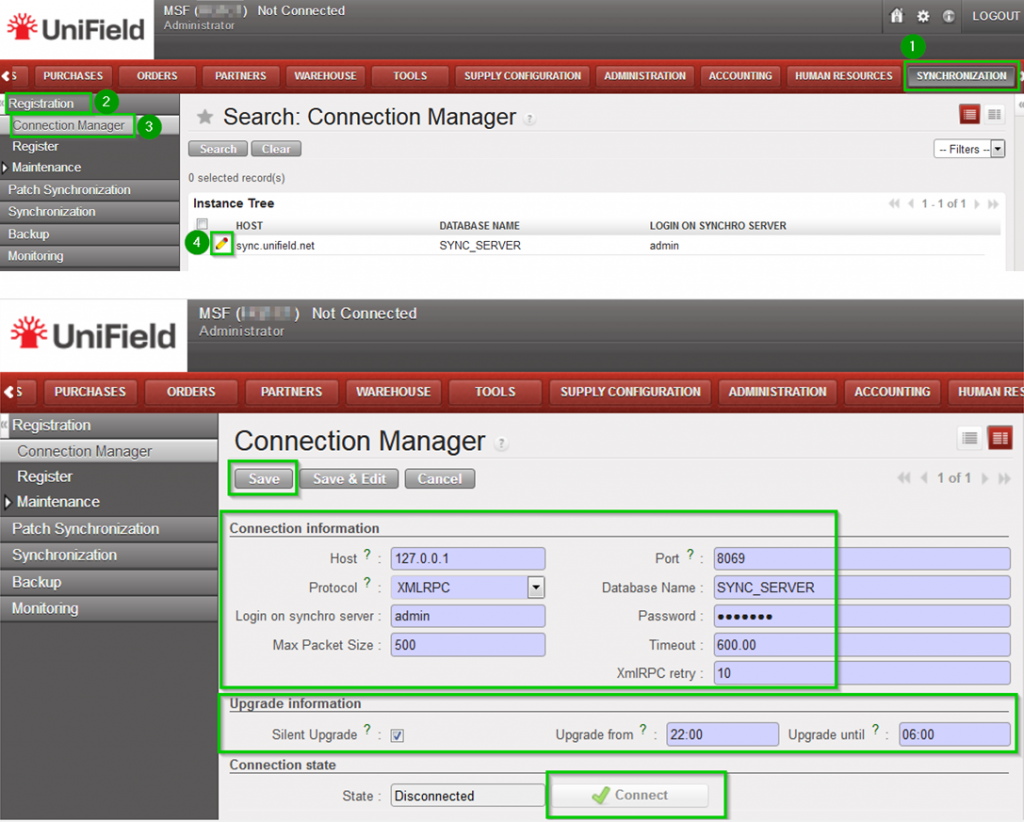
Click on Menu Synchronization 1, Registration 2, Connection Manager 3 Click on the edit icon (4) and to edit the Current Connection Host: * Production instance: sync.unifield.net *Sandbox: Address of the machine where your Sync Server is installed (localhost if installed on the same machine)
Port:
*Production: 443
*Default or Sandbox: 8069
Protocol:
*XMLRPC
*secured compressed XMLRPC
Database Name:
*Production: SYNC_SERVER
*Sandbox: Your_sync_server_name
Login on synchro server:
*Production: provided by the Support Team
*Sandbox: Your_sync_server_login
Password:
*Production: provided by the Support Team
*Sandbox: Your_sync_server_password
Max Packet Size: 500 Timeout:600 – The number of seconds the instance will wait during a sync before raising a timeout error XmlRPC retry: 10 – The number of retry during a sync when the instance don’t receive the acknowledge from the sync server with the XmlRPC protocol. Silent upgrade: The instance will patch automatically during the time slot defined if an automatic synchronisation is performed. It is strongly recommended to activate it Click on Connect 5 the State switches to connected Click on Save
To synchronize, the user must know the synchronization login and password. These credentials will be provided by the Support Team for production instances.
We use cookies to ensure that we give you the best experience on our website. If you continue to use this site we will assume that you are happy with it.