11.2 Automated Vertical Integration

11.2 Automated Vertical Integration

The system is able to automatically import supply data from predefined locations, and update the corresponding records in UniField. This was designed to automate the data transfer between the ESC and UniField: existing Purchase Orders (state: Validated) and Incoming Shipments will be updated if data is valid.

Configuration:
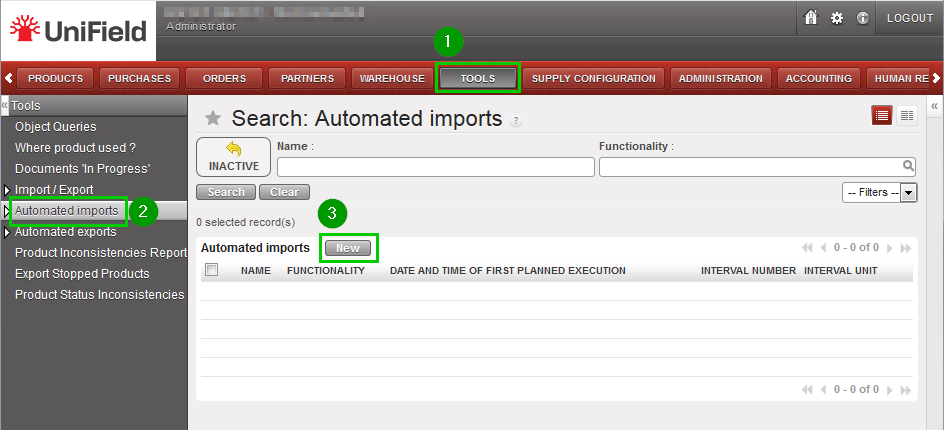
Log in your instance and click on menu TOOLS 1,Automated Imports 2
Click on New 3 to create a new scheduled import
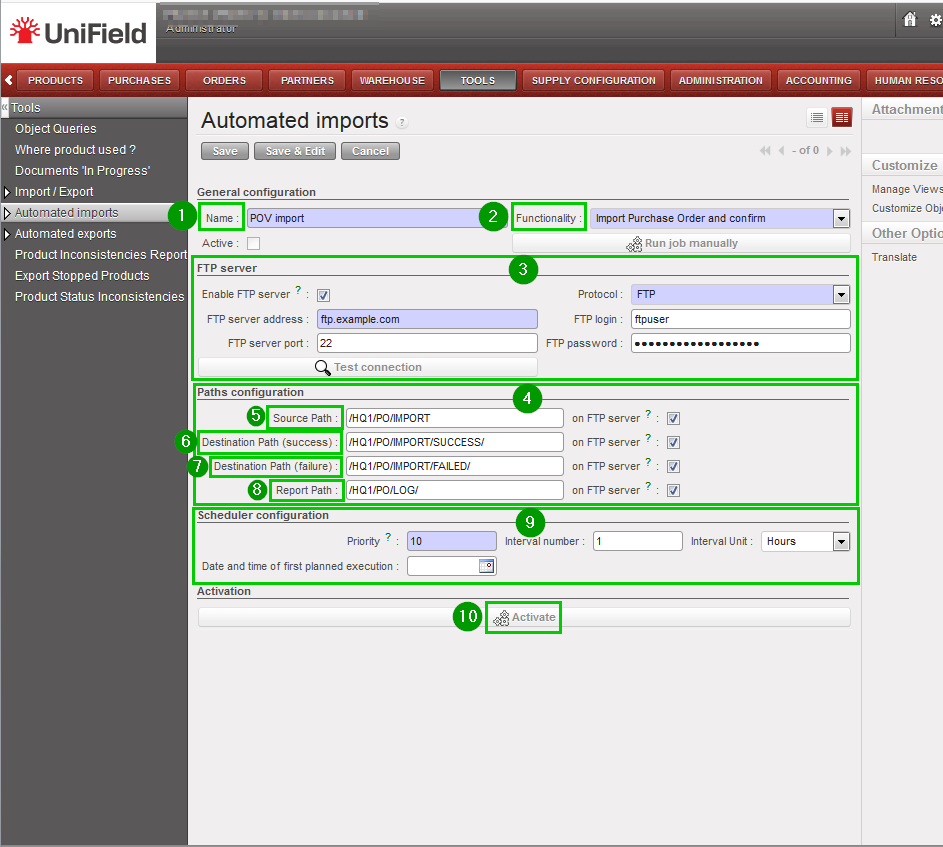
Fill the following fields
Name 1: provide a name to the import job
Functionality 2: choose one. All import features are listed here, but so far Vertical Integration is supposed to rely on Import Purchase Order and Confirm or on Import Incoming Shipment only.
If you want to retrieve the files from an FTP server, check the box and type your FTP host and credentials on the FTP server section 3
Set the paths under the Paths configuration section 4:


  • Source path 5: where to look for files to import
  • Destination path (success) 6: where to store the file if import succeeds
  • Destination path (failure) 7: where to store the file if import fails
  • Report path 8: where to write log files

Paths can be located on an FTP server or locally on the UF server
Configure the scheduler 9 (refer to 11.5 Scheduled actions configuration)
Click on Activate 10

FTP servers are not provided by UniField and must be hosted either by the OC or its ESC.
The same paths can be used for both POV and IN import jobs: the system relies on filenames to recognize what file it is processing. Expected patterns are:

  • POV

POV_XXXX_YYYY_MM_DD.xml
POV_XXXX_YYYY_MM_DD.xls
where:
XXXX is the UF PO Reference (parts separated by “_” e.g. 17_NL_SL001_PO00251)
YYYY_MM_DD is the year, mointh and day (e.g 2018_10_05)
E.g of POV: POV_17_NL_SL001_PO00251_2018_05_15.xml

  • IN

SHPM_XXXX_ZZZZ_YYYY_MM_DD.xml
SHPM_XXXX_ZZZZ_YYYY_MM_DD.xls
where:
XXXX is the UF PO Reference (parts separated by “_” e.g. 17_NL_SL001_PO00251)
ZZZZ is the serial number
YYYY_MM_DD is the year, mointh and day (e.g 2018_10_05)
E.g of POV: POV_17_NL_SL001_PO00251__0528_2018_05_15.xml
Please note that a file that has already been processed will not be processed again, unless its checksum is different. So it is not possible to import the exact same data twice.

Monitoring:
You can see the history of imports by clicking on menu TOOLS 1, Automated imports 2, Import job reports 3
You’ll get a list of all past executions. You can filter the list by status, import function, date and time or Import File name.
Click on any line 4 to get more information


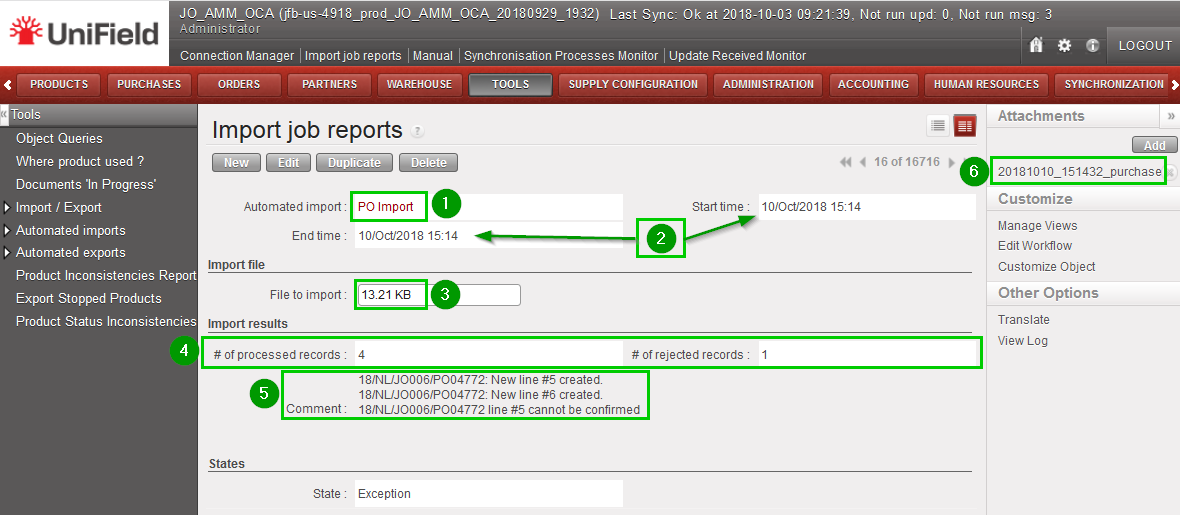
The form view gives you more details about a specific execution of the import:


  • Import function 1
  • Start and End date and time

Import file Name
  • File size 3
  • Number of processed/rejected records 4
  • Errors and exceptions 5 (if any)

You can download the result file 6 in the top right corner

*** Automated imports/Automated export

Import job reports / Export job reports, the job reports can be searched by using the existing filters (Automated import or export functionality, start time, End time and Name of imported or exported file).
4.5 Auto-connect Synchronization

4.5 Auto-connect Synchronization

It is possible to configure the connection of your instance connected to the synchronization without the need to reconnect it (refer to the connection manager) every time OpenERP starts (standard set up).
This feature is named auto-connect synchronisation and is a specific set-up developed for emergency context to release the workload of the user on the site.
For the set-up the Support Team (ST) and the User would have to perform the correspondent steps:

ST: [Done during instance creation step1 by coreteam]
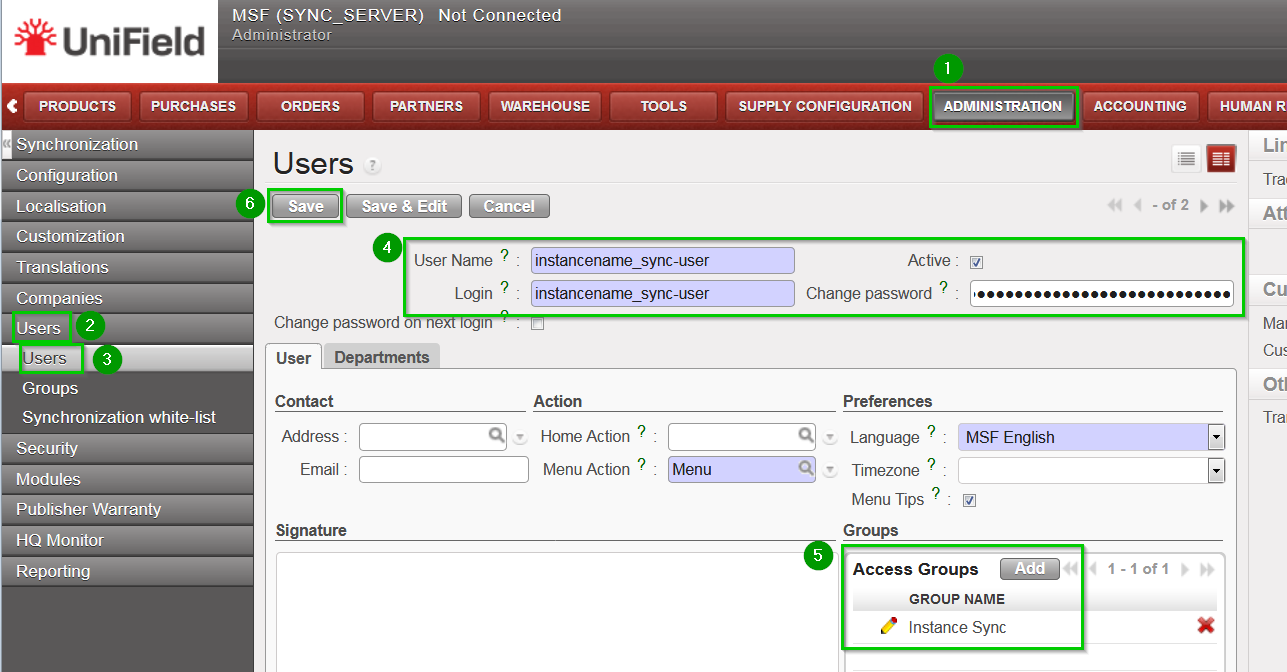
Create a new user in the SYNC_SERVER side on Administration1, Users 2, Users3.
Fill in the information 4:


  • User Name: instancename_sync-user
  • Login: instancename_sync-user
  • Password: to set a random and complex password (from keePass2)

Add 5 the group Instance Sync
Click on Save 6

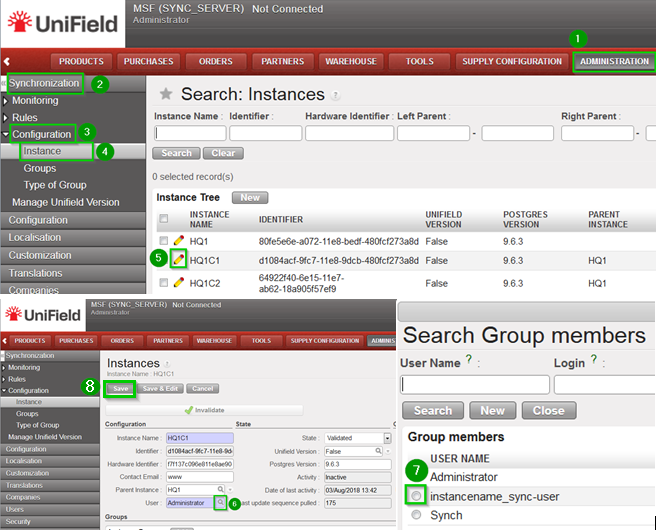
On menu Administration 1, Synchronisation 2, Configuration 3, Instance 4. Click on the Edit icon 5 of the instance.
On the User field click on the look up icon 6
Select the newly created user 7
Click on Save 8
User: [can be done by only UF IT referent or coreteam]
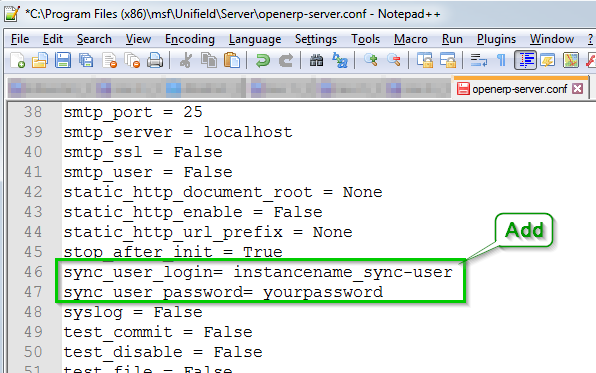
Open as Administrator with Notepad the file openerp-server.conf in C:\Program Files (x86)\msf\Unifield\Server
Edit the following lines in the file:


  • sync_user_login= instancename_sync-user
  • sync_user_password= yourpassword

Save the file.
Please note that sync_user_password accepts password on cleat text OR encoded in Base64.
Login and password are forwarded by the ST.

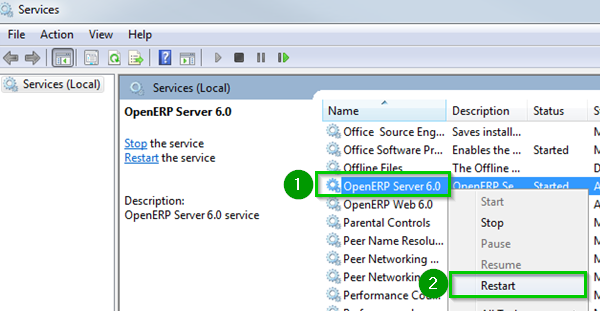
Right click 1 on OpenERP Server service and click on Restart 2
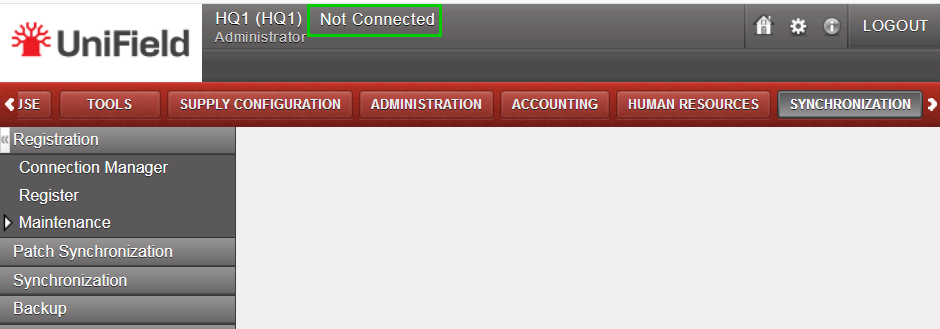
When logged back in your instance you can skip the Connection Manager step in menu SYNCHRONIZATION, Registration, Connection Manager even if the state mentions Not Connected.
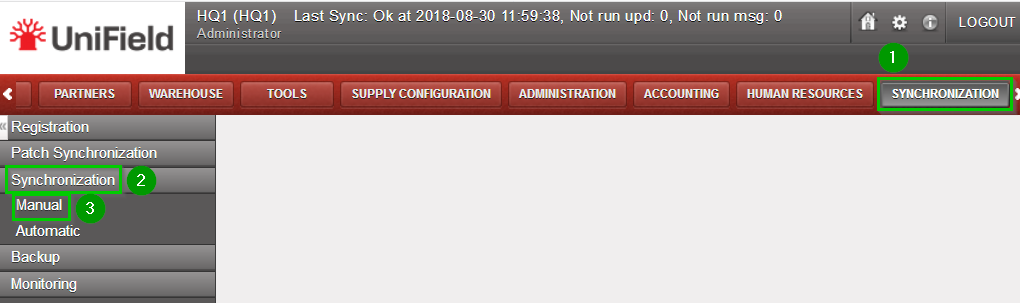
To synchronize: Go to menu Synchronisation, Registration, Synchronization, Manual. Then click on Start All Synchronization in Background.
The connection will automatically be made and the synchronization will start.

4.3 Manual Synchronization

4.3 Manual Synchronization

It is assumed that the instance is well configured, already connected to the synchronization server and registered.

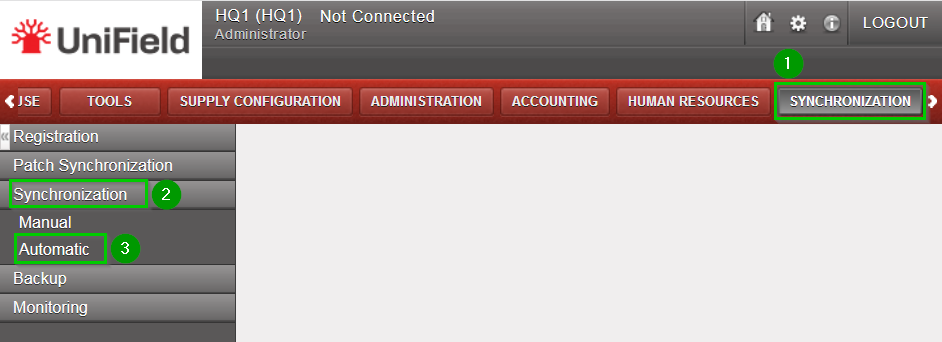
Click on menu Synchronization , Synchronization, Manual
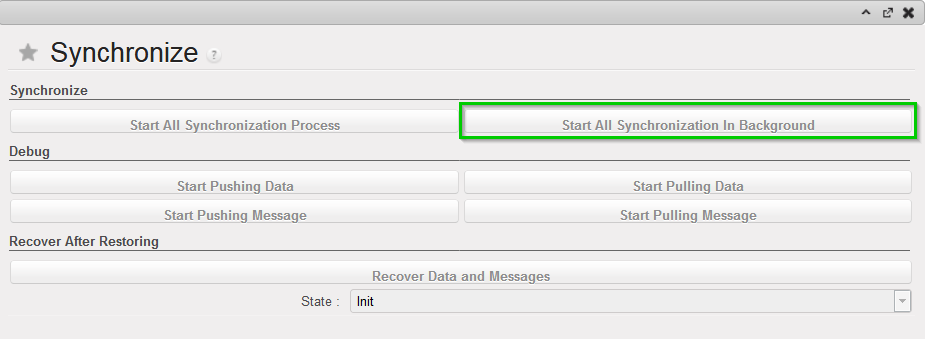
The next synchronization wizard will open.
Click on Start All Synchronization In Background.
This launches the synchronization process in background. It is recommended to back up the data after a successful synchronization. Please refer to the “Procedure for backing up and restoring local instances”.
To know when the synchronization is over, refer to the monitoring documentation.
Instead of starting the synchronization, you may be advised that there is an upgrade to apply. Refer to the upgrade chapter.

4.2 Connection to the Synchronization Server

4.2 Connection to the Synchronization Server

As a security, the synchronization password is not saved in the database or a file. It means this step must be done every time OpenERP starts. For example when:

  • the computer was off and is now on
  • the instance has been upgraded with a patch received from the synchronization server.

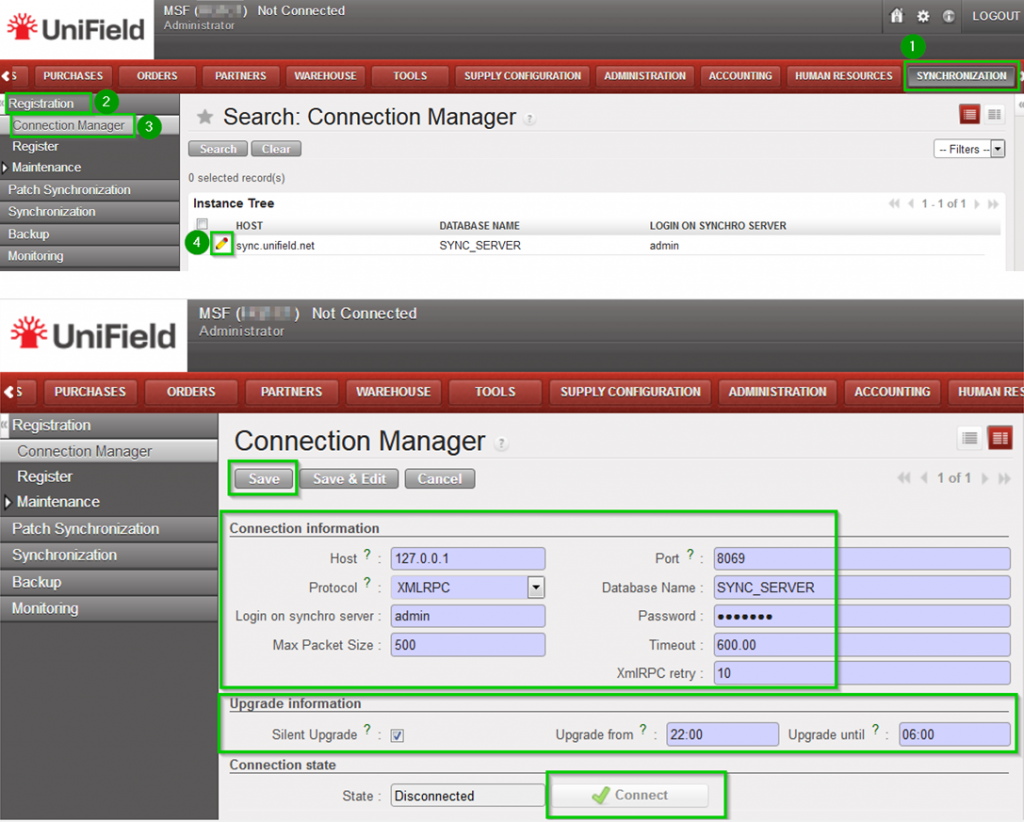
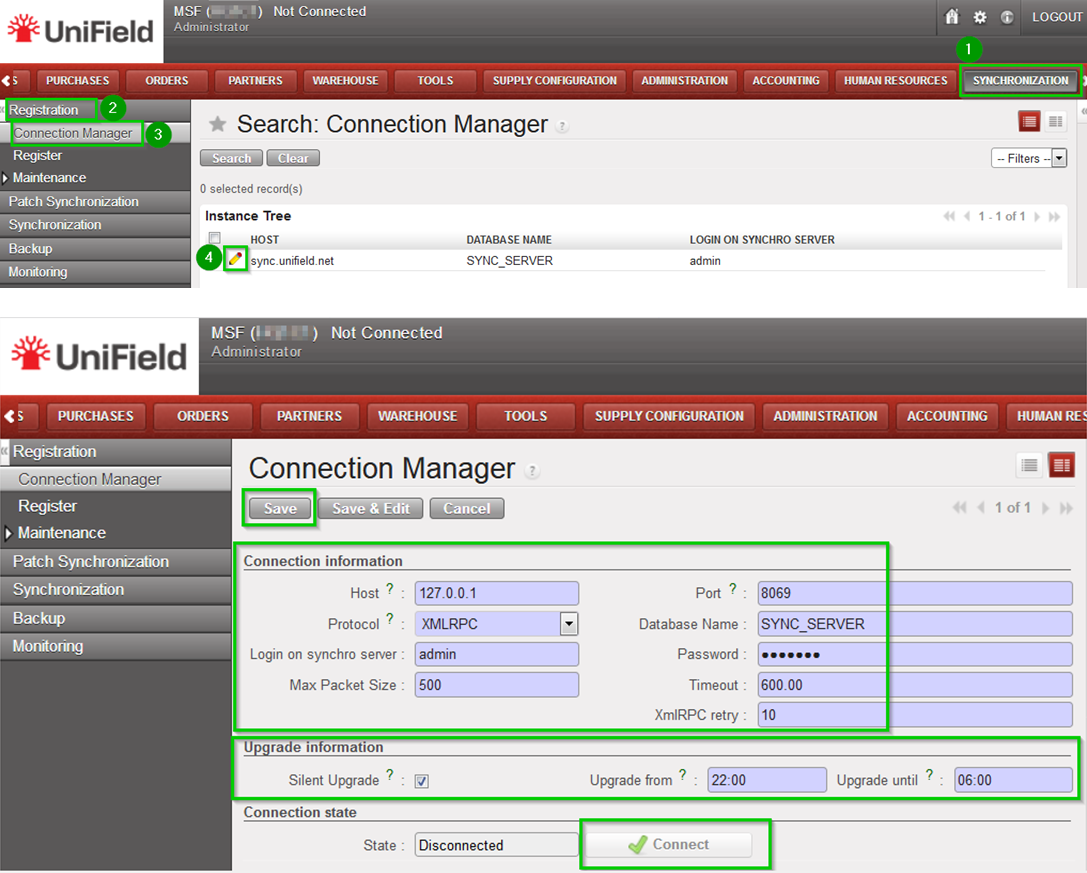
Click on Menu Synchronization 1, Registration 2, Connection Manager 3
Click on the edit icon (4) and to edit the Current Connection
Host:
* Production instance: sync.unifield.net
*Sandbox: Address of the machine where your Sync Server is installed (localhost if installed on the same machine)

Port:

*Production: 443

*Default or Sandbox: 8069


Protocol:

*XMLRPC

*secured compressed XMLRPC

Database Name:

*Production: SYNC_SERVER

*Sandbox: Your_sync_server_name

Login on synchro server:

*Production: provided by the Support Team

*Sandbox: Your_sync_server_login

Password:

*Production: provided by the Support Team

*Sandbox: Your_sync_server_password


Max Packet Size:
500
Timeout:600 – The number of seconds the instance will wait during a sync before raising a timeout error
XmlRPC retry: 10 – The number of retry during a sync when the instance don’t receive the acknowledge from the sync server with the XmlRPC protocol.
Silent upgrade: The instance will patch automatically during the time slot defined if an automatic synchronisation is performed. It is strongly
recommended to activate it
Click on Connect 5 the State switches to connected
Click on Save

4. Synchronization

4. Synchronization

4.1 Requirements

4.2 Connection to the synchronization server

4.3 Manual synchronization

4.4 Automatic synchronization

4.5 Auto-connect synchronization

2.12 Summary of Actions / Files to be Uploaded

2.12 Summary of Actions / Files to be Uploaded

HQ Instance
Coordination Instance
  • Connect and register to synchronization server
  • Validate instance at synchronization server level
  • Configure automatic backups
  • Perform initial synchronization
  • Reconfigure
  • Import analytic journals – analytic.journal.csv
  • Import GL journals – journal.csv
  • Configure internal and intermission partners
  • Perform validation synchronizations
Project Instance
  • Connect and register to synchronization server
  • Validate instance at synchronization server level
  • Configure automatic backups
  • Perform initial synchronization
  • Reconfigure
  • Import analytic journals – analytic.journal.csv
  • Import GL journals – journals.csv
  • Configure internal partners
  • Perform validation synchronizations
  • Install module sync_remote_warehouse (only if included in the checklist)
  • Setup the remote warehouse (only if included in the checklist)
Synchonization Server
  • Install modules: msf_profile THEN sync_remote_warehouse_server | sync_so | update_server
  • Import Group Types – grouptype.csv
  • Create Groups

2.11 Project Instances

2.11 Project Instances

All steps described in this section are to be performed with the admin user. It is also important that the coordination’s validation synchronizations described in step 2.10.9 are finished before starting setting up Projects. Log in your Project instance.

2.11.1 Connect and Register to Synchronization Server

Connect Click on Menu Synchronization 1, Registration 2, Connection Manager 3
Click on the edit icon (4) and to edit the Current Connection
Host:
* Production instance: sync.unifield.net
*Sandbox: Address of the machine where your Sync Server is installed (localhost if installed on the same machine)

Port:

*Production: 443

*Default or Sandbox: 8069
Protocol:

*XMLRPC

*secured compressed XMLRPC

Database Name:

*Production: SYNC_SERVER

*Sandbox: Your_sync_server_name

Login on synchro server:

*Production: provided by the Support Team

*Sandbox: Your_sync_server_login

Password:

*Production: provided by the Support Team

*Sandbox: Your_sync_server_password
Max Packet Size:
500
Timeout:600 – The number of seconds the instance will wait during a sync before raising a timeout error
XmlRPC retry: 10 – The number of retry during a sync when the instance don’t receive the acknowledge from the sync server with the XmlRPC protocol.
Silent upgrade: The instance will patch automatically during the time slot defined if an automatic synchronisation is performed. It is strongly
recommended to activate it
Click on Connect 5 the State switches to connected
Click on Save

Register:
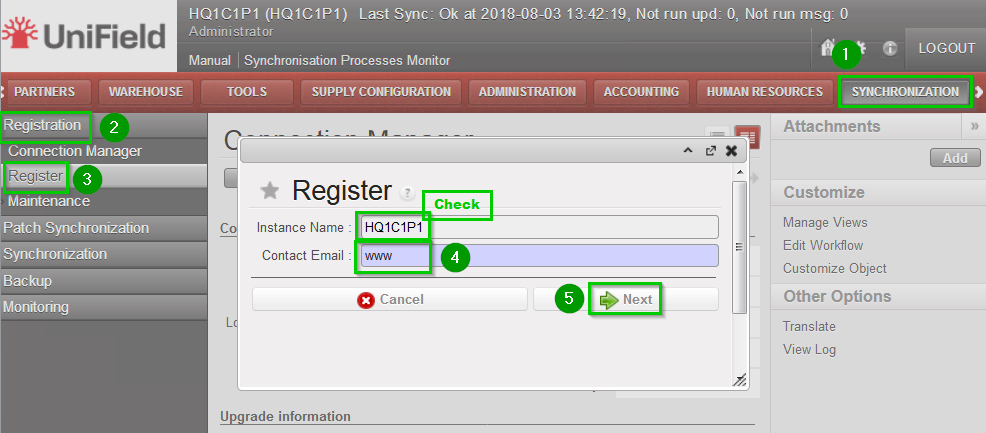
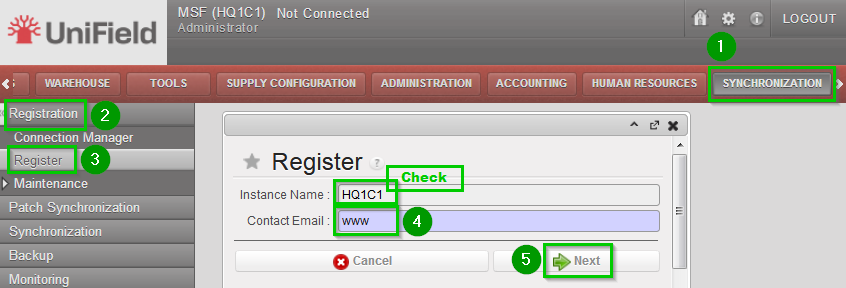
Click on Menu Synchronization 1, Registration 2, Register 3
A new wizard will open
Check that the instance name matches the Project database name as defined in the installation checklist
Enter contact email 4 www
Click on Next 5
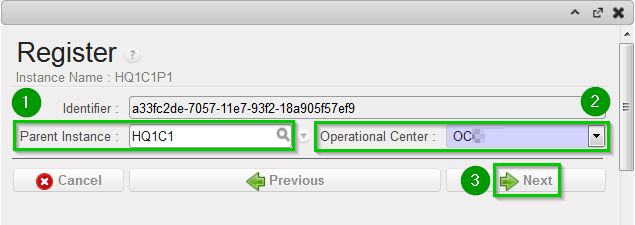
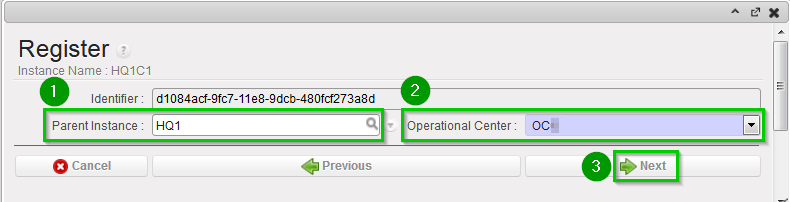
Select your Coordination Parent Instance 1
Select your Operational Center 2
Click on Next 3
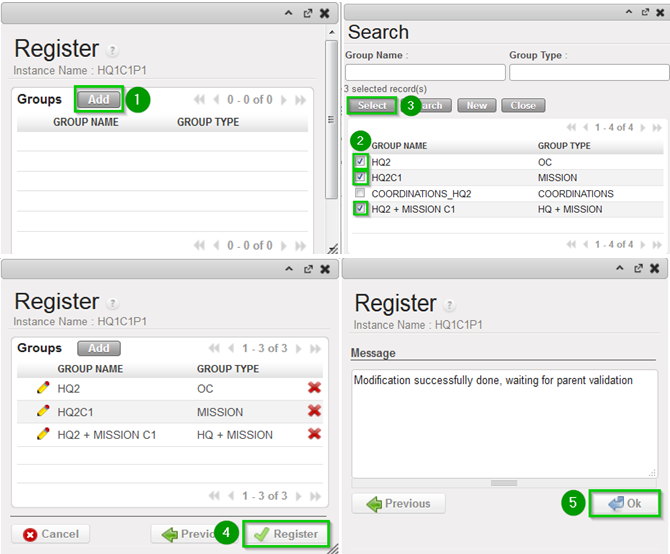
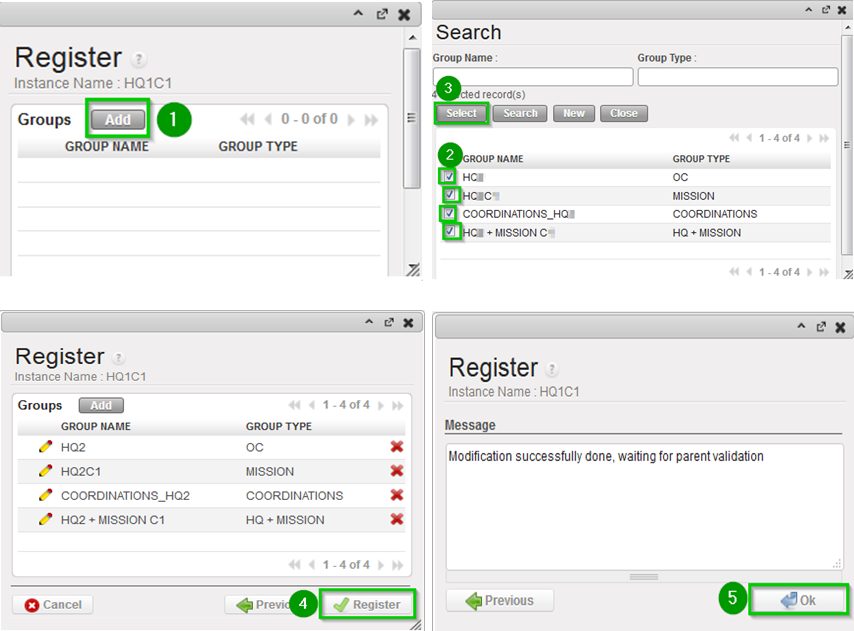
Click on Add 1
Choose groups 2:
  • OCx
  • The OCx_MISSION_XX9 group as defined in step 2.8.2.
  • The OCx_HQ_MISSION_XX9 as defined in step 2.8.2.

Click on Select 3
Click on Register 4
Click OK 5

2.11.2 Validate Instance (only at sync_server side)

For Production instance this step is done by the Support Team.
For Sandbox instance login in your_Sync_Server instance with the admin user.

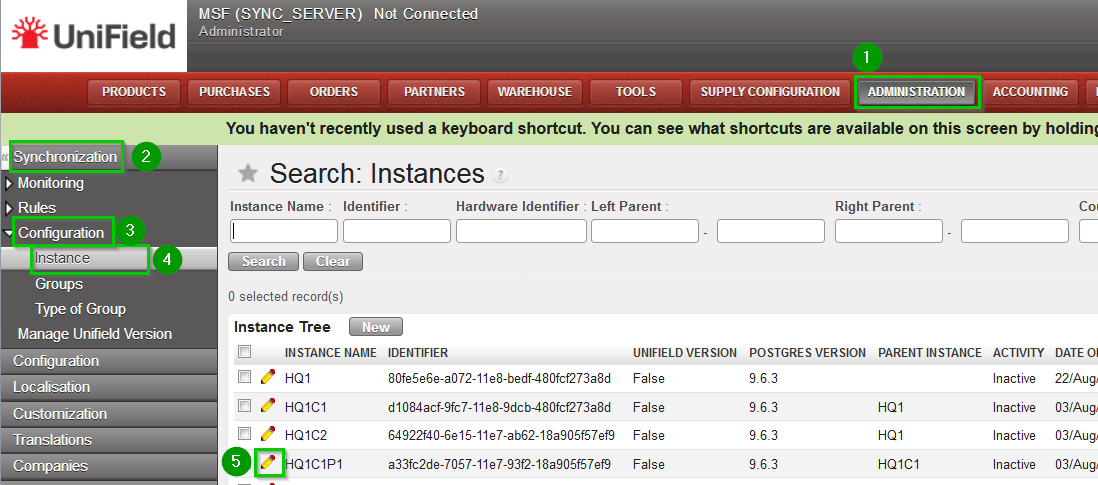
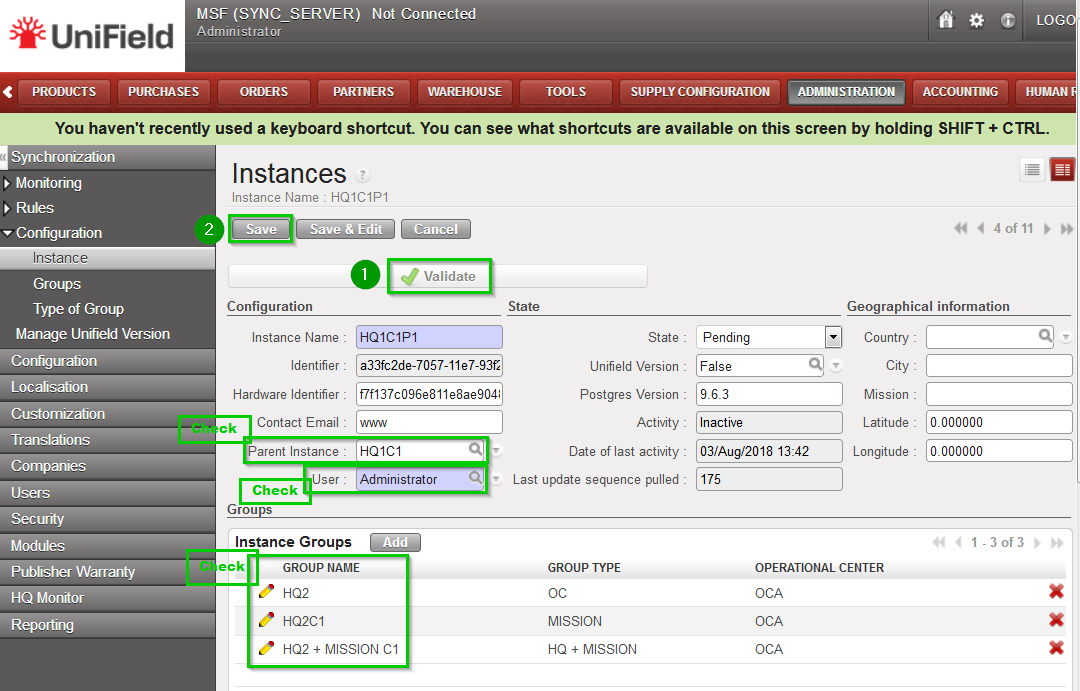
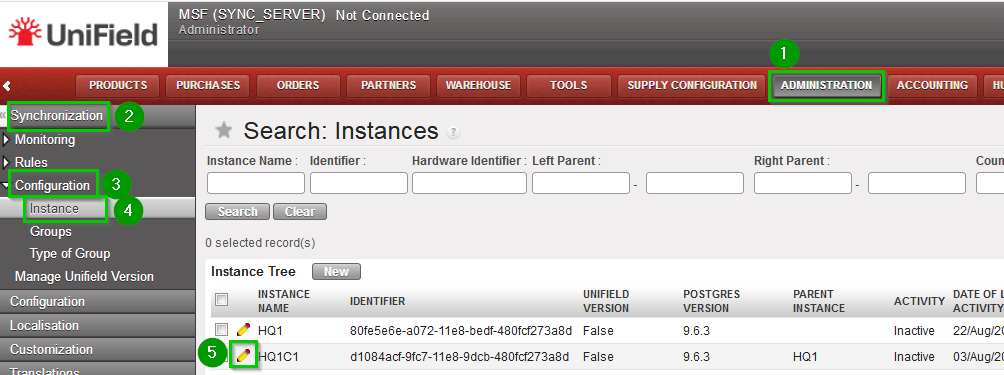
Click on Menu Administration 1, Synchronization 2, Configuration 3, Instance 4
Click on the edit icon 5 of the Project instance created in previous steps
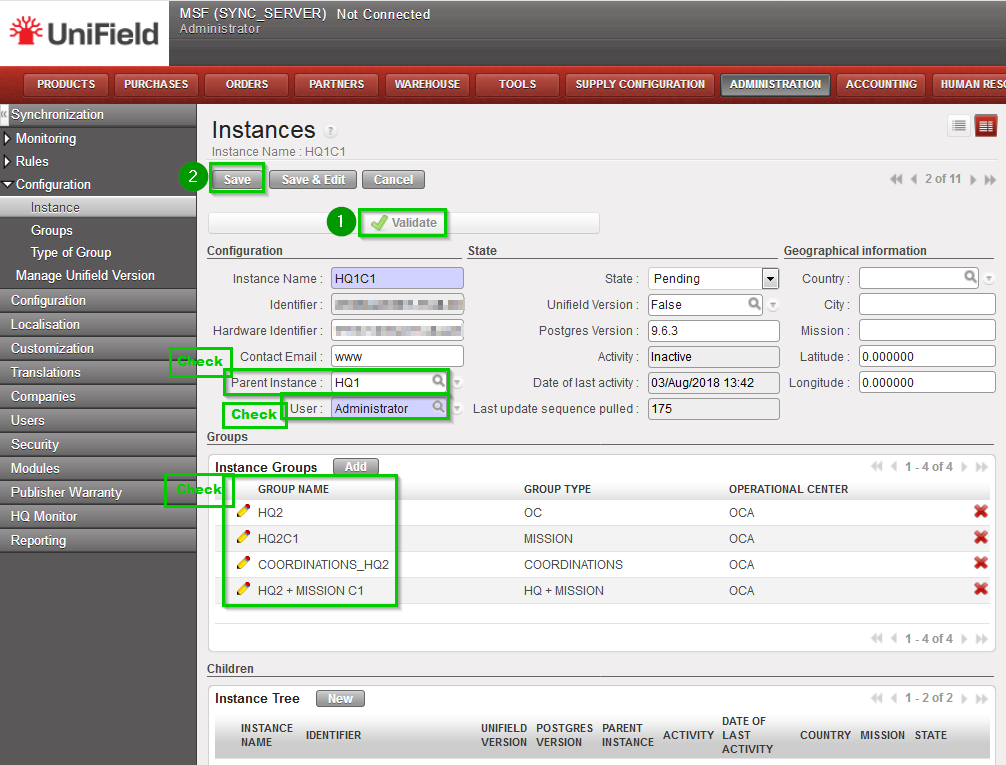
Check the following is correct:
  • Parent Instance
  • User
  • groups are correct (as defined in step 2.8.2)

Note that at this stage, it is normal that no children appear in the list, they will appear later on when Coordinations are created and defined as children of the HQ.
If the instance is not added in the right groups, it will not fetch the correct updates during the initial sync. You could end up with a defective instance missing some important data. You can correct any error on this interface.
Click on validate 1. State switches to Validated.
Click on Save 2

2.11.3 Configure Automatic Backups

It is strongly recommended to schedule automatic backups and to save it in another location than the server instance.

On your HQ instance, click on Menu Synchronization 1, Backup 2, Backup config 3
You must enter an existing path 4 to save backups. The following options 5 are available to run automatic backups, please ensure the backup path exists as the sync. may fail:
  • backup before and/or after a manual sync.
  • backup before and/or after an automatic sync.
  • You can also choose to generate a backup immediately by clicking on the backup button 6

Click on Save 7

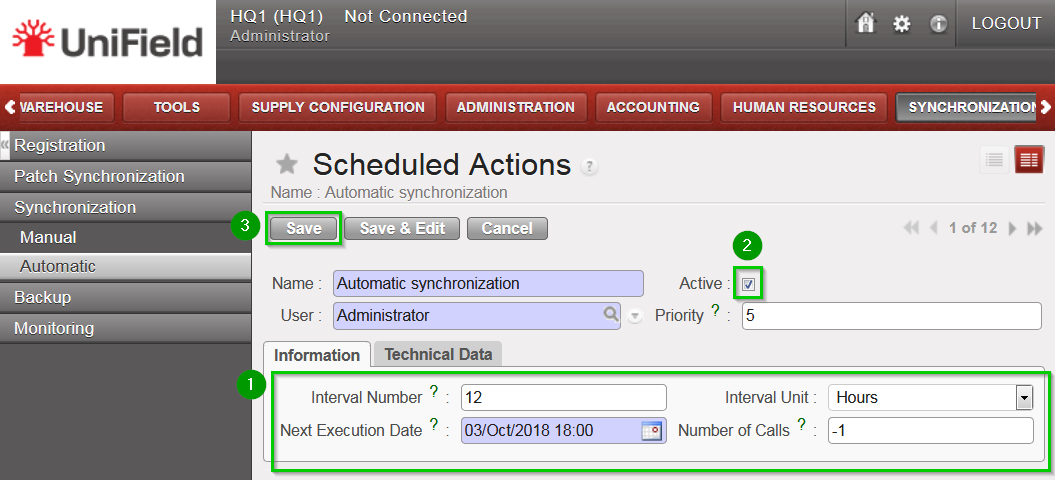
To schedule an automatic backup click on Menu Synchronization1, Backup2, Automatic3
Edit the following fields 4:
  • Interval number
  • Interval Unit
  • Next execution date: preferably during none working hours.

Tick the Active box 5
Click on Save 6

It is possible to send your latest backup to OneDrive. This is STRONGLY RECOMMENDED, refer to section 12.2 Automatic instance backup to the Cloud to configure it. the configuration is done from the HQ for the HQ and its children instances.
Please note that this IS NOT to be considered as a offsite backup solution (this is for Support Team debbuging, support and BI purpooses)

2.11.4 Perform Initial Synchronization

Click on Menu Synchronization 1, Synchronization 2, Manual 3
A new wizard opens. Click on Start All Synchronization In Background 4
You should wait until the synchronization is finished before starting to configure the Projects.
In order to perform this check: Click on Menu Synchronization 1, Monitoring 2, Synchronization Processes Monitor 3
Check 4 that the last synchronization is Done

2.11.5 Perform Reconfigure

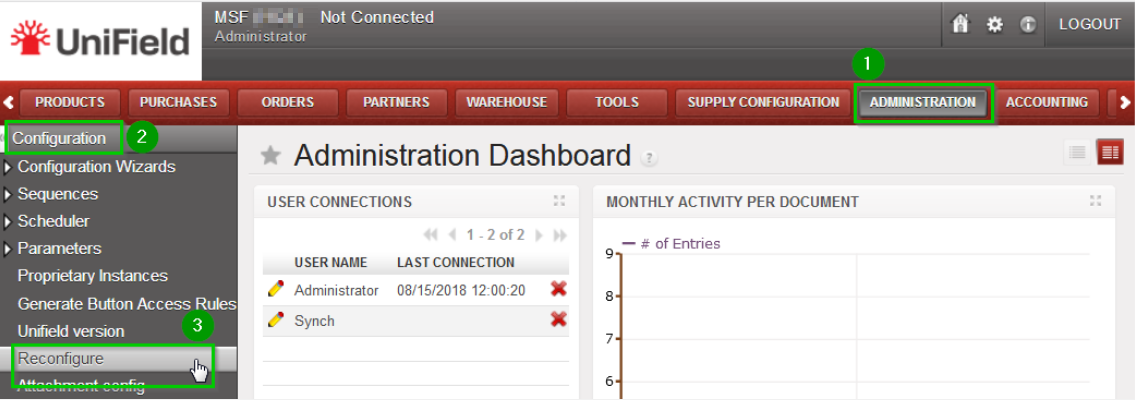
Click Menu Administration 1, Configuration 2, Reconfigure 3
A new wizard will open and you would then navigate to various screens.
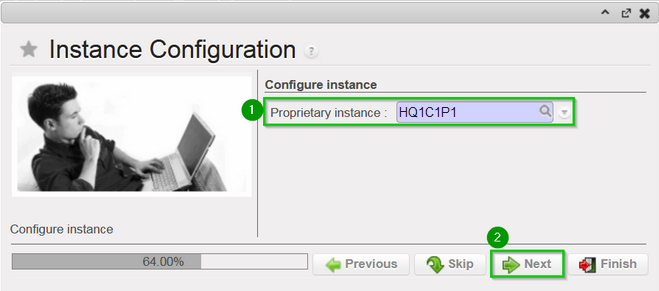
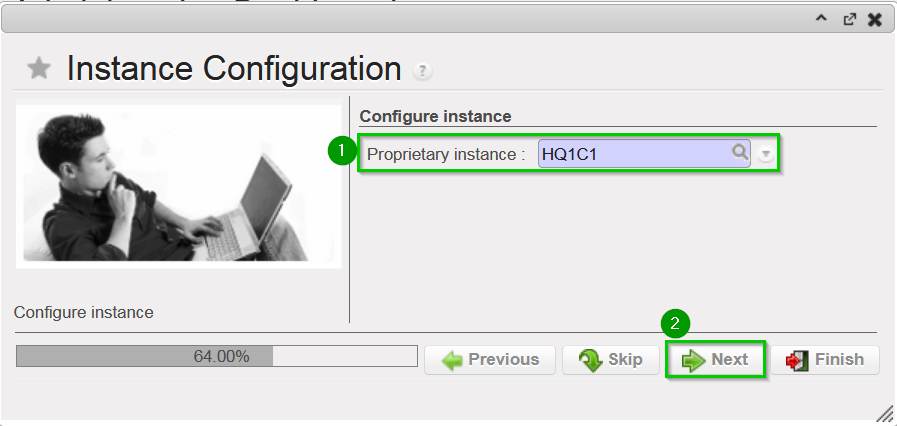
Instance Configuration: Choose the proprietary instance corresponding to the project1 (as created in step 2.9.2).
This step cannot be re-done; if the wrong proprietary instance is chosen, the database needs to be dropped and re-created. Choosing a proprietary instance already in use in your OC could lead to corruption of other instances. Most of the time the proprietary instance’s name and the instance’s name will be the same.
Click on Next 2
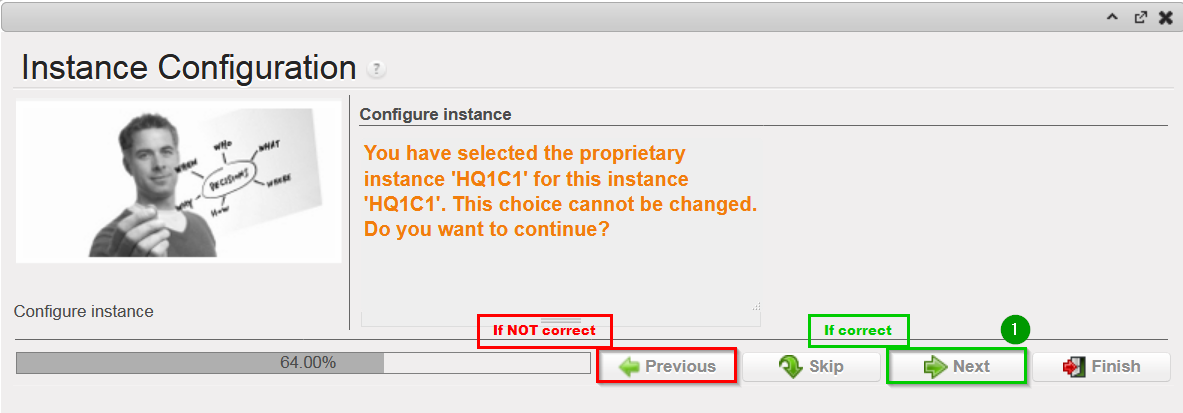
A confirmation message window opens asking you to confirm the choice of the proprietary instance. If its correct click on Next 1, if not click on Previous
Most of the time the property instance’s name matches the instance’s name. If it’s not the case a warning message is displayed. The only exception applies to instances at HQ level. Please be extremely cautious before proceeding after this warning message.
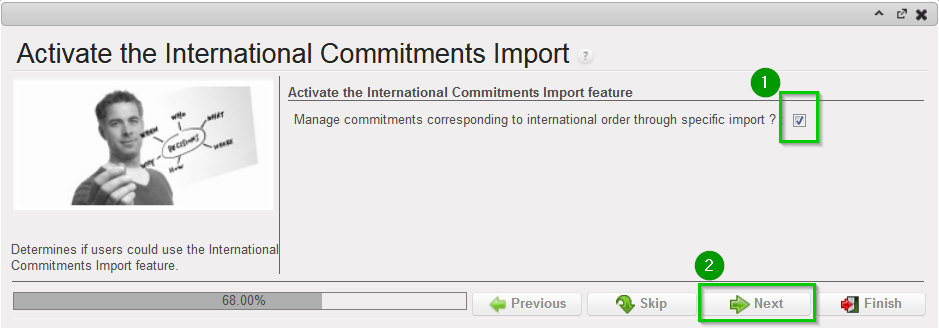
Activate the International Commitments Import
  • If OCA and OCB: leave default options 1
  • If OCG: unchecked the box 1

Click Next 2

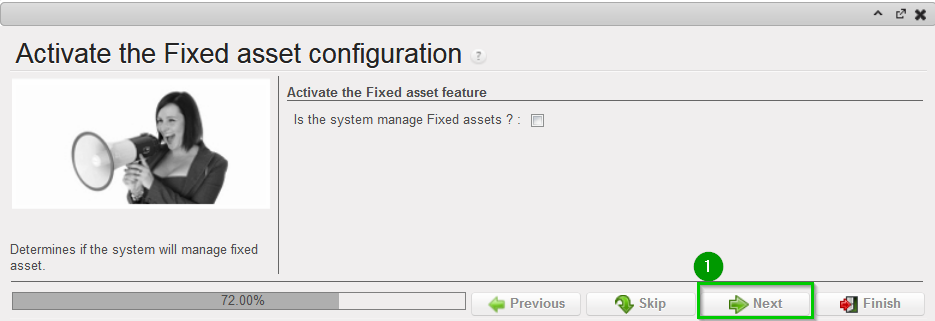
Activate the Fixed asset configuration
Leave default options.
Click Next 1
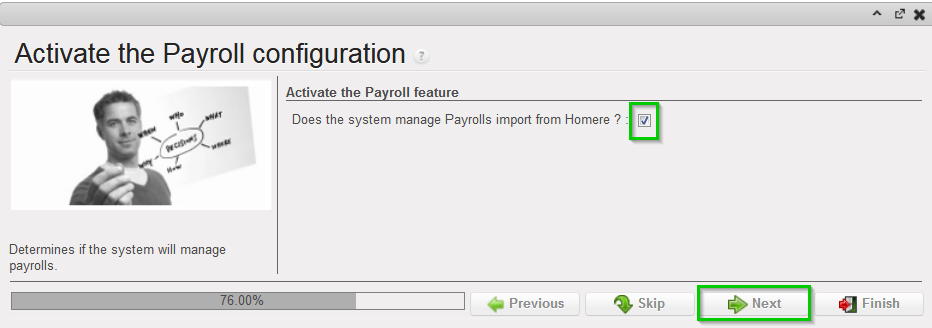
Activate the Payroll configuration
Check the box if you use Homere “Does the system manage Payrolls import from Homere?”
Click Next
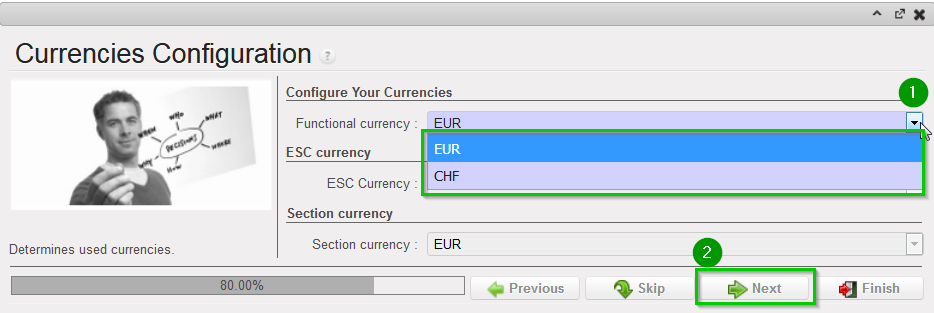
Currencies Configuration
  • If OCG: Choose CHF as functional currency 1
  • If Others: choose EUR as functional currency 1

Click Next 2

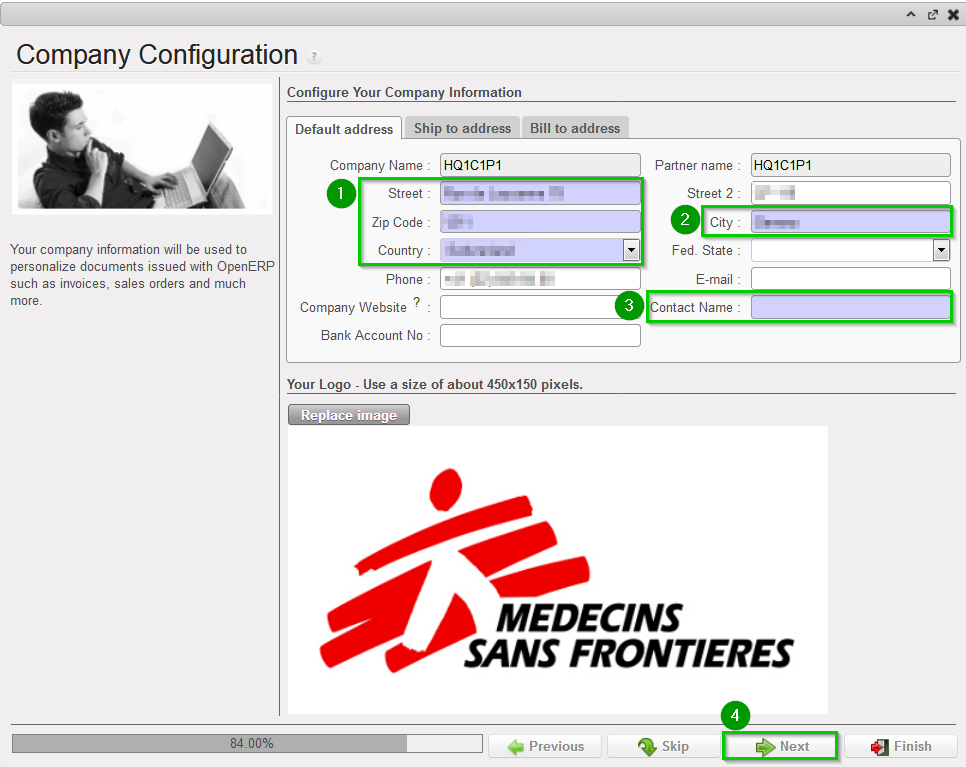
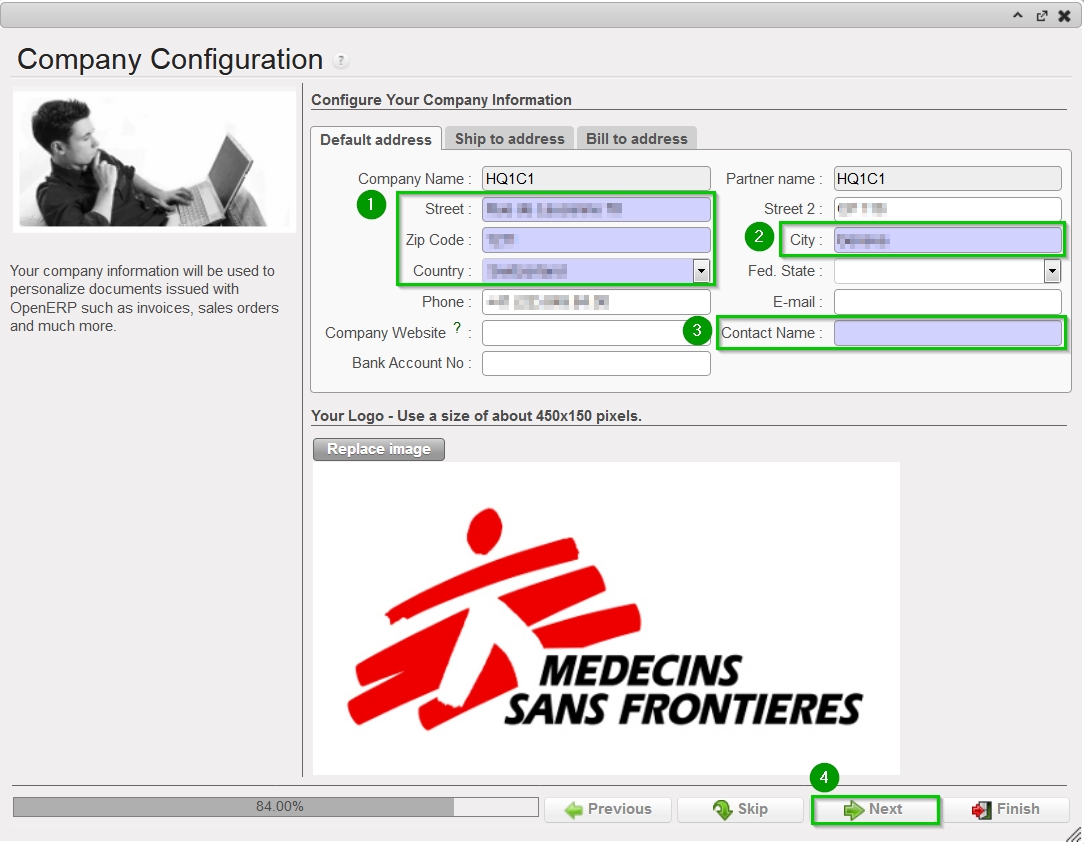
Company Configuration
Fill in the different values 1 2 3
Click Next 4
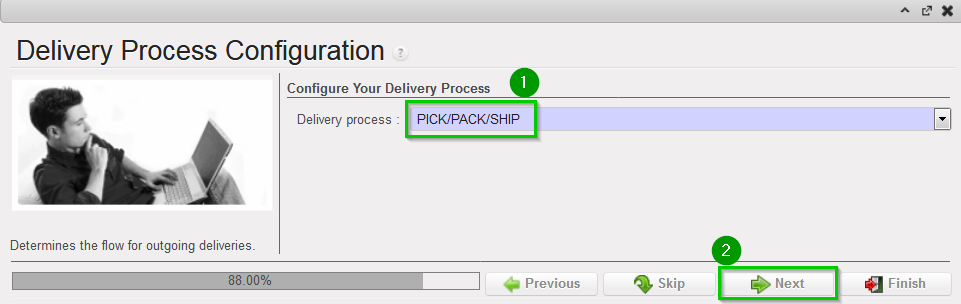
Delivery Process Configuration:
Choose the appropriate shipping method 1 (you may leave the default value).
Click Next 2
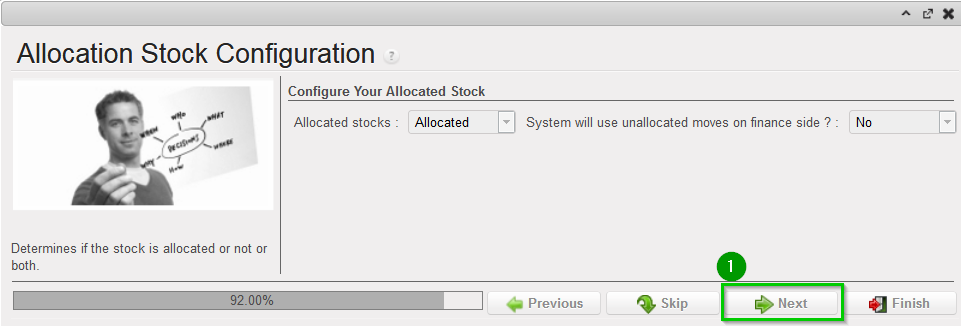
Allocation Stock Configuration
Leave default values.
Click Next 1
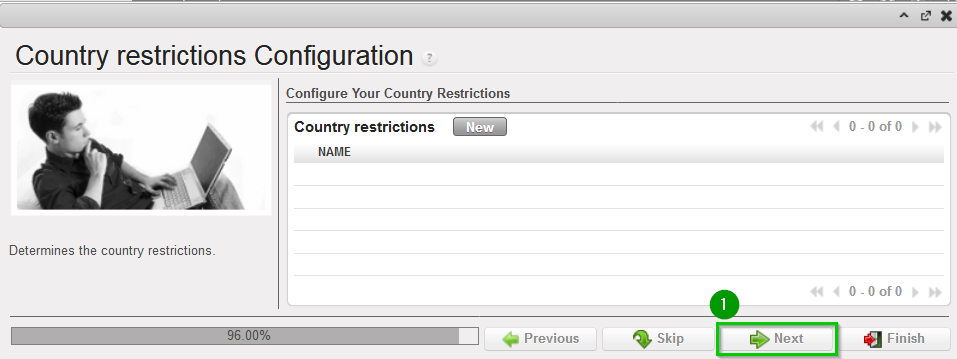
Country restrictions Configuration
Leave default values
Click Next 1
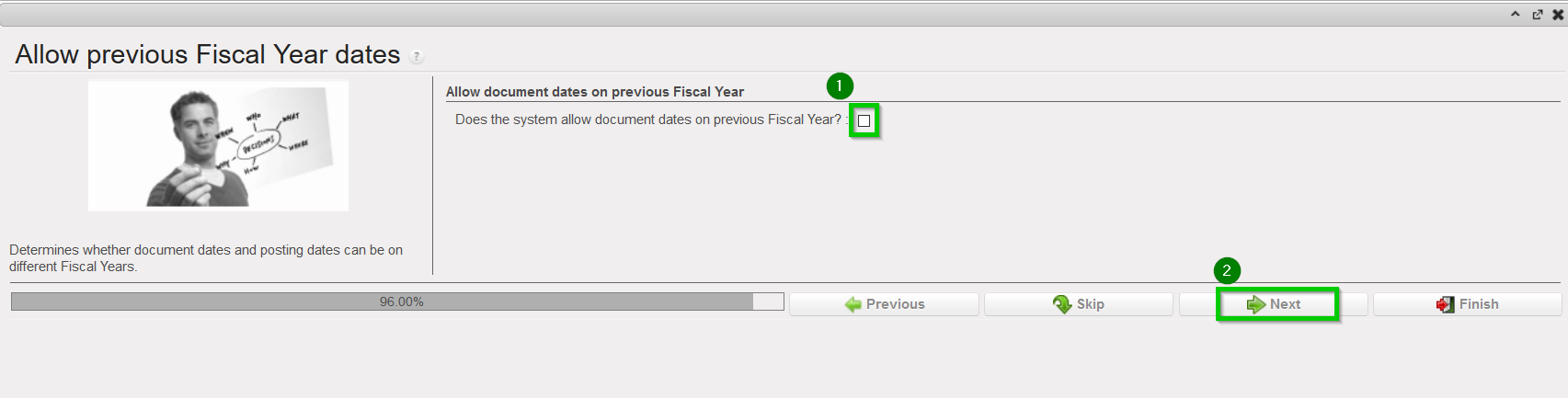
Allow previous Fiscal Year dates
Does the system allow document dates on previous Fiscal Year?: 1
  • If OCA or OCG leave the box unchecked.
  • If OCB or OCP tick the box.

Click Next 2

2.11.6 Import Analytic Journals

Click Menu Accounting 1, Configuration 2, Analytic Accounting 3, Analytic Journals4
Click on the double arrow icon 5 and import file account.analytic.journal.csv
Note: this is the same file as the one used at HQ level.

2.11.7 Import GL Journals

Click Menu Accounting 1, Configuration 2, Financial Accounting 3, Journals 4, Journals 5
Click on the double arrow icon 6 and import file account.journal.csv
Note: this is the same file as the one used at HQ level.

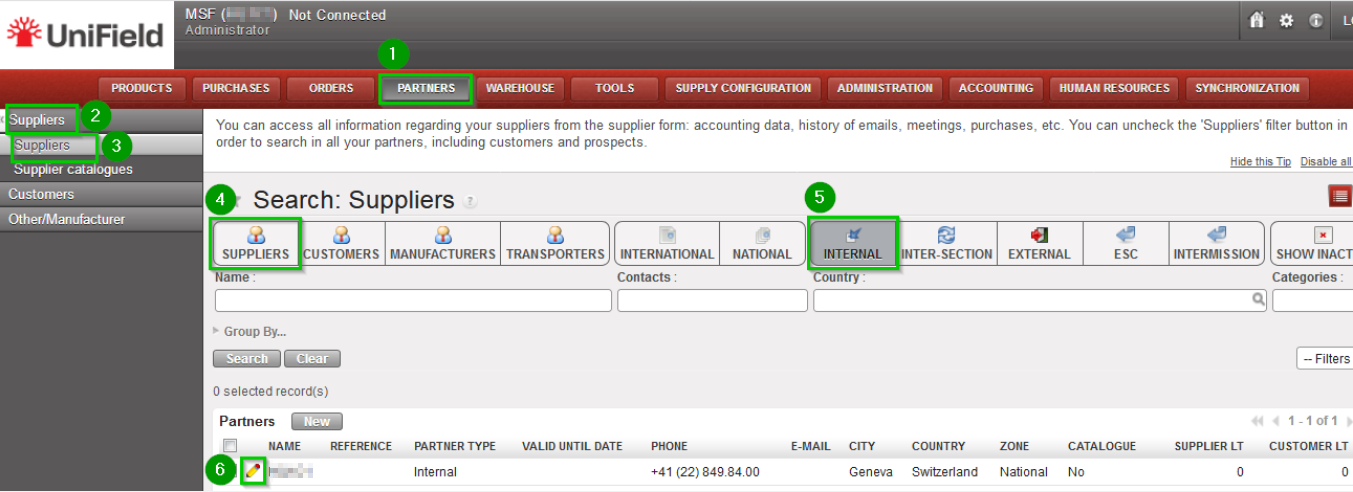
2.11.8 Perform Internal Partner Configuration

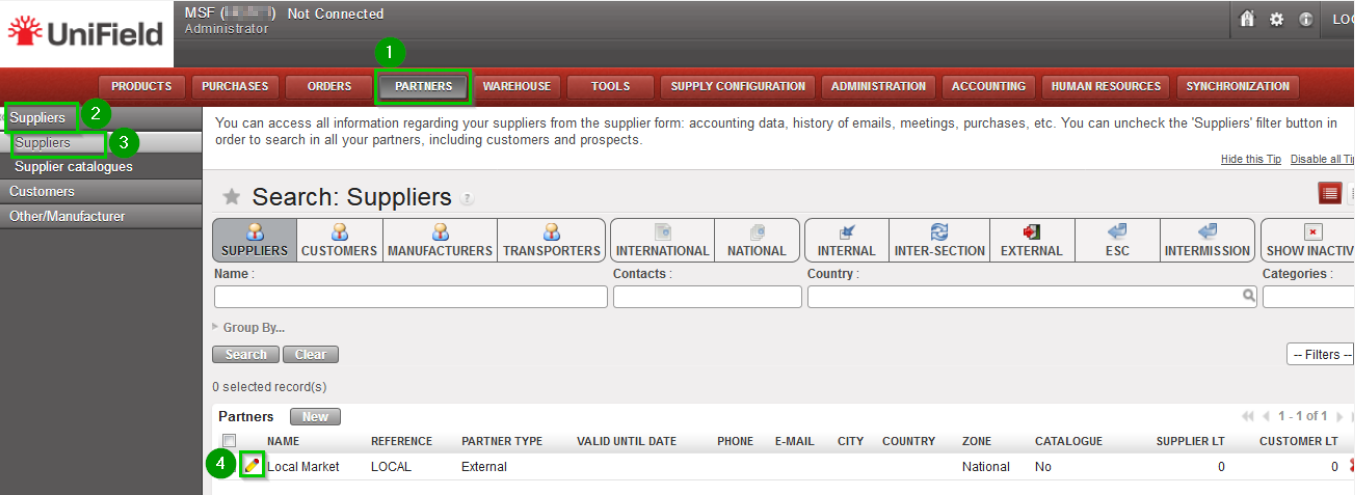
Click on Menu Partners 1, Suppliers (2), Suppliers 3
You should see one partner named “Local Market”.
Edit this supplier 4
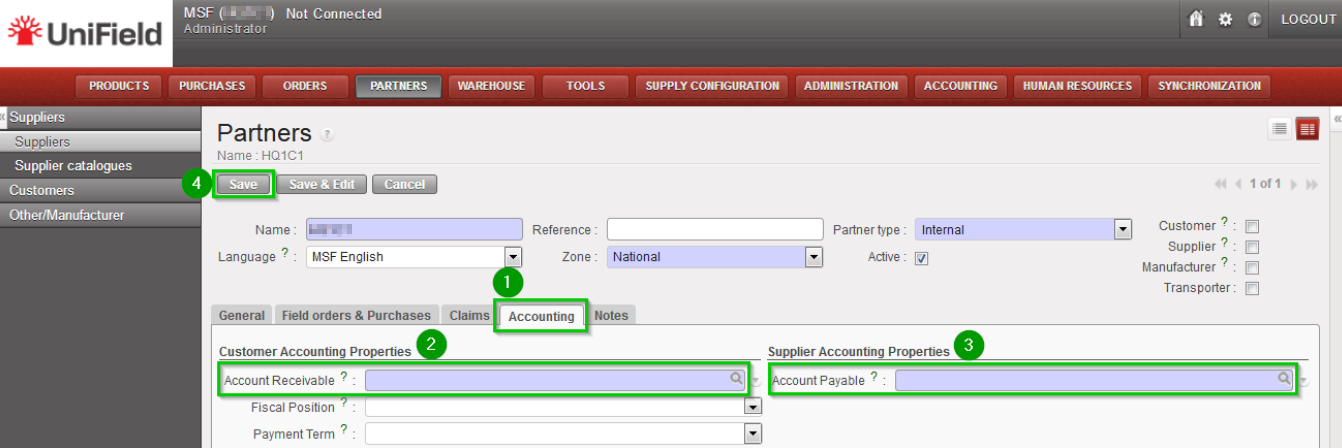
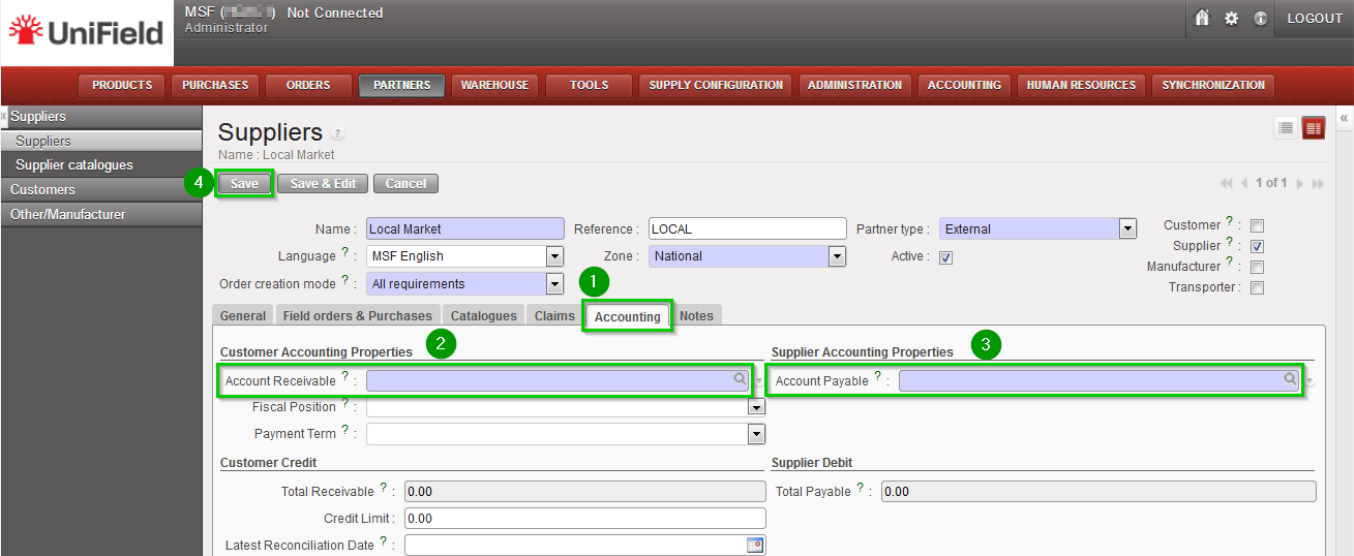
Click on tab Accounting 1 and enter the following codes:
  • Account receivable 2: If OCA: 12680 / If OCG or OCB: 12050
  • Account Payable 3: If OCA: 15600 / If OCG or OCB: 30020

Click on Save 4

Click Menu Partners 1, Suppliers 2, Suppliers 3
Uncheck filter Supplier 4, check filter Internal 5
You should see 1 partner with the same name as the instance. Edit this supplier 6
Click on tab Accounting 1 and enter the following codes:
  • Account receivable 2: If OCA: 12680 / If OCG and OCB: 12050
  • Account Payable 3: If OCA: 15600 / If OCG and OCB: 30020

Click on Save 4

2.11.9 Perform validation synchronization

Synchronise your instance (as done in step 2.11.4) to send imported data to the SYNC_SERVER. If UniField tells you that you are not connected, follow steps 2.11.1 (only the “Connection” part) and try to synchronize again.
Important note: at this stage, the configuration of the Project instance is finished but the Cost Centers have not yet been received from the HQ due to the mechanism used for validating the Proprietary Instances. In order to finish 100% the installation, it is necessary to:

  • Perform synchronization at HQ level (as described in 9.23)
  • Once finished, perform a final synchronization at Project level

2.11.10 Project Companies Configuration

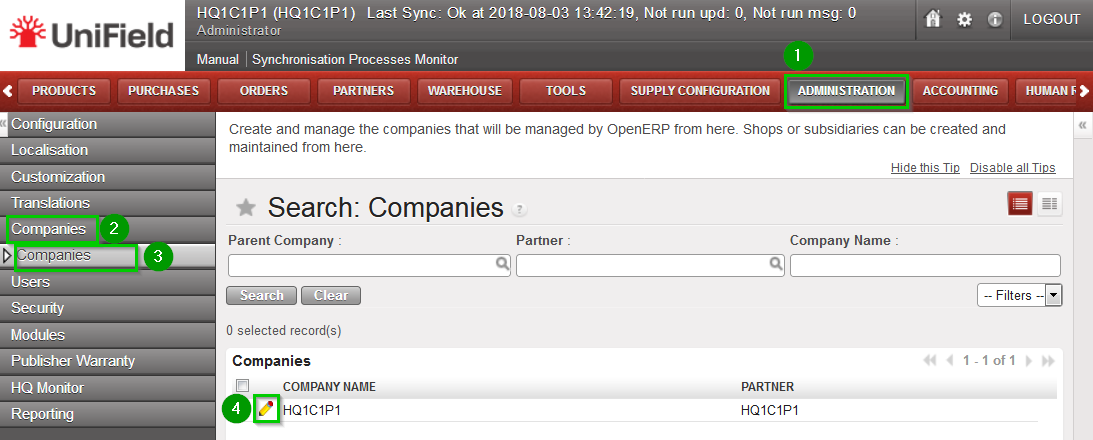
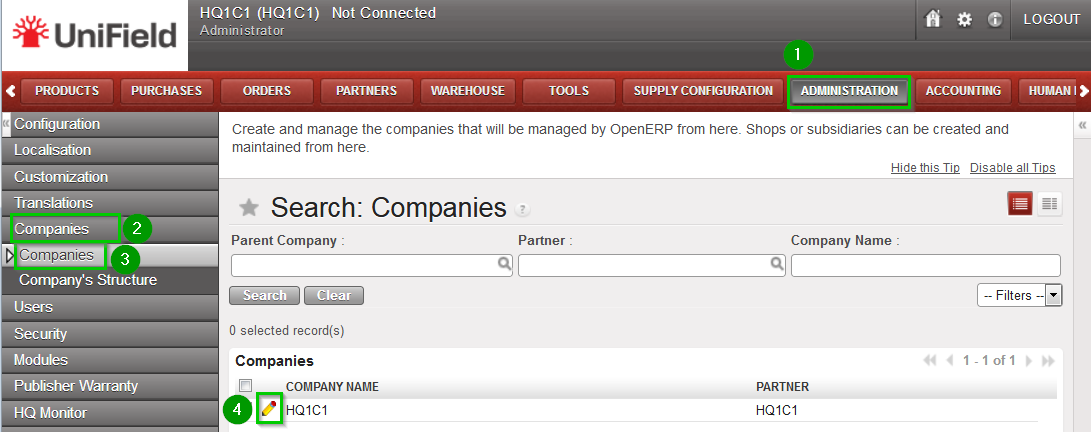
Click on Menu Administration 1, Companies 2, Companies 3
Click on the edit icon 4 of the company
Check first with your finance department the accuracy of those accounts.
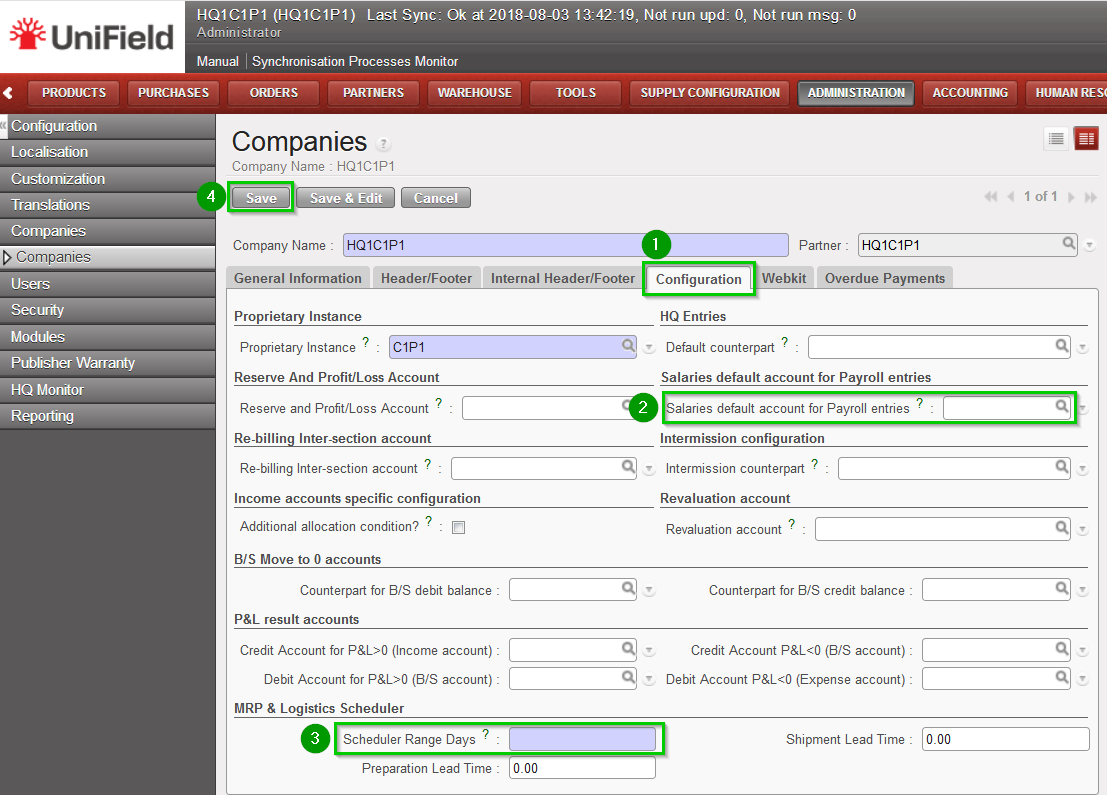
Click on the tab Configuration 1
Depending of your OC procedure, fill in:
  • Salaries default account for payroll entries 2: OCB, OCG and OCP=30100 / OCA=25600
  • Scheduler range days 3: OCG=180 / OCB and OCA=365

Click on Save 4 after you made all the modification needed.

2.11.11 Cost Center For FX Gain/Loss

Allocate the cost center for the FX exchange rate.
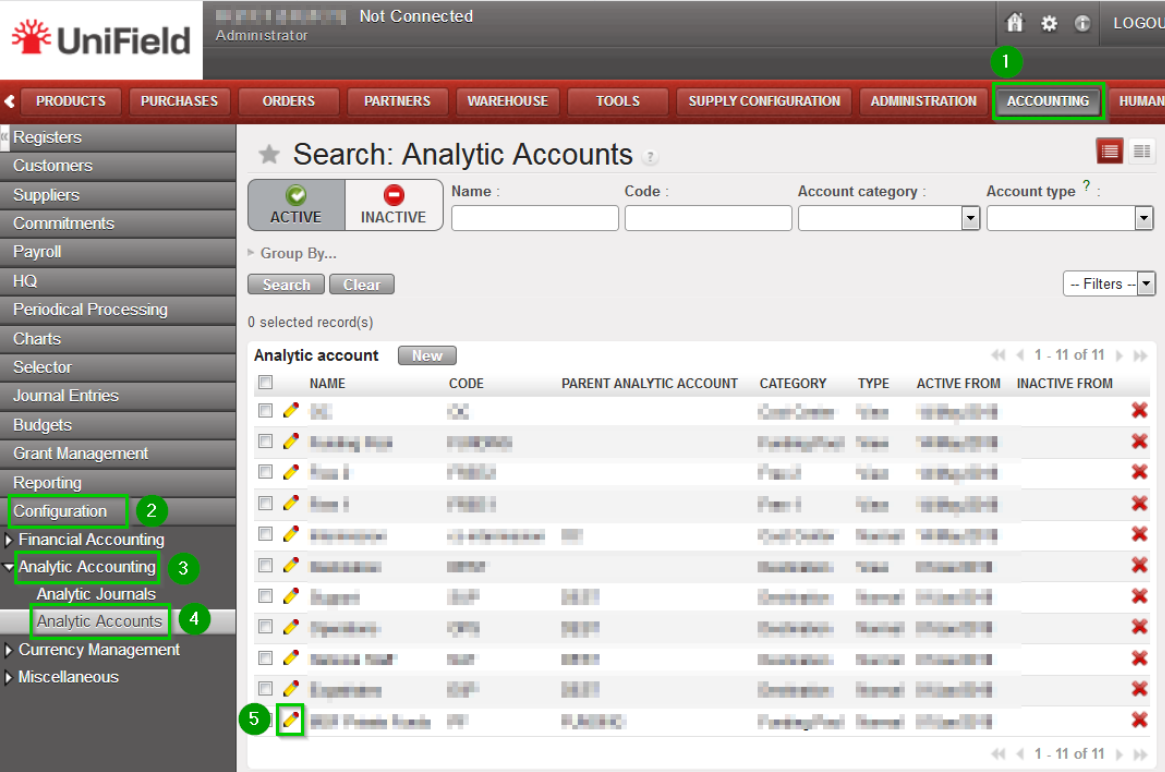
Click on Menu Accounting 1, Configuration 2, Analytic Accounting 3, Analytic Accounts 4
Edit the Cost Center 5 defined by your Finance OC procedure
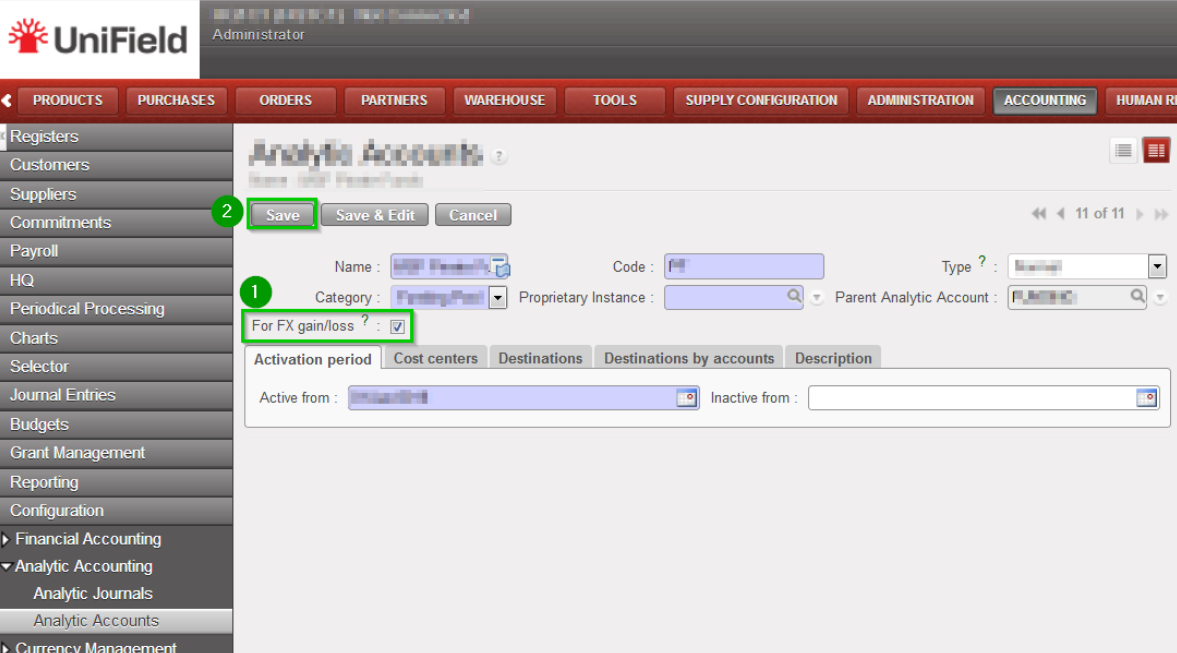
Click the tick box “For FX gain/loss?” 1. Click on Save 2
NB: it has to be the coordination cost center. i.e for OCG= the coordination SUPZZZ cost center

2.11.12 Creation of the Intermission Partner

The ProjectIntermission partners need to be created at the HQ level. Please refer to Section 2.9.25 Configuration of the Intermission partners.

2.10 Coordination Instances

2.10 Coordination Instances

All steps described in this section are to be performed with the admin user. It is also important that the HQ initial synchronization described in step 2.9.17 is finished before starting setting up Coordinations. It is also recommended to configure all Coordinations before starting to configure Projects.
Log in your Coordination instance!

2.10.1 Connect and register to the Synchronization Server

Connect:
Click on Menu Synchronization 1, Registration 2, Connection Manager 3
Click on the edit icon 4
Edit the connection and upgrade information:
Host:
  • Production instance: sync.unifield.net
  • Sandbox: Address of the machine where your Sync Server is installed (localhost if installed on the same machine)

Port:

  • Production: 443
  • Default or Sandbox: 8069

Protocol:

  • XMLRPC
  • secured compressed XMLRPC

Database Name:

  • Production: SYNC_SERVER
  • Sandbox: Your_sync_server_name

Login on synchro server:

  • Production: provided by the Support Team
  • Sandbox: Your_sync_server_login

Password:

  • Production: provided by the Support Team
  • Sandbox: Your_sync_server_password

Max Packet Size: 500
Timeout:600 – The number of seconds the instance will wait during a sync before raising a timeout error
XmlRPC retry: 10 – The number of retry during a sync when the instance don’t receive the acknowledge from the sync server with the XmlRPC protocol.
Silent upgrade: The instance will patch automatically during the time slot defined if an automatic synchronisation is performed. It is strongly
recommended to activate it.
Click on Connect the State switches to connected
Click on Save

Register:
Click on Menu Synchronization 1, Registration 2, Register 3
A new wizard will open
Check that the instance name matches the Coordination database name as defined in the installation checklist
Enter contact email 4 www
Click on Next 5
Select your HQ Parent Instance 1
Select your Operational Center 2
Click on Next 3
Click on Add 1
Choose groups 2:
  • OCx
  • OCx_COORDINATIONS
  • The OCx_MISSION_XX9 group as defined in step 2.8.2.
  • The OCx_HQ_MISSION_XX9 as defined in step 2.8.2.

Click on Select 3
Click on Register 4
Click OK 5

2.10.2 Validate instance (only at sync_server side)

For Production instance this step is done by the Support Team.
For Sandbox instance login in your_Sync_Server instance with the admin user.

Click on Menu Administration 1, Synchronization 2, Configuration 3, Instance 4
Click on the edit icon 5 of the Coordination instance created in previous steps
Check the following is correct:
  • Parent Instance
  • User
  • groups are correct (as defined in step 2.8.2)

Note that at this stage, it is normal that no children appear in the list, they will appear later on when Coordinations are created and defined as children of the HQ.
If the instance is not added in the right groups, it will not fetch the correct updates during the initial sync. You could end up with a defective instance missing some important data. You can correct any error on this interface.
Click on validate 1. State switches to Validated.
Click on Save 2

2.10.3  Configure automatic backups

It is strongly recommended to schedule automatic backups and to save it in another location than the server instance.

On your HQ instance, click on Menu Synchronization 1, Backup 2, Backup config 3
You must enter an existing path 4 to save backups. The following options 5 are available to run automatic backups, please ensure the backup path exists as the sync. may fail:
  • backup before and/or after a manual sync.
  • backup before and/or after an automatic sync.
  • You can also choose to generate a backup immediately by clicking on the backup button 6

Click on Save 7

To schedule an automatic backup click on Menu Synchronization1, Backup2, Automatic3
Edit the following fields 4:
  • Interval number
  • Interval Unit
  • Next execution date: preferably during none working hours.

Tick the Active box 5
Click on Save 6

It is possible to send your latest backup to OneDrive. This is STRONGLY RECOMMENDED, refer to section 12.2 Automatic instance backup to the Cloud to configure it. the configuration is done from the HQ for the HQ and its children instances.
Please note that this IS NOT to be considered as a offsite backup solution (this is for Support Team debbuging, support and BI purpooses)

2.10.4 Perform initial synchronization

Click on Menu Synchronization 1, Synchronization 2, Manual 3
A new wizard opens. Click on Start All Synchronization In Background 4
You should wait until the synchronization is finished before starting to configure the Projects.
In order to perform this check: Click on Menu Synchronization 1, Monitoring 2, Synchronization Processes Monitor 3
Check 4 that the last synchronization is Done

2.10.5 Perform Reconfigure

Click Menu Administration 1, Configuration 2, Reconfigure 3
A new wizard will open and you would then navigate to various screens.
Instance Configuration: Choose the proprietary instance corresponding to the coordination 1 (as created in step 2.9.2).
This step cannot be re-done; if the wrong proprietary instance is chosen, the database needs to be dropped and re-created. Choosing a proprietary instance already in use in your OC could lead to corruption of other instances. Most of the time the proprietary instance’s name and the instance’s name will be the same.
Click on Next 2
A confirmation message window opens asking you to confirm the choice of the proprietary instance. If its correct click on Next 1,  if not click on Previous
Most of the time the property instance’s name matches the instance’s name. If it’s not the case a warning message is displayed. The only exception applies to instances at HQ level. Please be extremely cautious before proceeding after this warning message.
Activate the International Commitments Import
  • If OCA and OCB: leave default options 1
  • If OCG : unchecked the box 1

Click Next 2

Activate the Fixed asset configuration
Leave default options.
Click Next 1
Activate the Payroll configuration
Check the box if you use Homere “Does the system manage Payrolls import from Homere?”
Click Next
Currencies Configuration
  • If OCG: Choose CHF as functional currency 1
  • If Others: choose EUR as functional currency 1

Click Next 2

Company Configuration
Fill in the different values 1 2 3
Click Next 4
Delivery Process Configuration:
Choose the appropriate shipping method 1 (you may leave the default value).
Click Next 2
Allocation Stock Configuration
Leave default values.
Click Next 1
Country restrictions Configuration
Leave default values
Click Next 1
Allow previous Fiscal Year dates
Does the system allow document dates on previous Fiscal Year?: 1
  • If OCA or OCG leave the box unchecked.
  • If OCB or OCP tick the box.

Click Next 2

2.10.6 Import Analytic Journals

Click Menu Accounting 1, Configuration 2, Analytic Accounting 3, Analytic Journals4
Click on the double arrow icon 5 and import file account.analytic.journal.csv
Note: this is the same file as the one used at HQ level.

2.10.7 Import GL Journals

Click Menu Accounting 1, Configuration 2, Financial Accounting 3, Journals 4, Journals 5
Click on the double arrow icon 6 and import file account.journal.csv
Note: this is the same file as the one used at HQ level.

2.10.8 Perform Internal partner configuration

Click on Menu Partners 1, Suppliers (2), Suppliers 3
You should see one partner named “Local Market”.
Edit this supplier 4
Click on tab Accounting 1 and enter the following codes:
  • Account receivable 2: If OCA: 12680 / if OCB : 12050 / if OCG: 13100
  • Account Payable 3: If OCA: 15600 / if OCG or OCB: 30020

Click on Save 4

Click Menu Partners 1, Suppliers 2, Suppliers 3
Uncheck filter Supplier 4, check filter Internal 5
You should see 1 partner with the same name as the instance. Edit this supplier 6
Click on tab Accounting 1 and enter the following codes:
  • Account receivable 2: If OCA: 12680 / If OCG and OCB: 12050
  • Account Payable 3: If OCA: 15600 / If OCG and OCB: 30020

Click on Save 4

2.10.9 Perform validation synchronization

Synchronise your instance (as done in step 2.10.4) to send imported data to the SYNC_SERVER. If UniField tells you that you are not connected, follow steps 2.10.1 (only the “Connection” part) and try to synchronize again.
You should wait until the synchronization is finished before starting to configure the project instance.
Important note: at this stage, the configuration of the Coordination instance is finished but the Cost Centers have not yet been received from the HQ due to the mechanism used for validating the Proprietary Instances. In order to finish 100% the installation, it is necessary to:

  • Perform synchronization at HQ level (as described in 9.23)
  • Once finished, perform a final synchronization at Coordination level

2.10.10 Coordination Companies Configuration

Click on Menu Administration 1, Companies 2, Companies 3
Click on the edit icon 4 of the company
Check first with your finance department the accuracy of those accounts.
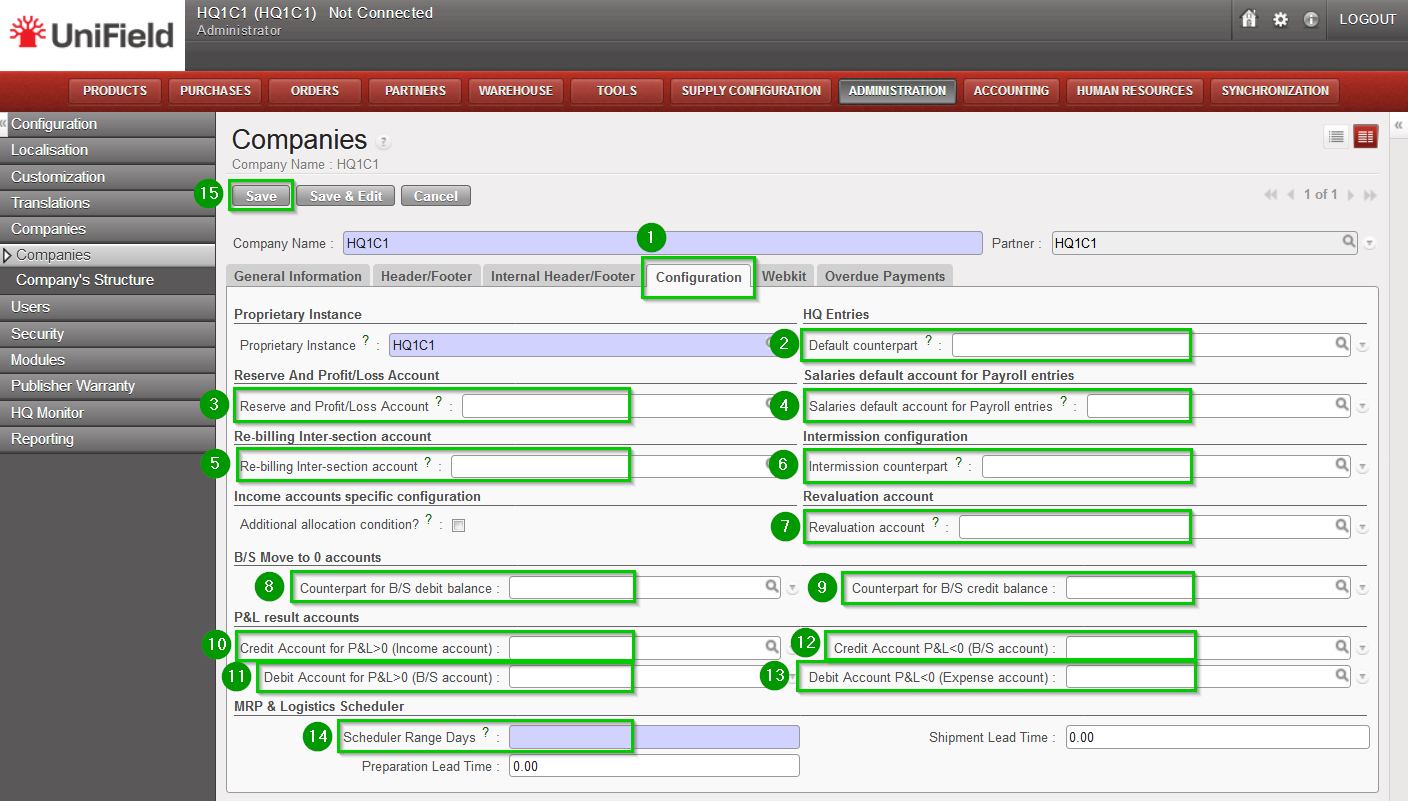
Click on the tab Configuration 1
Depending of your OC procedure, fill in:
  • Default counterpart 2: OCG=33010 / OCB=40000 / OCA=20600
  • Reserve and Profit/Loss Account 3: OCA=00099
  • Salaries default account for payroll entries 4: OCG=30100 / OCA=25600
  • Re-billing Inter-section account 5: OCG+OCB=12011 / OCA=12610
  • Intermission counterpart 6: OCG+OCB= 14010 / OCA=20670
  • Revaluation account 7: OCA=67050
  • Counterpart for B/S debit balance 8: OCG=69001 / OCB=51000
  • Counterpart for B/S credit balance 9: OCG=79001 / OCB=51000
  • Credit Account for P&L>0 (Income account) 10 : OCB=79999
  • Debit Account for P&L>0 (B/S account) 11: OCG=51000 / OCB=51000 / OCA=00099
  • Credit Account P&L<0 (B/S account) 12: OCG=50000 / OCB=51000 / OCA=00099
  • Debit Account P&L<0 (Expense account) 13: OCB=69999
  • Scheduler range days 14: OCG=180 / OCB+OCA=365

Click on Save 15

2.10.11 Cost Center for FX gain/loss

Allocate the cost center for the FX exchange rate.
Click on Menu Accounting 1, Configuration 2, Analytic Accounting 3, Analytic Accounts 4
Edit the Cost Center 5 defined by your Finance OC procedure
Click the tick box “For FX gain/loss?” 1.
Click on Save 2
NB: it has to be the coordination cost center. i.e for OCG= the coordination SUPZZZ cost center

2.10.12 Creation of the intermission partner

The Coordination Intermission partners need to be created at the HQ level. Please refer to Section 2.9.25 Configuration of the Intermission partners.