
Supply User Manual ENG -> Supply Configurations -> 2.1 LU-SU1101: Instance set-up -> J. Location Classification
Location Classification
Purpose
Location Classification lets data owners tag each ECU (External Consumption Unit) with an attribute that indicates whether the stock delivered to it is actually managed in an external information system rather than in UniField.
Note Setting this attribute has no effect on how UniField processes stock, deliveries or consumption. It is an informational classification only.
The module is located under Supply Configuration → Warehouse Configuration → Regular Warehouse Management → Location Classification
The Location Classification list
Opening the module displays a standard list view of every ECU in the instance, active and inactive, sorted alphabetically (A → Z). Non-ECU locations are not shown. The list has four columns:
- Location Name
- Location Category
- External System Managed Stock – the classification value (Yes, No, or blank)
- Active – True / False
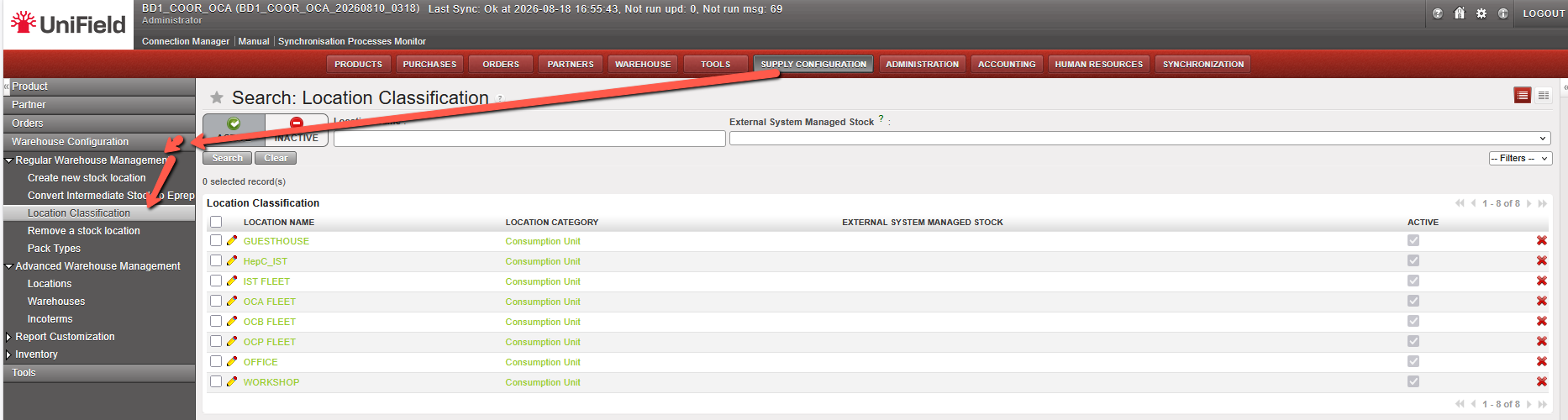
Figure 1 – Opening the Location Classification module and the ECU list view.
Use the filters at the top of the view to narrow the list:
- Active – pre-selected by default; shows all active ECUs.
- Inactive – shows all inactive ECUs.
- Location Name – free text search.
- External System Managed Stock – dropdown Blank / Yes / No (Blank = never classified).
Classifying an ECU
Editing is done on the form view only. There is no inline editing in the list.
- Click the pencil icon at the start of the ECU’s row. The form view opens in read-only mode.

Figure 2 – The ECU form view. Click Edit to change the classification.
- Click Edit.
- Set External System Managed Stock to Yes or No. The field carries the note “This ECU represents a location where stock is managed in an external information system.”

Figure 3 – Edit mode: choose Yes or No for External System Managed Stock, then Save.
- Yes – stock delivered to this ECU is managed in an external system.
- No – this is a real operational ECU where stock is consumed.
- Click Save (or Save & Edit to keep editing). Use Cancel to leave without saving.
Note The default value is blank (unclassified) for all existing and newly created ECUs. Blank cannot be saved from this form: the field is mandatory here, so you must choose Yes or No. If you are not ready to set a value, click Cancel.
