1.3 UniField Main Screens and Views.

Finance User Manual ENG -> General Finance_en -> 1.3 UniField Main Screens and Views.

LU-GE 0103 UniField Main Screens and Views

How to Use the UniField Main Screens and View?

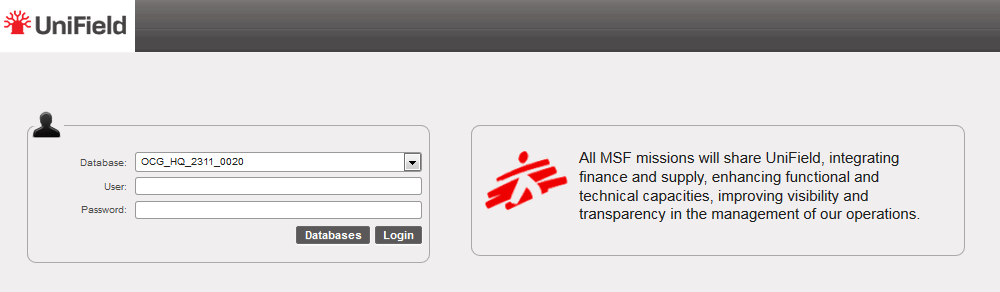
UniField Log In

UniField is a web based application. To access the application the user must have a previously defined username and password. New usernames (logins) are created in the Coordination data base.

The three parameters required are:

  1. A database (i.e. an instance) to connect the instance.
  2. A username, created in advance and to be linked with the user rights.
  3. A password, created specific to the username.

UniField logon screen

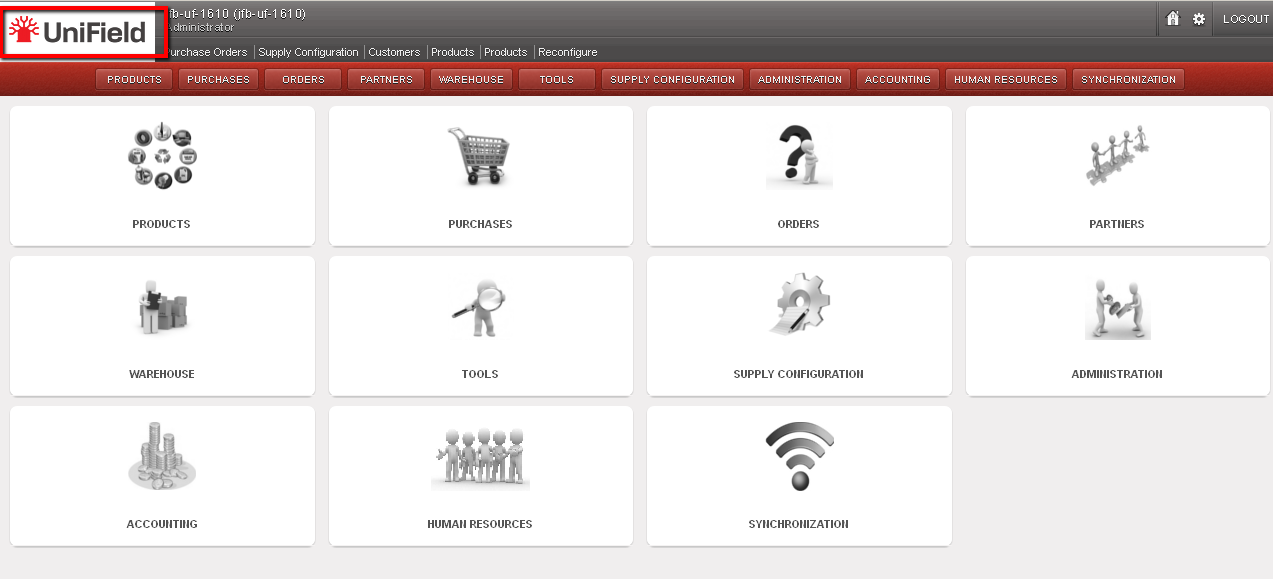
UniField Business Applications

UniField contains different integrated Business Applications. Each application contains different modules. The active applications currently are:

  • Products
  • Purchases
  • Orders
  • Partners
  • Warehouse
  • Tools
  • Supply Configuration
  • Administration
  • Accounting
  • Human Resources
  • Synchronization

UniField main view

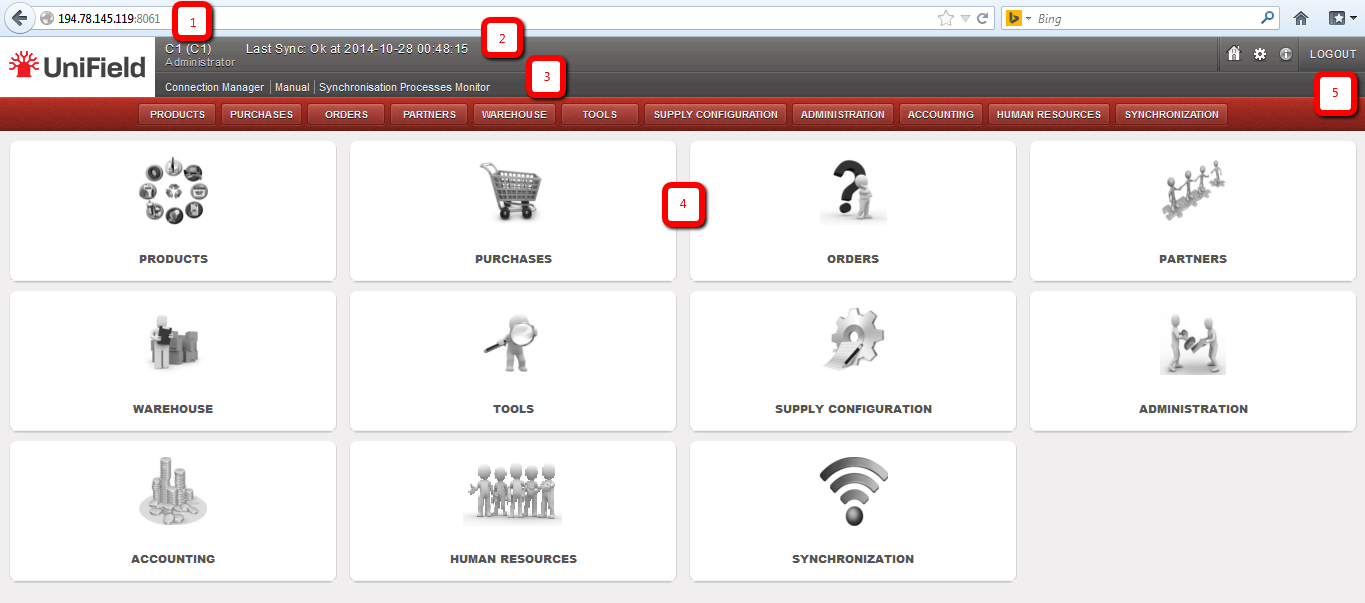
The application contains different view modes to facilitate working procedures; below is a description of each of them. The main areas in the welcome screen in UniField are:

  1. UniField” in the address bar to connect to the database.
  2. Database/Instance in use and user information.
  3. Shortcuts created by the user.
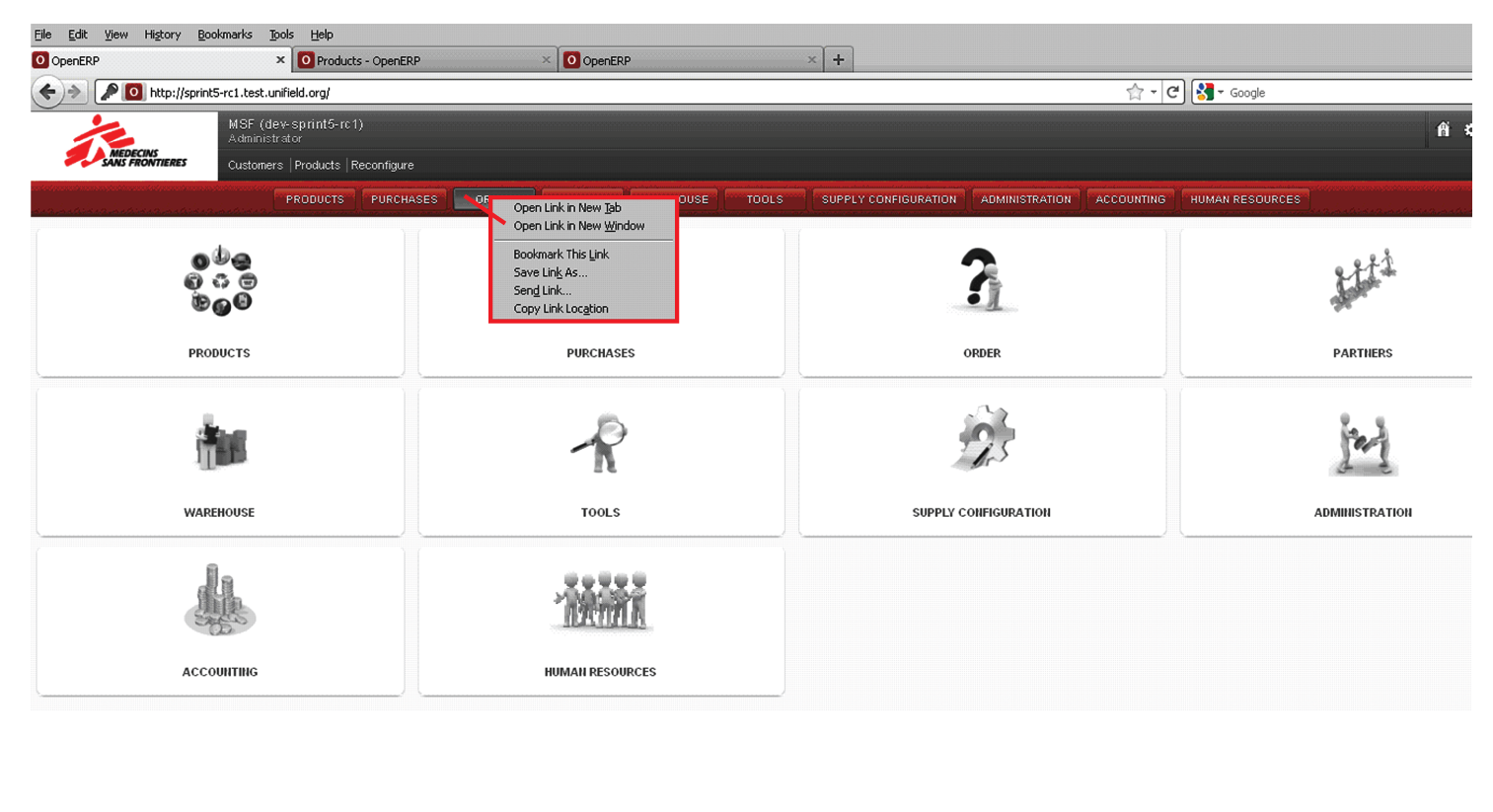
  4. UniField business applications: there are two ways to reach the different applications: a) with buttons/horizontal menu and b) with icons. Please note, you may only be able to view some of the business applications, according to specified roles and permissions.
  5. Buttons to :  
  • Return to initial screen (homepage)
  • Preferences
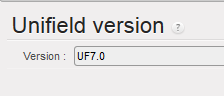
  • UniField version

  • Exit (logout) from the application

Dashboard Views

UniField has two main view options:

  • List view, to view transactions/items in a list mode showing one transaction per line.
  • Form view, to view all the data related to one single transaction. If no line is selected, the system will display the first line of the list. To return to the List view of search results you can just click on the List view icon.

Dashboard List View

As previously mentioned, UniField has been developed within a business framework and vision. The main views are listed, and one item/record will be visible per line. UniField will display different options according to the application selected. Together these view options are considered a “dashboard”. Each application will display a dedicated set of tools as shown in the image.

List view will display transactions in a “list” mode i.e. one line per transaction displaying only a selection of all the data related. The dashboard displays different modules and tools according to the application selected. The display remains similar, as only names and values change.

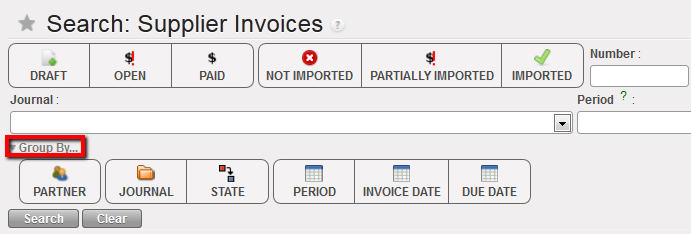
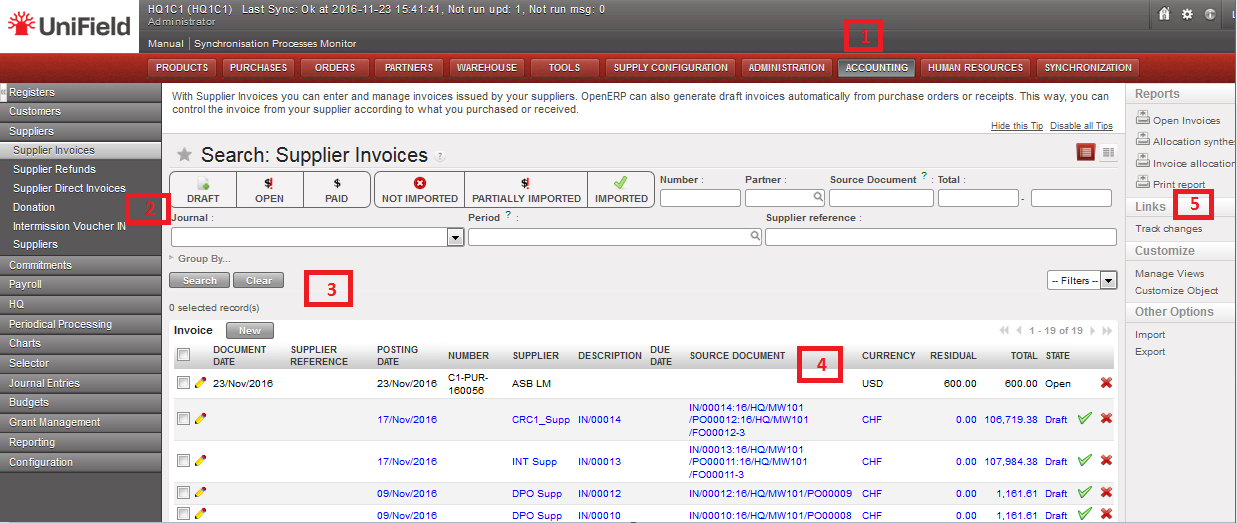
Supplier Invoices Search View

Contents of a business application:

  1. Business application selected.
  2. Modules related to the selected application.
  3. View, search, grouping and filter options: these are discussed in more detail in a later section.
  4. Search view: the system displays only a selection of the data with the most relevant columns and values.
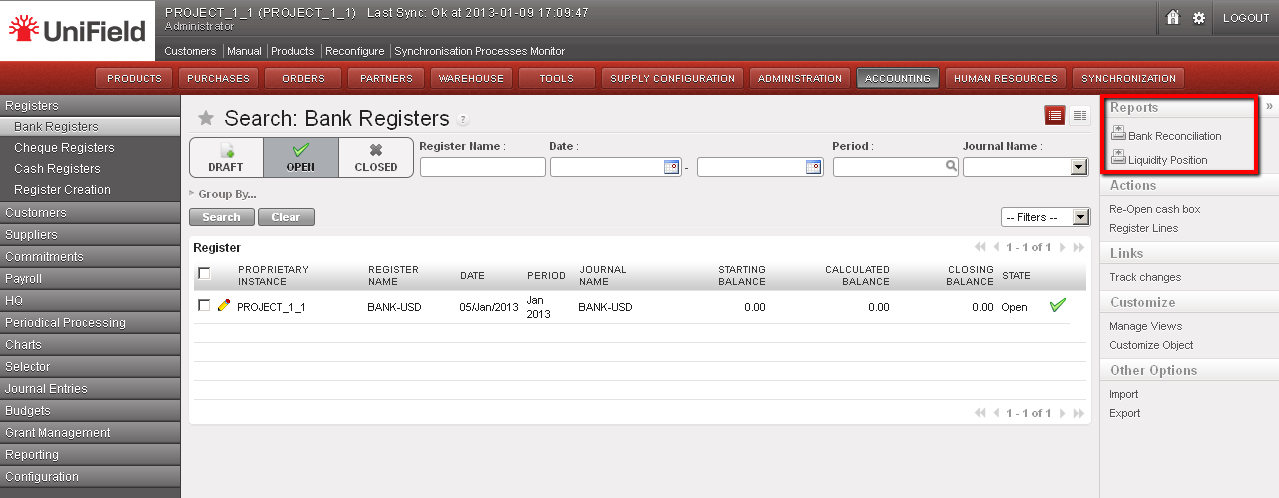
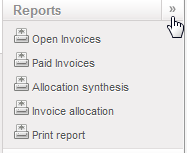
  5. Reports and Action menu: complementary tools related to the module selected are listed on the right hand side bar. This menu will only be visible for specific tools or operations.  
  • To display, click on the icon « on the top right side of the screen
  • To hide, click on the icon »

Let’s continue looking at the options that are available in Search view.

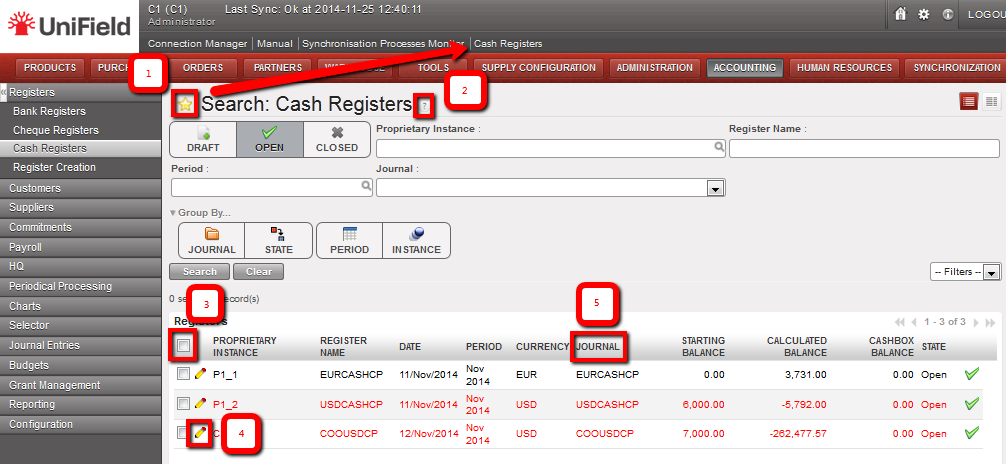
Search Cash Registers view

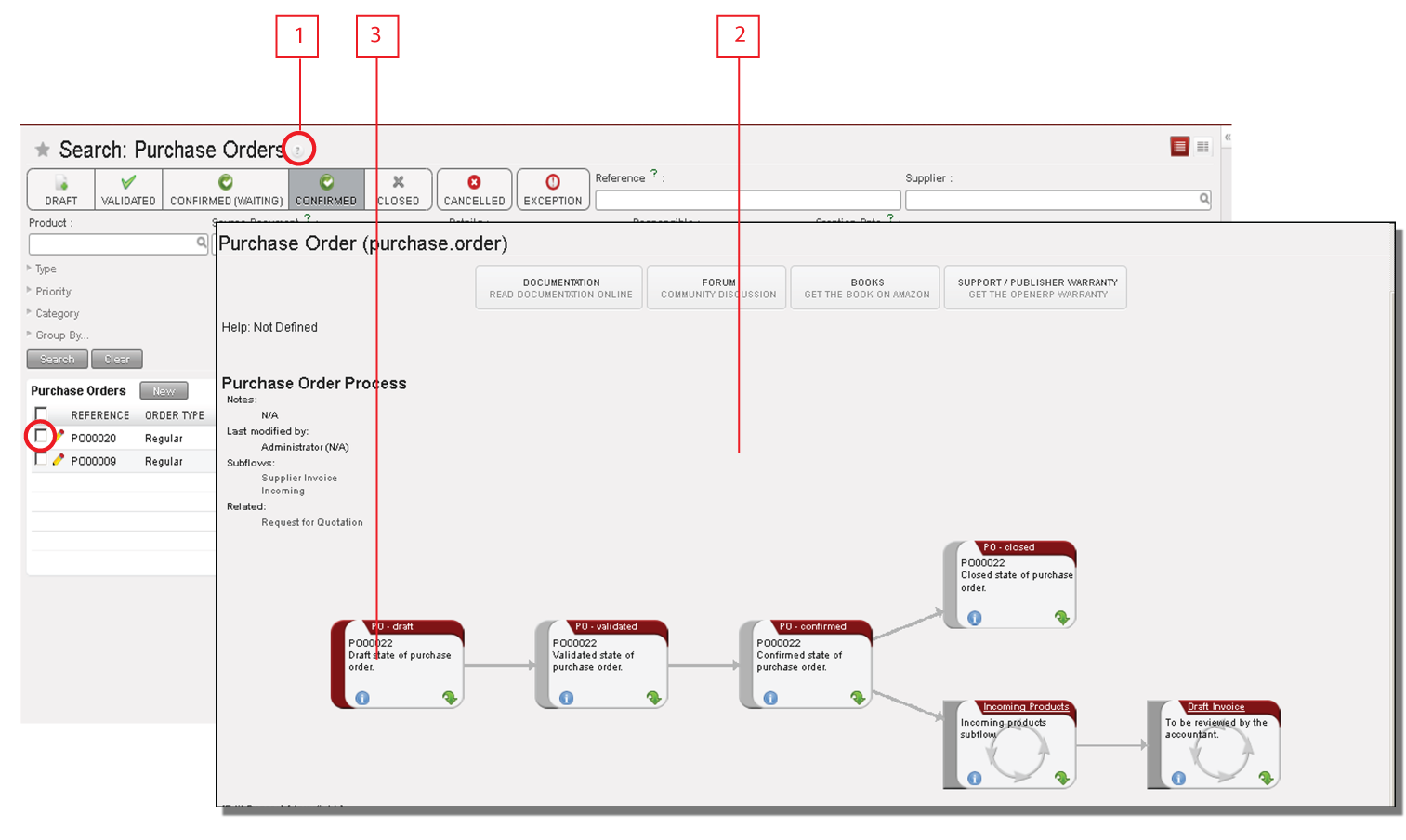
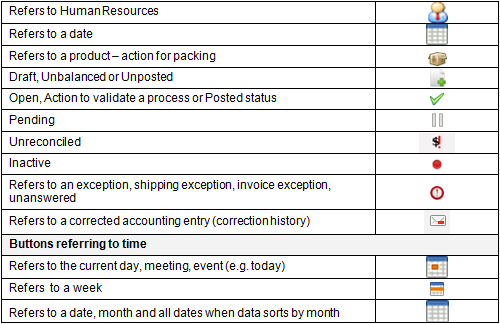
  1. By clicking on the star, the user can create a shortcut to the selected dashboard; the shortcut can be seen above the applications menu.
  2. In many fields, the system displays a question mark sign. By clicking on this icon, you can view the process workflow.
  3. The checkbox in the header row allows the user to (de)select all entries, or individual checkboxes can be checked. Some action is then performed on the selected items such as hard posting or export (not on all screens).
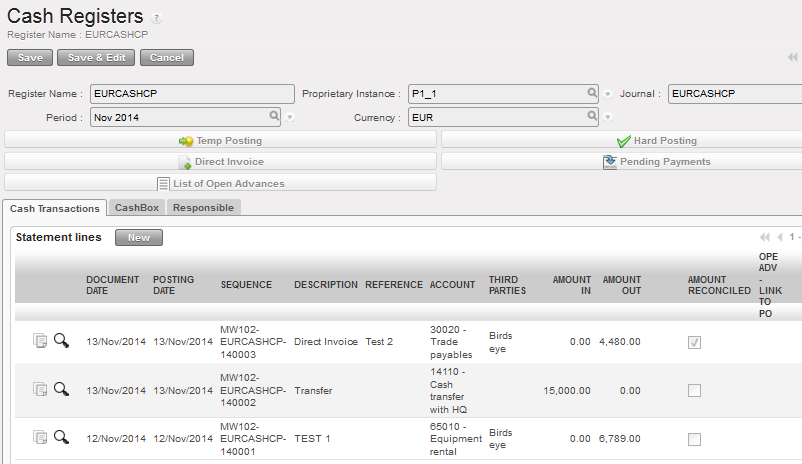
  4. Click on the pencil icon to open and edit the entry. Depending on the type of record, the Form view will open in edit mode (with Save buttons displayed), or the fields that can be edited will show directly in the entry. Otherwise, clicking anywhere on the line will open the specific record of this line in “read only” mode.

Clicking on the pencil on a cash register in List view opens the Form for editing
  1. In some List views, the user can click on a column header to sort in ascending or descending order.
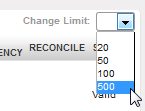
  2. At the bottom right of the screen, the user can see the number of entries in the view versus the total number of entries. By default, the system displays 20 entries. The navigation arrows take you to the First, Previous, Next or Last set of records.

The number of entries on display can be adjusted by clicking on the on top of the numbers. The user can select the number of lines to they wish to be displayed.

Dashboard (Form View)

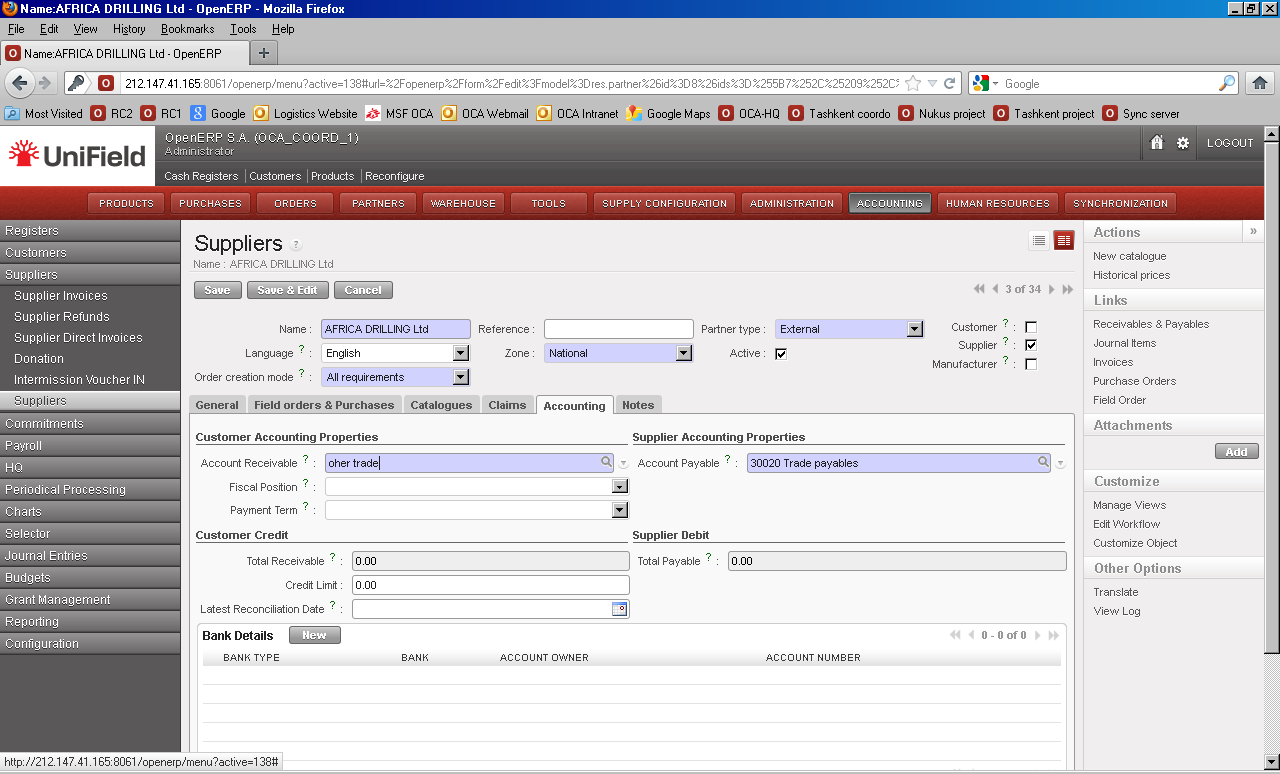
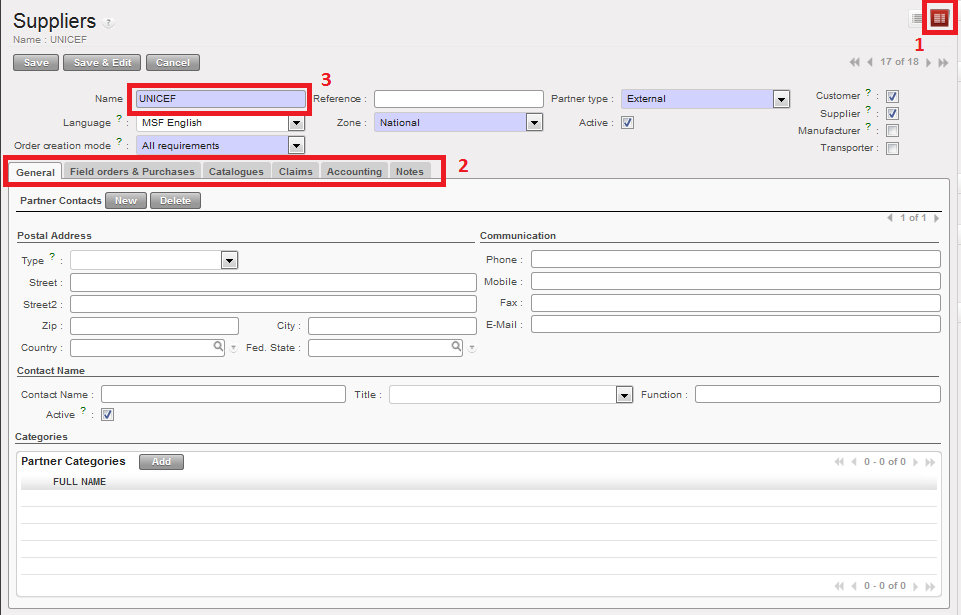
The form view displays a more complete view of an individual record. This data is displayed in different tabs as shown in the figure below.

In the form view mode, each transaction, supplier, product or customer record will contain specific tabs. See figure below for detailed explanation. To enter into the transaction data, simply select by clicking on the line or the pencil icon.

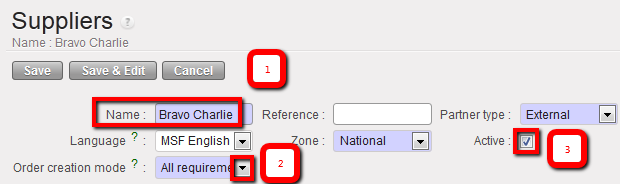
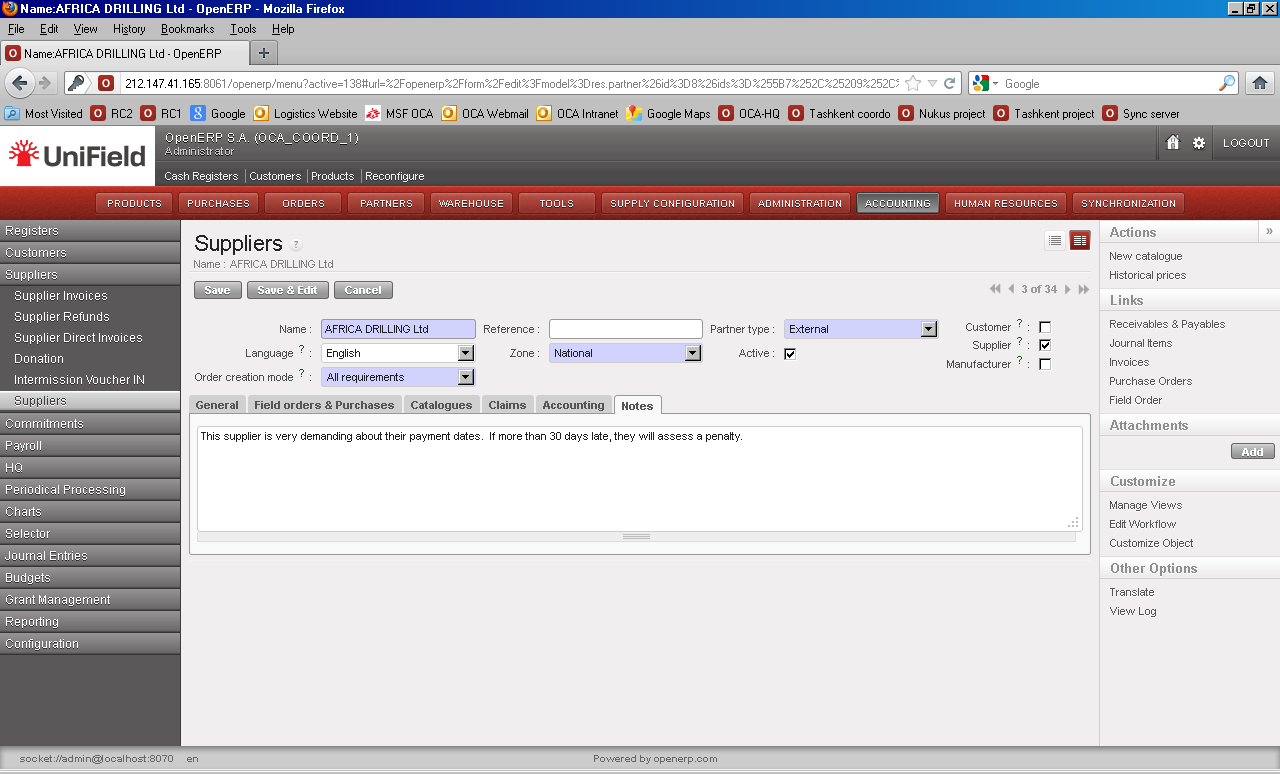
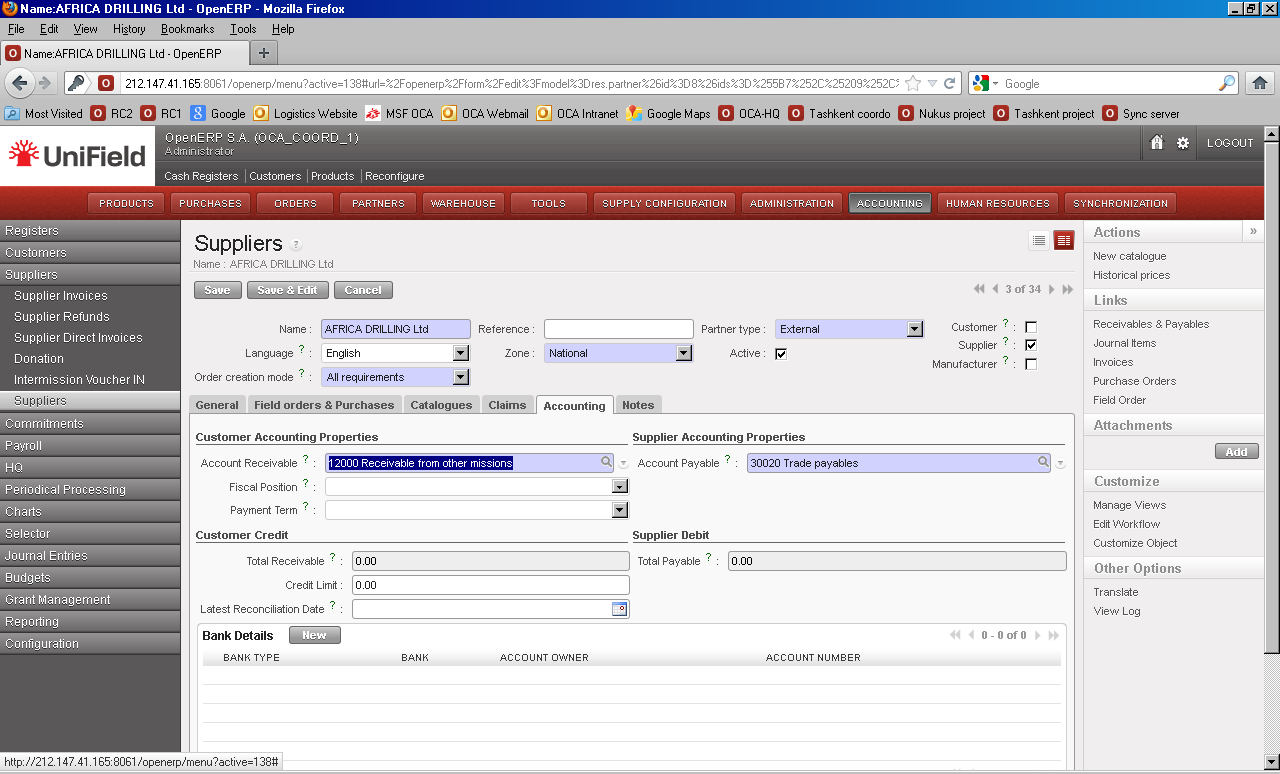
Suppliers – Form view

  1. This icon is one of the indications of the form view.
  2. These are the different tabs related to the form. In this case, we are viewing a supplier and the information in these tabs must usually be completed by both supply and finance departments, depending on the tab.
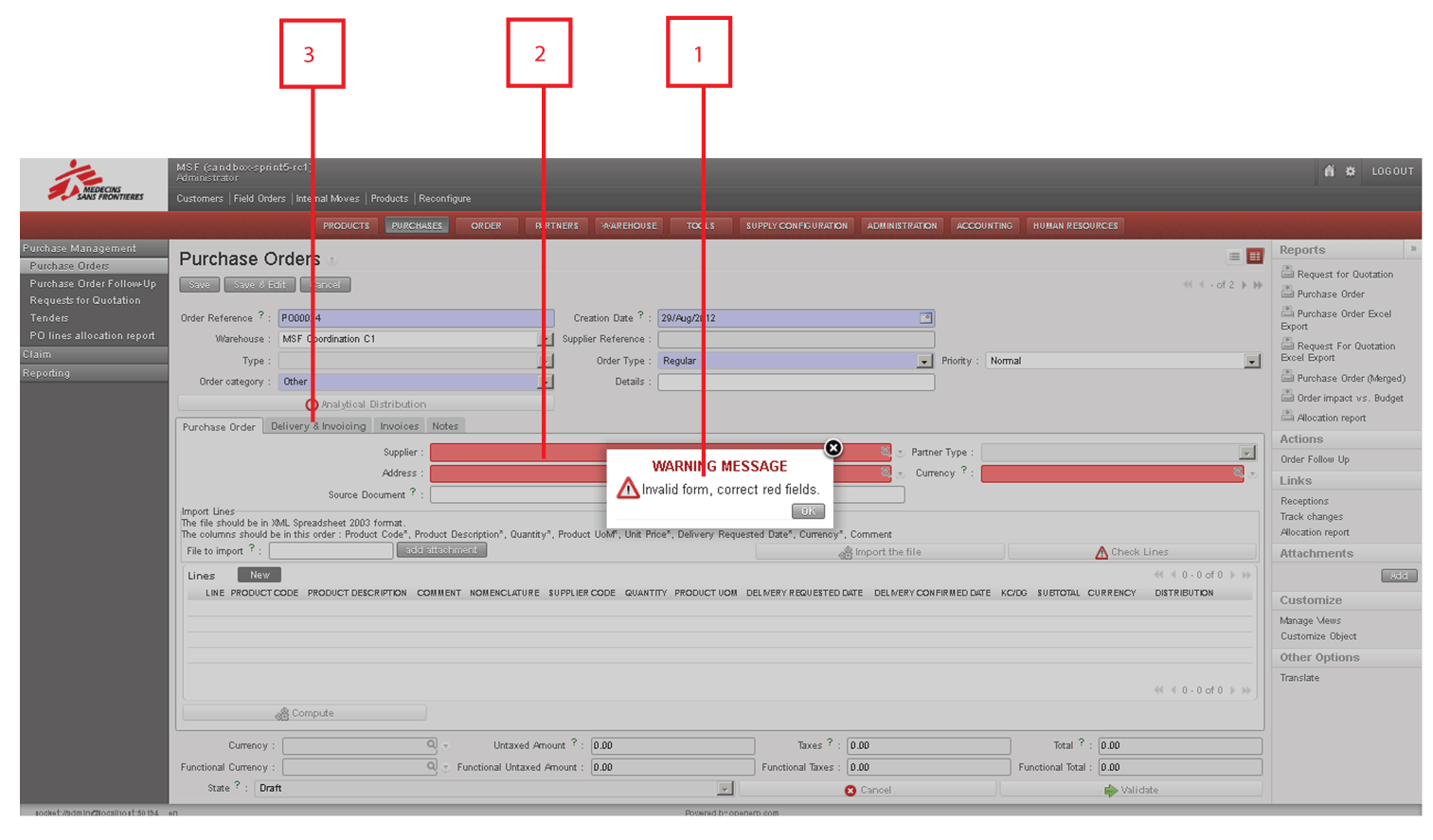
  3. All the mandatory fields will be displayed in blue, but it is important to realise that even when the field is not mandatory, the more information is entered, the better the capacity of the system will be to maintain and generate useful and detailed information. Whenever entering further data in this form please ensure each modification is saved.

Header Buttons

The header is the top part of the record, document, product or partner. In UniField, this is where primary information about the entity is located, as well as the main editing buttons. The system normally automatically saves it when the document is closed, but it is good practise to save it using the header buttons.

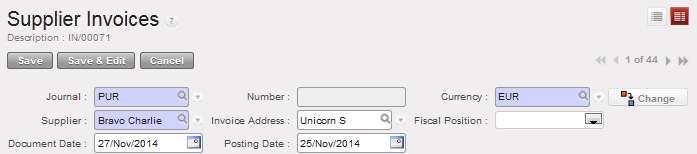
If the document is in {Edit} mode, the following buttons display:

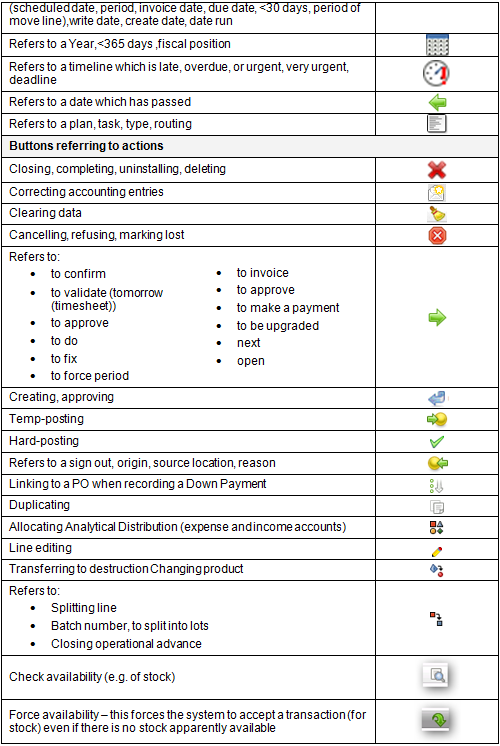
  1. Save: saves the current work done in the document and changes to view mode.
  2. Save & Edit: saves and continues in edit mode.
  3. Cancel: cancels the last changes in the document. Please note: it does not cancel the entire document.

Supplier Invoice – Header buttons in edit mode

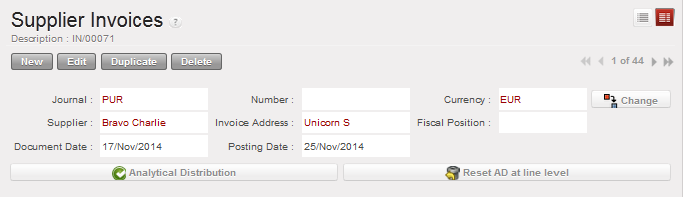
If the document is in view mode, the following buttons display:

  1. New: opens a blank form to create a new document (not on every screen).
  2. Edit: changes to edit mode.
  3. Duplicate: can be used to create a second copy of the document on view, the details of which can then be edited (not on every screen).
  4. Delete: deletes the current document; UniField does not allow deletion if the document has been used in another document, e.g. Supplier has been used in a Purchase Order.

Supplier Invoice – Header buttons in view mode

Footer Buttons

The footer is the bottom part of the record, document, product or partner. Typically, the buttons in the footer are for actions associated with the process flow, e.g. validation, confirmation, closing, cancellation. Once clicked, there is often no way to revert it so it is recommended that the user is careful in selecting this action.

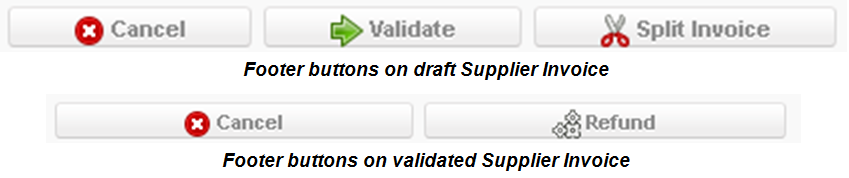
Different buttons will appear depending on the type of document; some of the common buttons are:

  1. Cancel: cancels the document and changes the status to {Cancelled}. The cancelled document will remain in the system, e.g. a supplier invoice is cancelled.
  2. Validate: information has been reviewed/approved; should be used in accordance with agreed procedures and will progress the document to the next stage.
  3. Confirm: information is confirmed on the system after obtaining other counterparts confirmation.

Field Types

Data in UniField are displayed on different field types. Blue fields indicate mandatory fields; white fields are optional; and gray fields are read-only.

  1. Text: can be any combination of alphanumeric characters; maximum character limits will apply.
  2. Drop down list: indicated by a down arrow, the user selects from a default list.
  3. Checkbox: clicking will (de)select the box.

Field types in Supplier Form view

    4. Validated list: these fields are similar to drop down fields but the user selects from a list of other records in UniField, e.g. Suppliers, Accounts, Products. There are various ways for the user to make a selection.

Validated list field in Supplier Form view

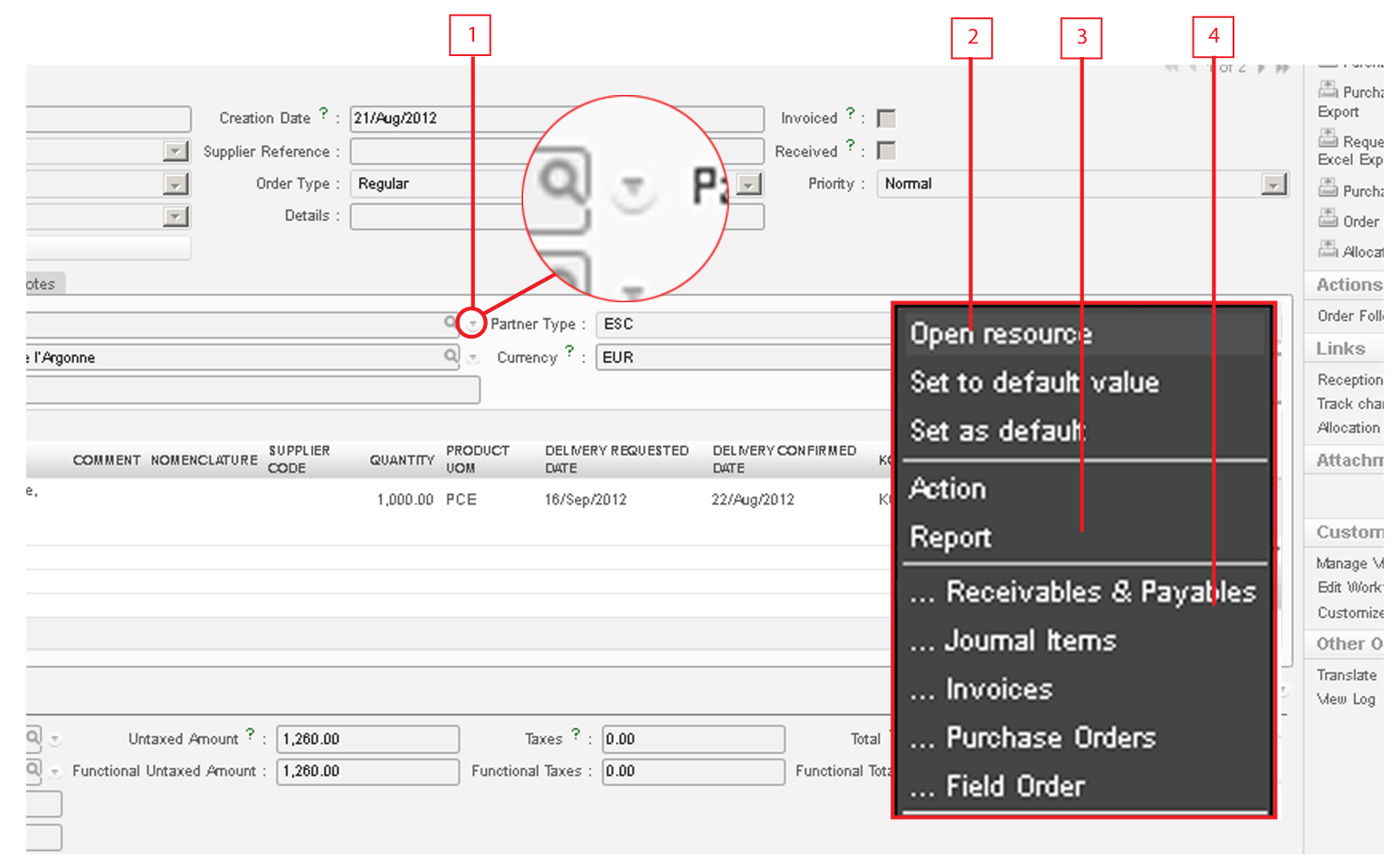
Clicking on the magnifying glass/loop icon the system opens up a search window whereby the user can further refine his search and make a selection.
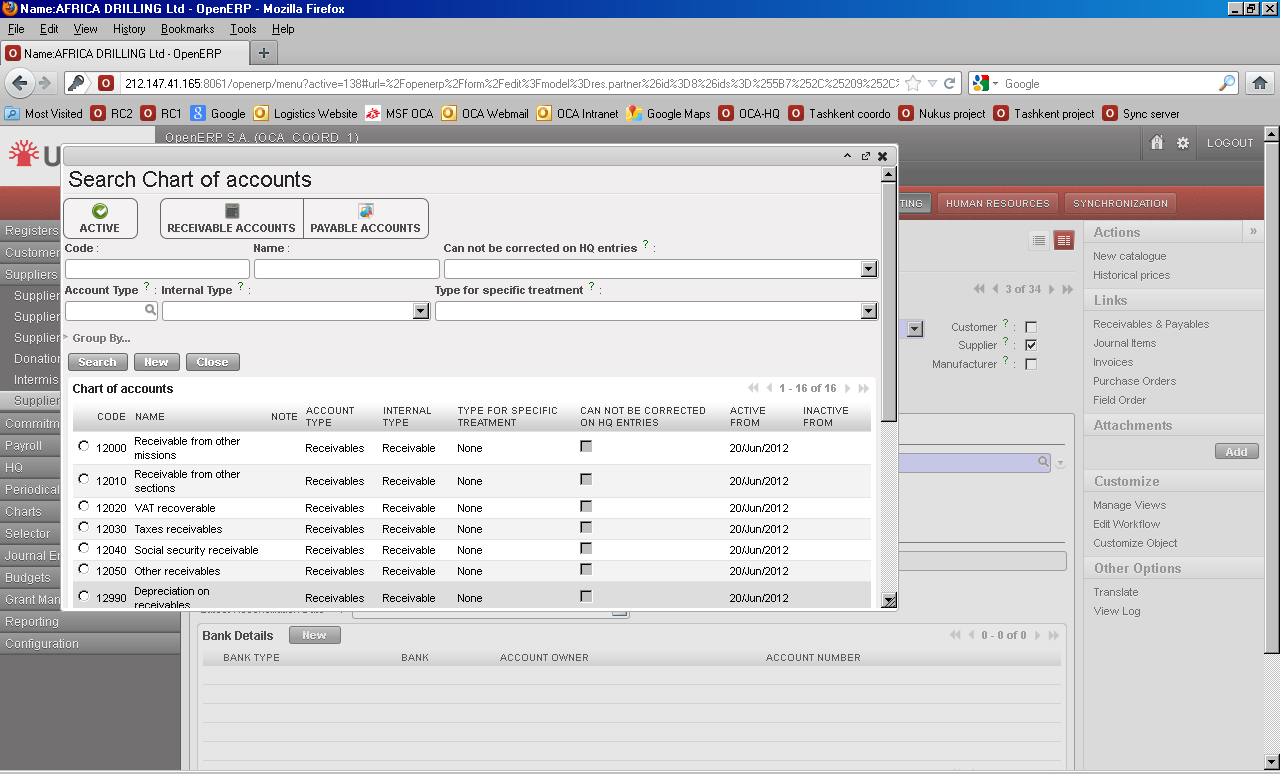
Search list from clicking on loop

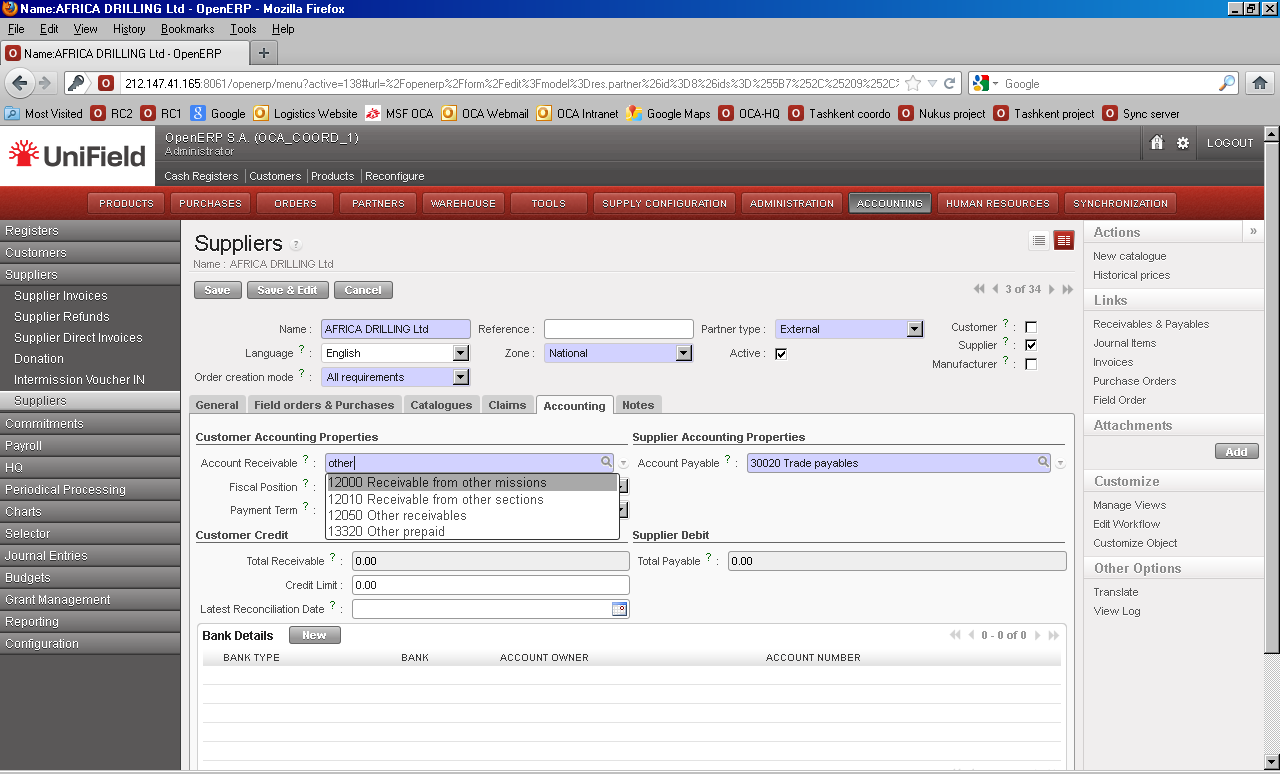
Entering part of the desired value will display a list of pre-searched values from which the user can make a selection.

Pre-searching in validated list field

If a selection was made by mistake the user must first highlight and delete the contents of the field before selecting the correct value.

Highlight and delete incorrect value in validated list field before entering correct value

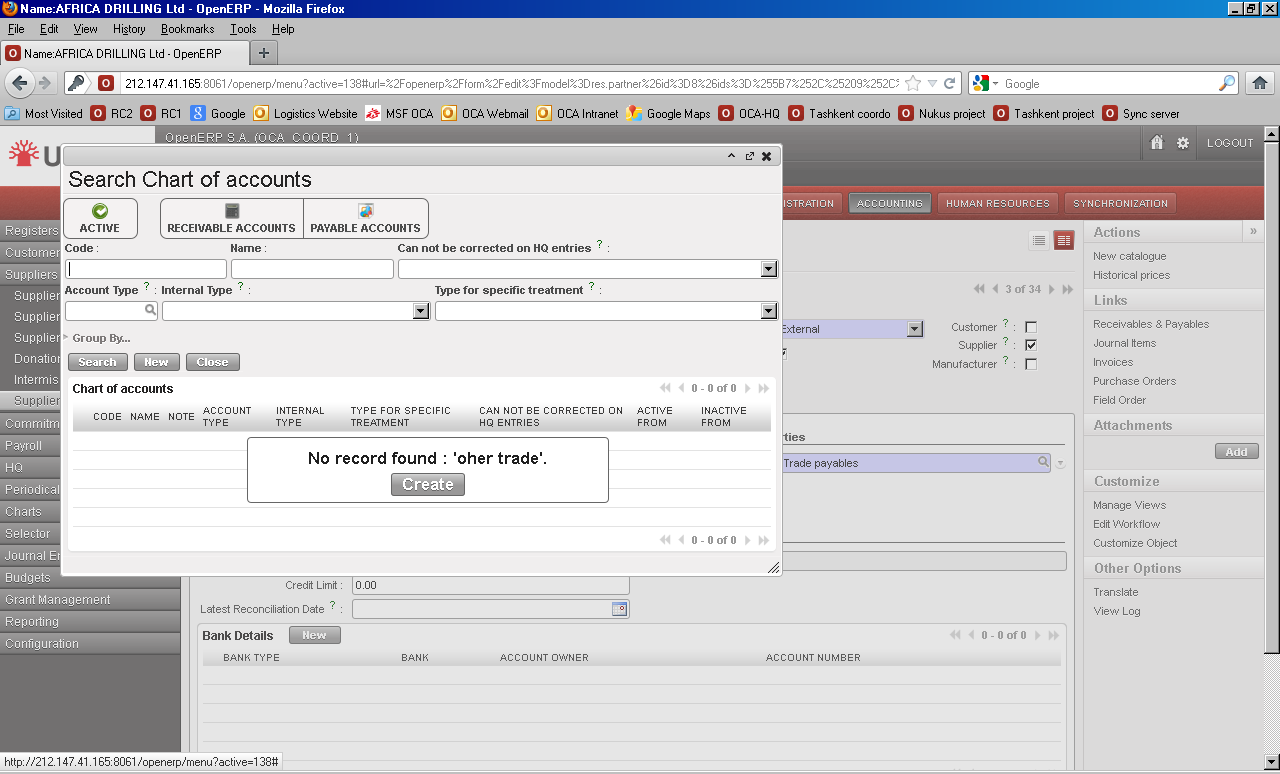
Another common mistake is entering a wrong value and clicking the loop or entering <tab>. This opens up the search window with a warning message to prompt the user to create a value. In most situations it is not appropriate to use this method to create a new record. The user should close the window by clicking on the {X} in the upper right corner.

Incorrect value entered in validated list field

Incorrect value entered in validated list field prompt user to create

As more advanced users become accustomed to UniField and if they have appropriate user rights, they can create a new record for their validated list field. Once saved, the record is automatically selected in the validated list field and the user is back in his original form.

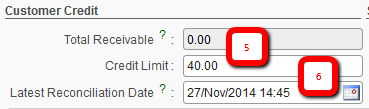
  1. Numeric: only numeric values are accepted.
  2. Date/Time or Date: click on the pop-up calendar icon to select date or manual entry as dd/MMM/yyyy, e.g. 08/Oct/2012; other date formats manually entered are not accepted in the English version.

Numeric and date fields

Memo field: for a large amount of text.

Memo field

  • System Display Colours
  • Black: the default colour in UniField is black.
  • Red: can be seen as an alarm or alert and it’s displayed to highlight incomplete or invalid information such as analytical allocation, insufficient stocks, cash register closed with a cash discrepancy and so on. When a line is displayed in red, pay special attention to it.
  • Blue: in some processes, this indicates the status is {Draft} or could be a hyperlink to another transaction.
  • Green: in some supply processes this is used to display a “preferred supplier” (e.g. in the order sourcing tool).
  • Grey: in some processes this indicates that the transaction is cancelled, archived or closed and that there is nothing to action for it.
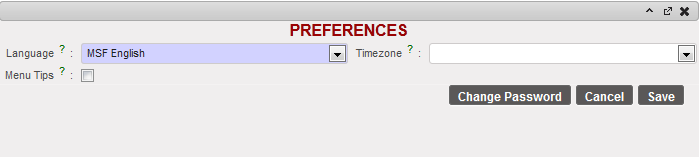
  • Language Preferences

The Preferences button can be used to edit languages as well as enabling or disabling the menu tips in the system.
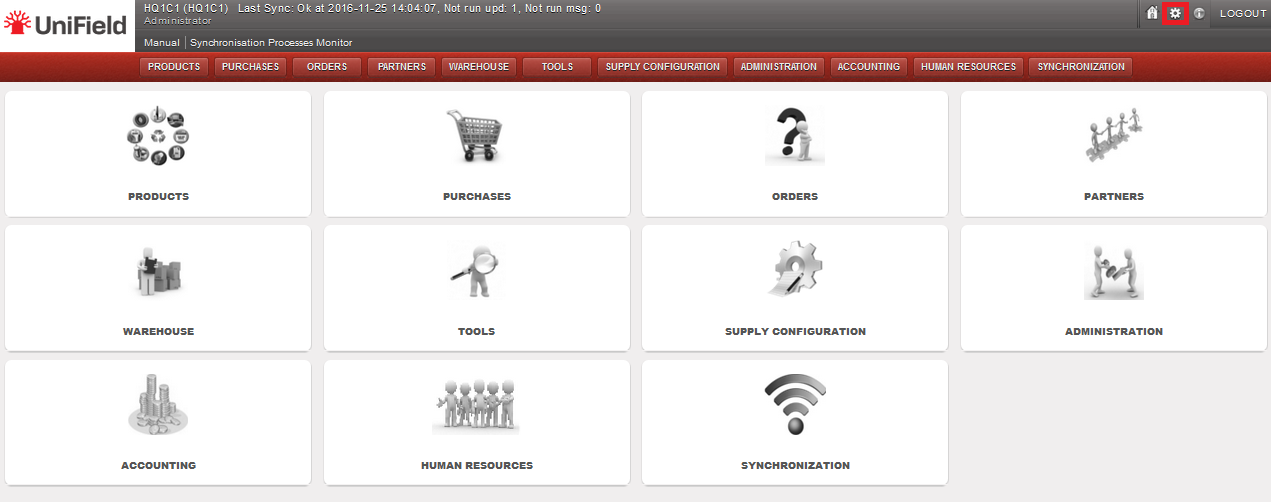
Home page, showing the Preferences icon

From the home screen, Click on the preferences icon in the top right hand corner.

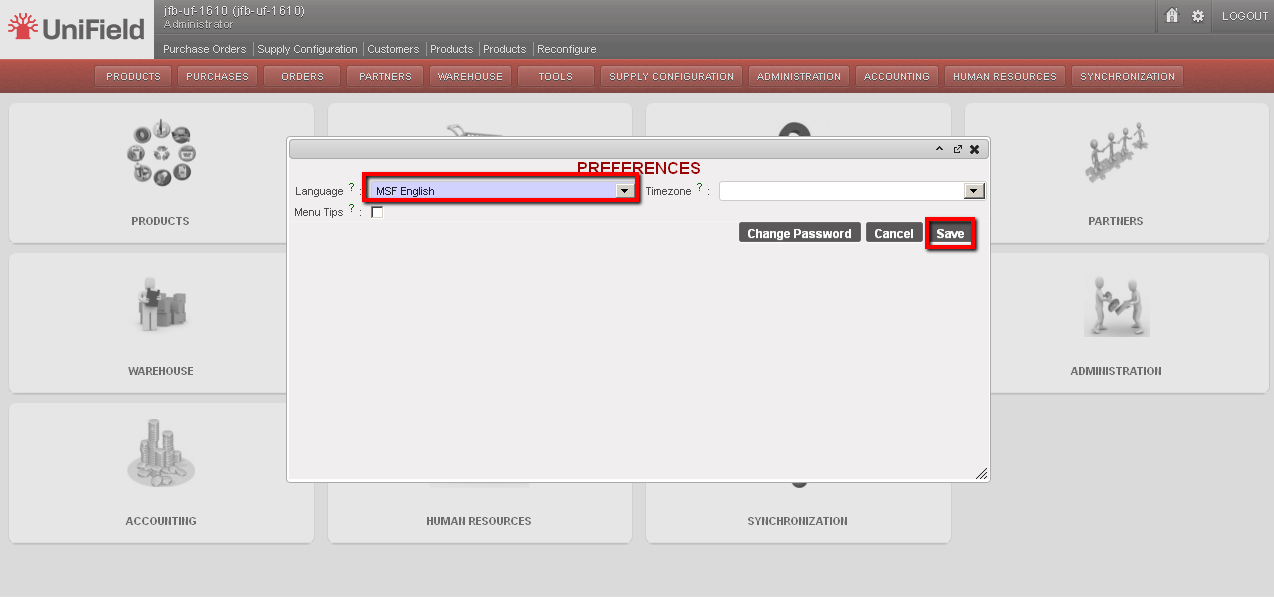
Language selection in the preferences wizard

  1. Select the language which you would like to use (e.g. in French or English).
  2. Click on the {Save} button.

Refreshing the homepage

  1. Ensure that the application is refreshed (e.g. by clicking on the UniField icon in the top left hand corner).
  2. The application will be displayed in the language selected.

1.2 LU-GE 0102: Information Flows (Finance)

Finance User Manual ENG -> General Finance_en -> 1.2 LU-GE 0102: Information Flows(Finance)

LU-GE 0102 Information Flows

How to Explain UniField Information Flow?

Link between Finance and Supply

The following chart is the global business model, presenting an overview of the main functions and represents the different flows of the functional coverage of the project.

Not all of the variations of flows are represented here, in order for the standard flows to remain readable.

Not all of the functions displayed in this chart will be accessible to all users; this will be according to the user rights management.

Global functional project coverage

Relationship between Different Operational Levels

Some MSF field processes crosscut over several operational levels. The following charts will show the main functional links between Projects, Coordination, Regional supply centres, European Supply Centres and HQs.

The data flows accompanying these processes will be handled by the synchronization module of UniField. They will also rely on the successive statuses of the transactions, each status corresponding to a specific step in a process to be performed by the defined user at the appropriate operational level.

These flows are of an accounting and supply nature, and include master data. Validation workflows across sites, including HQ are also considered as part of these inter-site operations.

  1. Integration with External Systems

The UniField solution will provide a full integration with existing systems:

  • Vertical integration: The first version of the UniField tool will provide each HQ/European supply center (ESC) system with the same degree and format of integration as what is used in the former systems. Future versions of UniField will move towards an automated integration with all HQs/ ESCs, potentially through a unique common integration platform and web service.
  • Horizontal integration: The UniField tool will integrate with field applications (Homere, EasyMED…) in a similar format as they did with past MSF accounting and supply software. In cases where tools have not yet been standardized and are still based on spreadsheets (e.g. drug forecasting tools based on epidemiological data or medical protocol, activity monitoring tools) the information will not be synchronized with UniField

2. Inter-Instance Accounting Flows

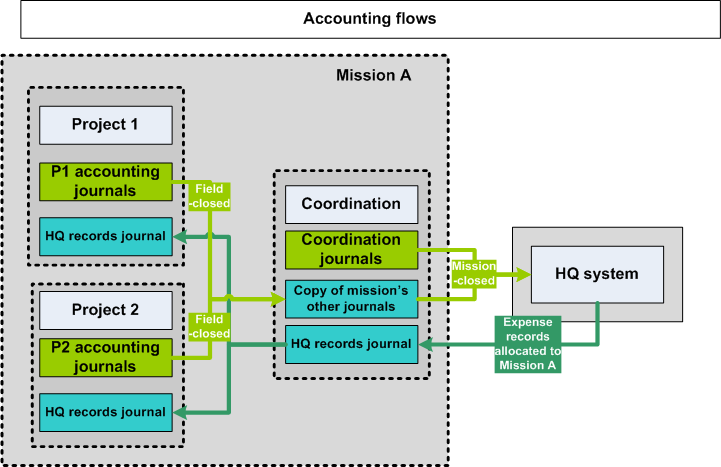
As described in the following chart, accounting flows correspond to two distinct needs:

  • Accounting consolidation, aiming at having closed accounting records at HQ on a monthly basis within a reasonable timeframe.
  • Financial information flows, aiming to make financial data available at any operational level for budget follow-up and financial management purposes. This flow will include records made at HQ level for a mission (called HQ Entries).

Data exchanged includes both general accounting and analytical information.

In the Registers there are three distinct statuses to manage entries:

  • Draft: created locally and are not synchronized
  • Temp-posted: synchronized up to coordination – can be edited at creation instance (but not necessarily by all users)
  • Hard-posted: cannot be edited or deleted any more

In the Journals, entries can be:

  • Unposted: the corresponding entries are not final in the accounting; they can still be modified without generating an accounting correction. For entries created from registers this status is corresponding to {Temp-posted}.
  • Posted: the corresponding entries are final in the accounting; they cannot be modified anymore. If they need to be corrected, an accounting correction will be generated. For entries created from registers this status is corresponding to {Hard-posted}.

There are four period statuses to manage the closing process:

  • Open
  • Field-closed
  • Mission-closed
  • HQ-closed

In addition to the first synchronization of a created entry, any correction or posting of accounting entries is synchronized as well.


Inter-site accounting flows

3. Supply Order Flows

The documents in UniField are linked: whenever a document is confirmed, validated or closed, the following one, corresponding to the expected next step of the supply chain, is automatically generated in {Draft} (snowball effect).

These flows can be grouped in 3 major groups: Internal Flows; Inter-Instance Flows and External Flows.

  • Internal Flows

The Internal flow regroups all the flows that are specific to an instance (Coordination; Project) and that are occurring WITHIN the instance.

The starting point of the supply chain process is the requirement which is expressed in UniField by the creation of an Internal Request (IR). Consequently the IR is the starting point of UniField Internal Flows.

Once the IR is validated, the IR will need to be sourced either from “stock” if the goods are in the “Warehouse” or to a “Purchase Order (PO)”. The sourcing will confirm the IR.

Afterwards, the requirement will follow a step by step process where all the documents will be generated automatically in Draft in a logical stream until the delivery of the goods.

  • Inter-Instance Flows

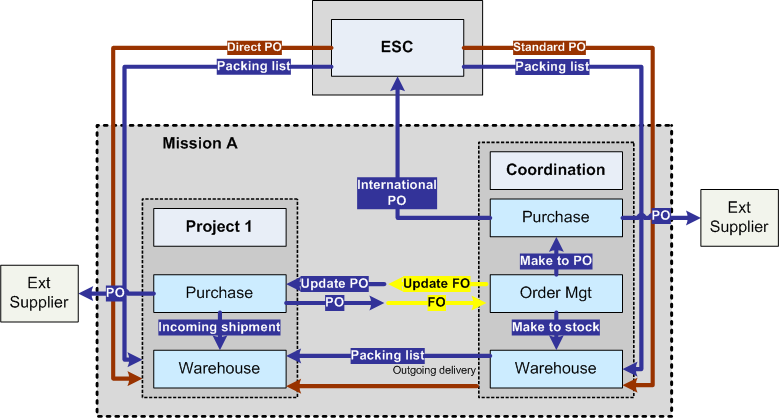
As opposed to the Internal Flows, the Inter-Instance flows are between two MSF instances (Coordination and Project). That is to say that there will be a requiring instance which will require goods from another instance (“supplying” instance). The requiring instance will address a PO to a “supplying” instance which will act as an Internal Supplier.

The synchronization engine processing the Validated PO from the “requiring” instance will be sent automatically to the “supplying” instance. The details of this PO will be received in a Draft Field Order (FO) at the “supplying” instance.

The “Supplying” instance will then process the requirement via the sourcing of the FO. Once the FO is confirmed, a new synchronization will happen and the initial PO at the requiring instance will be automatically updated and confirmed.

  • External Flows

The External Flows are the ones that happen between an MSF instance and an external Supplier; That is to say when a PO is addressed to a supplier that is not an Internal Partner (not Coo, not Project, not ESC). Confirmed POs will be printed from UniField and sent to the external supplier.


Inter-instance standard order flows

1.1 UniField: an Enterprise Resource Planning (ERP) System.

Finance User Manual ENG -> General Finance_en -> 1.1 UniField: an Enterprise Resource Planning (ERP) System.

LU-GE 0101 UniField: an Enterprise Resource Planning (ERP) System

How to Explain the Architecture of UniField?

UniField is an Enterprise Resource Planning (ERP) tool that facilitates the integration of the work of the supply and finance departments into one system. It is a complex task to build a single software that meets the needs of each user, whether they are in finance, supply, or warehouse. UniField combines these into a single, integrated software. This program runs off a single instance (project database) and allows each department to share information and communicate with each other.

UniField has various business applications that link with a variety of submodules. It facilitates interaction between users in field offices and the mission and vice versa and offers benefits in time savings, paper work and efficiency. The application is managed via user access control, so each user has access to a specific part of the process e.g. a supply officer creates an order, this same order is validated by a supply team member, received by a supply logistician, and paid for by finance staff. All users interact with the order at different levels in the system.

UniField is a web-based application. Provided there is sufficient internet connectivity, users will exchange data via an Internet connection. When not exchanging data with another instance (project database) UniField works via an offline network.

  • One of the key needs for all MSF Operational Centers is to improve and accelerate the flow of information between the various operational and functional levels. One of UniField’s main benefits is providing a common international tool for Coordination and Projects across all sections. The management of MSF operations requires numerous interactions, especially between Projects and Coordination, and between Supply and Finance departments. Before UniField, the coordination between Supply and Finance was almost exclusively restricted to manual data checking and time-consuming meetings, which can lead to misunderstandings between finance and supply. The operational scope of the UniField project is to provide a common international tool for Coordination and Projects.

In addition, UniField provides automated links between supply and finance operations leading to improved efficiency, consistency, reliability, and precision in the management of MSF resources. Integrating Supply and Finance into one tool allows information to be shared and retrieved easily by all departments. UniField will reduce manual data checking and miscommunication between the Supply and Finance departments.

Business Application Model

An Enterprise Resource Planning (ERP) system offers a high number of available features. Most users of the system will only need selected features, depending on their role in the organization. In order to remain easy to use, the different features are split into business applications.

All users will usually work in a particular context (e.g. in a supply warehouse or recording accounting entries). Within this role, UniField will provide business applications in which they will be able to directly see all features related to their individual role. The business applications were developed according to user roles in the organization: coordinators, purchasers, accountants, etc.

These business applications define a context of work and all terminology used in an application are relative to this context e.g. a purchaser sees screens adapted to purchasing operations. An accountant may see the same data, but from an accounting perspective (adapted terminology, adapted menus, adapted default values in each screen).

Transversal Features, Used by All Applications

The user can perform most of their tasks using only one business application. They do not have to switch to another application to perform the tasks of the same role e.g. an accountant is not forced to go to one of the supply applications to see a supplier invoice. They can do it from the accounting application and can also pay the invoice from this application.

Some features are accessible by all users, irrespective of the application they usually work in. The direct menu can be found in the application that uses the feature most regularly. Shortcuts to this feature are found in other applications that need less regular access. For example, many users need access to {Partners} and {Products} modules. The menu is inserted into the applications that need these features most regularly e.g. the address book is in the {Order}, {Purchases}, and {Accounting} business applications. However, inside the Accounting Application, certain finance team members will have shortcut buttons in order to reach the {Partners} and {Products} modules.

Access Rights

The roles defined in each module are directly related to each business application. This means that for a given application, all roles within this application must be relevant to this process. For example, the {Accounting} application will be used by financial staff members: Financial Coordinators, Financial Managers, and Finance Assistants. For supply, the permissions/access rights given will correspond to the tasks of a Warehouse Officer, Logistic Coordinator, Supply Manager, etc. In some cases, users will have read-only access. For example, a Financial Manager or Supply Manager may be able to access all screens for information purposes but certain actions may only be completed by the Financial Coordinator or the Logistic Coordinator.

Instance Synchronization in UniField

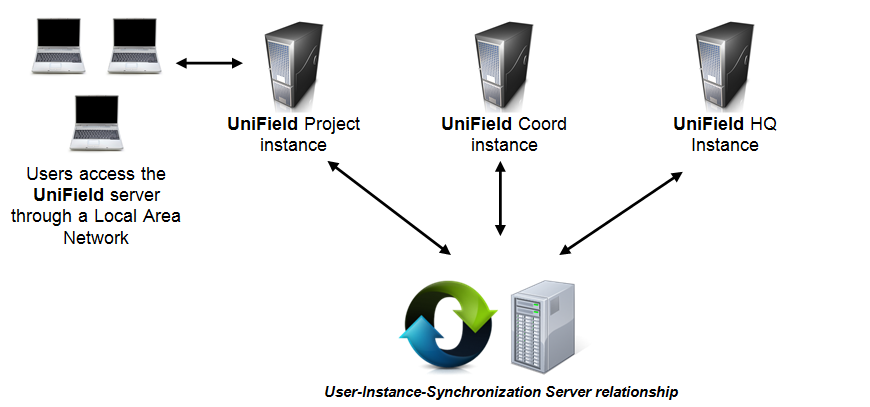
An instance is the installation of UniField. It could be a Project, Coordination, or an HQ. In simplified terms, one instance reflects one MSF office. The instances exchange data through the synchronization server, which has been designed to work with bad or unreliable internet connections. However, an internet connection is necessary when sending data between two different instances. Synchronization is performed regularly, either on an automatic or manual basis.

When working within one instance then users can work offline, i.e. not connected to the internet or synchronization server. For example, when coordination supply department adds data, the coordination finance department will automatically see the data without need for synchronization. When the project instance adds data, they will need to connect online via the synchronization server in order for coordination to access the data.

In order to cut down on high internet usage, the synchronization server replicates only the necessary data for sending/pushing data and receiving/pulling data. The synchronization server does this by receiving/sending/routing messages from all other instances. For example, invoices and register lines created at project level are sent to the synchronization server and sync completely to the Coordination, but at the HQ level only the related accounting entries are replicated because this is all the information the HQ database requires. A synchronization rule is defined and applied for each type of data.

5.6 Bons de Livraison (OUT)

Manuel de l’Utilisateur Supply -> 5. Entrepôt -> 5.6 LU-SU4105 Bons de Livraison (OUT)

LU-SU4105 Bons de Livraison (OUT)

A. Introduction

B. Comment convertir un Bon de Picking en Bon de Livraison (Livraison en simple sortie OUT)

C. Comment créer un Bon de Livraison manuellement

D. Comment traiter un Bon de Livraison

E. Comment exporter un fichier excel de Bon de Livraison

F. Comment importer un fichier excel  de Bon de Livraison

G. Comment confirmer la livraison d’un Bon de Commande

H. Comment Annuler un document OUT

I. Comment annuler et Ressourcer un OUT

J. Références des Bons de Livraison