Since UniField version 14.1 (Jira ticket US-5918) there is an option to enable the “continuous backup” feature. This improves and optimize the way backups are sent to the OC’s specific OneDrive repository. Indeed the amount of data transferred is considerably reduced as only continuous backup are sent (except the first time for the base backup). Please note that once activated the feature replaces the “Automatic instance backup to the Cloud” procedure. At the end of the process your backup are still sent to the same OC’s specific OneDrive repository. Please DO NOT CONSIDER this feature as an agreed offsite backup solution. Local backups are still under your responsibility. Note that Continuous Backup is only for production instances. Sandboxes cannot use this feature.
How does it work ?
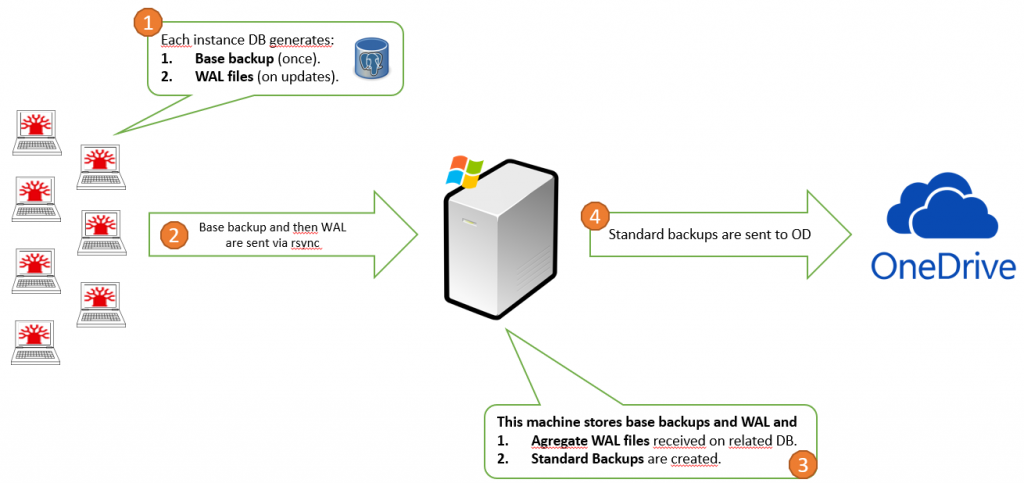
The PostgreSQL native tool is used to generate the backups. In a nutshell, a base backup is first generated and additional WAL files are generated locally on each instances. Then it is sent to a dedicated Windows machine in which it stores the base backup and aggregates the WAL files. WAL files are basically the incremental back up produced every day. The Windows machine then dumps the aggregated DB and sends it to OneDrive.
Below a graph showing how it works:
How to Configure.
Note that the configuration can be done by the Support Team but we encourage each OCs IT referent to get the knowledge to be able to do it when restoring a newly created instance or when migrating an instance.
The process for newly restored instances or migrating instances is the same.
Instance authentication to the Continuous Backup Windows Server is done via SSH key. This key is generated by the APM Support Team (coreteam IT) and there is one key per instance.
The IT coreteam generates a zip file containing the private and public keys and send it to the OC IT Referent by email when a new instance is created.
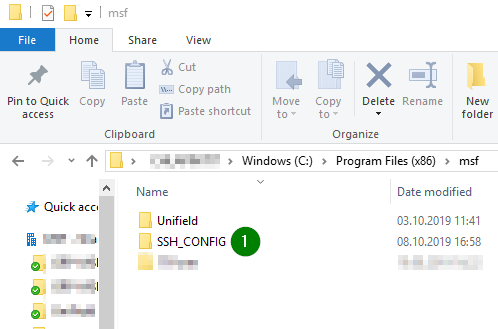
1. Unzip the file ssh_config.zip and place the file SSH_CONFIG in C:\Program Files (x86)\msf
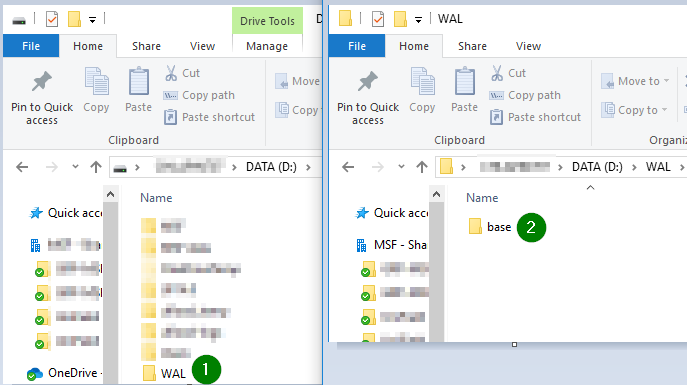
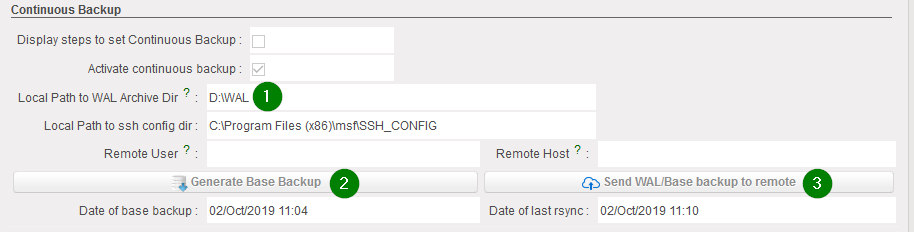
2. Choose a directory to store the WALs archive. D:\WAL is usually the case but according to the server configuration defined by OC, so it can be placed in the C D:\WAL. In our example, it is in the D drive. Note that the base back up is placed in a sub folder D:/WAL/base. Once sent, this sub folder is empty. All additional WALs are put in D:\WAL
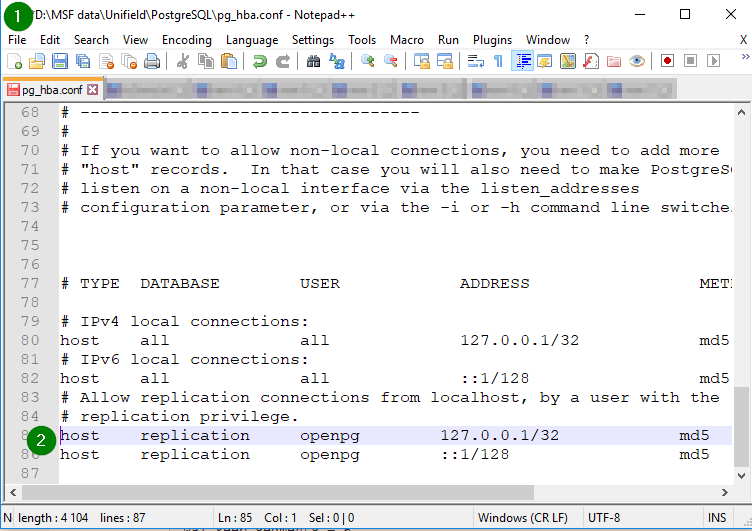
3. Edit pg_hba.conf in D:\MSF data\Unifield\PostgreSQL (or in the C drive if MSF data is placed in the C drive) Add or un-comment (#) these 2 lines to allow UF to request a base backup
NB: If both lines of host replication are already uncommented, there is no need to touch them.
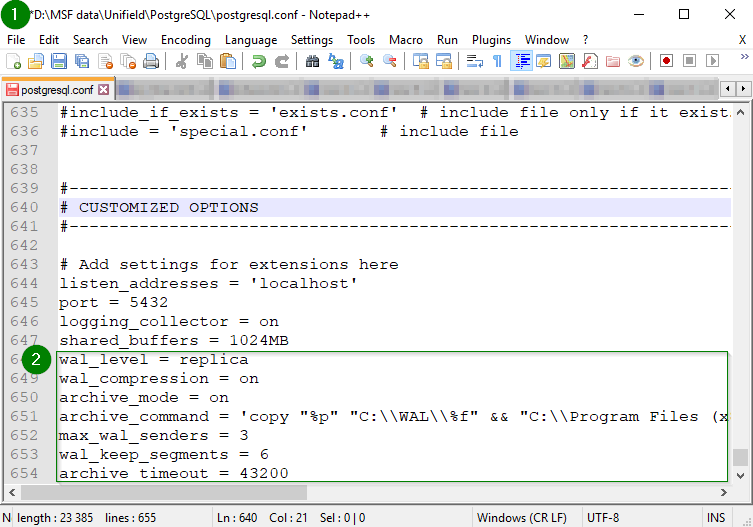
4. Edit postgresql.conf in D:\MSF data\Unifield\PostgreSQL At the end of the file, add:
wal_level = replica
wal_compression = on
archive_mode = on
archive_command = '"C:\\Program Files (x86)\\msf\\Unifield\\Server\\rsync\\7za.exe" -bd -bso0 -ssw -w"D:\\WAL" a "D:\\WAL\\%f.7z" "%p"'
max_wal_senders = 3
archive_timeout = 43200
In case your WAL folder is in your C drive, then add:
wal_level = replica
wal_compression = on
archive_mode = on
archive_command = '"C:\\Program Files (x86)\\msf\\Unifield\\Server\\rsync\\7za.exe" -bd -bso0 -ssw -w"C:\\WAL" a "C:\\WAL\\%f.7z" "%p"'
max_wal_senders = 3
archive_timeout = 43200
NB: you have to edit the lines to add to the file depending of where is based your MSF data and WAL folder using C or D.
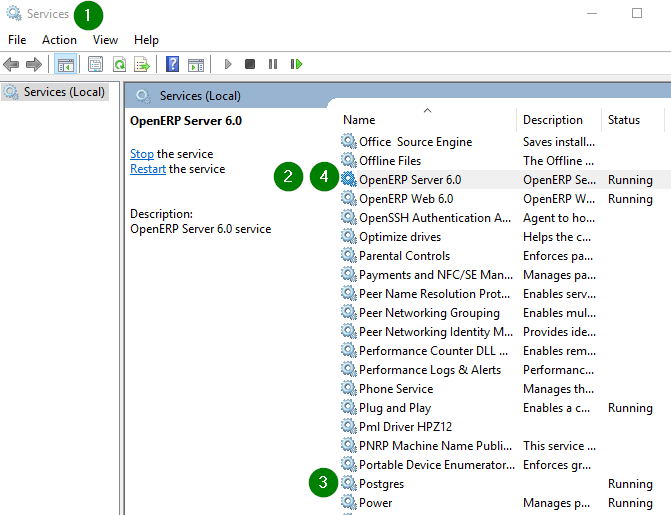
5. Restart services. Open Services and restart – openerp-server-py3 – Postgres
Before, restarting services, ensure no user is using Unifield. You can check with the following method: Go to ADMINISTRATION > Users > Users Click on column “ LAST CONNECTION” to see the active one.
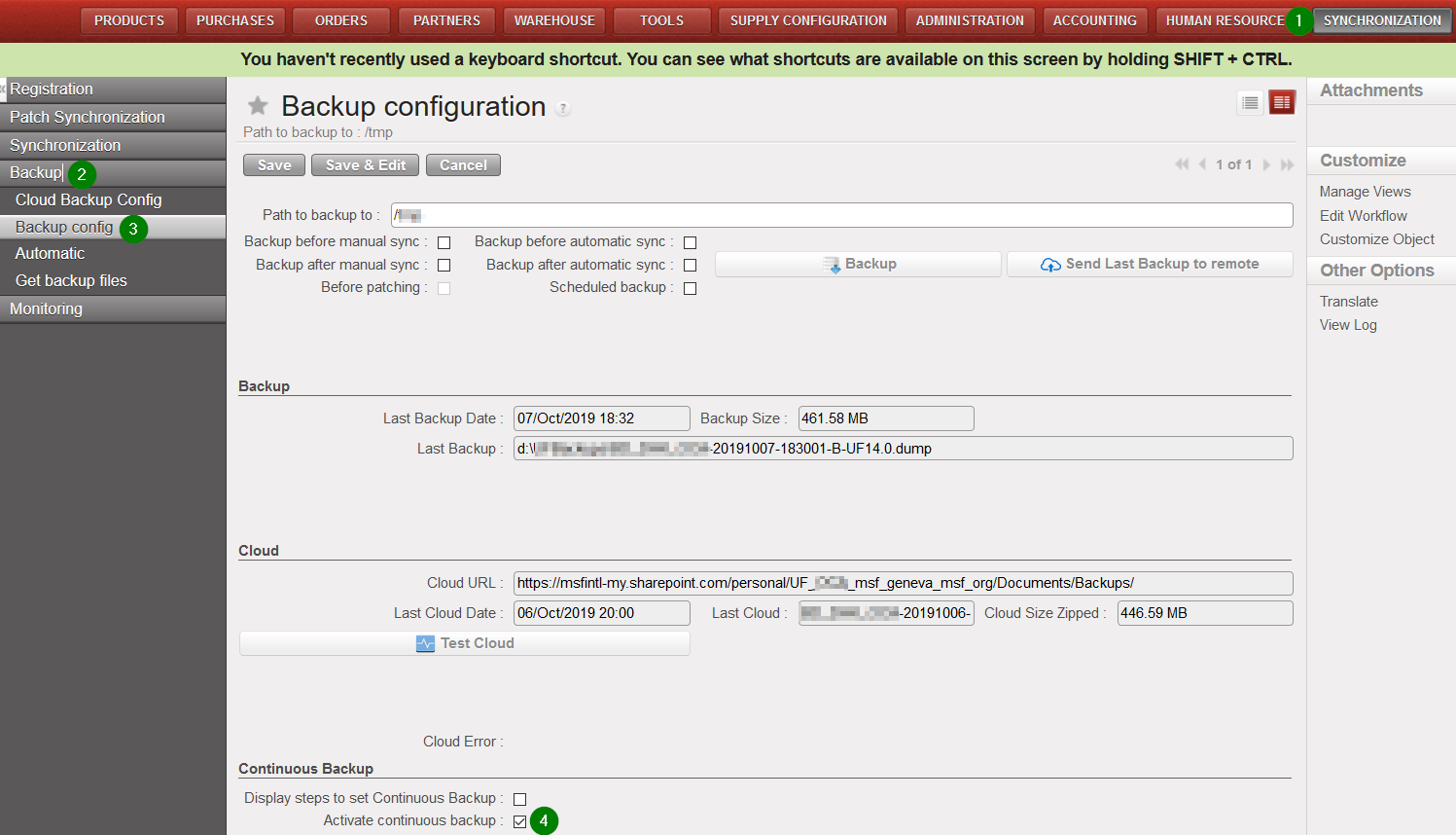
6. Log in UniField – Click on menu Synchronisation/Backup/Backup config – In “Type of Back up”, select “Continuous backup” – Set “Path to back up to” with D:\WAL (or C:\WAL) to define the local Path to set the WALs.
7.a Click on Generate Base Backup => PostgreSQL will create D:\WAL\base\base.tar (or C:\WAL\base\base.tar) and Unifield will 7z the file. Make sure that WAL files are generated in the WAL folder (D:\WAL or C:\WAL): after the creation of \WAL\base\base.tar a special WAL file XXX.YYY.backup.7z must have been generated, if not check the archive_command directive in the postgresql.conf file and go back to step 4.
If successful a new date will fill in ‘Date of base backup’
7.b Click on Send Wal/Base Backup to remote => rsync will push the content of D:\WAL (or C:\WAL) to the Continuous Backup Server.
If successful, a new date will fill in ‘Date of last rsync’
Successfully sent files are removed from D:\WAL (or C:\WAL) Please note that by default the port 8069 would be used to send the backup via rsync
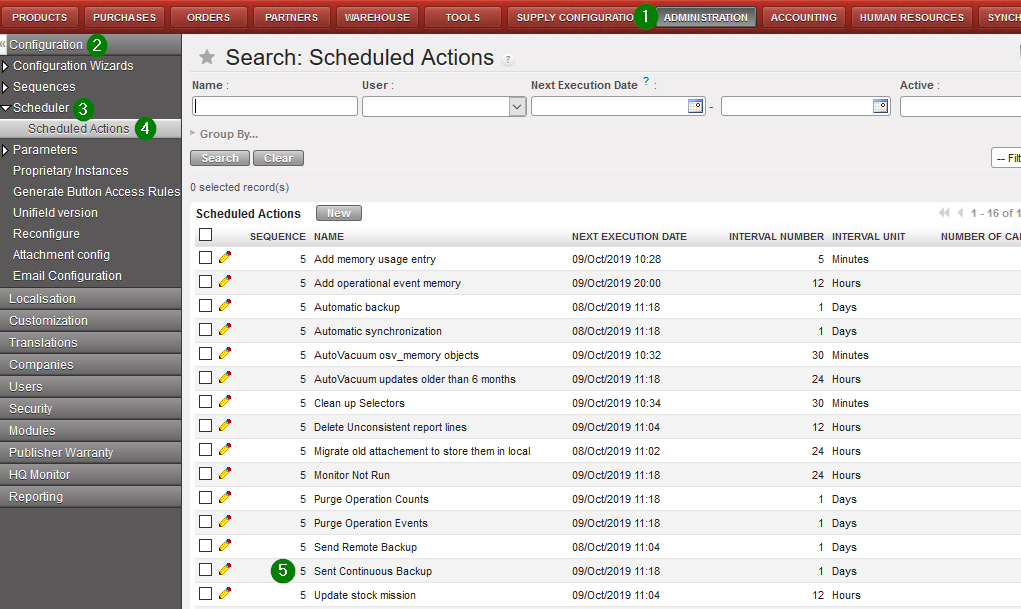
A scheduled task to sent files to remote is added on Administration/Configuration/Scheduler/Scheduled Actions
The task is called Send Continuous Backupand nothing is to be touched
FAQ
Does continuous backup impact instance performances? No lack of performances because WAL are always generated, even if they are not used. For the continuous backup we only copy and 7zip them. But as file sizes are max 16MB, compression time and cost are low.
What happen if there is more than one instance on the same machine? In this case, only one instance should be configured for continuous backup. Continuous backup captures all databases on a server. It means, in OD you will have X dumps for the X instances. Other instances should be configured as ‘Direct push to Sharepoint’ without credentials in the Cloud Backup Config. Providing credentials in the Cloud Backup Config for these additional instances would result in multiple overlapping backups, which may overwrite each other.
What happen if PostgreSQL crashes? No issues. Continuous backup is a PostgreSQL native feature and so well managed in case of crash.
Do we still have to send backups to OneDrive? No, continuous backups would be send automatically to OneDrive.
Can we switch-off the normal local backup (before/after patch, daily)? No. Normal backups must be done normally.
Can we consider continuous backup as the offsite backup solution? No, you are still responsible of your backups. Of course, the ST will help you in case of issue but we are not responsible of your backups.
What happen if the connection is broken during rsync? It will re-runn rsync next time until the synchronization completes normally. We especially chose rsync as reliability has been proven.
This feature has been developed in order to ease our work and decrease human error mistakes during the instance creation phase. In a nutshell it will create new instances from scratch (Coordination and project instances only) according to a configuration file (previously filled and approved by the Support team) and csv files needed for its initial configuration.
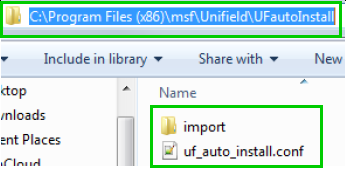
In C:\Program Files (x86)\msf\Unifield create a folder named UFautoInstall and insert the following files/folder: 1. A folder named import with the following files:
account.analytic.journal.csv
account.journal.csv
2. A file named uf_auto_install.conf
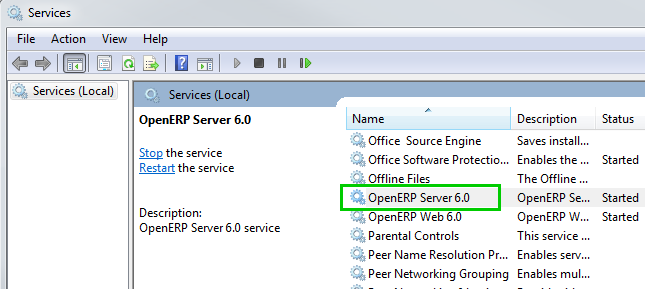
Open Services Right click on OpenERP Server6.0 and restart
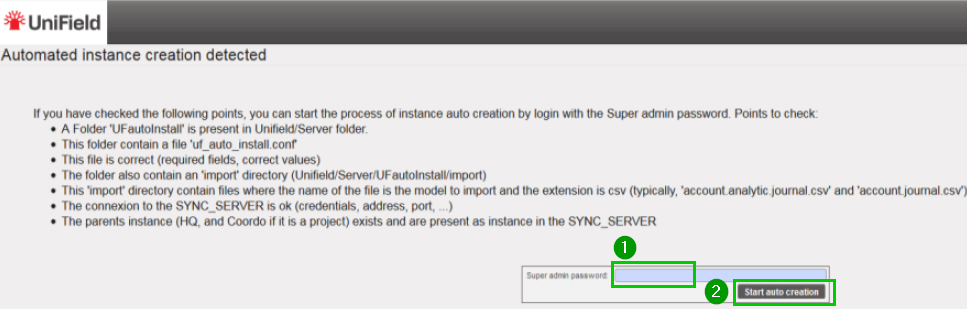
Refresh the UniField page in your browser and you would be redirected to the following page Read the instructions Fill in you Super admin password 1 Click on Start auto creation 2
Example of an uf_auto_install.conf file. Please note that the information you will have to provide remain the same as if you were doing an install from scratch following the step by step procedure in this IT manual. Fill the different line as per your OC specific configuration and according to your checklist validation Data showed in this print screen is for an example purpose.
Each [sections] in the file represent specific data that is needed for the configuration of your instance. Below complementary information to keep in mind while filling the file (choices, syntax):
General file options:
yes OR no false OR true Date/time: 2020-08-01 22:00 Interval unit: days OR hours
[instance]
sync_port = 8069 OR 443 sync_protocol = xmlrpc OR gzipxmlrpcs group_names = group1,group2,group3,group4 instance_level = coordination OR project sync_host = sync.unifield.net (for production)
[reconfigure]
functional_currency = EUR OR CHF delivery_process = complex (by default)
In UniField you have the possibility to configure and manage the scheduled actions in a single place. Some are important to configure when you create a new instance such as Update stock mission in order not to be launched during the working business hours.
Click on Menu Administration 1, Configuration 2, Scheduler 3, Scheduled Actions 4 Click on the edit button 5 to open a scheduled action
Please note that some actions are active by default when you create a new instance and its execution time is set automatically at the creation time of your instance. We recommend checking the configuration and update the execution time of the scheduled actions in the system. In this way they won’t start in the middle of the day and use unnecessary resources while your end-users are working.
11.4 External Storage Configuration for Attachments.
Currently all the attachments are saved in the database. This feature allows you to send all your attachments in the File System. Before configuring and enabling it please have a quick look at your database size. Is it big? Is it because it contains a lot of attachments? If it’s the case you could activate the external storage. Please be aware that it’s under your responsibility to put in place a backup solution for your attachments in the file system. Before enabling this option please liaise with your team on site to warn them.
Click on Menu Administration 1, Configuration 2, Attachment config 3 Fill Path to save the attachments to 4 Set Next migration date by clicking on the calendar icon 5
Please note the initial migration will copy all your attachments in the File System (only if the migration goes well). In theory once the first migration is done it is not possible to revert it The backup/management of your attachments will be then of your responsibility.
It is strongly recommended to send a copy of your backup automatically to OneDrive. Your latest backups (last 7 days) would be available at any time and would increase the speed of the Support Team to analyze any bugs with your latest backup. This off-site backup feature is not to be considered as an official one. It is each OC’s responsibility to put in places their own backups plan according to their policies. You have the possibility to configure from your HQ only the cloud backups for your HQ and each children instance. There is also the possibility to monitor all children instances cloud backup status. The initial configuration has already been done for all instances, you would have to set up only for the new instances. Note that this procedure is only availble for production instances.
Configuration:
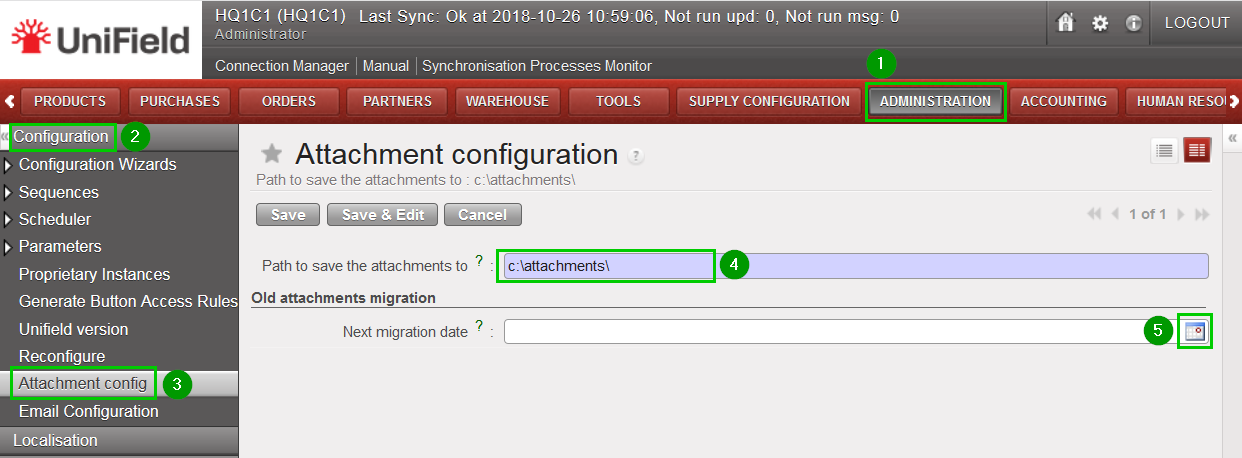
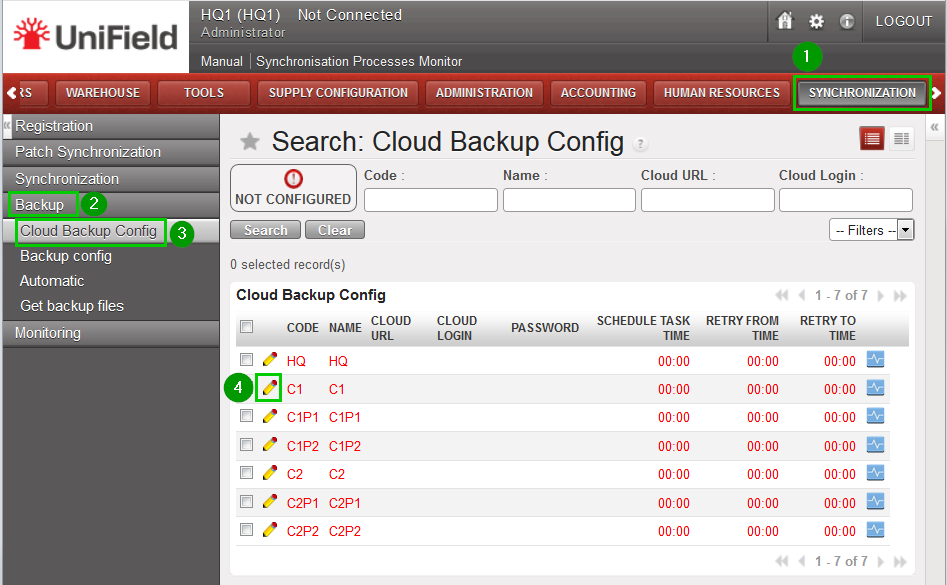
Log in your HQ and click on menu SYNCHRONISATION 1, Backup 2, Cloud Backup Config 3 In this view you have an overview of your HQ and all children instances cloud configuration. Please note the one in red are the instances that are not yet configurred configured. Click on the pencil edit icon 4 to edit an instance.
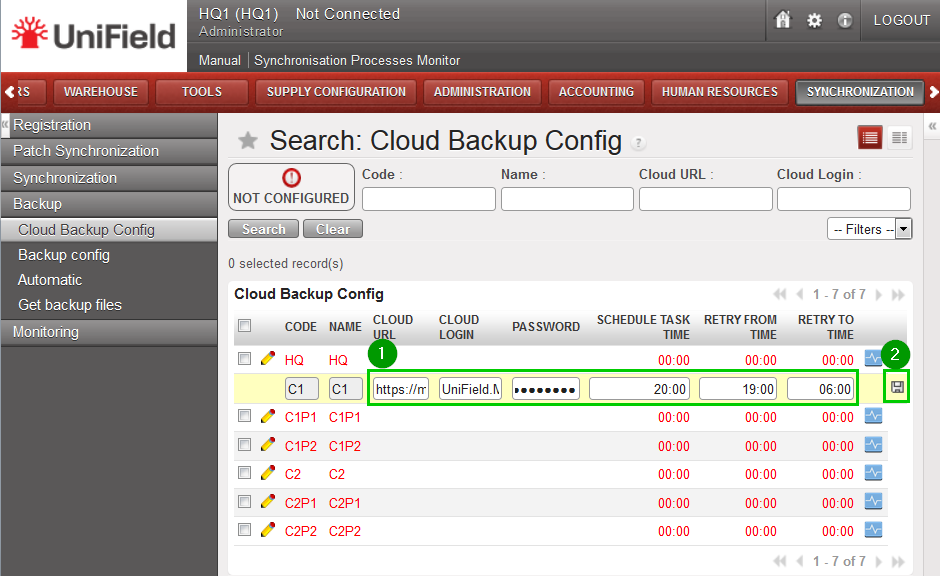
Fill in the information 1 Click on the save floppy disk icon 2
Once saved the line of the instance configured turn into black. Continue the cloud configuration for the instances highlighted in red.
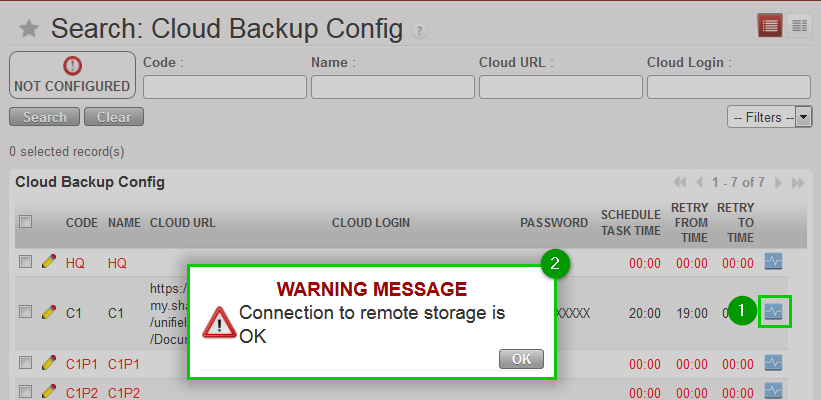
You have the possibility to test the cloud connection by clicking on the blue icon 1 If the connection is ok you will have the following message 2 Once all your instances are configured perform a synchronisation
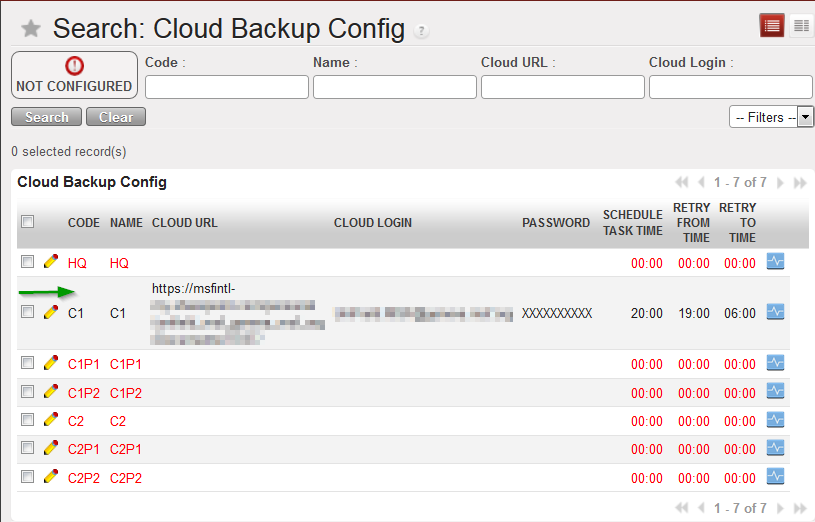
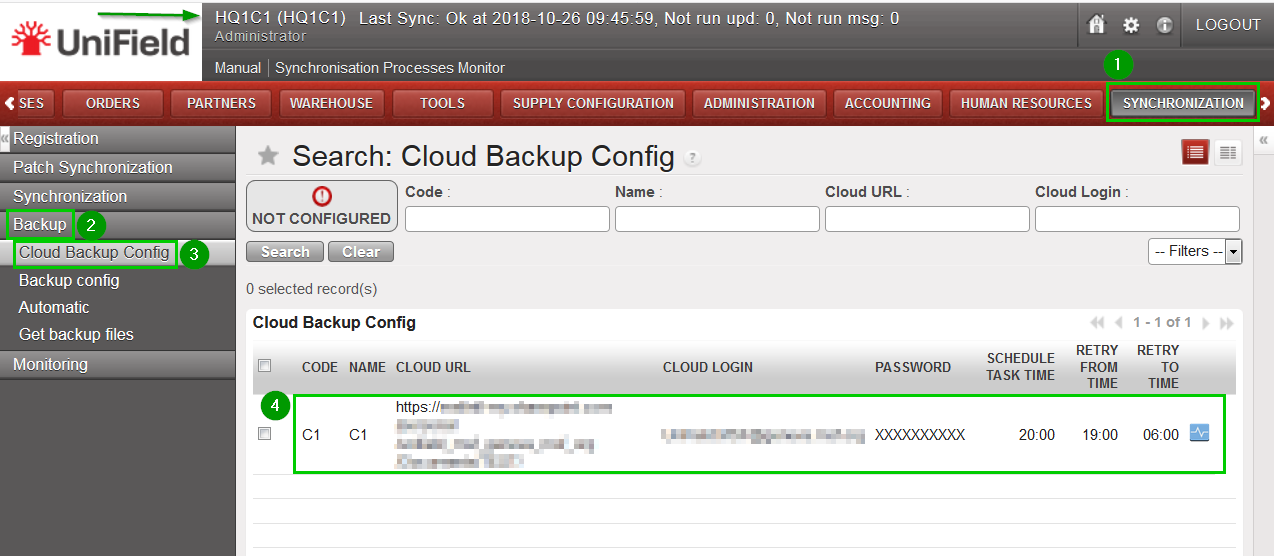
Log in to one of the children instance you just configured at HQ (e.g HQ1C1) Perform a synchronisation to retrieve the updates Click on on menu SYNCHRONISATION 1, Backup 2, Cloud Backup Config 3 All the information 4 about the cloud backup configuration appears in this page Please note that at children instance there is no possibility to update the cloud backup, it’s only done at HQ.
Monitoring:
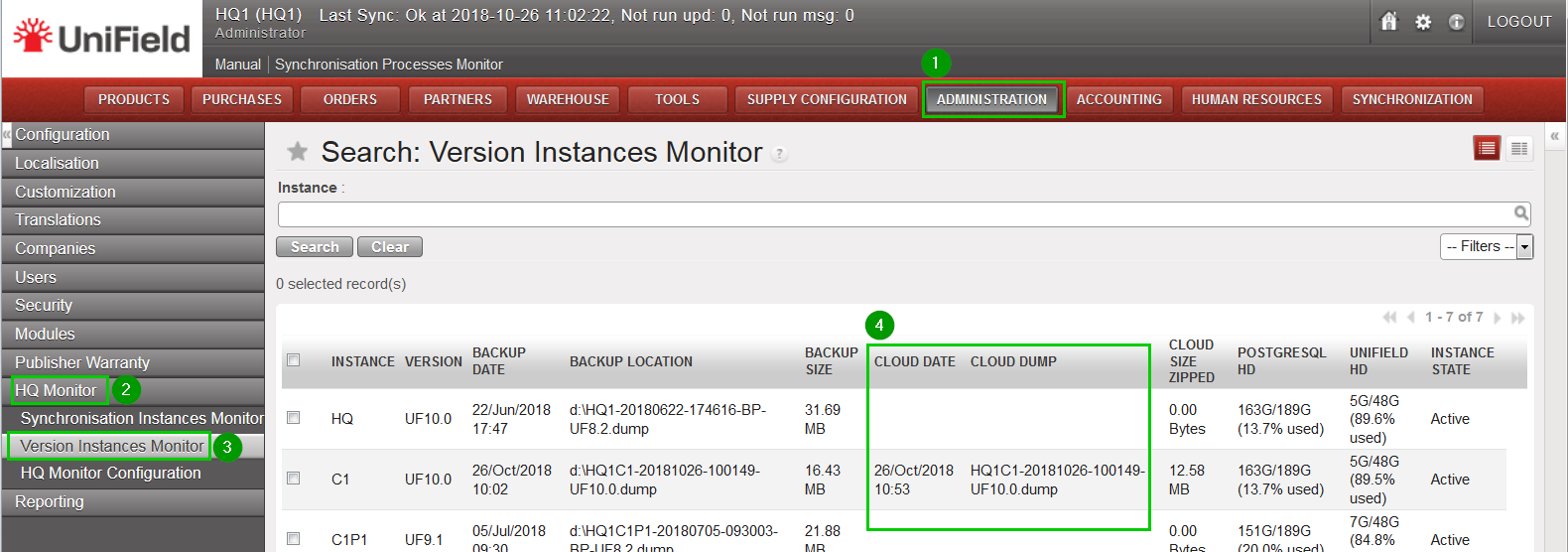
At HQ level Click on menu ADMINISTRATION 1, HQ Monitoring 2, Version Instance Monitor 3. You will have the list of your HQ and children instances that have backed up in the cloud 4 from their last synchronization
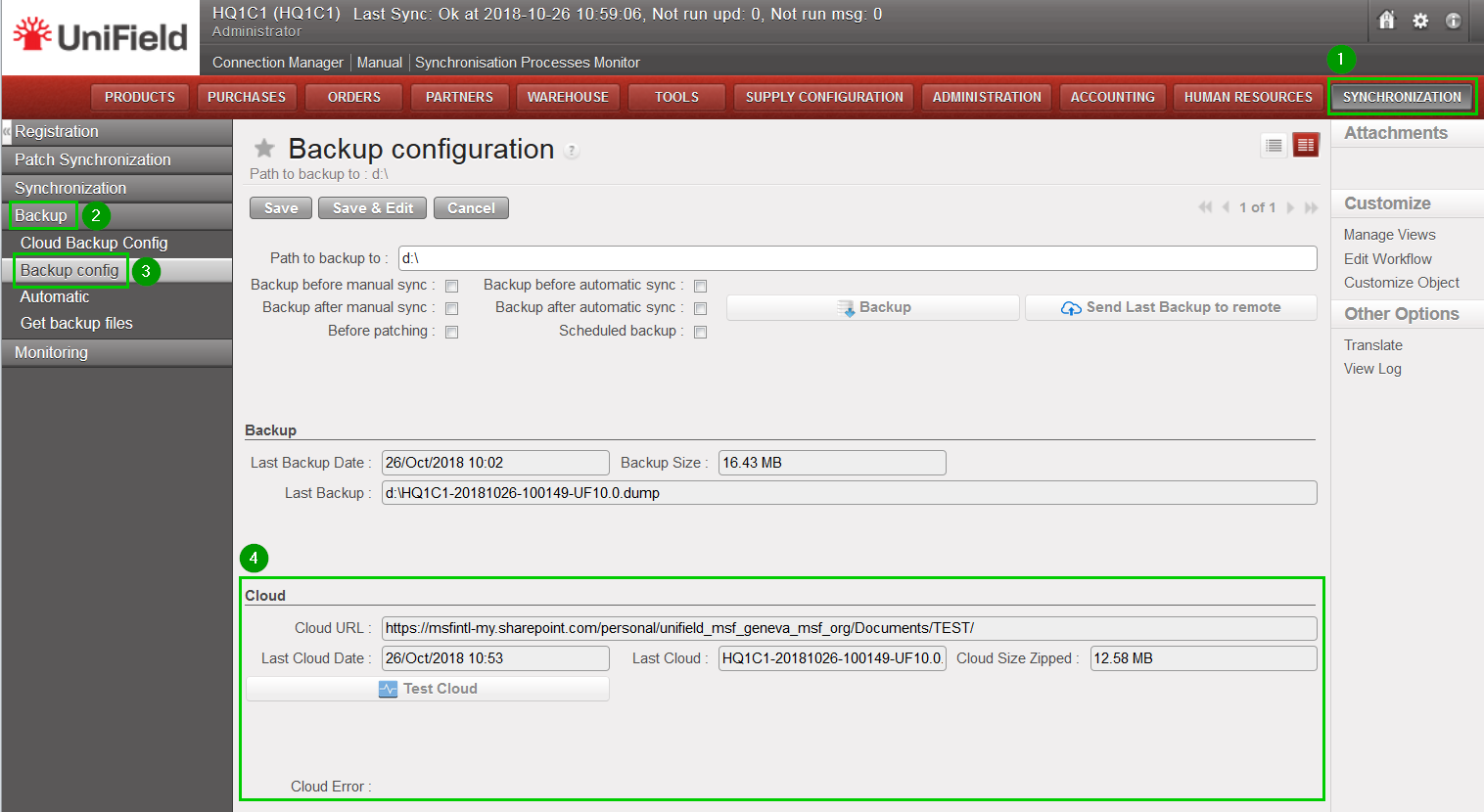
At instance level Click on menu SYNCHRONISATION 1, Backup 2, Backup config 3 All the latest info about the cloud back is under the Cloud section 4
This feature helps importing automatically files from other existing applications to UniField. This is already part of the UniField package. You will find the procedure Automated_File_import_functional_documentation.pdf in the UniField SharePoint site here.
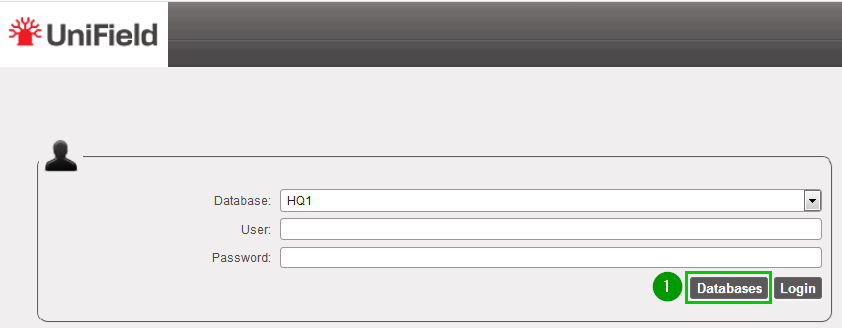
To restore a database go on the UniField login page and click on Databases 1
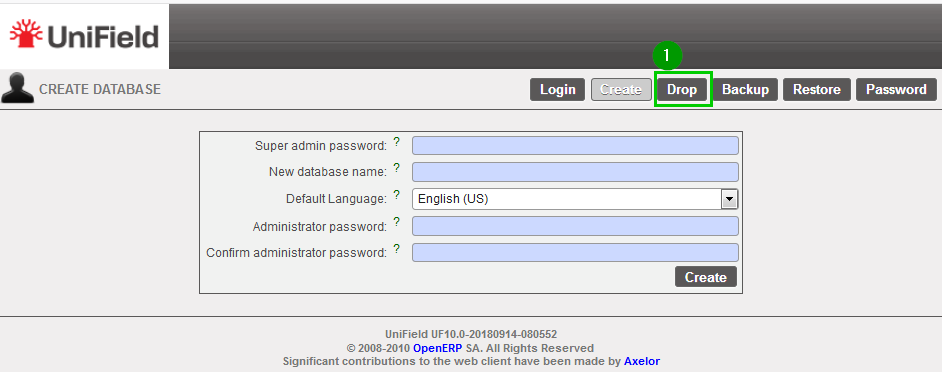
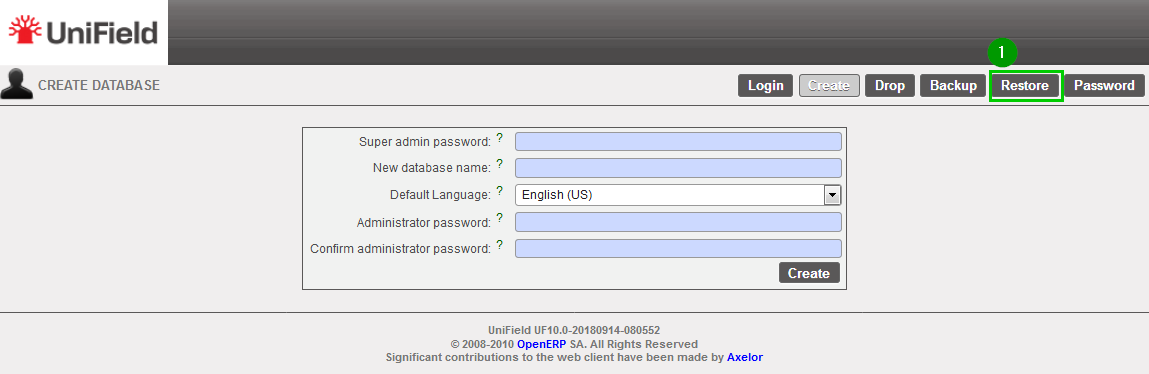
Click on Restore1
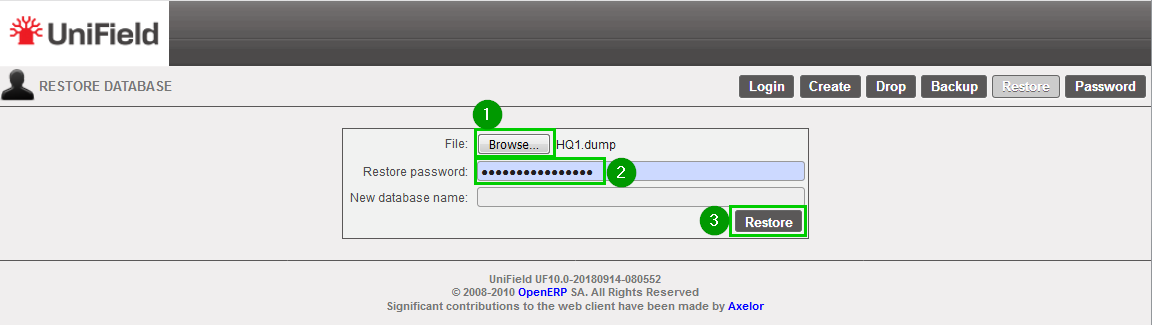
Click on Browse 1 and select your backup file – .dump extension. Enter the Restore password 2 Click on Restore 3
Important Note: if you restore a backup on a different machine and try to connect to the sync server, you will face an error (error 17); this is due to a security check. You have to contact the Support Team in order to activate your instance on your new machine. Section 9.5 explains how to update it if such error happens in a sandbox.
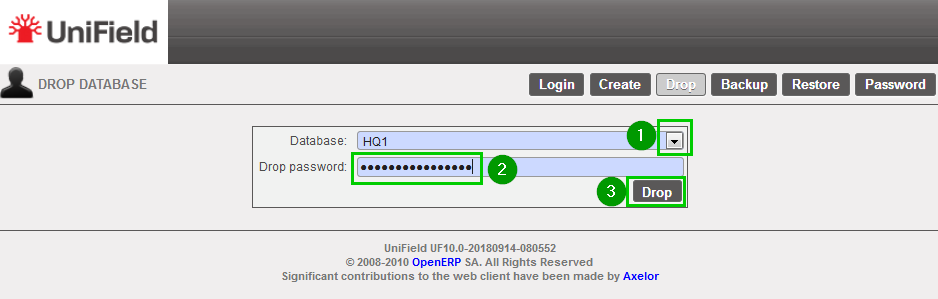
To back up a database go on the UniField login page and click on Databases 1
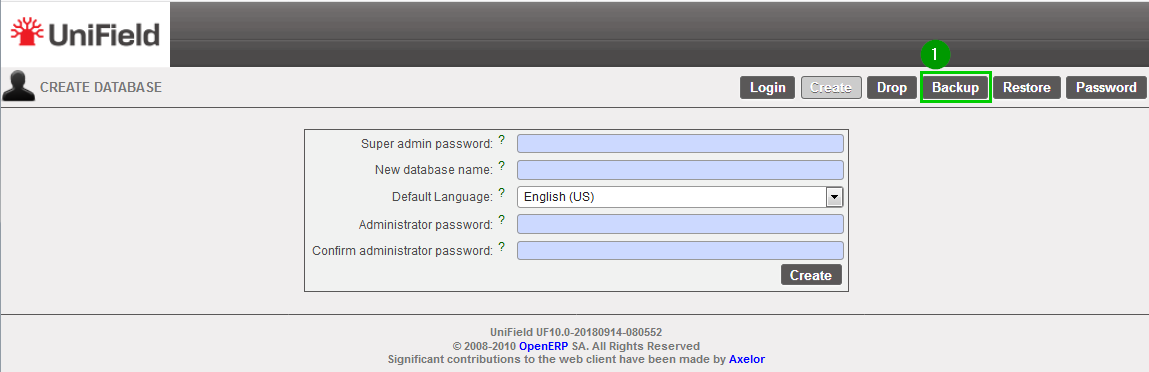
Click on Backup 1
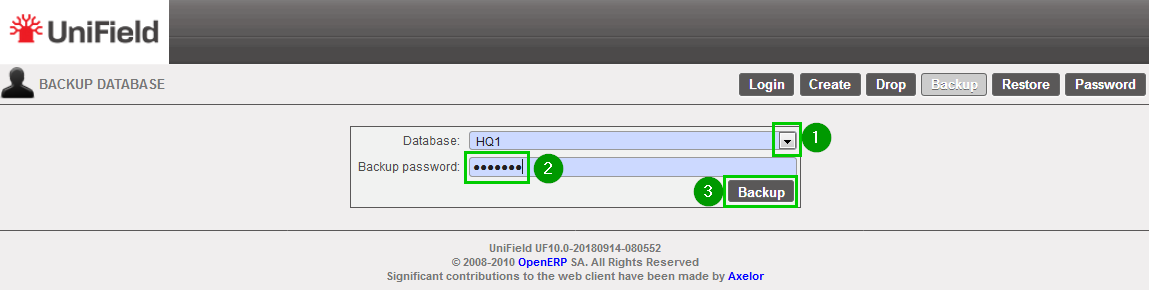
Database: Select 1 the database that needs to be backed up. Enter 2 the backup password Click on Backup 3
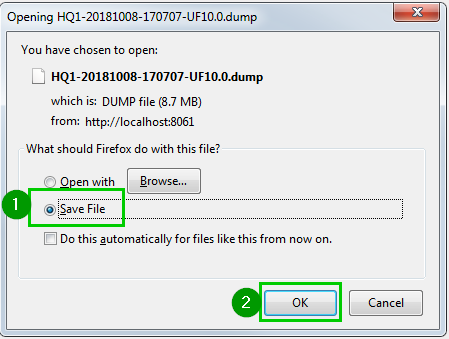
A pop-up appears asking you to Save 1 the backup. Press OK 2 to start downloading the backup from the local instance server to the computer you are currently executing this action. Copy this backup (.dump) to a safe location.
We use cookies to ensure that we give you the best experience on our website. If you continue to use this site we will assume that you are happy with it.