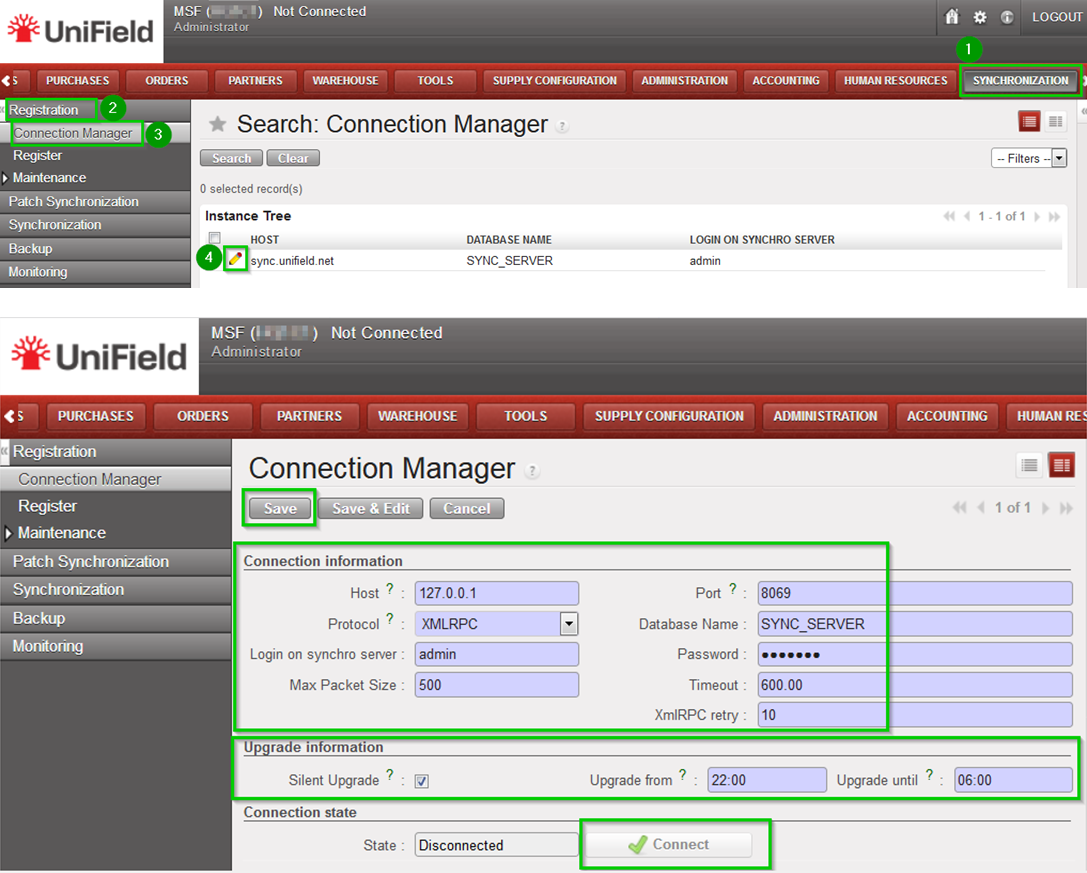
The final step is to connect every instances in your sandbox to your_SYNC_SERVER.
Click on Menu Synchronization 1, Registration 2, Connection Manager 3 Click on the edit icon4 and to edit the Current Connection:
Host: Address of the machine where your_SYNC_SERVER is installed – code>localhost if installed on the same machine
Port: Default (8069) or as per your Sandbox configuration
Protocol: XMLRPC
Database Name: your_SYNC_SERVER_name
Login on synchro server your_SYNC_SERVER_login
Password: your_SYNC_SERVER_password
Max Packet Size: 500
Timeout: 600 – The number of seconds the instance will wait during a sync before raising a timeout error
XmlRPC retry: 10 – The number of retry during a sync when the instance don’t receive the acknowledge from the SYNC_SERVER with the XmlRPC protocol.
Silent upgrade: The instance will patch automatically during the time slot defined if an automatic synchronisation is performed. Only useful if testing patches.
Click on Connect the State switches to connected Click on Save
When restoring a database, the passwords are kept in the database itself. If you don’t know them but you know the database password you can reset them with the database management tool called pgAdmin. This section explains you how to do so.
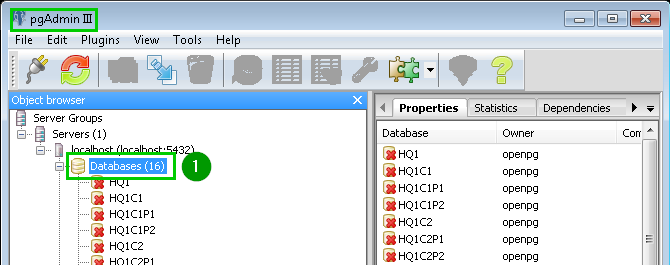
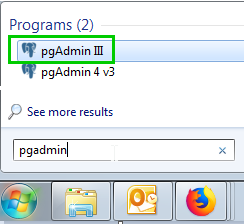
Open your pgAdmin then open Databases 1
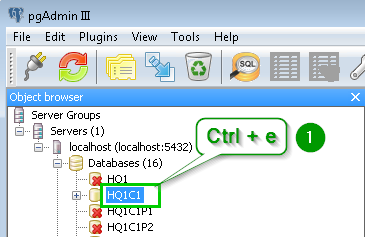
Select the database for which you want to reset the password and type Ctrl + e to open the SQL Editor
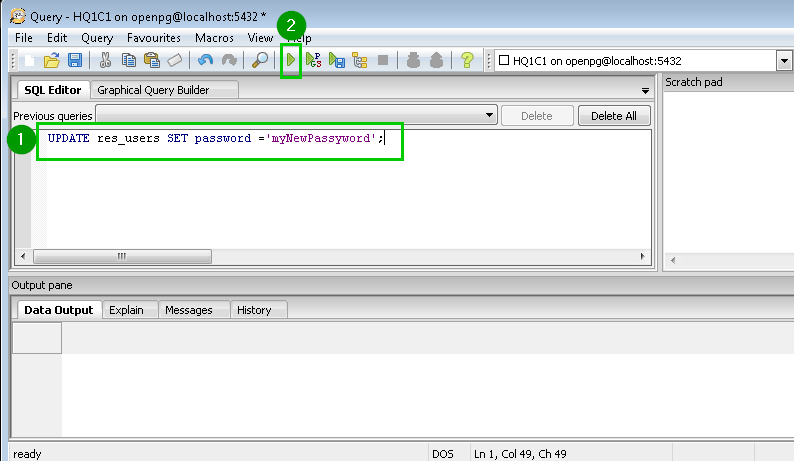
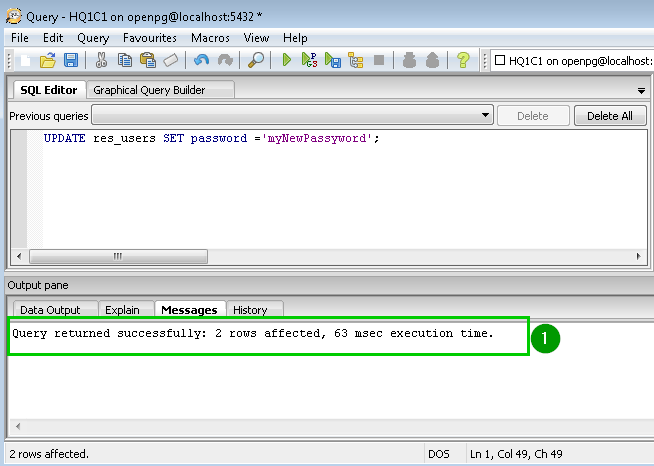
A pop up window opens. Clear the text written in the main text area if necessary. Type the command 1: UPDATE res_users SET password ='myNewPassyword'; Click on the play icon 2 in the toolbar.
A message appears at the bottom of the window telling you that the passwords have been reset 1 Close the current window without saving and close also the main pgAdmin window. All the passwords are now set to myNewPassword
Depending on the kind of backup you have the procedure to restore can be slightly different. There are three kinds of backups:
Backups extracted from the UniField web interface – see Section 8.4. The file extension is .dump Such backups have a naming convention which includes the database name, date/time and the UniField version required to run this backup: e.g HQ1-20181009-113216-UF10.0.dump
Backups extracted from pgAdmin. The file extension is .backup. These files are exactly the same as above. However, there is no naming convention. As a result, you cannot restore them via the web interface you have to use pgAdmin.
SQL backups. The file extension is .lzma. These backups have a different structure. They take up less disk space than the two previous kinds of backup. This kind of backup is used to take snapshots of the SYNC_SERVER.
The next three sections describe how to restore them. The last section explains what can happen when you log into a restored instance.
The procedure is the same if you use pgAdmin III or pgAdmin 4 Open pgAdmin (blue elephant icon).
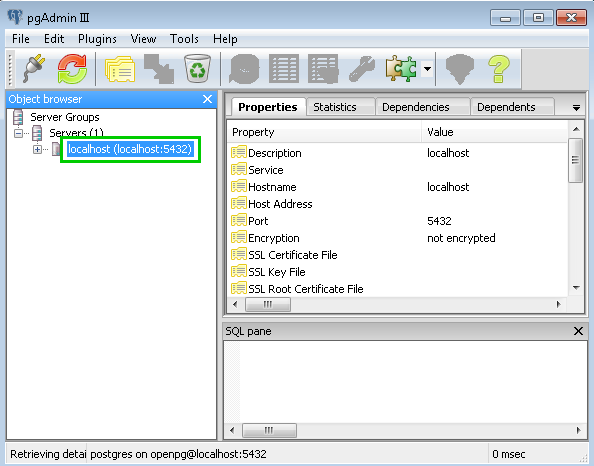
Double click on the server icon. Type in the password you chose when installing UniField
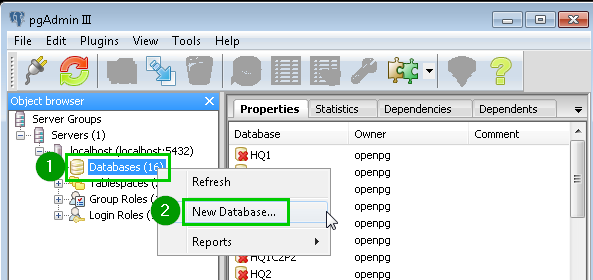
Right click on Databases 1 Click on New Databases… 2
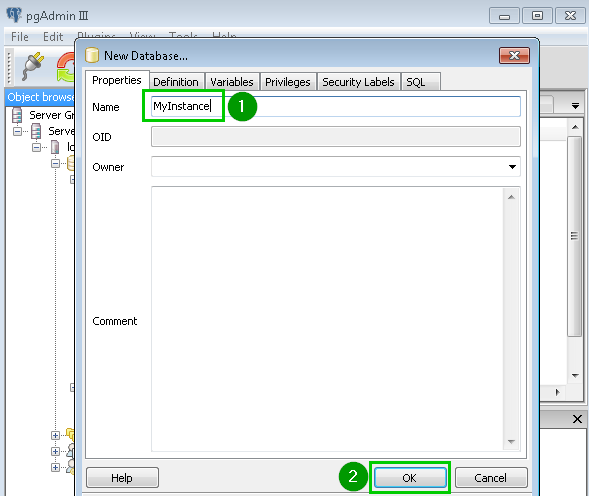
Type in the database Name 1 you want to restore. Click OK 2
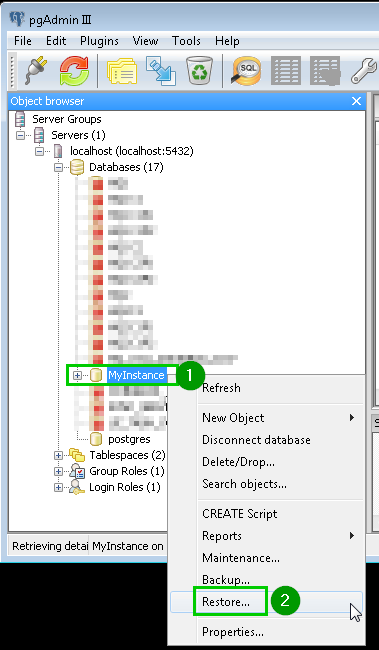
Right click 1 on the database you have just created. A popup menu opens. Click on Restore…2
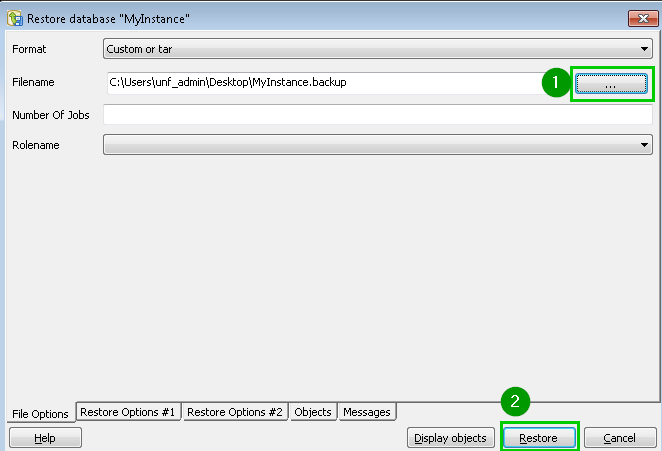
A new window opens. Select your backup file 1 Tip: only files with .backup extension are displayed. You can change it to display all the files. This is especially important if you look for a .dump file extracted from the UniField web interface. Click Restore 2
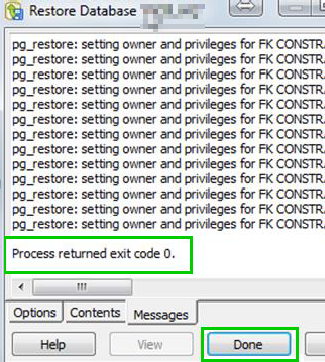
It can take up to a few minutes to import a backup. This time depends on its size. When the restore is completed, you will see a “Process returned exit code 0”. The Done button will be enabled.Click on Done.Your database is ready to be used. You can log in using the credentials saved in the database when you backed it up.If you need to modify the password of the database the next two slides will show you how to do it.
Restore a dump via psql
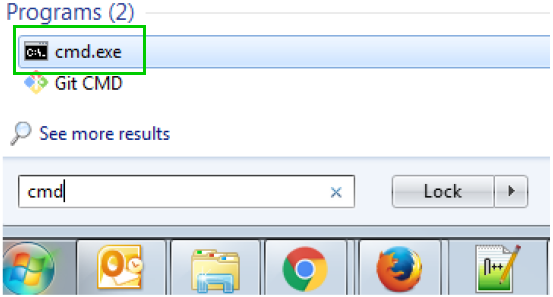
Uncompress the archive. The most frequent compression algorithm for this kind of backup is .lzma. We suggest you to use 7zip to uncompress the archive. Open a cmd prompt
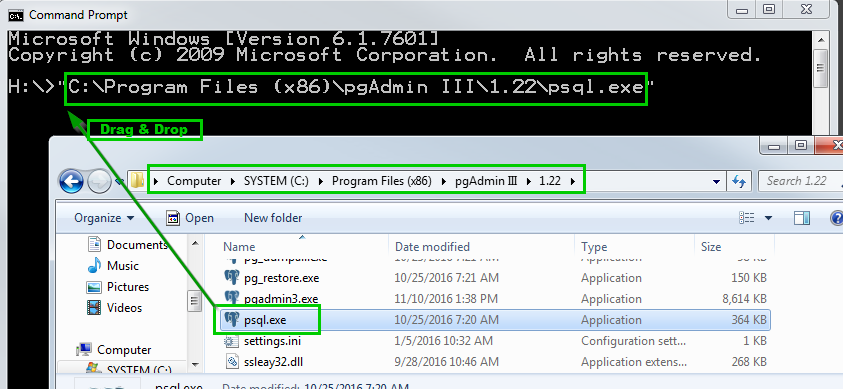
Open a new file explorer window and browse to the bin directory of PostgreSQL. The default location is: C:\Program Files (x86)\pgAdmin III\1.22. Drag & droppsql.exe to the command prompt you have just opened. If it doesn’t work, you can type the full path of this executable file in the console. If the path contains spaces you will have to surround it with double quotes.The absolute path of the executable appears in the command prompt. Alternatively, if you don’t want to write the absolute path of every time, you can add its directory to your PATH as described here. It is better not to change it in production.
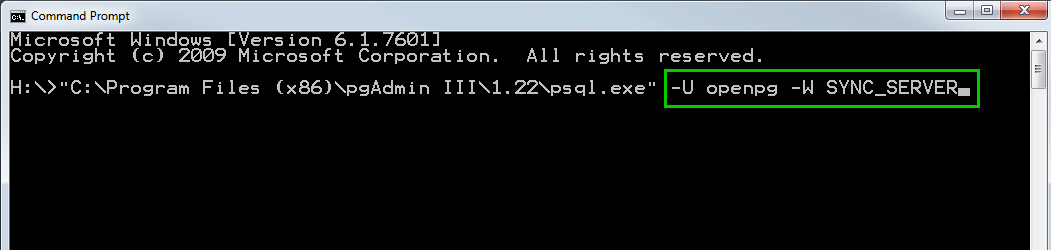
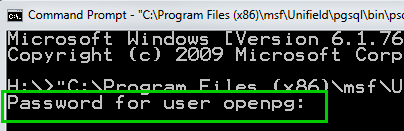
Type the following arguments: –U openpg –W SYNC_SERVER Where:
openpg : is the PostgreSQL admin
SYNC_SERVER : is the empty database in which you would like to restore the dump. The name of the base should be previously created
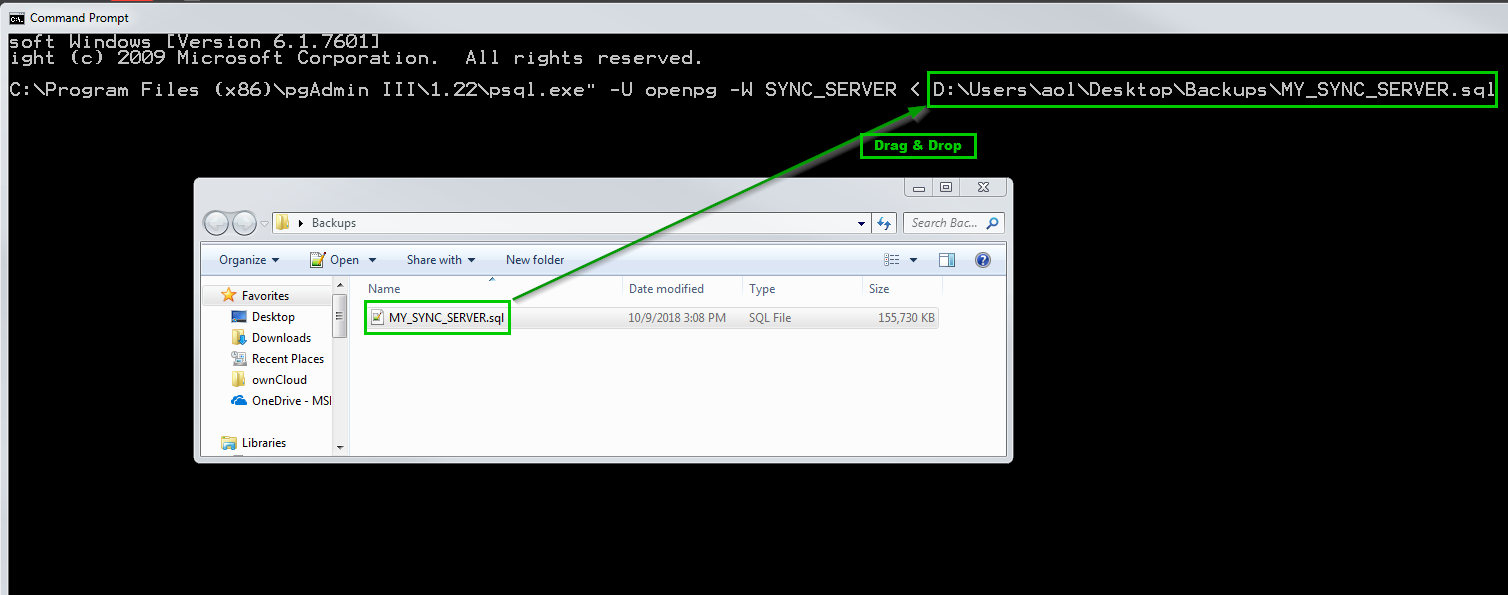
Drag & drop your .sql file to the command prompt Press the enter key If it doesn’t work, you can type the full path of this file in the console. If the path contains spaces you will have to surround it with double quotes.
Type in the PostgreSQL administrator password as defined in the installation wizard of UniField and press the enter key.
After a few minutes, psql.exe returns and you get another command line.The backup is restored. You can start using it.
Scenarios when log in into a restored database
If the database comes from an older instance (the source code was older), it will be upgraded the first time you log in.
If the database comes from a newer instance (the source code is newer than the instance you restored the dump in), you will get a Database Newer than UniField version error message and you won’t be able to login. The only way to use this dump is to install a AIO at the same version of the database or higher.
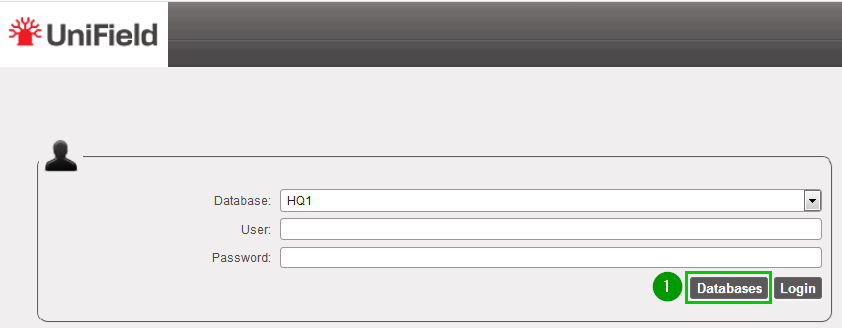
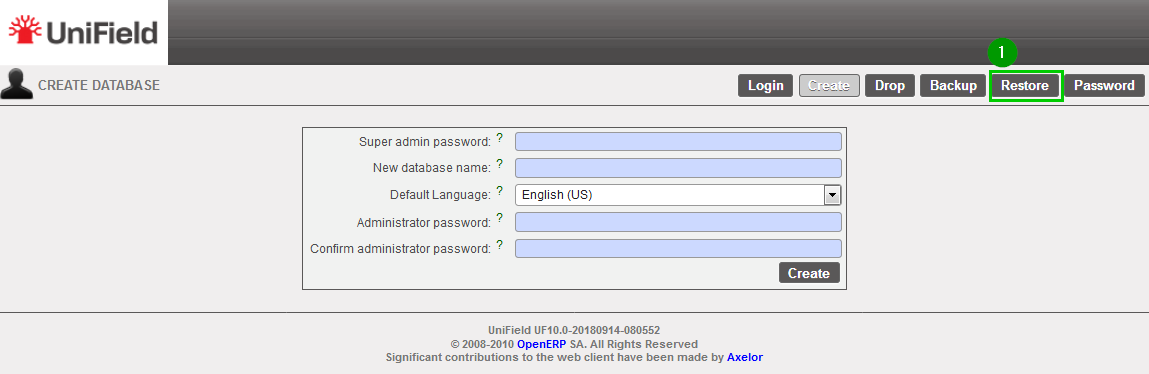
To restore a database go on the UniField login page and click on Databases 1
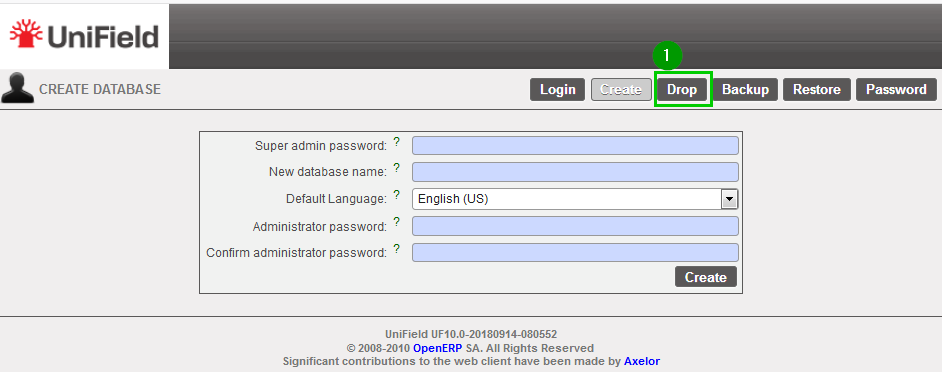
Click on Restore1
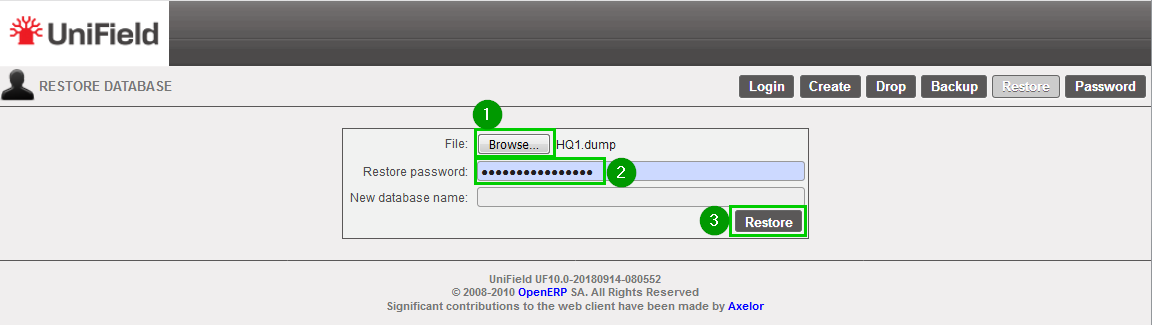
Click on Browse 1 and select your backup file – .dump extension. Enter the Restore password 2 Click on Restore 3
Important Note: if you restore a backup on a different machine and try to connect to the sync server, you will face an error (error 17); this is due to a security check. You have to contact the Support Team in order to activate your instance on your new machine. Section 9.5 explains how to update it if such error happens in a sandbox.
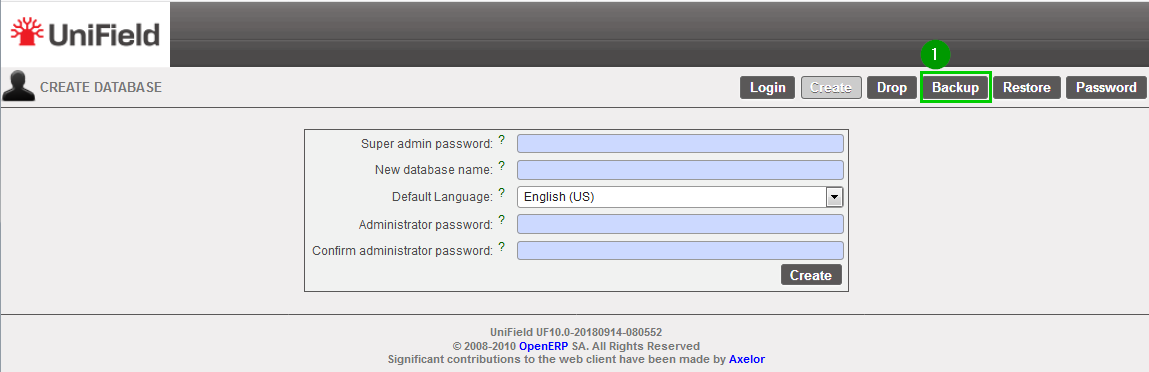
To back up a database go on the UniField login page and click on Databases 1
Click on Backup 1
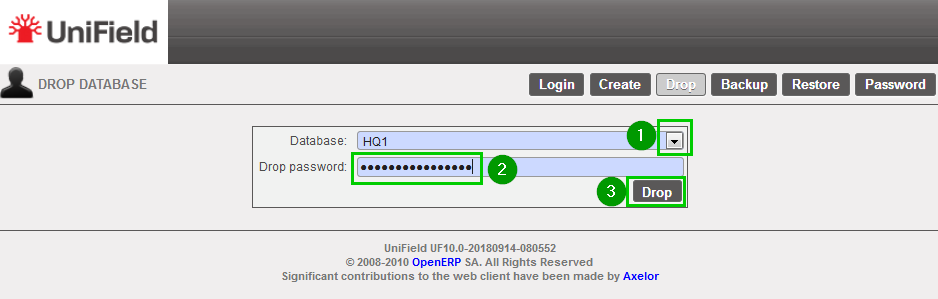
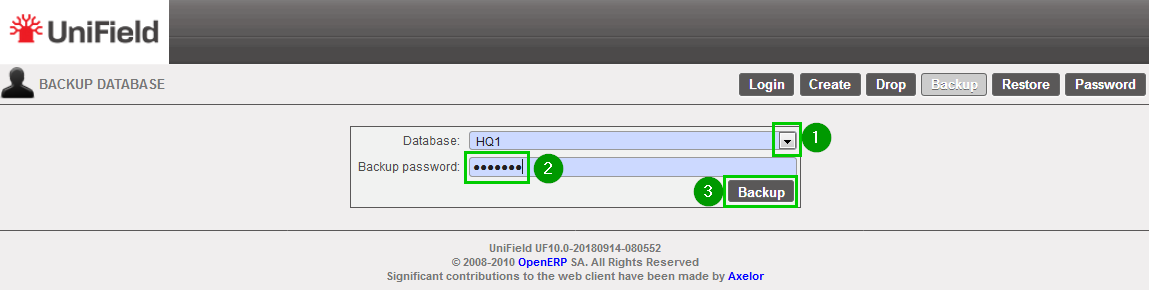
Database: Select 1 the database that needs to be backed up. Enter 2 the backup password Click on Backup 3
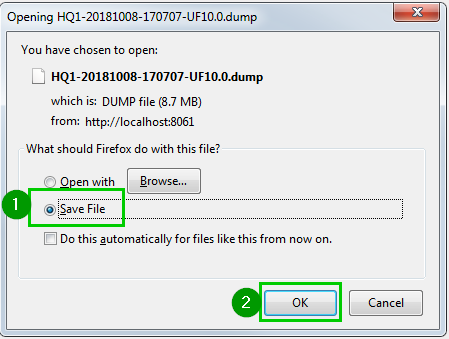
A pop-up appears asking you to Save 1 the backup. Press OK 2 to start downloading the backup from the local instance server to the computer you are currently executing this action. Copy this backup (.dump) to a safe location.
This procedure is almost the same as backing up, except the files must be pasted and not copied.
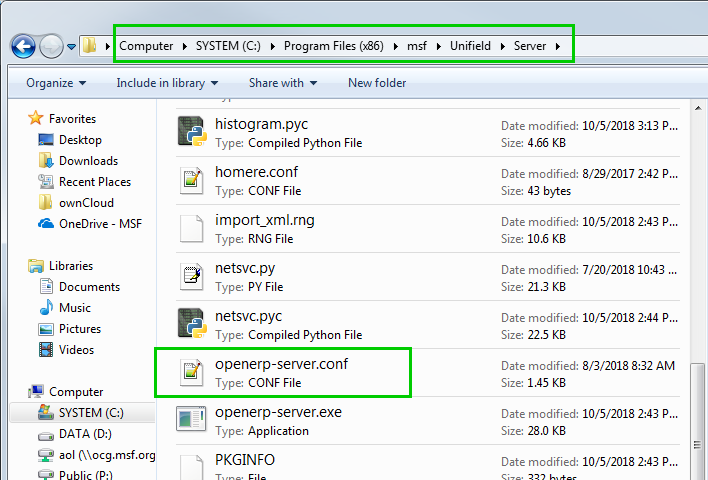
Restoring the OpenERP Server configuration file: Copy openerp-server.conf file from your backup location. Paste it into C:\Program Files (x86)\msf\Unifield\Server to replace it.
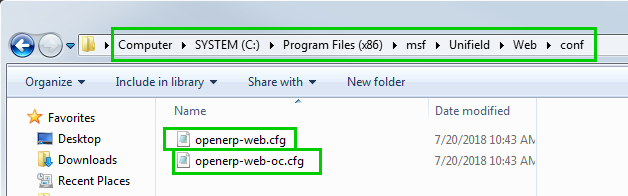
Restoring the OpenERP Web configuration file. Copy openerp-web.cfg and openerp-web-oc.cfg files from your backup location. Paste it into C:\Program Files (x86)\msf\Unifield\Web\conf to replace it.
Restart the Openerp services to finalize the replacements.
8.2 Backing up the Local Instance Configuration Files.
This step must be performed each time the super admin password has been modified. It should be the case right after the installation.
Copy the configuration file openerp-server.conf in your backup directory. The file could find it in C:\Program Files (x86)\msf\Unifield\Server
Copy the configuration file openerp-web.cfg and openerp-web-oc.cfg in your backup directory. The file could find it in C:\ProgramFilesx86)\msf\Unifield\Web\conf
We use cookies to ensure that we give you the best experience on our website. If you continue to use this site we will assume that you are happy with it.